Showing posts with label user. Show all posts
Showing posts with label user. Show all posts
Tuesday, May 23, 2017
How to Disable Windows 7 User Account
How to Disable Windows 7 User Account
How to Disable Windows 7 User Account
Windows 7 operating system supports multiple user accounts creation, either as administrator or standard user account type that can be allocated in addition to a guest account.
But after an account is created, it can only be deleted or removed and administrator can not disable or turn off the user account from the Control Panel user interface. Administrator must disable may be temporarily or permanently, or disable a user account without deleting it or removing the user’s account completely from the system.
To turn off or disable user account, follow the following instructions. Disable a user account, you can activate or reactivate the account again in the future without loss of data.
- Go to Control Panel -> System and Security -> Administrative Tools, and then open Computer Management.

- Alternatively, right click on Computer in Start menu, and select Manage.
- Expand Local Users and Groups branch.
- Click on Users section.
- Right click on the user to deactivate, and select Properties.

Select and tick the check box for Account is disabled option.

- Click OK and close Computer Management window.
- The user account is now disabled, and no longer can be used to log on.
Tip: Uncheck the Account is disabled option to re-enable the user.
Alternative method is to use command line syntax of “net user”. To disable and make a user account inactive, open an elevated command prompt with administrator rights, and type the following command:
net user "user name" /active:noReplace user name with the actual user name of the account to disable. Note that user name with space in between must be enclosed with quotation mark (“).
To reactivate the account to active status, just use the following command, as similar to enable the built-in super administrator account in Windows 7 and Vista:
Go to link Download

Wednesday, March 8, 2017
Hacker How to verify if your user has been hackered credential stolen
Hacker How to verify if your user has been hackered credential stolen
On internet, during these years there are lot of websites where user credential and password was stolen.
Here is an interesting website that, utilizing a database, advise you about your account weakness on some websites where you are registered on.
https://haveibeenpwned.com/
Go to link Download
Friday, November 18, 2016
Freeware Delprof2 – User Profile Deletion Tool
Freeware Delprof2 – User Profile Deletion Tool
I got this tool suggest from an IT colleague and, considering that is useful, I proceeded to publish relative article.
More details:
https://helgeklein.com/free-tools/delprof2-user-profile-deletion-tool/
<-->
Delprof2 is the unofficial successor to Microsoft’s Delprof which does not work with operating systems newer than Windows XP. Here are the main facts:
- Delprof2 is syntax compatible to the original Delprof, but more powerful
- Delprof2 lets you explicitly specify which profiles to delete
- Delprof2 bypasses security to delete profiles regardless of current permissions/owner
- Delprof2 supports very long paths
- Delprof2 works on nearly all versions of Windows
- Delprof2 is free for private use, for educational and non-profit organizations. All other organizations may use Delprof2 for free, too, if they allow us to publish their name.
Otherwise a commercial license must be purchased.
What Does it Do?
Delprof2 deletes inactive user profiles. If you want to reclaim disk space just run it without parameters and it will delete all profiles except your own and some special profiles needed by the operating system (like “Default”).
Delprof2 has additional filtering options: you might want to delete locally cached copies of roaming profiles only or delete only those profiles that have not been used in a specified number of days. Delprof2 does it all, both on the local system and remotely.
Special Features
Exclusions and Inclusions with Wildcards
It is a frequent requirement to delete all profiles except one or two which should be left unchanged. With version 1.5 of Delprof2 that is easily possible: profiles can be excluded from deletion using a wildcard notation. If, on the other hand, only a few known profiles are to be deleted, use the inclusion feature and Delprof2 ignores everything else. Combining excludes and includes is possible, too, of course.
Bypassing Security
User profiles often have permissions set on them in such a way that not even administrators have access without prior ACL manipulation. Delprof2 circumvents this requirement by making use of backup and restore privileges to analyze and delete even the most tightly secured profiles.
Long Paths
Some programs store files in paths with more than 260 characters. Most tools cannot deal with such paths that are longer than the value of MAX_PATH (260). Windows Explorer is a prominent example. Delprof2, on the other hand, makes use of special APIs to be able to delete files in the remotest areas of your hard drive.
Syntax and Examples
The program’s help screen describes the available options in detail:
Here is an example of Delprof2 in action, deleting user profiles remotely on a Windows XP computer (Windows 7 / 2008 R2 work just as well):
License
Delprof2 may be used free of charge if either of the following is true:
- private use
- non-profit organization
- educational organization such as schools and universities
Delprof2 may only be used free of charge by all other, especially commercial, organizations, if a representative authorized to do so sends an e-mail with the following text to info@helgeklein.com: “We authorize vast limits GmbH to publicly display the name and logo of our company FILL IN NAME HERE in vast limits GmbH’s marketing materials.”
Otherwise a commercial license must be purchased.
Go to link Download
Saturday, November 5, 2016
How To Create A Windows XP User Account Password
How To Create A Windows XP User Account Password
Follow the easy steps below to create a password for your Windows XP logon account:
Note: You need to be on an administrator’s level or account to complete this.
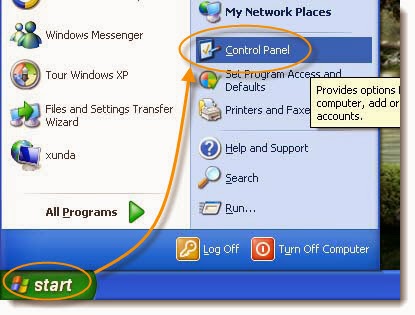
Step 1: Click on the “Start” button on the Windows taskbar and then click on “Control Panel“. If “Control Panel” is not visible, try clicking on “Settings”, then “Control Panel”.
Step 2: Find “User Accounts” and click on that option.
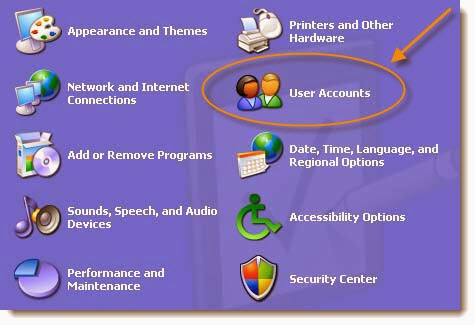
Note: If you’re viewing the Classic View of Control Panel, double-click on the User Accounts icon.
Step 3: Click on your Windows XP user name from the pick an account to change area of the User Accounts window.

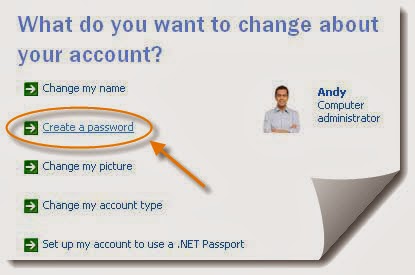
Step 4: Select the second option, which will be “Create a Password“.
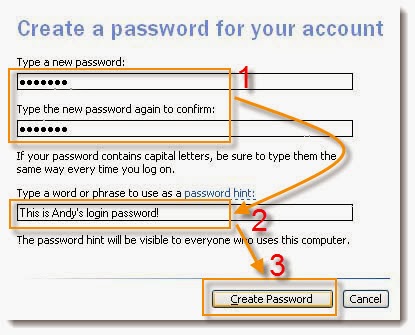
Step 5: In the first two text boxes, enter the password you would like to start using. Entering the password twice helps to make sure that you typed your password correctly. Put a password hint on the third line.
Note: Passwords are capital sensitive, so if your password is ArFikn, the A and the F needs to be capitalized when you log in.
Note: This hint will remind you what your password is, but because it’s visible to everyone that goes on the computer (on the log in screen), don’t be too obvious if it’s a family computer.
Note: This hint will remind you what your password is, but because it’s visible to everyone that goes on the computer (on the log in screen), don’t be too obvious if it’s a family computer.
Step 6: Click on “Create Password” button to confirm your new password.
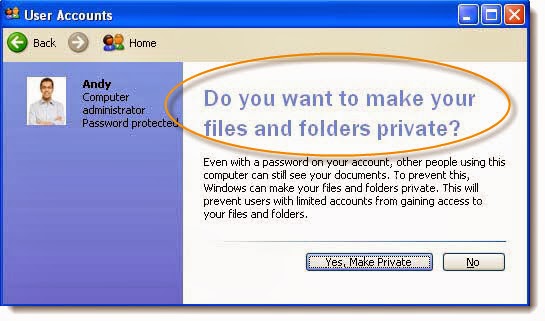
Step 7: The next screen asks Do you want to make your files and folders private? If other user accounts will be setup on this PC and you’d like to keep your personal files private from those users, click on the “Yes“, Make Private button.
If you’re not concerned about this kind of security or this account is the only account on your PC, there’s no need to make your files private. In this case, click on the “No” button.
If you’re not concerned about this kind of security or this account is the only account on your PC, there’s no need to make your files private. In this case, click on the “No” button.
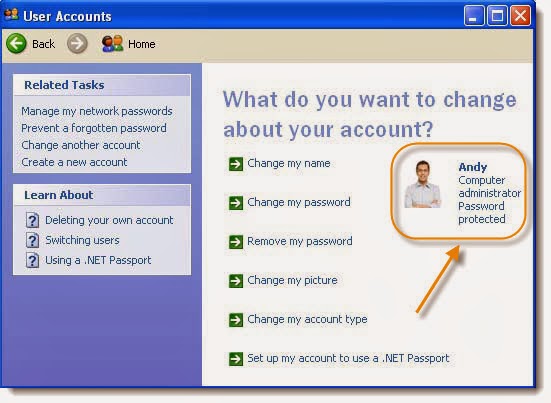
Step 8: Now that your Windows XP account has a password setup and it will return to the “User Accounts” window. You must use this password to log on to Windows XP from this point forward
Tips:
1. If a user with a computer administrator account changes the password for another user, that user will lose all EFS-encrypted files, personal certificates, and stored passwords for Web sites or network resources.
2. A user with a computer administrator account can create and change passwords for all users on the computer. Users with limited accounts can only create and change their own passwords, as well as create their own password hints.
3. When you create a password hint, anyone who uses the computer will be able to see the hint on the Welcome screen.
Go to link Download
Monday, October 10, 2016
Hacker Reset Windows local user password free tool
Hacker Reset Windows local user password free tool
About O.S. local user password recovery/reset I usually utilize Pc Login 2.0 that is free and work fine as Live CD/DVD/USB drive
Pc Login Download:
http://www.download3k.com/Install-PCLoginNow-2.0.5.html
You can review blog USB live section to learn about how to create USB
http://www.alessandromazzanti.com/search/label/CD%20Live
http://www.alessandromazzanti.com/search/label/USB
Go to link Download
Subscribe to:
Posts (Atom)