Showing posts with label wr1043nd. Show all posts
Showing posts with label wr1043nd. Show all posts
Friday, December 30, 2016
Hacking TP Link WR1043ND Part 2
Hacking TP Link WR1043ND Part 2
Part 2: Upgrading to OpenWRT
First of all what is OpenWRT?
It is a niche Linux Distribution meant for Routers.
Which means after installing it you can add packages onto the Operating System to expand its capabilities.
Much like any Linux Distribution it maintains a package repository for end-users.
It will help alot if you have prior knowledge on Linux Terminal Commands because OpenWRT run Linux.
Why OpenWRT out of so many Third Party Firmware?
OpenWRT provides its own Repository brimming with numerous packages.
It is very much like Debian is for Routers.
Hardware Required:
The Software Required is for controlling the Router Via a PC otherwise you cant interact with it.
For TP-Link WR1043ND we access the OpenWRT Stable Repository.
Go to the Folder for the latest release of OpenWRT then go into the /ar71xx/ subfolder.
This folder is meant for Atheros MIPS Processor based routers.
Scroll until you find files with the name "openwrt-ar71xx-tl-wr1043nd-v1-"
Look carefully and you should see 2 matching files:
The first ends with
openwrt-ar71xx-tl-wr1043nd-v1-squashfs-sysupgrade.bin
The second one ends with
openwrt-ar71xx-tl-wr1043nd-v1-squashfs-factory.bin
Sysupgrade is for Upgrading Routers already installed with OpenWRT of the older versions while factory is for Upgrading Routers on Original Firmware.
Assuming the Router is runnning Original Stock Firmware from TP-Link, download
openwrt-ar71xx-tl-wr1043nd-v1-squashfs-factory.bin
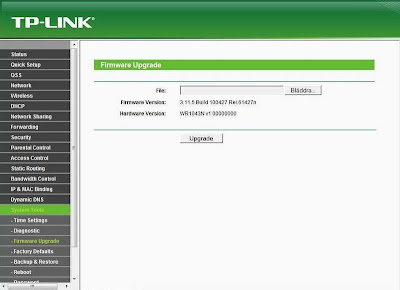
b)Flashing the Firmware
First of all what is OpenWRT?
It is a niche Linux Distribution meant for Routers.
Which means after installing it you can add packages onto the Operating System to expand its capabilities.
Much like any Linux Distribution it maintains a package repository for end-users.
It will help alot if you have prior knowledge on Linux Terminal Commands because OpenWRT run Linux.
Why OpenWRT out of so many Third Party Firmware?
OpenWRT provides its own Repository brimming with numerous packages.
It is very much like Debian is for Routers.
Hardware Required:
- Working Ethernet Cable to connect the PC to the Router (You should have 1 in the Box where you bought the Router).
The Software Required is for controlling the Router Via a PC otherwise you cant interact with it.
- SSH Terminal (For Windows Download Putty, Most GNULinux should have SSH Terminals by Default) This Program is for Accessing the router like logging in to a server.
- WinSCP (For Windows Download WinSCP, Most GNULinux should have SCP Terminals by Default) This Program is for Uploading and Downloading Packages to the Router.
- Fairly Advance Web Browser ( Either Firefox, Internet Explorer and Chrome will do) This is for accessing the LuCI Web Interface installed into the router.
For TP-Link WR1043ND we access the OpenWRT Stable Repository.
Go to the Folder for the latest release of OpenWRT then go into the /ar71xx/ subfolder.
This folder is meant for Atheros MIPS Processor based routers.
Scroll until you find files with the name "openwrt-ar71xx-tl-wr1043nd-v1-"
Look carefully and you should see 2 matching files:
The first ends with
openwrt-ar71xx-tl-wr1043nd-v1-squashfs-sysupgrade.bin
The second one ends with
openwrt-ar71xx-tl-wr1043nd-v1-squashfs-factory.bin
Sysupgrade is for Upgrading Routers already installed with OpenWRT of the older versions while factory is for Upgrading Routers on Original Firmware.
Assuming the Router is runnning Original Stock Firmware from TP-Link, download
openwrt-ar71xx-tl-wr1043nd-v1-squashfs-factory.bin
b)Flashing the Firmware
- Disconnect all Internet Connections on the PC and Router.
- Ensure the Router/PC is on Stable Power Source.
- Connect the PC use to upload the file to the Router using the Ethernet Cable.
- Open Internet Browser on the PC
- Type "192.168.1.1" in the URL Bar of the Internet Browser to access the TP-Link Router Configuration Page if you did not touch any ip configuration the default is usually 192.168.1.1.
- Default Login name and Password is written under the Router.
- Go to the Firmware Upgrade Utility Page
- Click on Browse then navigate to the Folder where you downloaded openwrt-ar71xx-tl-wr1043nd v1-squashfs-factory.bin
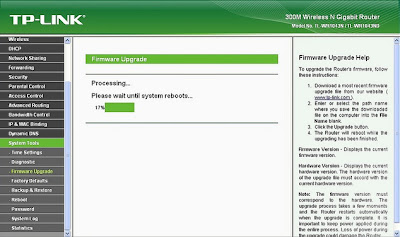
- Click Upgrade and Wait for 15 mins
- Double Check the Lights on the Router it should blink quickly then turn off then turn on again.
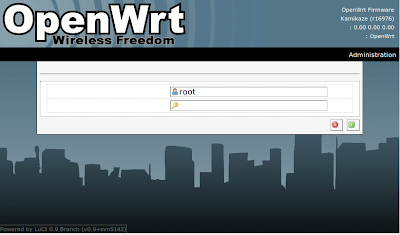
- Type "192.168.1.1" in the URL Bar of the Internet Browser again. You should see the LuCI Webpage
- There should be no password just click login. Set a password (Under Administration) immediately to enable SSH Login.
- You are done your router is now running on OpenWRT, but you are not done yet you still need to configure the router for normal use.
Go to link Download

Tuesday, November 29, 2016
Hacking TP Link WR1043ND Part 3
Hacking TP Link WR1043ND Part 3
I will only be posting HOW-TO not found in OpenWRT Pages, if you need to config a particular setting please refer to the Well-Documented OpenWRT HOW-TOs here.
Useful Wiki on OpenWRT include
- Getting 3G Modem working
- VPN (not complete)
- Files and Settings
- NFS Network FileSharing
Reading the How-To is a must have for all OpenWRT newbies!
First you need to set a Router Config Page Login Password.
Otherwise the SSH ports will not be open for you to configure and upload files to it.
Open Web Browser, Enter "192.168.1.1" in URL Bar.
Then follow the picture below:

From here onward is to demostrate how to login and use the Router like a Linux Terminal Computer.
It makes little sense not to leverage on the Compute Capabilities of Linux after using a more powerful third party firmware.
OpenWRT assumes users know Linux Terminal KungFu hence it is intimidating to those who dont.
Hopefully after reading this you will pick up some Terminal KungFu.
_______________________________________________
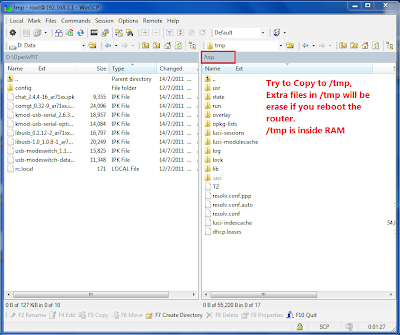
Upload Files to Router using SCP




SSH (Login) into Router


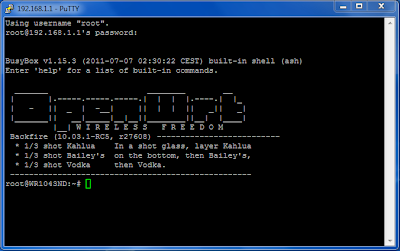
- "ls" - List Files in Existing Folder
- "dmesg" - Display System(Router) diagnostic message
- "pwd" - Display Present Working Directory
- "opkg" - OpenWRT Package Installer
- "opkg install package" to install a software call "package"
- "opkg remove package" to uninstall a software call "package"
- "opkg list-install" to list all installed software"
- "opkg update" to update list of package available in the OpenWRT Repository the router needs to be connected to the internet before you can update
- "opkg" to display all possible commands
- "wifi" to restart Wireless Radio
- "ifup/down" to start or stop a Particular Interface
- "ifup wan" to start WAN interface
- "ifdown wan" to stop WAN interface
- "ifup lan" to start LAN interface
- "ifdown lan" to stop LAN interface
- "cd" to change directory
- "cd .." to go up 1 level (Exit the folder)
- "cd /" to go to Root Directory
- "cd /tmp/ to go to tmp directory (If you want to go to a specific directory type "cd /tm" then press Tab to auto complete the name of the folder useful if the name of the folder is very very long
- "vi" Text Editor
- eg. to Edit a file call "network" in folder "/etc/config/" type "vi /etc/config/network"
- The default mode in VI is view mode to display text files
- To enter/delete Text in vi press "i" to Enter insert mode and type to enter backspace to delete
- To delete a particular line of text in vi Press "Esc" go to the line using arrow then enter "dd" twice and the line disappears
- To save a file press "Esc" then ":w" (w stands for write)
- To exit VI press "Esc" then ":q" (q stands for quit)
- To exit without saving press "Esc" then ":q!" (! stands for "I dont care just do it !)
- To exit with saving press "Esc" then ":wq"
- "reboot" to restart Router
- "cp" - copy eg to copy a file called "network" from inside /tmp/ to /etc/config"
"cp /tmp/network /etc/config/network"
- Syntax as follows: cp <source> <destination>
- "rm" - Delete a particular file
- "wget" -Download file from Internet (Must be connected to Internet first, make sure the file size doesnt exceed the the total memory of the router)
The list of commands is actually quite a chunk, you should read up on Linux Shell if you are interested.
Go to link Download
Friday, October 7, 2016
Hacking TP Link WR1043ND Part 4
Hacking TP Link WR1043ND Part 4
To Tweak the OpenWRT for Pure Performance there is no other way than editing config files from Terminal so I hope you actually read Part 3 before.
There are 4 parts to Tweaking the Performance
Setting to Wireless N with G backward compatibility
The TP-Link WR1043ND Hardware has a 3 Transmit 3 Receive Radio that is only Single Band with 20/40MHZ Frequency. It has Wireless B/G/N Capability.
To fully understand WiFi Standards you need to read up on IEEE 802.11 standards.
We start by tweaking the Radio.
Wireless N allows backward compatibility with B and G, you need to set it to 802.11g+n.
You can do this by logging into the Router via Putty using vi editor edit the file called "wireless" in /etc/config/, or do it in LuCI Web Interface(Router Config Page).

Adjusting Channel Width:
Next you need to make sure the Router is using 40MHZ Channel Width, this will allow greater throughput.
You can do this by logging into the Router via Putty using vi editor edit the file called "wireless" in /etc/config/
By rights htmode is not allowed if there are competing BSSID using that channel (the good neighbor regulation), but you can override that with noscan option. There is also a distance optimization setting which I tested the best values at 20-25.
Below is a graph displaying the difference between 40MHZ Channel Width and 20MHZ Channel Width.
Note that you can define more than 1 Access Point on OpenWRT. You can configure a Second AP as Guest and Fire-walling it from your own LAN.

Higher TXPower (Transmit Power)
Transmit Power allows you to resize the cell. Max Value is 24 only works with US regulatory settings.
You can also try placing the Wireless Router at a higher position for better signal strength.
Tweaking Wired Performance:
Next you need to make sure the Router Ethernet Performance is adjusted by changing the sysctl variable this will allow greater throughput.
You can do this by logging into the Router via Putty using vi editor edit the file called "sysctl.conf" in /etc/
Note: These tweaks are not found on OpenWRT How Tos, however I soon discovered that someone is working on bufferbloat hence the tweaks on buffersize should be approached with caution.
Also if you have a Windows File Share you want to tell the Router firewall not to monitor SAMBA Packets.
Windows Share also known as SAMBA in Linux uses the Port 445 so you need to tell OpenWRT to stop monitoring Packet Originating from LAN using Port 445.

Tweaking Web Performance:
Web Peformance typically require a lot of DNS Look up so you want to tell OpenWRT to use the Fastest DNS Server available.
You can do this by logging into the Router via Putty using vi editor edit the file called "dnsmasq.conf" in /etc/ or do it in the file /etc/config/dhcp
and add the fastest DNS Server closest to you.
Add the Line Below and change the IP of the server to YOUR fastest DNS Server. My Fastest DNS Servers may not be your Fastest DNS Server.
There is no limit of the number of DNS Server you can set on OpenWRT
Quality of Service
What is Quality of Service?
Quality of Service makes it so that during torrenting, your webpages doesnt take a long time to load even though you are on a 1Mbps Connection.
It does this by prioritizing network traffic, putting webpage network packets in higher importance than torrent packets.
The step to installing QoS is logging into the Router via Putty then

Hopefully you learn a lot from this series of blog post and enjoy the high performance of your Modified Router running on OpenSource Software.
If you run a Windows Share Server when you place the laptop beside the router and do a copy you should be getting insane WiFi Speeds @ 150Mbps at 5m line of sight
Let the numbers speak for themselves!

In case you modified the wrong config files and got lock out the fail safe mode is here.
If you are interested I have a OpenWRT built for TL-WR1043ND that I use personally myself. It is optimized to my satisfaction for pure performance.
You can get it here.
If you actually tried my firmware you will find that all the tweaks I listed above have been already added to the firmware defaults so there is nothing additional to tweak.
There are 4 parts to Tweaking the Performance
- Wireless Performance
- Wired Performance
- Web Performance
- QoS (Quality Of Service)
- Overclock the Router
Setting to Wireless N with G backward compatibility
The TP-Link WR1043ND Hardware has a 3 Transmit 3 Receive Radio that is only Single Band with 20/40MHZ Frequency. It has Wireless B/G/N Capability.
To fully understand WiFi Standards you need to read up on IEEE 802.11 standards.
We start by tweaking the Radio.
Wireless N allows backward compatibility with B and G, you need to set it to 802.11g+n.
You can do this by logging into the Router via Putty using vi editor edit the file called "wireless" in /etc/config/, or do it in LuCI Web Interface(Router Config Page).
Adjusting Channel Width:
Next you need to make sure the Router is using 40MHZ Channel Width, this will allow greater throughput.
You can do this by logging into the Router via Putty using vi editor edit the file called "wireless" in /etc/config/
config wifi-device radio0
option type mac80211
option channel 7
option macaddr XX:XX:XX:XX:XX:XX
option hwmode 11ng #Wireless G and N Modes
option htmode HT40- # Set to 2.4GHZ 40MHZ Fat Lower(-) Channeloption noscan 1 # Enable neighbour unfriendly WiFi Settingsoption country US
list ht_capab SHORT-GI-40
list ht_capab DSSS_CCK-40
option disabled 0option txpower 24
config wifi-iface
 option device radio0
 option network lan
 option mode ap
 option ssid Your_SSID_Here
 option encryption psk2
 option key your_secret_key_here
By rights htmode is not allowed if there are competing BSSID using that channel (the good neighbor regulation), but you can override that with noscan option. There is also a distance optimization setting which I tested the best values at 20-25.
Below is a graph displaying the difference between 40MHZ Channel Width and 20MHZ Channel Width.
Note that you can define more than 1 Access Point on OpenWRT. You can configure a Second AP as Guest and Fire-walling it from your own LAN.
Higher TXPower (Transmit Power)
Transmit Power allows you to resize the cell. Max Value is 24 only works with US regulatory settings.
You can also try placing the Wireless Router at a higher position for better signal strength.
Tweaking Wired Performance:
Next you need to make sure the Router Ethernet Performance is adjusted by changing the sysctl variable this will allow greater throughput.
You can do this by logging into the Router via Putty using vi editor edit the file called "sysctl.conf" in /etc/
kernel.panic=3
# The following 3 lines helps to ensure Router will always have
# sufficient memory and will not crash during samba file copy
vm.vfs_cache_pressure=1000
vm.min_free_kbytes=4099
vm.swappiness=0
net.ipv4.conf.default.arp_ignore=1
net.ipv4.conf.all.arp_ignore=1
net.ipv4.ip_forward=1
net.ipv4.icmp_echo_ignore_broadcasts=0
net.ipv4.icmp_ignore_bogus_error_responses=1
net.ipv4.tcp_ecn=0
net.ipv4.tcp_fin_timeout=30
net.ipv4.tcp_keepalive_time=120
net.ipv4.tcp_syncookies=1
net.ipv4.tcp_timestamps=1
net.core.netdev_max_backlog=5000
net.netfilter.nf_conntrack_checksum=0
net.netfilter.nf_conntrack_max=32768
net.netfilter.nf_conntrack_tcp_timeout_established=3600
net.netfilter.nf_conntrack_udp_timeout=60
net.netfilter.nf_conntrack_udp_timeout_stream=180
# Use ipv6
net.ipv6.conf.all.forwarding=1
# disable bridge firewalling by default
#net.bridge.bridge-nf-call-arptables=0
#net.bridge.bridge-nf-call-ip6tables=0
#net.bridge.bridge-nf-call-iptables=0
# Increase TCP max buffer size setable using setsockopt()
# 2 MB might be enough for some very long end-to-end paths
net.core.rmem_max = 2097152
net.core.wmem_max = 2097152
# Increase Linux autotuning TCP buffer limits
# min, default, and max number of bytes to use
# (only change the 3rd value, and make it 2 MB or more)
net.ipv4.tcp_rmem = 4096 87380 2097152
net.ipv4.tcp_wmem = 4096 65536 2097152
# The following 2 lines enable ipv6 privacy mode
net.ipv6.conf.all.use_tempaddr=2
net.ipv6.conf.default.use_tempaddr=2
All the TCP tweaks are derived from ESnet
Note: These tweaks are not found on OpenWRT How Tos, however I soon discovered that someone is working on bufferbloat hence the tweaks on buffersize should be approached with caution.
Also if you have a Windows File Share you want to tell the Router firewall not to monitor SAMBA Packets.
Windows Share also known as SAMBA in Linux uses the Port 445 so you need to tell OpenWRT to stop monitoring Packet Originating from LAN using Port 445.
Tweaking Web Performance:
Web Peformance typically require a lot of DNS Look up so you want to tell OpenWRT to use the Fastest DNS Server available.
You can do this by logging into the Router via Putty using vi editor edit the file called "dnsmasq.conf" in /etc/ or do it in the file /etc/config/dhcp
and add the fastest DNS Server closest to you.
Add the Line Below and change the IP of the server to YOUR fastest DNS Server. My Fastest DNS Servers may not be your Fastest DNS Server.
dhcp-option=6,165.21.83.88,8.8.8.8,208.67.222.222Blue is a Singapore ISP DNS Server, Green is Google DNS Server, Red is OpenDNS Server.
There is no limit of the number of DNS Server you can set on OpenWRT
Quality of Service
What is Quality of Service?
Quality of Service makes it so that during torrenting, your webpages doesnt take a long time to load even though you are on a 1Mbps Connection.
It does this by prioritizing network traffic, putting webpage network packets in higher importance than torrent packets.
The step to installing QoS is logging into the Router via Putty then
opkg install luci-app-qosYou set the QoS by setting the Port the Network Originate from and the Priority. Or you can set layer 7 filter to detect torrent traffic. Note that Layer 7 filtering is processor intensive activity and might cause the routing performance of the router to drop.
Hopefully you learn a lot from this series of blog post and enjoy the high performance of your Modified Router running on OpenSource Software.
If you run a Windows Share Server when you place the laptop beside the router and do a copy you should be getting insane WiFi Speeds @ 150Mbps at 5m line of sight
Let the numbers speak for themselves!
In case you modified the wrong config files and got lock out the fail safe mode is here.
If you are interested I have a OpenWRT built for TL-WR1043ND that I use personally myself. It is optimized to my satisfaction for pure performance.
You can get it here.
If you actually tried my firmware you will find that all the tweaks I listed above have been already added to the firmware defaults so there is nothing additional to tweak.
Go to link Download
Subscribe to:
Posts (Atom)