Showing posts with label button. Show all posts
Showing posts with label button. Show all posts
Sunday, March 26, 2017
How to Restore the Start button in Windows 8
How to Restore the Start button in Windows 8
One of the new changes and considered annoying in Windows 8 is the disappearance of the start in the bottom left corner of the screen. But now there is an easy way to restore the key.
The users who want to keep using the start in Windows 8 apps can use Win8 StartButton. And not only restore the start button, this application can also restore some of the old Windows functions such as:
Making desktop mode as the default view, instead of the Metro UI.
Display start button can also be changed. Users can choose classic style display Windows, Windows XP or Windows 7.
Some other Windows menu will also be transformed as the previous version.
When I try, the app is quite functional. Once installed it will automatically start button will appear at the bottom left of the screen.
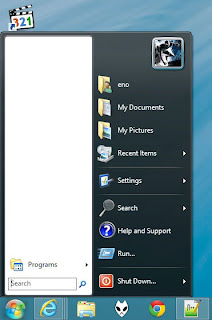
When clicked, the button will also display the list of applications in the two panels like in Windows 7. Easily users can more quickly access the music folders, documents, and other images.
The button also provides faster access to turn off the computer. The users in Windows 8 no longer need to refer to the charm bar, then to the power setting just to shutdown. Now only a click away!
Curious as to what capabilities the free app? Users can directly download www.windows8startbutton.com site. Good luck.
Go to link Download

Thursday, October 6, 2016
How to Click Button Using JavaScript
How to Click Button Using JavaScript
Buttons on a web-page allows users to submit data or to do any action on it and generally the actions are performed by clicking on it. Different types of buttons are used on web-page and they may be inside a form or outside a form for certain action to be performed. Buttons used within a form may be Submit Button, Reset Button, Browse Button etc.
You can set the actions performed by submit and reset buttons on a form with in a <form> tag as below.
<form action="submitpage.html" onsubmit="return validate(this)"
onreset="return conform()" method="post">
<!--Other Form Elements-->
<input type="submit" value="Submit">
<input type="reset" value="Reset">
</form>
In the above code, when submit button was clicked it goes to the page "submitpage.html" after validating the form by the function validate() and when reset button was clicked it clears all the form data after displaying conformation box by the function conform().
It is easier to do any task on clicking event of a button by executing certain JavaScript functions when the button was clicked. There are different ways to execute JavaScript codes on button click. In this post I am going to describe about those different methods of clicking buttons using JavaScript.
Different Ways to Click Button Using JavaScript
You can click button using JavaScript with the different methods given below.
With directly specifying JavaScript Built-in function on onClick event of Button
<input type="button" value="Display Time"
onClick="alert(new Date().toLocaleTimeString());">
Preview:
With creating a JavaScript function and specifying it on onClick event of Button as given on the previous post: "How to create Timer Using JavaScript?"
<script>

var c=0

var t

function timedCount()

{

document.getElementById(txt).value=c

c=c+1

t=setTimeout("timedCount()", 1000)

}

</script>

<input type="button" value="Start Count" onClick="timedCount()">

<input type="button" value="0" id="txt">
Preview:
With creating a JavaScript function along with specifying onClick event of Button
<script>

window.onload=function(){

var btn=document.getElementById(btn);

btn.onclick=function(){alert("You Have Clicked Button");}

};

</script>

<input type=button id=btn value=click me>
Preview:
With specifying single function for multiple buttons having same class name by using for loop on onClick event of button
<script>

window.onload=function(){

var btns=document.getElementsByClassName(bt);

for(var i=0; i<btns.length; i++){

var bt=btns[i];

bt.onclick=function(){alert("You Have Clicked Button");}

}

};

</script>

<input type=button class=bt value=Button 1>

<input type=button class=bt value=Button 2>

<input type=button class=bt value=Button 3>
Preview:
I have described here some methods of clicking buttons using JavaScript . If you know other more methods of clicking buttons using JavaScript, you are welcomed to mention on the comment session at the bottom this post.
Related Search Terms
JavaScript for Button Click
Different Ways to Click Button Using JavaScript
Related Posts:
How to Write JavaScript Function as URL in Hyperlink?
How to use Round, Random, Min and Max in JavaScript
How to Concatenate, Join and Sort Array in JavaScript?
How to Loop Through JavaScript Array?
How to Loop using JavaScript?
How to Show Pop Up Boxes Using JavaScript?
How to Write Conditional Statements in JavaScript?
How to Write JavaScript With HTML?
How to create Changeable Date and Time Using JavaScript?
How to Validate a HTML Form Using JavaScript?
How to create a simple form using HTML?
How to Create JavaScript Image Sideshow with Links
How to Display Date Format in JavaScript?
How to Validate a HTML Form Using JavaScript?
What are the Different Ways to Redirect Page in JavaScript?
How to create Timer Using JavaScript?
How to make rounded corners border using CSS
How to Create Custom CSS Template for Printing
How to create a simple form using HTML?
Go to link Download
Subscribe to:
Comments (Atom)