Showing posts with label group. Show all posts
Showing posts with label group. Show all posts
Thursday, February 16, 2017
How to enable system restore if disabled by group policy or system administrator
How to enable system restore if disabled by group policy or system administrator
Symptoms
Sometimes when you try to create a System Restore point or want to configure System Restore feature in Windows, you may fall into any of the below mentioned situation:
System Restore tab may be missing in My Computer Properties or Create and Configure buttons are grayed out and you see following messages if you try to open system restore (rstrui.exe) from any other ways around.
"System Restore has been turned off by group policy. To turn on System Restore, contact your domain Administrator."
-or-
"System Restore Properties page says disabled by Group Policy"
-or-
“System Restore is disabled by your system administrator”.
If the system restore is disabled by group policy on your computer you would find system restore button grayed out when you open system protection under system properties.
 |
| System restore is disabled |
 |
| System Restore disabled |
Reason :- System restore is by default turned on.System restore settings are mostly altered by a virus or malware which changes the registry or group policy settings on your computer causing system restore disabled and the restore point creation option grayed out.
Solution:- if the system restore is disabled on your computer you have two option to enable it so that you could create a restore point or configure it or restore the computer.
First Method to enable system restore-Using group policy
1. Type gpedit.msc in RUN or Start Menu Searchbox and press Enter. Itll open Group Policy Editor.
2. Now navigate to:
Computer Configuration -> Administrative Templates -> System -> System Restore
3. In right-side pane, make sure both "Turn off Configuration" and "Turn off System Restore" options are set to "Not Configured". If both or any of them is set to "Enabled", double-click on the option and set its value to "Not Configured" to enable system restore.
 |
| Enable system restore |
4. this will immediately enable System Restore in your system.
Second Method to enable system restore using registry
1. Open registry editor by typing Regedit at Run.
2. Navigate to
HKEY_LOCAL_MACHINESOFTWAREPoliciesMicrosoftWindows NTSystemRestore
3. In right-side pane, if you see any of the following 2 DWORD values, delete them:
DisableConfig
DisableSR
 |
| Enable System Restore |
4. Now go to run and type gpupdate /force to refresh the group policy and it will show the message that the user policy update has completed so now go and check the system restore should be activated.
 |
| Enable system restore |
Incoming search terms
- Enabe System Restore
- Remove restriction on restore point creation
- Enable system restore disabled by administrator
- System restore disabled by group policy
NEXT
Go to link Download

Monday, December 19, 2016
How to open Local Group Policy Editor in Windows 7
How to open Local Group Policy Editor in Windows 7
BEST GREENHOUSES FOR GROOVING VEGETABLES
? ? 1(360)241-1624 ?

? ? 360organic.us ?
DURABLE! AFFORDABLE! ALUMINUM + UV POLYCARBONATE
Local Group Policy Editor is a Microsoft Management Console (MMC) snap-in that you can use to edit local Group Policy objects (GPOs). Local Group Policy Editor and the Resultant Set of Policy snap-in are available in Windows Server 2008 R2 and Windows 7 Professional, Windows 7 Ultimate, and Windows 7 Enterprise.
You can open the Local Group Policy Editor by using the command line or by using the Microsoft Management Console (MMC).
To open the Local Group Policy Editor from the command line
- Click Start, type gpedit.msc in the Start Search box, and then press ENTER.
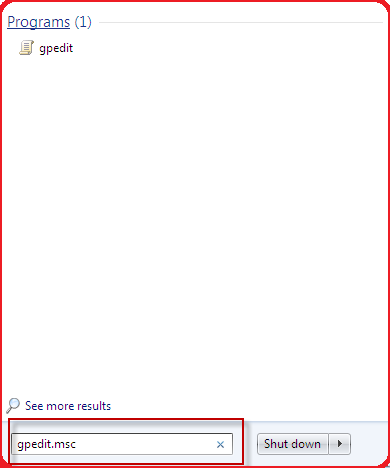
To open the Local Group Policy Editor as an MMC snap-in
- Open MMC. (Click Start, click in the Start Search box, type mmc, and then pressENTER.)
- On the File menu, click Add/Remove Snap-in.
- In the Add or Remove Snap-ins dialog box, click Group Policy Object Editor, and then click Add.
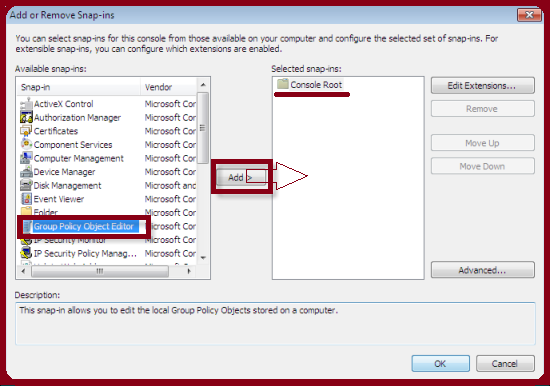
- In the Select Group Policy Object dialog box, click Browse.
- Click This computer to edit the Local Group Policy object, or click Users to edit Administrator, Non-Administrator, or per-user Local Group Policy objects.
- Click Finish.
Additional information
What is the difference between BIOS and CMOS?
What are the F1 through F12 keys?
How to use system recovery options in Windows?
Random black screen while playing games
How to Delete and Clear Recent Items in Windows 7 Jump Lists
How to enter the BIOS or CMOS setup
What is the difference between BIOS and CMOS?
What are the F1 through F12 keys?
MISSCELLENIOUS ITEMS

MISSCELLENIOUS ITEMS
Durable Greenhouses made from Polycarbonate UV Protected material and Aluminum
ALSO PLEASE VISIT THIS VIDEOS AND SEE IF YOU FIND SOMETHING NEED:
Windows Registry Tools can be downloaded here:
How to kip your PC Private by deleting DATA Permanently
http://askpctech.blogspot.com/2016/03/kip-your-pc-privat.html
This tutorial is made up on request several users, is well is fallowing video:
1)How to Delete Paint Recent Pictures from List in Windows 7
2)Win 7– Fix for “Safely Remove Hardware and Eject Media” not working How To
3)Windows 10 How to Fix Black Screen After Booting
4)How To Remove Windows 10 Upgrade Notification On Windows 7 And Windows 8
5)How to Delete Face book Page Permanently - 2015
6)How to Uninstall Windows 10 and Downgrade to Windows 7 or 8.1
7)detected: not-a-virus:remoteadmin.win32
8)How to change pictures into icons for folders
9)Speed up your PC Disable System Restore on SSD
10)Speed up your PC Disable Scheduled De-fragmentation SSD
11)2015 Black screen of DEATH Windows 7 & 8 - with cursor at start-up SOLVED
12)Upon start up only wallpaper shows FIX
13)Here is video on Windows 7 & 8 - Black screen with cursor at start-up FIX
You can also open Task Manager by pressing Ctrl+Shift+Esc.
14) I bought a windows 7 PC but it Look alike old PC FIX:
15) Windows 7 & 8 - Black screen with cursor at start-up FIX:
16) How To Fix Minecraft OpenGL Error Windows 7 xp vista 720p :
17) removing bars using regscanner regedit & file shredder 720p:
18) How to Recover windows Explorer from error 2014 720p
19) HOW TO Save on battery online
20) Windows 7 & 8 - Black screen with cursor at start-up FIX
Upon start up only wallpaper shows no icons
CTL+ALT+DEL then click file and new task. then type explorer.exe and press ok
Best Greenhouse system 2015
Go to link Download
Subscribe to:
Posts (Atom)