Showing posts with label printer. Show all posts
Showing posts with label printer. Show all posts
Monday, May 22, 2017
How to Share Printer for Computers on LAN
How to Share Printer for Computers on LAN
Not only from Network printer, it is possible to print from other computers on LAN by sharing local printer connected on one computer on Local Area Network. To do this, you have to share the printer on LAN and have to install the shared printer on the computer from which you want to print. In this post I am describing the methods and steps for sharing printers on LAN.
How to Share a Local Printer on LAN
Here are some steps for sharing a local printer on Local Area Network.
- At first, Go to the control panel and click on "view devices and printers" located under Hardware and Sound option.
- Under the printers category right click on printers name which you want to share and choose on "printer properties" option.
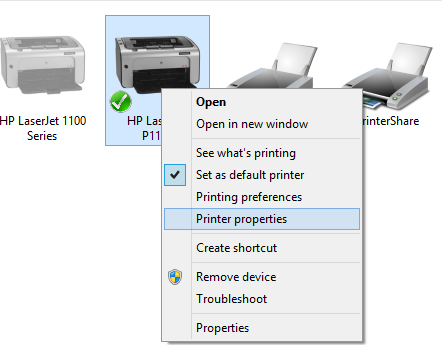
- Then printer properties dialog box will appear as given below, click on sharing Tab.
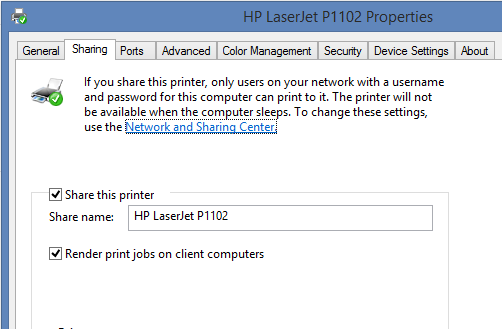
- Select on the "share this printer" option also give the name for the printer which is being shared as given on the picture below.
- After completing all of the task click on OK to close the dialog box.
How to Install Shared Printer in Client Computer on LAN
To complete the steps for sharing local computer on LAN and to print through client computer, you have to install this shared printer on the client computer also. The required steps to complete this task are given below.
- At first, Go to the control panel as mentioned on the previous steps and click on "Add printer" option.

- The wizard started to search for installed shared printers on LAN, if the printer you have to install is listed select it and go to next until finish.

- If the printer is not listed from searching, Click on the option "The printer that I want isnt Listed".
- On find a printer by other options click on "select a shared printer by name" and click on Browse button.
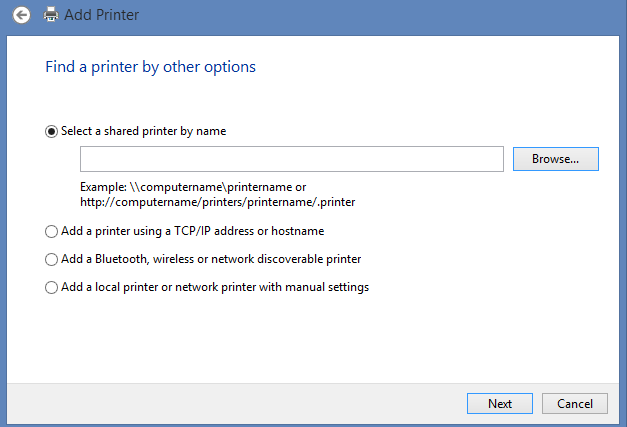
- Open the computer from where you want to install printer, here you may ask for login if the computer having printer is protected by a password.
- After opening computer, select the desired printer you want to install and click on next in wizard until finish.
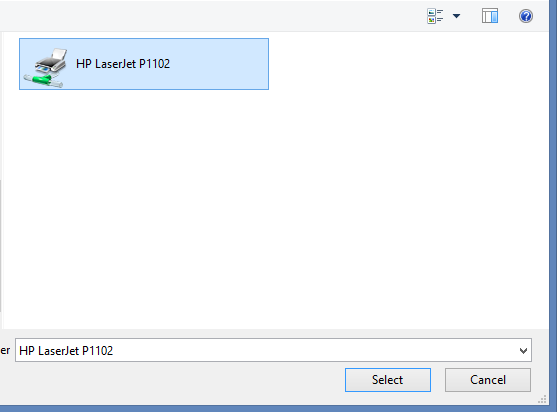
- Now your printer is ready, you can print any document selecting on this printer but you should be noted that the host computer must be turned on while printing.
Related Posts
How to make USB boot drive to Install Windows ?
How to Keep Computer from Sleeping
Top 5 Free Methods to Make Your Computer Faster
How to Know Your Computer Configuration Easily
Top 10 Questions that Computer Beginner may Asked
How to Manage Drives Using Drive Tools
How to Share Printer for Computers on LAN
What are the Basic Components of operating Systems.
How to Share Drive Folder and File in Computer Network
What is Cyber Crime and What are the types?
What is intellectual property law?
What is literal and non-literal copying of computer programs?
Go to link Download

Friday, January 27, 2017
How to fix Print Queue print spooler or printer driver issue
How to fix Print Queue print spooler or printer driver issue
Each print server ( Computer which has Printer driver installed ) has a single print spooler service, which manages all the print jobs and print queues on that server.Print spooler service is a service which gives the print command to printer. It is manage the multiple print commands and gives to the print one by one when last print is done. Printer spooler service works with two system files spoolss.dll / spoolsv.exe and one Print spooler service but to keep print spooler service ups and running you must also have two dependencies services running which are RPC and Upnp.
Symptoms.
One of following error may occurs when give the print command.
Causes
There are lots of causes of “print spooler is not working” issue. Actually, most of the Viruses and Trojans does target the “print spooler service” to corrupt. they can also corrupt the registry of print spooler service because Print spooler service is only the one service which will effect most of the users who use the printer. Users wants to take print out however they getting the error message “Print spooler service has stopped please restart the service, the local print spooler is not running. please restart the spooler”.
Batch file Commands
net stop spooler
del /F /q %SYSTEMROOT%system32spoolPRINTERS*.*
net start spooler
Fix It yourself Manually
Solution 1
1. Stop the Print spooler service in command line
3. Locate spooler files spoolsv.exe and spoolss.dll in system32 folder.
4. Download these files from dll archive site from the web or copy from your friends PC.Replace both the files in system32 folder with downloaded ones.
5.Delete the files which are in spool>>printers folder,
6. Start the print spooler service in command line and install latest drivers downloaded from the web.
Solution 2
1. First stop the Print spooler service in services page.
Do right click on my computer icon and then click on manage, a windows will be opened, now find and click on services & application then click on services now in the right pane you will see print spooler service now click twice on that (Double click) and then click on STOP button.
2. Delete the files which are in spool>>printers folder
3. Start the service in services page
Do right click on my computer icon and then click on manage, a windows will be opened, now find and click on services & application then click on services now in the right pane you will see print spooler service now click twice on that (Double click) and then click on START button.
Step 2: Delete the spool printer and driver files
In safe mode, delete the spool printer and driver files. To do this, start Microsoft Windows Explorer, and then delete all the files and the folders in the following two folders (where C: is the drive where Windows XP is installed):
C:WindowsSystem32SpoolPrinters
C:WindowsSystem32SpoolDriversw32x86
Step 3: Edit the registry
Warning: Serious problems might occur if you modify the registry incorrectly by using Registry Editor or by using another method. These problems might require that you reinstall the operating system. Microsoft cannot guarantee that these problems can be solved. Modify the registry at your own risk.
First, remove the Windows NT subkeys
Remove the potentially problematic registry entries for Windows NT x86 service subkeys. These may have been installed by third-party printer setup programs and may be interfering with the print spool service. Follow these steps to keep the drivers, print spools, and registry entries that were included with Windows and to remove all other drivers, print spools, and registry entries that may be causing issues.
Start Registry Editor. To do this, click Start, click Run, type regedit in the Open box, and then click OK.
Locate and expand the following registry key to view the list of subkeys (subfolders):
HKEY_LOCAL_MACHINESYSTEMCurrentControlSetControlPrintEnvironmentsWindows NT x86
In the subkey list, there should only be the following subkeys:
Drivers
Print Processors
If there are any subkeys other than the subkeys that are listed in step 2, follow these steps:
On the File menu, click Export.
In the File Name box, type the name that you want to use for this key, such as WindowsNTx86regkey, and then click Save.
You can use this backup of the
HKEY_LOCAL_MACHINESYSTEMCurrentControlSetControlPrintEnvironmentsWindows NT x86
registry key to restore the key if you experience any issues after you complete this procedure.
Delete all the subkeys other than the subkeys that are listed in step 2. To do this, right-click each subkey that is not displayed on the list, and then click Delete. Click Yes when you are prompted to confirm the deletion.
Second, remove registry entries for the default print monitors
Remove the potentially problematic print monitor subkeys that may be interfering with the printer that you want to use. These may have been installed by third-party printer setup programs. Follow these steps to keep the print monitors and registry entries that were included with Windows and to remove all other print monitors and registry entries that may be causing issues.
In the list of subkeys, there should only be the following subkeys for the default print monitors:
3. If there are any subkeys other than the subkeys that are listed in step 2, follow these steps:
If a printer is attached to the computer, disconnect the printer cable from the computer, and then restart the computer.
Step 4: Install the printer and print a test page
Reconnect the printer cable to the computer, install the printer according to the manufacturer’s instructions, and then try to print a test page.
In Windows XP
Sometimes in Windows Xp this issue could also be related to XPs data execution preventionWhere you need to add the print spooler service to the excluded list.
And you will be printing again. Good luck.
Tips
Try Microsoft Spooler Fix It - it can redeem some types of spooler errors.
Use HP Print Diagnostic Utility for HP printers.
Small tricks that can help in fixing issue:
press win r on your keyboard
type in "regedit" without quotes
locate this tree node HKEY_LOCAL_MACHINESYSTEMCurrentControlSetServicesSpooler
to the right-hand side of the window locate “imagepath” icon
double-click on it and type in C:WINDOWSsystem32spoolsv.exe
press enter
reboot
One of following error may occurs when give the print command.
- Local print spooler is not running. please restart the spooler.
- Print spooler is not working.
- Print spooler won’t start.
- Printer spooler service can’t start.
- Print Spooler service getting the error message while printing.
- Says, start the print spooler service first, then try to print again.
- Spooler Sub -System App has encountered a problem & needs to close.
- Operation could not be completed. The print spooler service is not running.
- Print Spooler Error 1068 – The Dependency Service Can’t Start.
- Operation could not be completed. The print spooler service is not running.
- Spooler subsystem app has encountered a problem and needs to close.
- Error 1068: The dependency service or group failed to start
There are lots of causes of “print spooler is not working” issue. Actually, most of the Viruses and Trojans does target the “print spooler service” to corrupt. they can also corrupt the registry of print spooler service because Print spooler service is only the one service which will effect most of the users who use the printer. Users wants to take print out however they getting the error message “Print spooler service has stopped please restart the service, the local print spooler is not running. please restart the spooler”.
net stop spooler
del /F /q %SYSTEMROOT%system32spoolPRINTERS*.*
net start spooler
Fix It yourself Manually
Solution 1
1. Stop the Print spooler service in command line
- Click on start and expand allprograms and then got to “accessories” here you will see command prompt, right click on command prompt and then choose the option “run as Administrator“, a black command line will be opened.
- Now type the following command in the command line.
- Type net start spooler without quotes and look carefully what message you have.
- If it is Error 1068 "The dependency service or group failed to start" then type the following in the same window: sc config spooler depend= RPCSS (there must be a space after "=" but not before it.)
- If it is "The required service has been already started" or "The print spooler service started successfully" but you still get error when trying to print - go next.
3. Locate spooler files spoolsv.exe and spoolss.dll in system32 folder.
 |
| Pic-27(a) |
5.Delete the files which are in spool>>printers folder,
- Open this following path
- c:windowssystem32spoolprinters
- Then delete all the files which are located in spool>>printers folder.
6. Start the print spooler service in command line and install latest drivers downloaded from the web.
- Click on start and expand all programs and then got to “accessories” here you will see command prompt, right click on command prompt and then choose the option “run as Administrator“, a black command line will be opened.
- Start>>All programs>>Accessories>>Command Prompt.exe
- Now type the following command in the command line
- Net start spooler
Solution 2
1. First stop the Print spooler service in services page.
Do right click on my computer icon and then click on manage, a windows will be opened, now find and click on services & application then click on services now in the right pane you will see print spooler service now click twice on that (Double click) and then click on STOP button.
2. Delete the files which are in spool>>printers folder
- Open this following path
- C:windowssystem32spoolprinters
- Delete all the files which are located in spool>>printers folder.
3. Start the service in services page
Do right click on my computer icon and then click on manage, a windows will be opened, now find and click on services & application then click on services now in the right pane you will see print spooler service now click twice on that (Double click) and then click on START button.
Step 2: Delete the spool printer and driver files
In safe mode, delete the spool printer and driver files. To do this, start Microsoft Windows Explorer, and then delete all the files and the folders in the following two folders (where C: is the drive where Windows XP is installed):
C:WindowsSystem32SpoolPrinters
C:WindowsSystem32SpoolDriversw32x86
Step 3: Edit the registry
Warning: Serious problems might occur if you modify the registry incorrectly by using Registry Editor or by using another method. These problems might require that you reinstall the operating system. Microsoft cannot guarantee that these problems can be solved. Modify the registry at your own risk.
First, remove the Windows NT subkeys
Remove the potentially problematic registry entries for Windows NT x86 service subkeys. These may have been installed by third-party printer setup programs and may be interfering with the print spool service. Follow these steps to keep the drivers, print spools, and registry entries that were included with Windows and to remove all other drivers, print spools, and registry entries that may be causing issues.
Start Registry Editor. To do this, click Start, click Run, type regedit in the Open box, and then click OK.
Locate and expand the following registry key to view the list of subkeys (subfolders):
HKEY_LOCAL_MACHINESYSTEMCurrentControlSetControlPrintEnvironmentsWindows NT x86
In the subkey list, there should only be the following subkeys:
Drivers
Print Processors
If there are any subkeys other than the subkeys that are listed in step 2, follow these steps:
On the File menu, click Export.
In the File Name box, type the name that you want to use for this key, such as WindowsNTx86regkey, and then click Save.
You can use this backup of the
HKEY_LOCAL_MACHINESYSTEMCurrentControlSetControlPrintEnvironmentsWindows NT x86
registry key to restore the key if you experience any issues after you complete this procedure.
Delete all the subkeys other than the subkeys that are listed in step 2. To do this, right-click each subkey that is not displayed on the list, and then click Delete. Click Yes when you are prompted to confirm the deletion.
Second, remove registry entries for the default print monitors
Remove the potentially problematic print monitor subkeys that may be interfering with the printer that you want to use. These may have been installed by third-party printer setup programs. Follow these steps to keep the print monitors and registry entries that were included with Windows and to remove all other print monitors and registry entries that may be causing issues.
1. Start Registry Editor if it is not already open. To do this, click Start, click Run, type regedit in the Open box, and then click OK.
2. Locate and then expand the following registry key to view the list of subkeys:
HKEY_LOCAL_MACHINESYSTEMCurrentControlSetControlPrintMonitors2. Locate and then expand the following registry key to view the list of subkeys:
In the list of subkeys, there should only be the following subkeys for the default print monitors:
- BJ Language Monitor
- Local Port
- PJL Language Monitor
- Standard TCP/IP Port
- USB Monitor
3. If there are any subkeys other than the subkeys that are listed in step 2, follow these steps:
- On the File menu, click Export.
- In the File Name box, type the name that you want to use for this key, such as Monitorsx86regkey, and then click Save.
- You can use this backup of the
- HKEY_LOCAL_MACHINESYSTEMCurrentControlSetControlPrintMonitors
- registry key to restore the key if you experience any issues after you complete this procedure.
- Delete all the subkeys other than the subkeys that are listed in step 2. To do this, right-click each subkey that is not displayed on the list, and then click Delete. Click Yes when you are prompted to confirm the deletion.
- HKEY_LOCAL_MACHINE SYSTEM CurrentControlSet Services Spooler
- In the right side pane, twice click on the DependOnService value
- Erase the current data, and after that type RPCSS only
- Close registry editor
- Delete any existing jobs in the spool folder (might be one of print job gone corrupt) C:WINDOWSsystem32spoolPRINTERS.
- Restart the computer
- Exit Registry Editor.
If a printer is attached to the computer, disconnect the printer cable from the computer, and then restart the computer.
Step 4: Install the printer and print a test page
Reconnect the printer cable to the computer, install the printer according to the manufacturer’s instructions, and then try to print a test page.
In Windows XP
Sometimes in Windows Xp this issue could also be related to XPs data execution preventionWhere you need to add the print spooler service to the excluded list.
- Go to System Properties>Advanced
- Select Performance>Settings
- Select Data Execution Prevention
- Select Turn on DEP for all programs and services except those I select
- Click Add
- Paste this in to the file name box of the window that opens:
- C:WINDOWSsystem32spoolsv.exe
- Select Open,Select OK when you receive the warning
- Select Apply.
And you will be printing again. Good luck.
Tips
Try Microsoft Spooler Fix It - it can redeem some types of spooler errors.
Use HP Print Diagnostic Utility for HP printers.
Small tricks that can help in fixing issue:
press win r on your keyboard
type in "regedit" without quotes
locate this tree node HKEY_LOCAL_MACHINESYSTEMCurrentControlSetServicesSpooler
to the right-hand side of the window locate “imagepath” icon
double-click on it and type in C:WINDOWSsystem32spoolsv.exe
press enter
reboot
Go to link Download
Sunday, January 22, 2017
How to Fix Color Print Out is Bad on Canon Printer
How to Fix Color Print Out is Bad on Canon Printer
This article comes from questions sent to me.
Questions
I have Canon Pixma MP258 with CISS. When I print on photo mode then the printer prints yellow color, but when I print any image or text in standard mode it does not print yellow in this situation is the circuit damaged ???
Answer

Standard : if the ink in the cartridge is low, the print out is BAD.


Questions
I have Canon Pixma MP258 with CISS. When I print on photo mode then the printer prints yellow color, but when I print any image or text in standard mode it does not print yellow in this situation is the circuit damaged ???
Answer
When print photo (High) – color normal
When print document (Standard) – yellow not out
I thing color cartridge OK (normal).
Why this problem can happen..?
Possibility
Ink volume on color cartridge not same
About Print Quality
High : although the ink inside the cartridge is low, the print out is OK.Standard : if the ink in the cartridge is low, the print out is BAD.