Monday, May 22, 2017
How to Fix Searching and Indexing issue and Rebuild the Index
How to Fix Searching and Indexing issue and Rebuild the Index
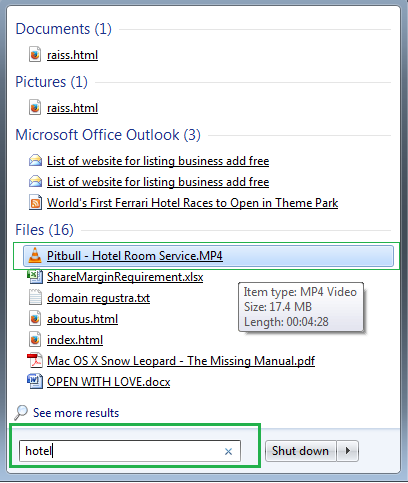 |
| Pic-26(a) Fix Searching and Indexing issue and Rebuild the Index |
What is Index?
A collection of detailed information about the files on your computer.Windows uses the index to perform very fast searches on your computer. Here are some advanced indexing settings you can change.
What files are indexed?
By default, all of the most common files on your computer are indexed. Indexed locations include all folders included in libraries (anything you see in the Documents library, for example), e?mail, and offline files. Files that arent indexed include program files and system files—files that most people rarely need to search.Can I index my entire computer so all searches are fast?
You shouldnt do this. If you make the index too large, or if you include system file locations (such as the Program Files folder), your routine searches will slow down. For best search results, we recommend that you only add folders that you search frequently to enable fast searching.What if Im using Windows Server 2008 R2?
How to fix Searching and Indexing issue
1. To add a file type to the index
- Open Indexing Options from control panel.
- Click Advanced.
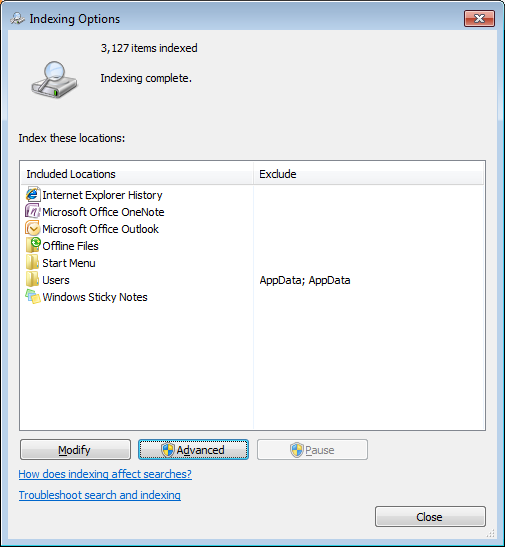 |
| Pic-26(b)-Fix Searching and Indexing issue and Rebuild the Index |
- In the Advanced Options dialog box, click the File Types tab.
- In the Add new extension to list box, type the file name extension (for example, "txt"), and then click Add to enable searching the file type.
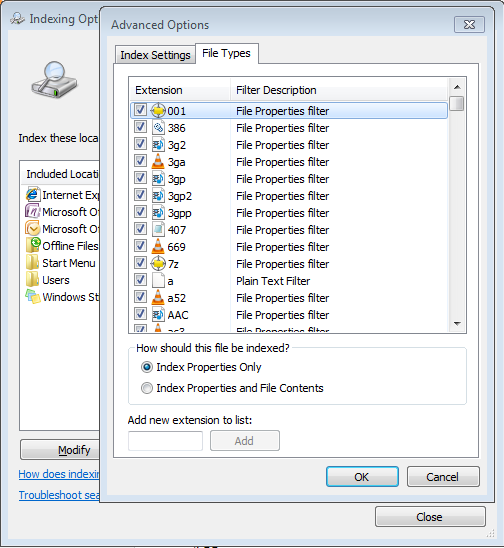 |
| Pic-26(c)-Fix Searching and Indexing issue and Rebuild the Index |
- Click Index Properties Only or Index Properties and File Contents, and then click OK.After this method you should be able to search the added file type.
2. To rebuild the index
- Go to Control panel and then open Indexing Options.
- Click Advanced.
 |
| Pic-26(d)-Fix Searching and Indexing issue and Rebuild the Index |
- In the Advanced Options dialog box, click the Index Settings tab, and then click Rebuild. If you are prompted for an administrator password or confirmation, type the password or provide confirmation.
3. To index encrypted files for searching encrypted files too
Before you add encrypted files to the index, we recommend that you have Windows BitLocker (or a non-Microsoft encryption program) enabled on your system drive (the drive that Windows is installed on).Note:Windows BitLocker is only included in Windows 7 Enterprise and Windows 7 Ultimate.
Note that the index will automatically rebuild each time this setting is changed. This can take a long time, and might cause searches to be incomplete until the process is complete.
- Go to Control panel and then open Indexing Options.
- Click Advanced. If you are prompted for an administrator password or confirmation, type the password or provide confirmation.
- In the Advanced Options dialog box, click the Index Settings tab, select the Index encrypted files check box, and then click OK. If you are prompted for an administrator password or confirmation, type the password or provide confirmation.
Notes
Although you can use a non-Microsoft program to encrypt your system drive, non-Microsoft file encryption programs are not supported. Windows only supports files encrypted using Encrypting File System (EFS).
EFS is only included in Windows 7 Enterprise, Windows 7 Professional, and Windows 7 Ultimate.
If you add encrypted files to the index and youre not using full-volume encryption for the location of the index, encrypted data from your files for example, text from an encrypted Microsoft Word document will be added to the index and will be available for searching. The index is obscured so that its not easily readable if someone tries to open the index files, but it doesnt have strong data encryption. If someone were to gain access to your computer, they could extract your data from the index. Therefore, the location of the index should also be encrypted to help protect your indexed data.
4. To index words with and without diacritics as different words
If you commonly use diacritics (small signs added to letters to change the pronunciation of words) in your file and folder names, you can configure the index to recognize words with diacritics differently. By default, Windows recognizes diacritics according to the language version you are using. If you change this setting, all diacritics will be recognized.The index will automatically be rebuilt each time this setting is changed. This can take a long time and might cause searches to be incomplete until the process is complete.
- Click to open Indexing Options.
- Click Advanced. If you are prompted for an administrator password or confirmation, type the password or provide confirmation.
- In the Advanced Options dialog box, click the Index Settings tab.
- Under File Settings, select the Treat similar words with diacritics as different words check box, click OK, and then click OK again.
5. To change the location where the index is stored
If you need to free up space on a hard disk, you can change the location of the index. If you change this location, the Windows Search service will automatically be restarted, and the change will not go into effect until the restart is complete.- Click to open Indexing Options.
- Click Advanced. If you are prompted for an administrator password or confirmation, type the password or provide confirmation.
- In the Advanced Options dialog box, click the Index Settings tab.
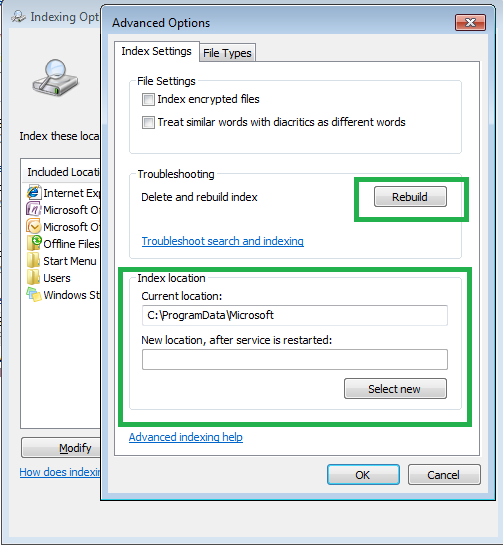 |
| Pic-26(e)-Fix Searching and Indexing issue and Rebuild the Index |
- Under Index location, click Select new, click a new location, click OK, and then click OK again.
Note
When you change the index location, you should choose a location on a non-removable hard disk that is formatted using the NTFS file system.
What does it mean when I see a message that search results might be incomplete?
It means that the files are still being indexed. To perform fast and accurate searches, Windows collects information about files on your computer. This information is stored in the index. Periodically, Windows needs to update the index. If you perform a search while the index is being updated, the results might be out of date.What does it mean when I see a message that a location cant be searched or theres no media present in the search location?
Theres a problem searching one or more of your selected locations. Usually thats because youve selected a network location or a device thats not currently connected to your computer. Its also possible that youve selected a removable media device with no media (such as a memory card or a CD) in the device. Check your locations, and then try the search again.How do I troubleshoot problems with searching and indexing?
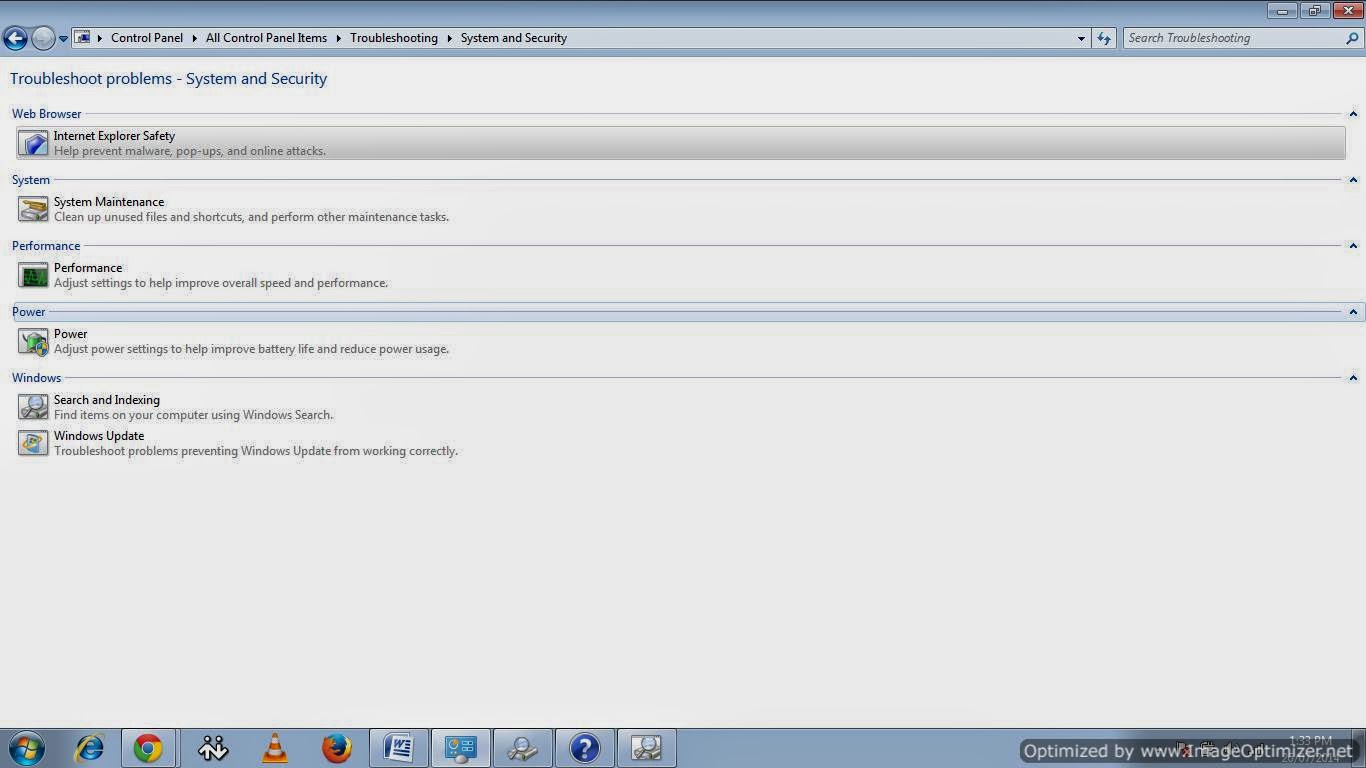
If you are experiencing problems with searching, such as unusually slow searches or incomplete search results,or no search results at all run the Search and Indexing troubleshooter to see if it can diagnose the problem.- Go to control panel and open Troubleshooting.
- Click on System and Security.
 |
| Pic-26(f)-Fix Searching and Indexing issue and Rebuild the Index |
- Now Click on Search and Indexing.
- Its gonna ask the problem you are facing so select the problems and click next to troubleshoot and fix.
 |
| Pic-26(g)-Fix Searching and Indexing issue and Rebuild the Index |
Depending on the severity of the problem, the Search and Indexing troubleshooter might need to restart the Windows Search service.After the Windows search service it restarted it might take few minutes to enable searching feature.
Here is a list that troubleshooter checks and fix
| ||||
When permissions on the Windows Search data directories are set incorrectly, the search service might not be able to access or update the computers search index. This can result in slow searches or incomplete search results. | ||||
| ||||
Problems with the Search Filter Host might indicate errors in the Windows Search service, which can cause searches to fail or return incomplete search results. | ||||
| ||||
When the Windows Search service is forcibly shut down while performing maintenance, searches might fail or return incomplete search results. | ||||
| ||||
When the Windows Search service is forcibly shut down, searches might fail or return incomplete search results. | ||||
| ||||
When the Windows Search service is not running, searches might be slower, and you might not be able to find all items. | ||||
| ||||
Problems with the Windows Search service can cause searches to fail or return incomplete search results. | ||||
| ||||
Problems with the Search Protocol Host might indicate errors in the Windows Search service, which can cause searches to fail or return incomplete search results. |
- Windows Searching and indexing issues
- Enable fast Searching
- Searching
- searching the encrypted files.
- Rebuild index
- Can not search file
- Windows Search does not work
- Could not find the known file if search for it
People also read following top most searched issue
Best Google Search Tips and Tricks
Windows takes long time or ages to shut down
how to fix Weather gadget could not connect to service
Go to link Download

Friday, January 27, 2017
How to fix Print Queue print spooler or printer driver issue
How to fix Print Queue print spooler or printer driver issue
One of following error may occurs when give the print command.
- Local print spooler is not running. please restart the spooler.
- Print spooler is not working.
- Print spooler won’t start.
- Printer spooler service can’t start.
- Print Spooler service getting the error message while printing.
- Says, start the print spooler service first, then try to print again.
- Spooler Sub -System App has encountered a problem & needs to close.
- Operation could not be completed. The print spooler service is not running.
- Print Spooler Error 1068 – The Dependency Service Can’t Start.
- Operation could not be completed. The print spooler service is not running.
- Spooler subsystem app has encountered a problem and needs to close.
- Error 1068: The dependency service or group failed to start
There are lots of causes of “print spooler is not working” issue. Actually, most of the Viruses and Trojans does target the “print spooler service” to corrupt. they can also corrupt the registry of print spooler service because Print spooler service is only the one service which will effect most of the users who use the printer. Users wants to take print out however they getting the error message “Print spooler service has stopped please restart the service, the local print spooler is not running. please restart the spooler”.
net stop spooler
del /F /q %SYSTEMROOT%system32spoolPRINTERS*.*
net start spooler
Fix It yourself Manually
Solution 1
1. Stop the Print spooler service in command line
- Click on start and expand allprograms and then got to “accessories” here you will see command prompt, right click on command prompt and then choose the option “run as Administrator“, a black command line will be opened.
- Now type the following command in the command line.
- Type net start spooler without quotes and look carefully what message you have.
- If it is Error 1068 "The dependency service or group failed to start" then type the following in the same window: sc config spooler depend= RPCSS (there must be a space after "=" but not before it.)
- If it is "The required service has been already started" or "The print spooler service started successfully" but you still get error when trying to print - go next.
3. Locate spooler files spoolsv.exe and spoolss.dll in system32 folder.
 |
| Pic-27(a) |
5.Delete the files which are in spool>>printers folder,
- Open this following path
- c:windowssystem32spoolprinters
- Then delete all the files which are located in spool>>printers folder.
6. Start the print spooler service in command line and install latest drivers downloaded from the web.
- Click on start and expand all programs and then got to “accessories” here you will see command prompt, right click on command prompt and then choose the option “run as Administrator“, a black command line will be opened.
- Start>>All programs>>Accessories>>Command Prompt.exe
- Now type the following command in the command line
- Net start spooler
Solution 2
1. First stop the Print spooler service in services page.
Do right click on my computer icon and then click on manage, a windows will be opened, now find and click on services & application then click on services now in the right pane you will see print spooler service now click twice on that (Double click) and then click on STOP button.
2. Delete the files which are in spool>>printers folder
- Open this following path
- C:windowssystem32spoolprinters
- Delete all the files which are located in spool>>printers folder.
3. Start the service in services page
Do right click on my computer icon and then click on manage, a windows will be opened, now find and click on services & application then click on services now in the right pane you will see print spooler service now click twice on that (Double click) and then click on START button.
Step 2: Delete the spool printer and driver files
In safe mode, delete the spool printer and driver files. To do this, start Microsoft Windows Explorer, and then delete all the files and the folders in the following two folders (where C: is the drive where Windows XP is installed):
C:WindowsSystem32SpoolPrinters
C:WindowsSystem32SpoolDriversw32x86
Step 3: Edit the registry
Warning: Serious problems might occur if you modify the registry incorrectly by using Registry Editor or by using another method. These problems might require that you reinstall the operating system. Microsoft cannot guarantee that these problems can be solved. Modify the registry at your own risk.
First, remove the Windows NT subkeys
Remove the potentially problematic registry entries for Windows NT x86 service subkeys. These may have been installed by third-party printer setup programs and may be interfering with the print spool service. Follow these steps to keep the drivers, print spools, and registry entries that were included with Windows and to remove all other drivers, print spools, and registry entries that may be causing issues.
Start Registry Editor. To do this, click Start, click Run, type regedit in the Open box, and then click OK.
Locate and expand the following registry key to view the list of subkeys (subfolders):
HKEY_LOCAL_MACHINESYSTEMCurrentControlSetControlPrintEnvironmentsWindows NT x86
In the subkey list, there should only be the following subkeys:
Drivers
Print Processors
If there are any subkeys other than the subkeys that are listed in step 2, follow these steps:
On the File menu, click Export.
In the File Name box, type the name that you want to use for this key, such as WindowsNTx86regkey, and then click Save.
You can use this backup of the
HKEY_LOCAL_MACHINESYSTEMCurrentControlSetControlPrintEnvironmentsWindows NT x86
registry key to restore the key if you experience any issues after you complete this procedure.
Delete all the subkeys other than the subkeys that are listed in step 2. To do this, right-click each subkey that is not displayed on the list, and then click Delete. Click Yes when you are prompted to confirm the deletion.
Second, remove registry entries for the default print monitors
Remove the potentially problematic print monitor subkeys that may be interfering with the printer that you want to use. These may have been installed by third-party printer setup programs. Follow these steps to keep the print monitors and registry entries that were included with Windows and to remove all other print monitors and registry entries that may be causing issues.
2. Locate and then expand the following registry key to view the list of subkeys:
In the list of subkeys, there should only be the following subkeys for the default print monitors:
- BJ Language Monitor
- Local Port
- PJL Language Monitor
- Standard TCP/IP Port
- USB Monitor
3. If there are any subkeys other than the subkeys that are listed in step 2, follow these steps:
- On the File menu, click Export.
- In the File Name box, type the name that you want to use for this key, such as Monitorsx86regkey, and then click Save.
- You can use this backup of the
- HKEY_LOCAL_MACHINESYSTEMCurrentControlSetControlPrintMonitors
- registry key to restore the key if you experience any issues after you complete this procedure.
- Delete all the subkeys other than the subkeys that are listed in step 2. To do this, right-click each subkey that is not displayed on the list, and then click Delete. Click Yes when you are prompted to confirm the deletion.
- HKEY_LOCAL_MACHINE SYSTEM CurrentControlSet Services Spooler
- In the right side pane, twice click on the DependOnService value
- Erase the current data, and after that type RPCSS only
- Close registry editor
- Delete any existing jobs in the spool folder (might be one of print job gone corrupt) C:WINDOWSsystem32spoolPRINTERS.
- Restart the computer
- Exit Registry Editor.
If a printer is attached to the computer, disconnect the printer cable from the computer, and then restart the computer.
Step 4: Install the printer and print a test page
Reconnect the printer cable to the computer, install the printer according to the manufacturer’s instructions, and then try to print a test page.
In Windows XP
Sometimes in Windows Xp this issue could also be related to XPs data execution preventionWhere you need to add the print spooler service to the excluded list.
- Go to System Properties>Advanced
- Select Performance>Settings
- Select Data Execution Prevention
- Select Turn on DEP for all programs and services except those I select
- Click Add
- Paste this in to the file name box of the window that opens:
- C:WINDOWSsystem32spoolsv.exe
- Select Open,Select OK when you receive the warning
- Select Apply.
And you will be printing again. Good luck.
Tips
Try Microsoft Spooler Fix It - it can redeem some types of spooler errors.
Use HP Print Diagnostic Utility for HP printers.
Small tricks that can help in fixing issue:
press win r on your keyboard
type in "regedit" without quotes
locate this tree node HKEY_LOCAL_MACHINESYSTEMCurrentControlSetServicesSpooler
to the right-hand side of the window locate “imagepath” icon
double-click on it and type in C:WINDOWSsystem32spoolsv.exe
press enter
reboot
Go to link Download
Saturday, December 3, 2016
HyperV 2012 R2 Veeam 9 B R clustered host freezed issue and resolution
HyperV 2012 R2 Veeam 9 B R clustered host freezed issue and resolution
On two servers Windows 2012 R2 with Hyper V role installed, SAN and CSV we faced problems with Veeam 9 B&R that freezes single host where B&R was backing up active VM.
(more specifically public lan was unreachable unless hard reset) and only replication lan was working giving us this issue:
1. Host server with problems was reachable via RDP from working host using Replication lan ip/subnet.
2. Cluster was ok but VM that was backing up mode was locked.
3. We was not able to live migrate vm from one host to another or any other action. (shutdown, hard reset....)
Here they are action taken to solve issue other then temporary HyperV freezes hard reset.
Veeam B&R showed that there was missing on both hosts these Microsoft hotfixes (please be aware to take note about patch prerequisites before installation)
Host: XXXXXXX
KB3068444: Resolves an issue where a cluster node experiences a Stop 0xF5 FLTMGR_FILE_SYSTEM when using Shared VHDX. Available for individual download. To apply this update, you must first install the update 2919355 on Windows Server 2012 R2.
Description: Resolves an issue where a cluster node experiences a Stop 0xF5 FLTMGR_FILE_SYSTEM when using Shared VHDX. Available for individual download. To apply this update, you must first install the update 2919355 on Windows Server 2012 R2.
https://support.microsoft.com/en-us/kb/3068444
KB3068445: Resolves an issue where a deadlock or Stop 0x9E occurs on a cluster node when there is a lot of network (SMB) I/O requests to large files (1 TB or more). Includes the fix from 3044457. Available for individual download. To apply this update, you must first install the update 2919355 on Windows Server 2012 R2.
Description: Resolves an issue where a deadlock or Stop 0x9E occurs on a cluster node when there is a lot of network (SMB) I/O requests to large files (1 TB or more). Includes the fix from 3044457. Available for individual download. To apply this update, you must first install the update 2919355 on Windows Server 2012 R2.
https://support.microsoft.com/en-us/kb/3068445
KB3072380: Resolves an issue on a Hyper-V cluster where the heartbeat component times out during a long-running snapshot. The snapshot fails and the VM restarts. Available for individual download. To apply this update, you must first install the update 2919355 on Windows Server 2012 R2.
Description: Resolves an issue on a Hyper-V cluster where the heartbeat component times out during a long-running snapshot. The snapshot fails and the VM restarts. Available for individual download. To apply this update, you must first install the update 2919355 on Windows Server 2012 R2.
https://support.microsoft.com/en-us/kb/3072380
KB3090343: Cluster service stops during the VSS backup in a Windows Server 2012 R2-based Hyper-V cluster.
Description: Resolves an issue an issue that occurs when you use the Volume Shadow Copy Service (VSS) backup on a Cluster Shared Volumes (CSV) volume by using a software snapshot provider in Windows Server 2012 R2.
https://support.microsoft.com/en-us/kb/3090343
Go to link Download
Monday, November 21, 2016
How to Fix Problem anybody having an issue with IE9 and facebook
How to Fix Problem anybody having an issue with IE9 and facebook
anybody having an issue with IE9 and facebook?
when i play the games on facebook (frontierville,farmville etc) it plays fine except i cant post items to the newsfeed the window never comes up :(
Anwsers to the Problem anybody having an issue with IE9 and facebook?
Download SmartPCFixer for Free Now
I seem to have found the fix for people having this problem with IE 9.
Here is what needs to be done:
Click on the Settings cogwheel on the top right hand side of the IE 9 screen
Then click on Internet Options
Click on Security Settings
Click on Custom Level button
Go right down all the settings, which is a fair way down the page, to Display Mixed Content.
Click Enable
Apply and OK
This fixed my problems with the Facebook Zynga games.
Hope this helps!
In this method we will try to Boot in Safe mode with Networking and see if the error still persists.
- Search "MSCONFIG" and Open.
- Click on Boot Tab
- Tick Safe Boot in Boot Option
- Select Network.
- Click Apply and OK.
- Reboot your System.
Recommended Method to Repair the Problem: anybody having an issue with IE9 and facebook?:


How to Fix anybody having an issue with IE9 and facebook? with SmartPCFixer?
1. Click the button to download Error Fixer . Install it on your computer. Open it, and it will scan your system. The errors will be shown in the scan result.

2. After the scan is done, you can see the errors and problems which need to be fixed.

3. The Fixing part is finished, the speed of your computer will be much higher than before and the errors have been removed.

Related: error message fsui.exe/ wlidcli.dll is missing
,Solution to Error: Excel: Automatic number generation
,Troubleshoot:i wanna change language of all windows in Windows 7 Home Premium
,Troubleshooting:IF Function, if the vendor ID in column A matches any of the vendor IDs in column F, I want 1099 to appear in column D. Error
,Fast Solution to Problem: ReadyBoost is not working properly in my computer
,Troubleshoot:Error: "0x81000032 make sure the C: drive is online and set to NTFS" when trying to backup to external hard drive. Error,External Hard Drive not listed in Windows 7 backup wizard Tech Support,Tech Support: Im always being signed off so annoying,Solution to Problem: Impossible to use Internet Explorer! I keep getting the same error message every time i try to use IE.,Referencing data in Access using Excel [Anwsered],Need Best Way To Present Data [Anwsered],Same question but for windows 7 home edition,sometimes fullscreen wont activate [Solved],Solution to Error: We bought a new computer with windows 7 and it is constantly freezing. How do we fix this?,Solution to Error: Windows 8 update crash (2013-07-22),brclr.dll.mu_ Missing Error Fixer,How To Resolve Missing fin_myagtui.eng Problem,Corrupted f_0006ad File - How to Fix,nkebigvg.cpl Not Found Error Fixer,Corrupted olcontrols.ocx File - How to Fix
Read More: Fast Solution to Problem: Apparantly no original Microsoft.NET Framework 4 installation source,Fast Solution to Problem: any program i install, the desktop icon keep disapparing. ive tried rebuilding the icon cache which dont work. scanned with avast, mbam an no virus found. help pls,How Can I Fix - App of Internet Explorer 10 doesnt open?,How Can You Fix - allow one cell to input single digit?,Troubleshooting:Applying a macro to a conditional formatting Error,After Windows Update CD/DVD drive does not work,After installing windows 7 to laptop the labels print out of line how can I fix it,After my computer sleeps the wireless always disconnects and will no reconnect,After signing into Pogo.com, I get a message" This tab has been recovered"....what does this mean and how do I fix it.....,All desktop icons changed to windows live and does not open
Go to link Download