Showing posts with label host. Show all posts
Showing posts with label host. Show all posts
Saturday, December 3, 2016
HyperV 2012 R2 Veeam 9 B R clustered host freezed issue and resolution
HyperV 2012 R2 Veeam 9 B R clustered host freezed issue and resolution
On two servers Windows 2012 R2 with Hyper V role installed, SAN and CSV we faced problems with Veeam 9 B&R that freezes single host where B&R was backing up active VM.
(more specifically public lan was unreachable unless hard reset) and only replication lan was working giving us this issue:
1. Host server with problems was reachable via RDP from working host using Replication lan ip/subnet.
2. Cluster was ok but VM that was backing up mode was locked.
3. We was not able to live migrate vm from one host to another or any other action. (shutdown, hard reset....)
Here they are action taken to solve issue other then temporary HyperV freezes hard reset.
Veeam B&R showed that there was missing on both hosts these Microsoft hotfixes (please be aware to take note about patch prerequisites before installation)
Host: XXXXXXX
KB3068444: Resolves an issue where a cluster node experiences a Stop 0xF5 FLTMGR_FILE_SYSTEM when using Shared VHDX. Available for individual download. To apply this update, you must first install the update 2919355 on Windows Server 2012 R2.
Description: Resolves an issue where a cluster node experiences a Stop 0xF5 FLTMGR_FILE_SYSTEM when using Shared VHDX. Available for individual download. To apply this update, you must first install the update 2919355 on Windows Server 2012 R2.
https://support.microsoft.com/en-us/kb/3068444
KB3068445: Resolves an issue where a deadlock or Stop 0x9E occurs on a cluster node when there is a lot of network (SMB) I/O requests to large files (1 TB or more). Includes the fix from 3044457. Available for individual download. To apply this update, you must first install the update 2919355 on Windows Server 2012 R2.
Description: Resolves an issue where a deadlock or Stop 0x9E occurs on a cluster node when there is a lot of network (SMB) I/O requests to large files (1 TB or more). Includes the fix from 3044457. Available for individual download. To apply this update, you must first install the update 2919355 on Windows Server 2012 R2.
https://support.microsoft.com/en-us/kb/3068445
KB3072380: Resolves an issue on a Hyper-V cluster where the heartbeat component times out during a long-running snapshot. The snapshot fails and the VM restarts. Available for individual download. To apply this update, you must first install the update 2919355 on Windows Server 2012 R2.
Description: Resolves an issue on a Hyper-V cluster where the heartbeat component times out during a long-running snapshot. The snapshot fails and the VM restarts. Available for individual download. To apply this update, you must first install the update 2919355 on Windows Server 2012 R2.
https://support.microsoft.com/en-us/kb/3072380
KB3090343: Cluster service stops during the VSS backup in a Windows Server 2012 R2-based Hyper-V cluster.
Description: Resolves an issue an issue that occurs when you use the Volume Shadow Copy Service (VSS) backup on a Cluster Shared Volumes (CSV) volume by using a software snapshot provider in Windows Server 2012 R2.
https://support.microsoft.com/en-us/kb/3090343
Meanwhile we verified Firewall status and we verified that Following AV exclusions was working fine.
*.AVHD
*.AVHDX
*.ISO
*.VHD
*.VHDX
C:ClusterStorageVolume1
C:ProgramDataMicrosoftWindowsHyper-V
Vmms.exe
Vmwp.exe
After these actions problem was successfully solved.
Here there is another veeam article (that successfully apply to veeam 9.0 too after veeam support querying)
https://www.veeam.com/kb1838
Go to link Download

Sunday, October 2, 2016
Host your business Email with Google Use your Business Email account on Gmail and Login from Anywhere Anytime
Host your business Email with Google Use your Business Email account on Gmail and Login from Anywhere Anytime
Hi Friends,
Today I am going to write a very interesting topic which would be very helpful for a small business people who uses their business email only in their office and has limitation.After reading this article they could change the way they manage their email and use it freely from anywhere with great features of Gmail, Google Talk, Hangouts, Contacts, Task, Lookup( Look all the addresses in your company), Google Docs and Google Drive.
I have a domain name registered as Simulato.com where for my business Email I used to Login from a designated computer which has the Microsoft outlook configured or if I Have to login from a different place I had to login to My Web hosting provider and from there I could Login to my Web Mail and that did not have all the great features available as Gmail provides.So I took this decision to Host my Email Services to Google and now I login to my Email ( info@simulato.com ) from Gmail as a Google account and save my documents in Google Drive with all the Gmail Features like Google Talk and Hangouts.And I am always connected because I have also configured my business Email on my Android Phone.
Now I am gonna show you how can host your Business Email account for you and Your employees on Google.
Steps to host your Email on Google.
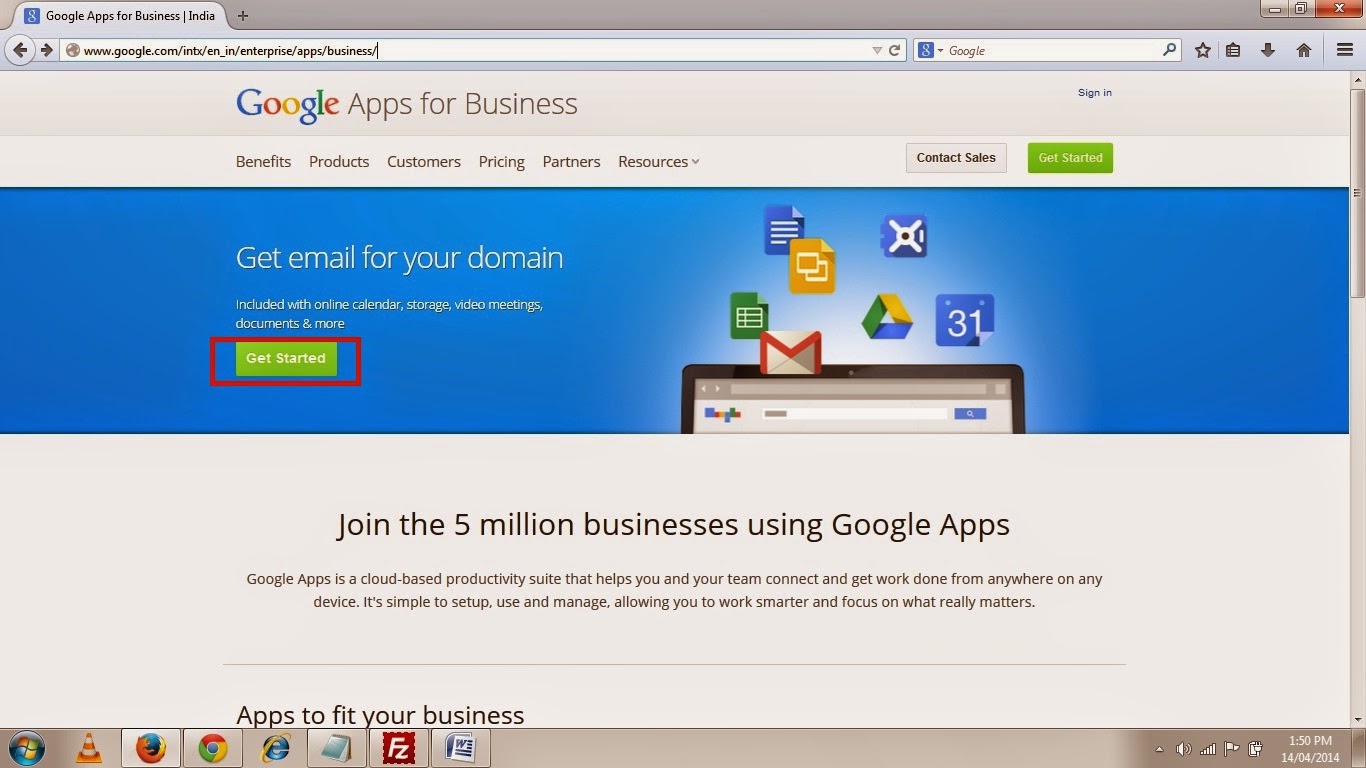
1. Log on to Google Apps for Business by Clicking here.
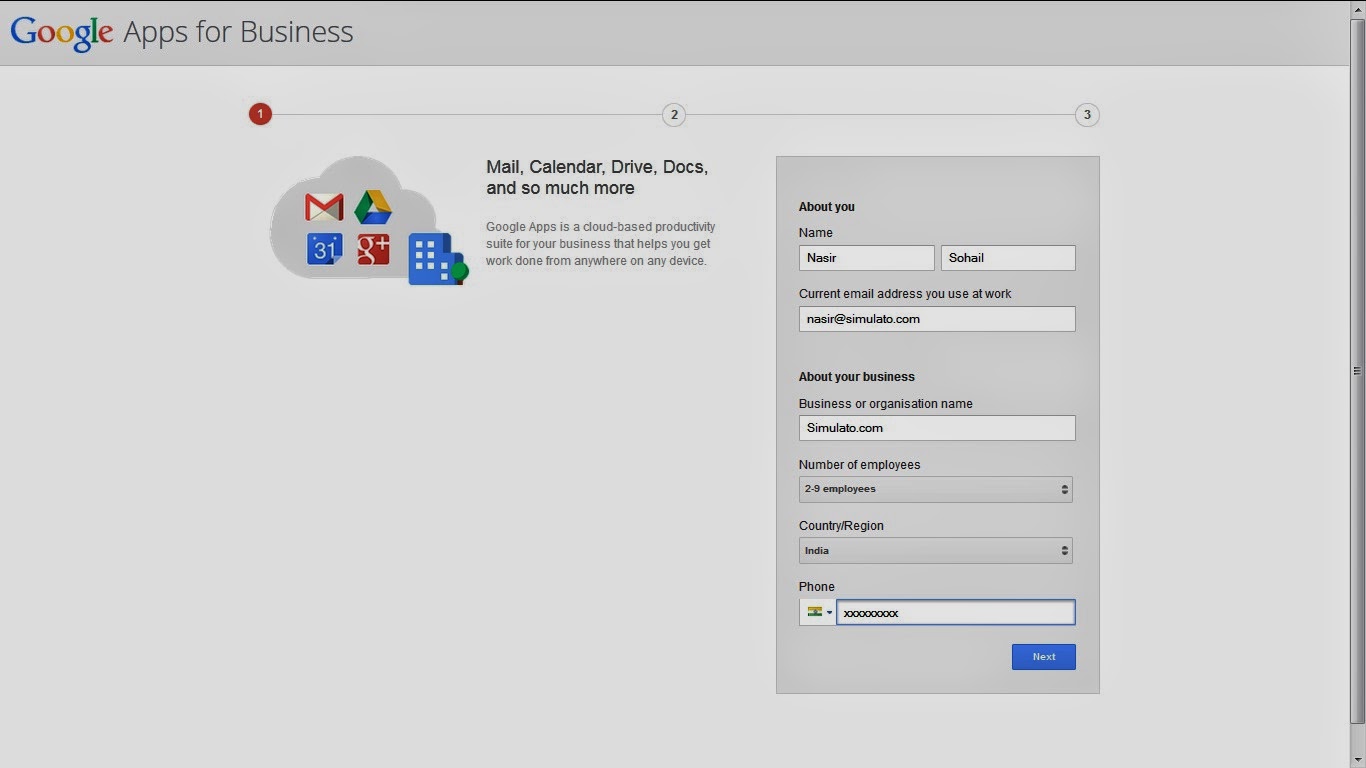
2. Click Get started and on the next page you will see a Form to fill up as shown in the picture below, so Fill up the Form and Click Next.
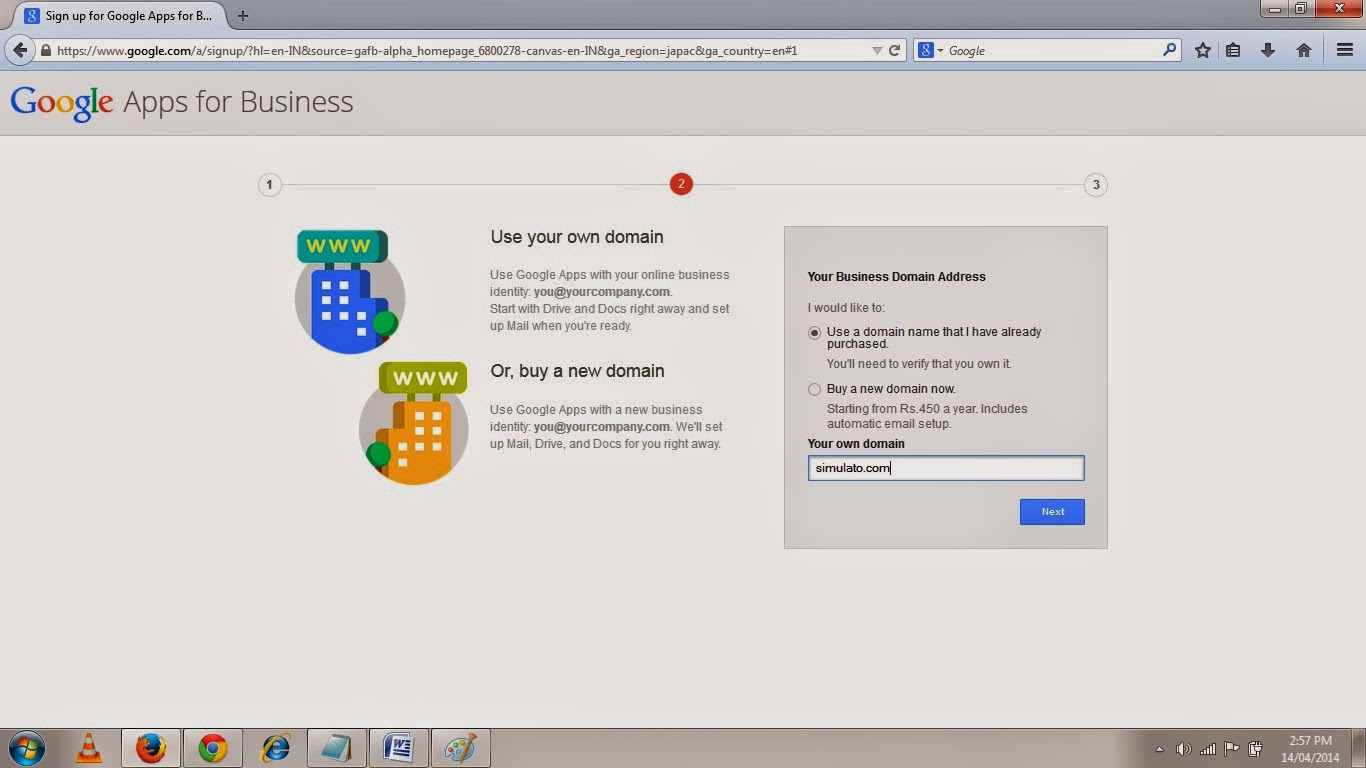
3. In the next page you will be asked about your business Domain Address.Select the option use a Domain Name that I have already purchased and then type in the Domain name and then click next.
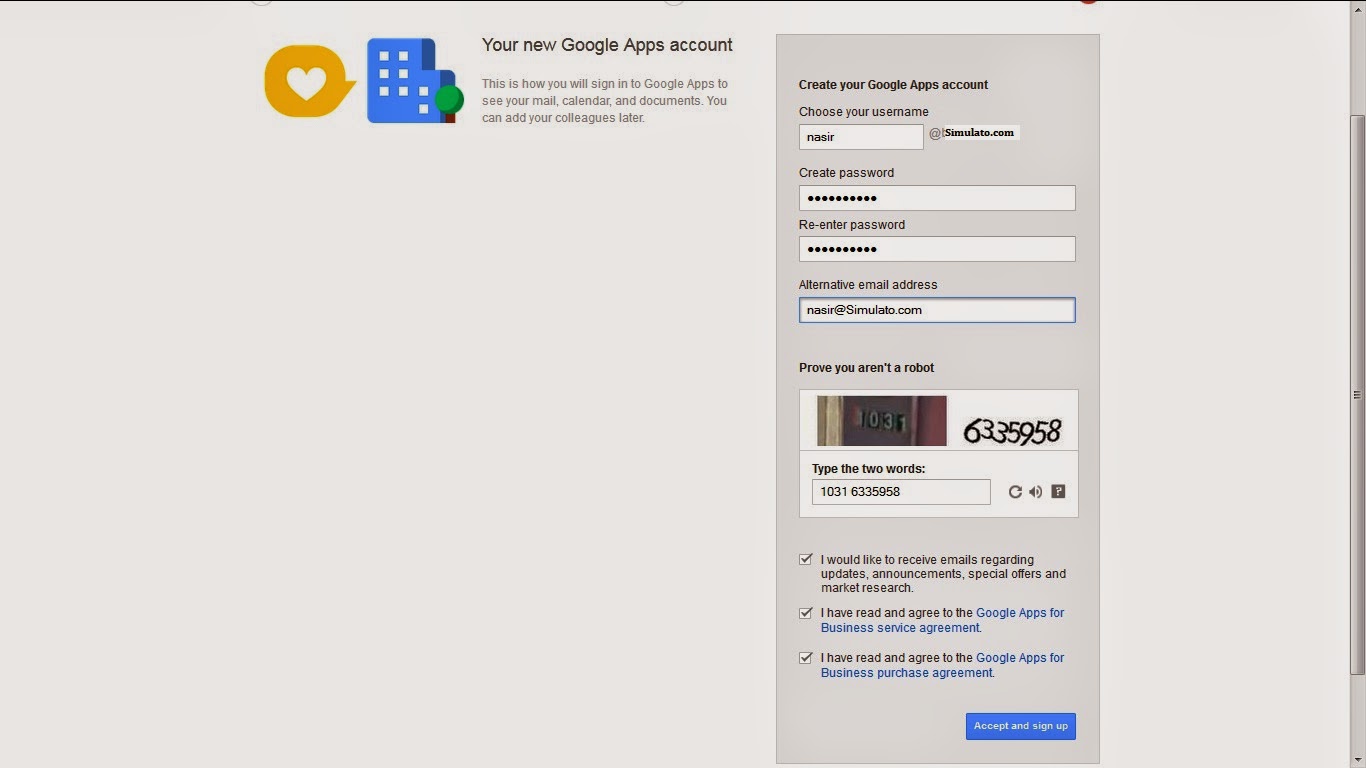
4. In the next page you will be asked to create your Google Apps Account Which will be your Admin account that you will use to sign in to Google Apps to see your mail, calendar, and documents. You can add your colleagues later.So Fill in the form as shown in the Picture below and Click Accept and Sign Up.
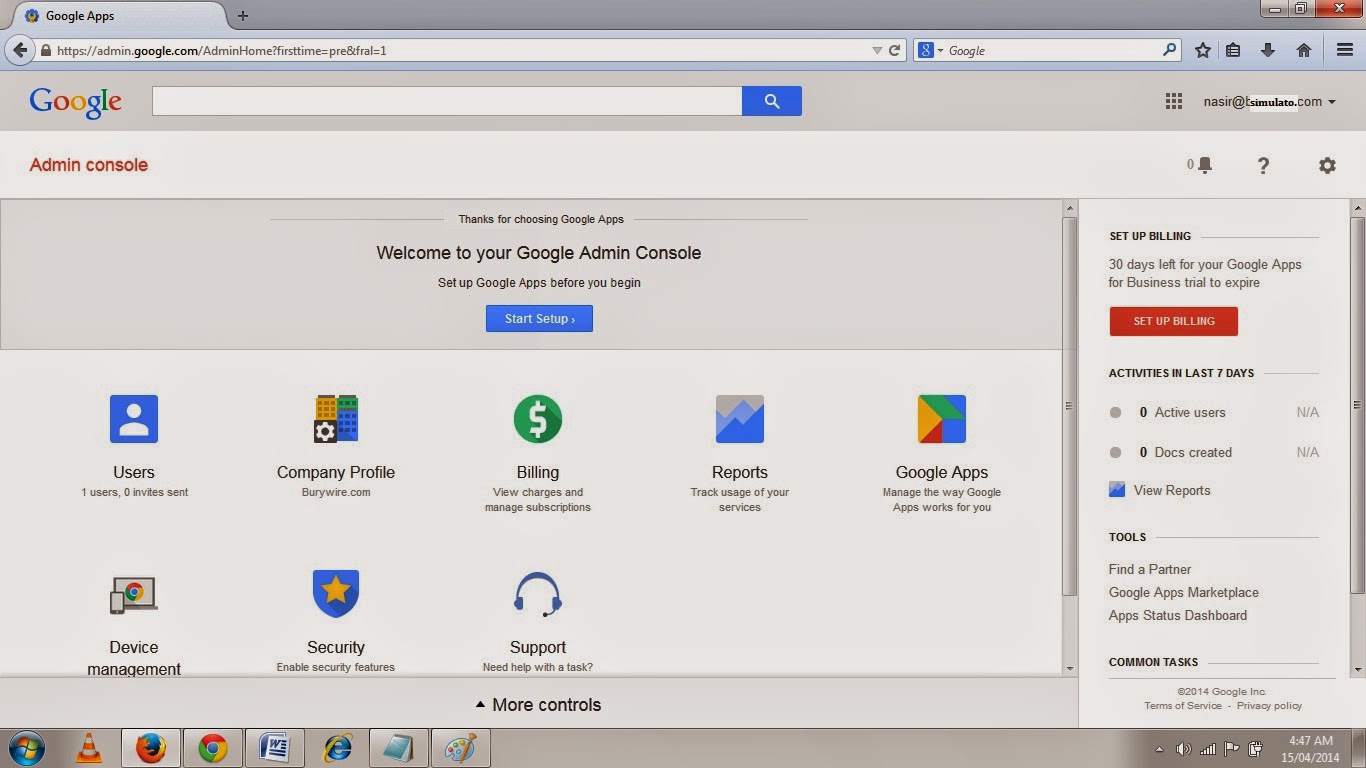
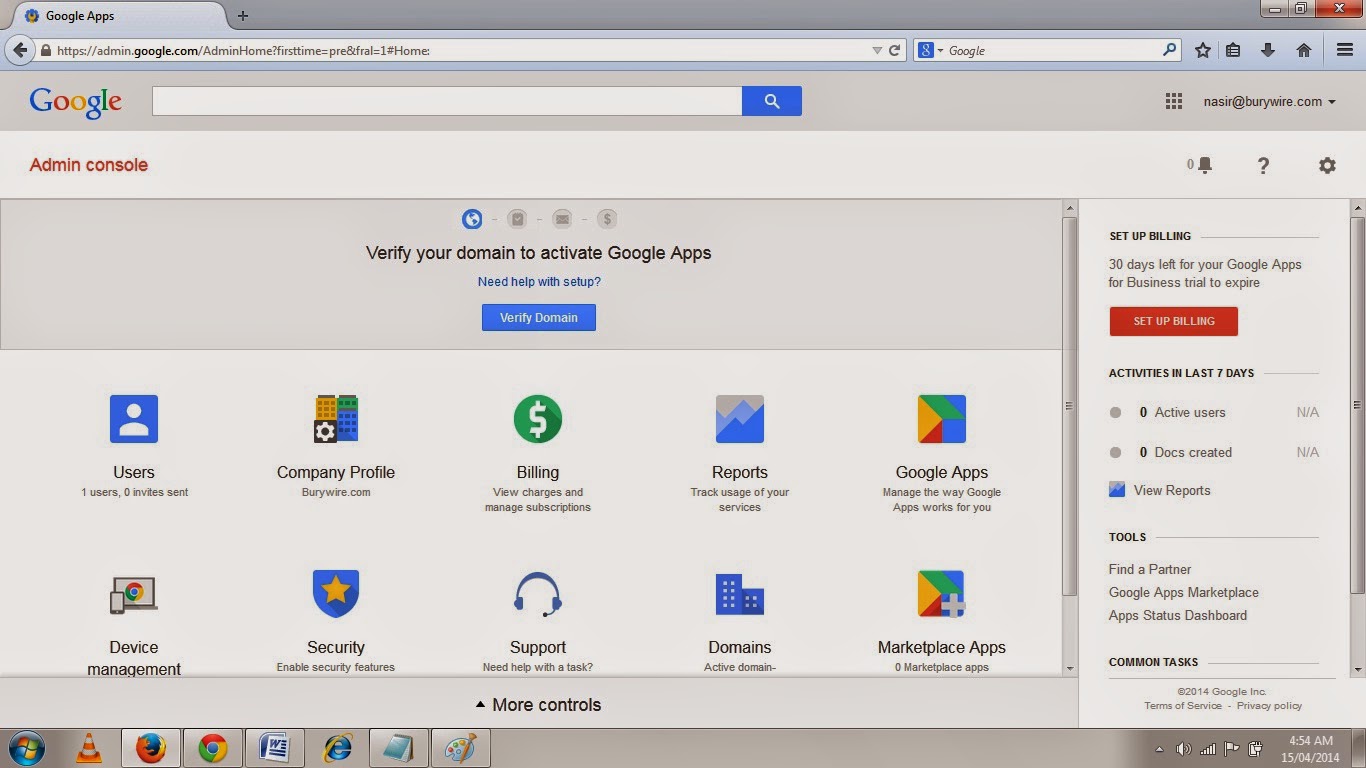
5. After you have accepted and signed up you will reach to your Dashboard.Where you have to first click on the Start Setup button and then the first thing you have to do is Verify your domain to let Google know that you own this domain.
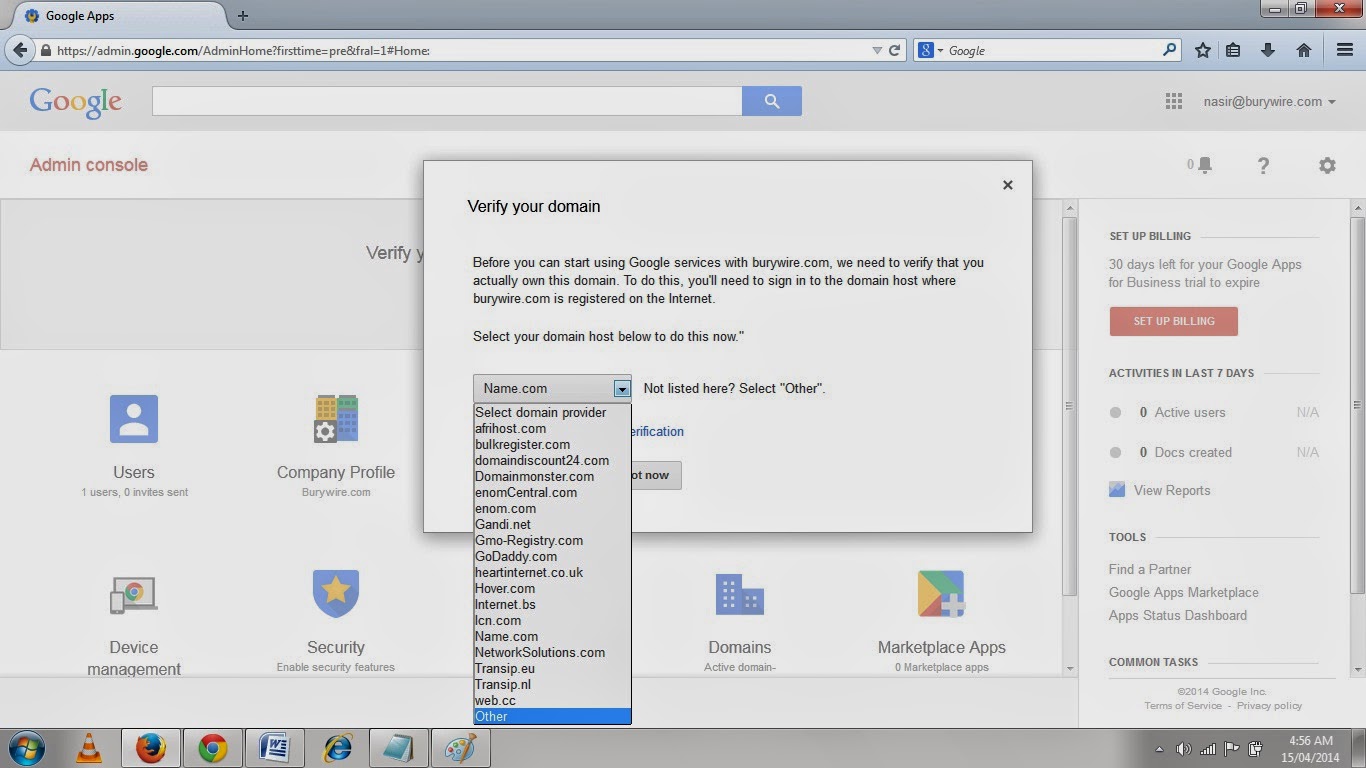
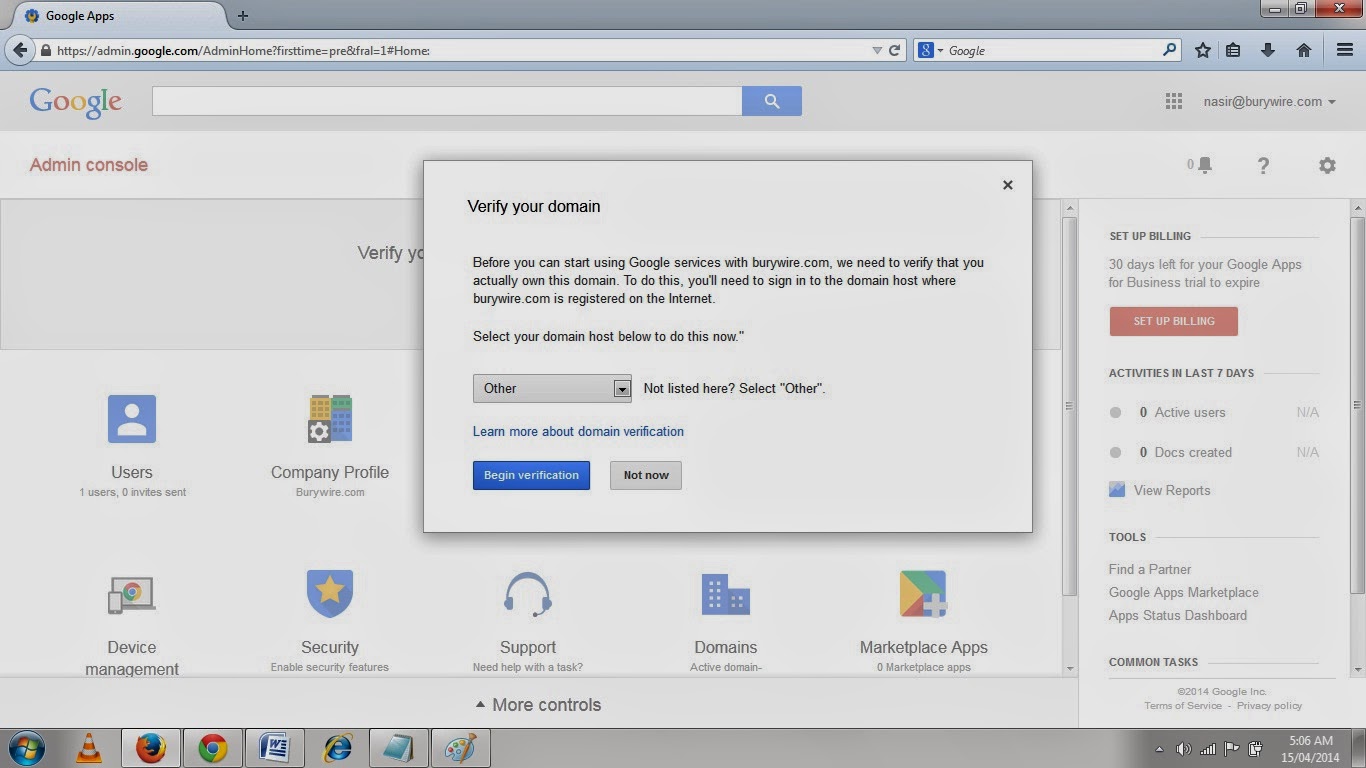
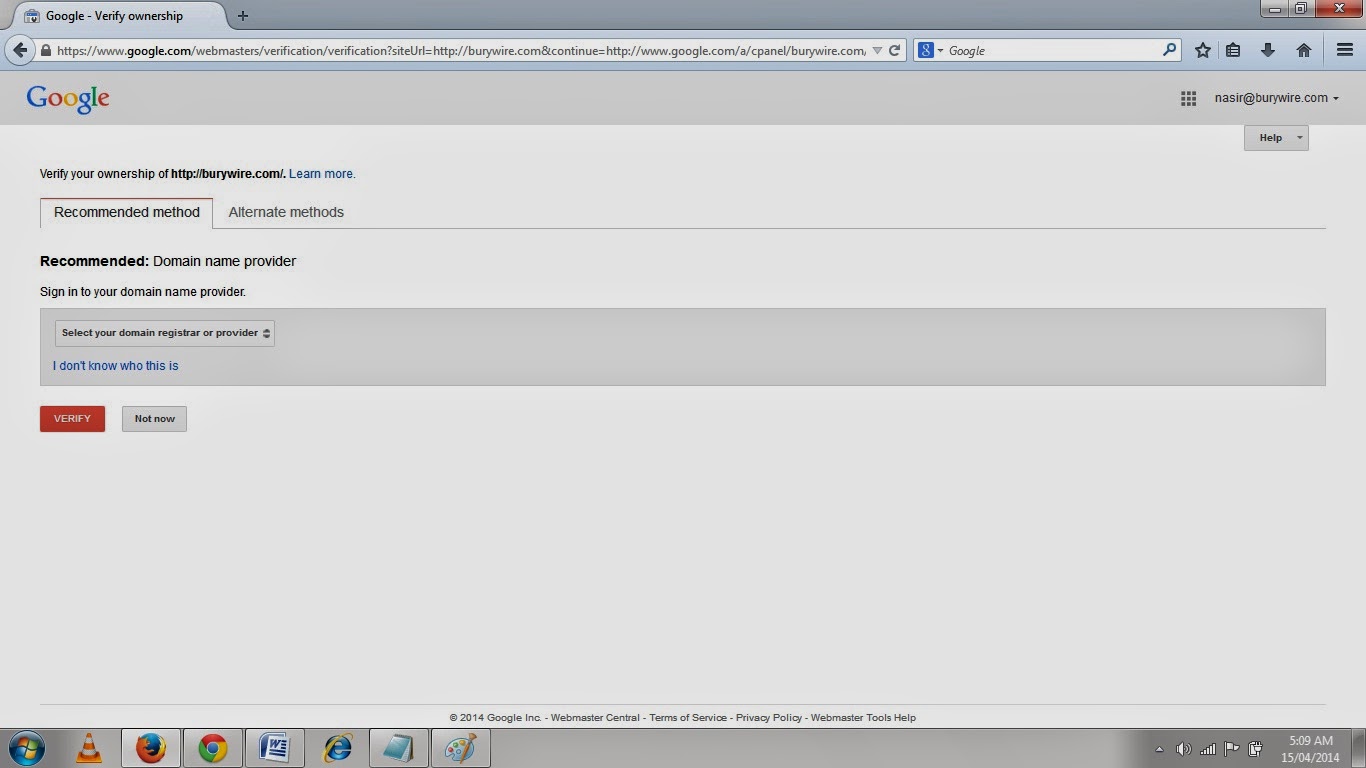
6. Click on Verify domain and then select the domain Registrar where to got your domain registered in my case it was Namecheap.com so I selected Other in the first list and then click Begin Verification, Then it showed me another larger list of all available famous registrar so select Namecheap here.
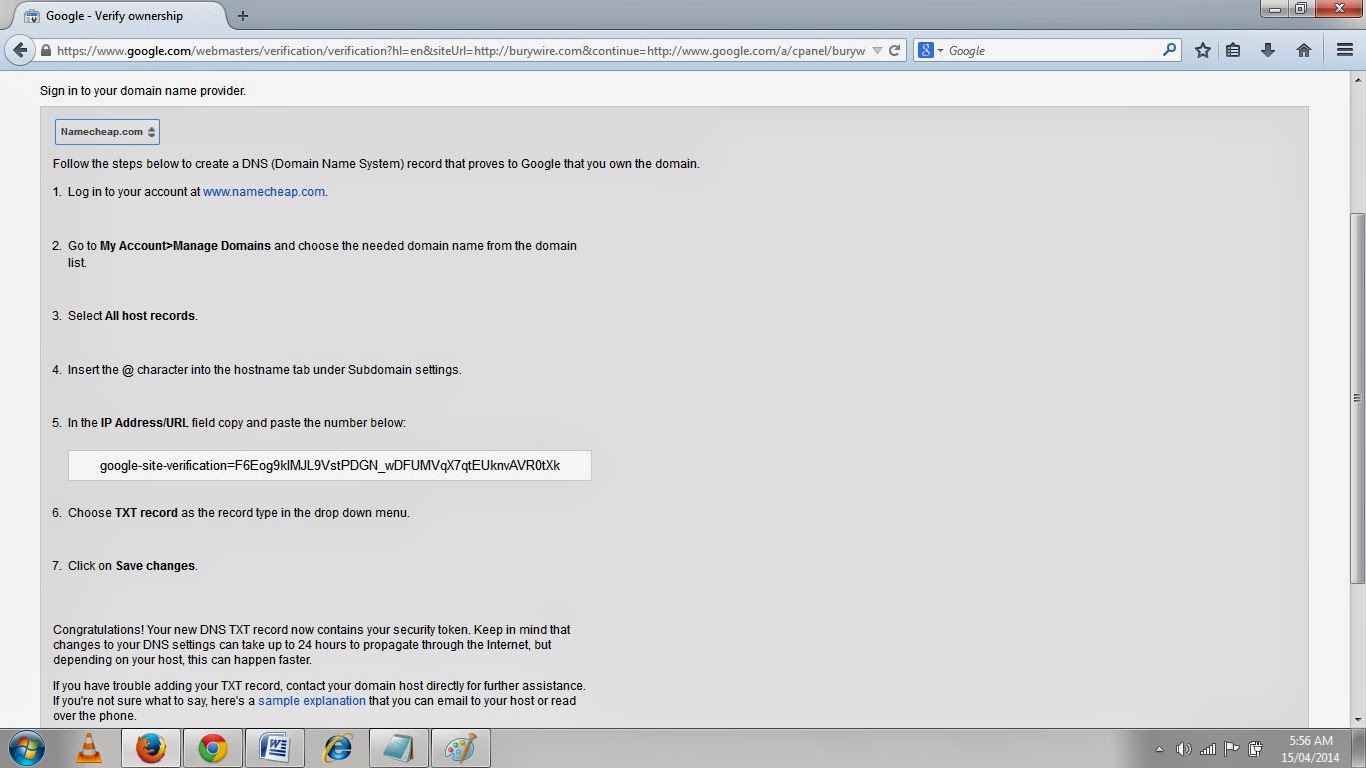
7. Now in the next page as shown in the Pic-9(m) if you can find your Domain Registrar select that or just select Other again.Now If your Domain Registrar is available it will show you couple of options to verify your domain either by adding a meta tag to the head tag of the home page or just creating an MX records or by adding a TXT records or a CNAME records, but the option to edit records will only be available when you have hosted your site with your domain Registrar.If you have hosted your website to a different hosting service provider then you have to go to your hosting service provider and probably change the MX( mail exchange) records to host your mailing solution to somewhere else after you have verified your domain to Google.
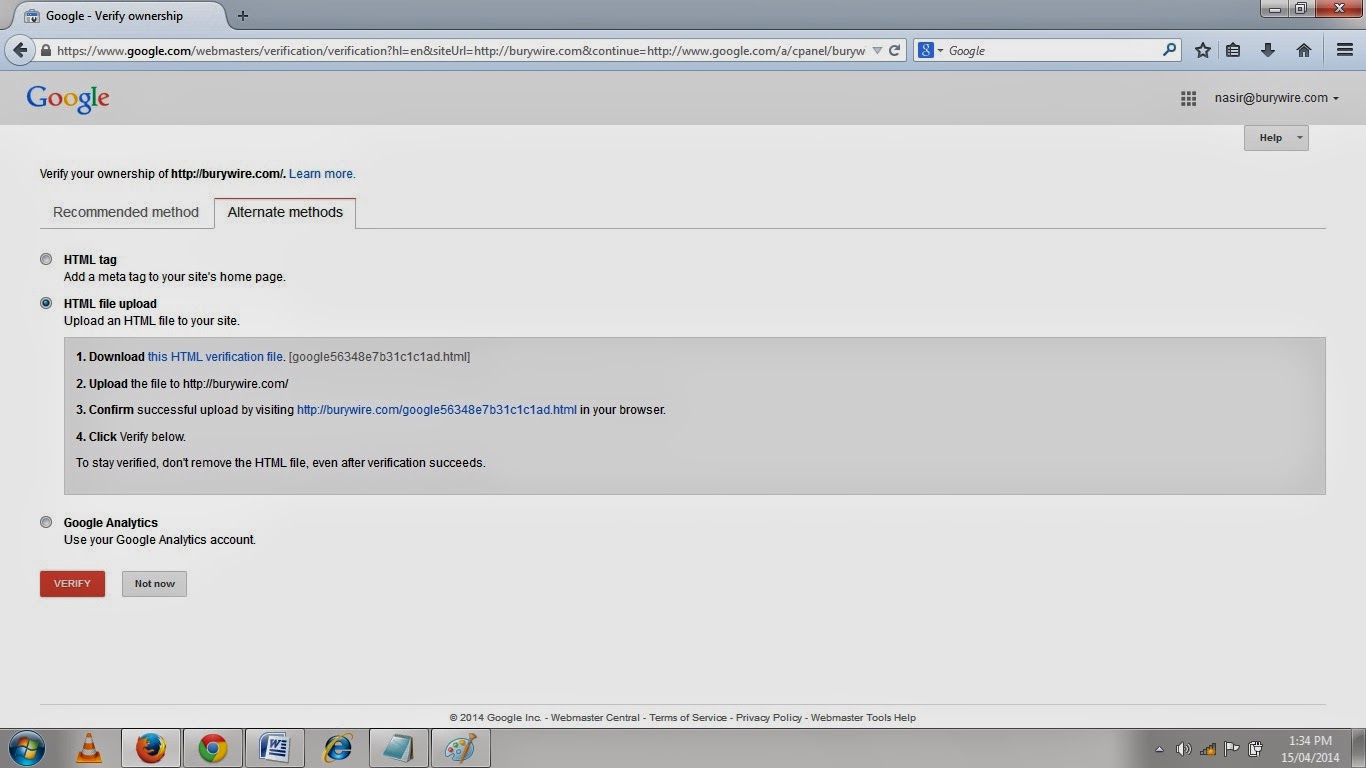
8. You can also select the Alternate Method by clicking on the alternate method tab to verify the ownership of this domain wherein you have to either put a Meta tag or just upload a file to your website as shown below in the picture- 9(o) and access that file and your are done.
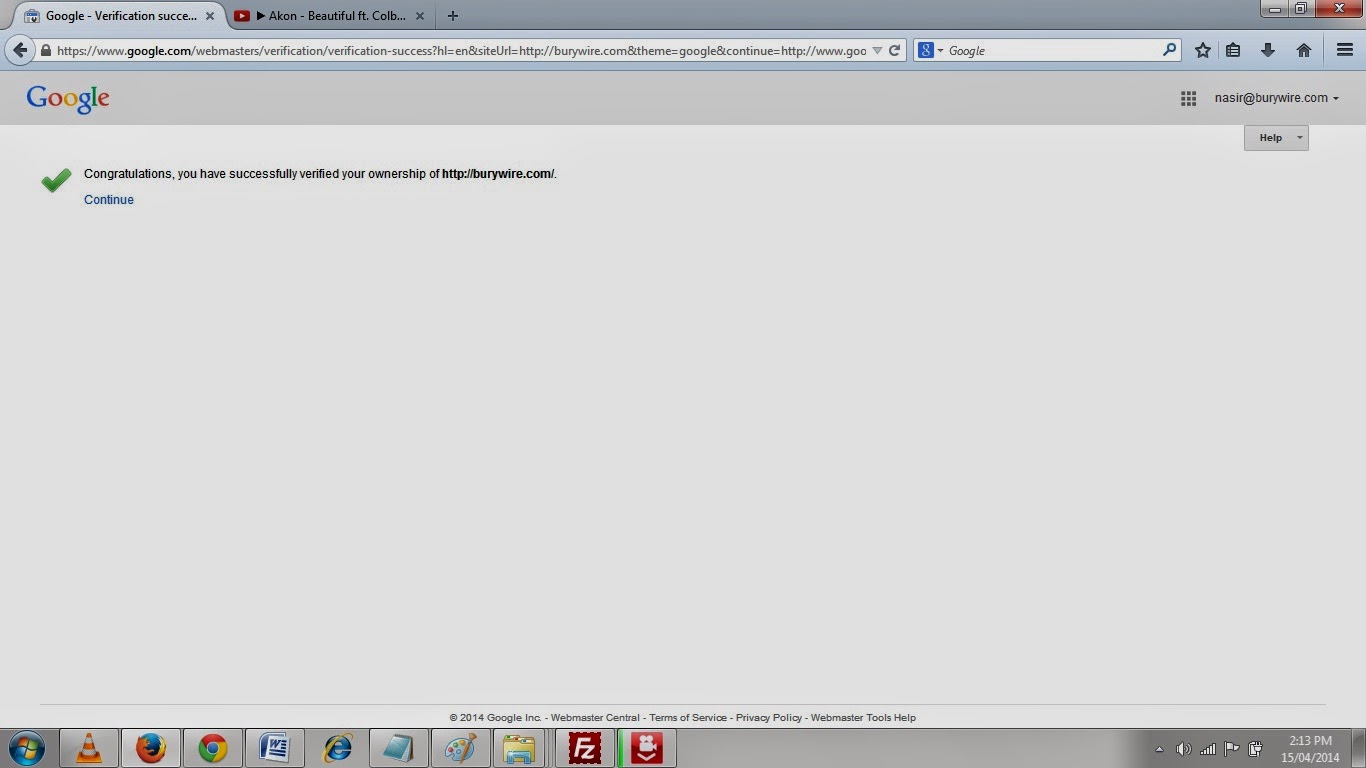
9. So I downloaded the file as shown in the picture-9(o) and then accessed the files in my browser by clicking on the link shown in the line 3. in pic-9(o).And once you have accessed the file click on Verify tab and you will see the message congratulations you have successfully verified the ownership of your Domain.
10. Click continue and You will be asked to login again.So login and then add all the user and their email addresses before you setup the Email with Google.So by now you have verified the ownership of the domain to Google and now Google will tell you what that Mail Exchange record ( MX Record ) is which you have to change for your existing hosting service provider.
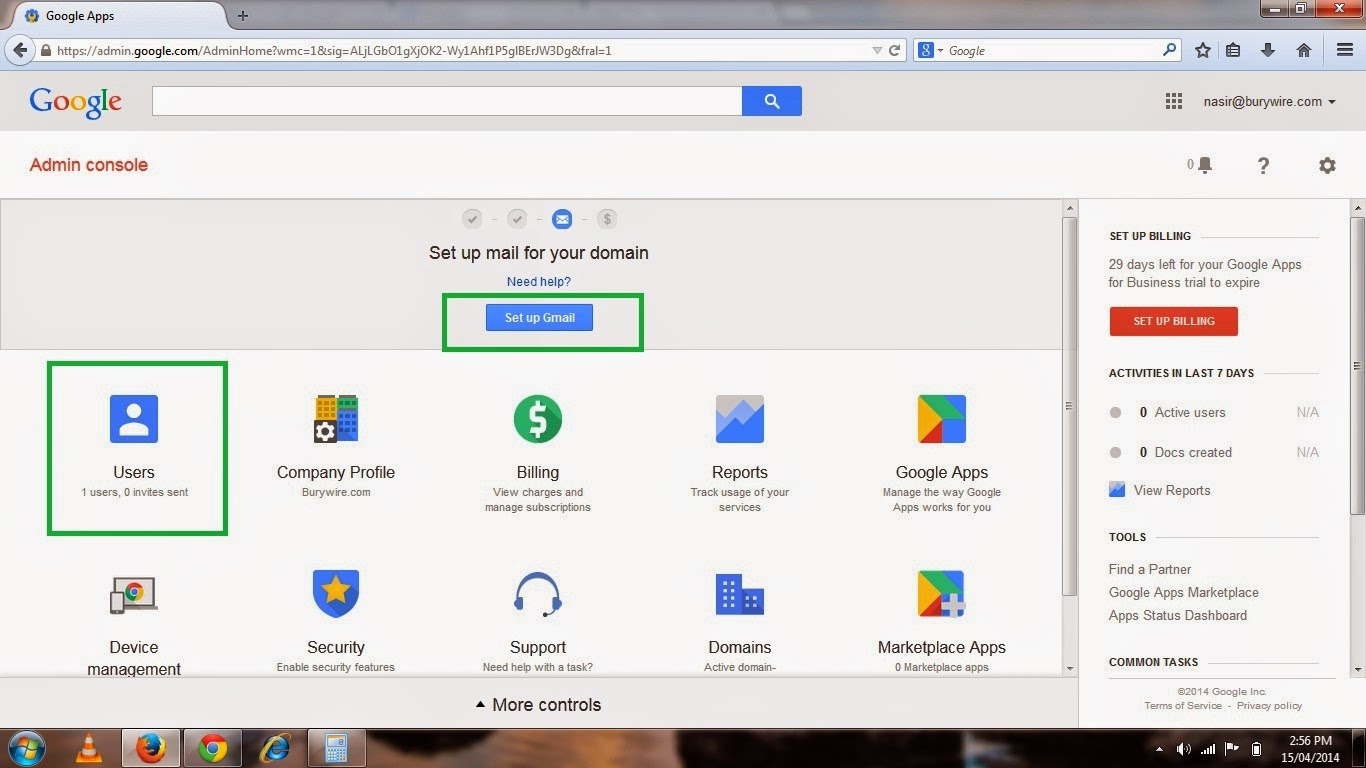
11. After you have logged in again you will see the option to set up Gmail for you organization at the top as shown in the picture-9(q) below.
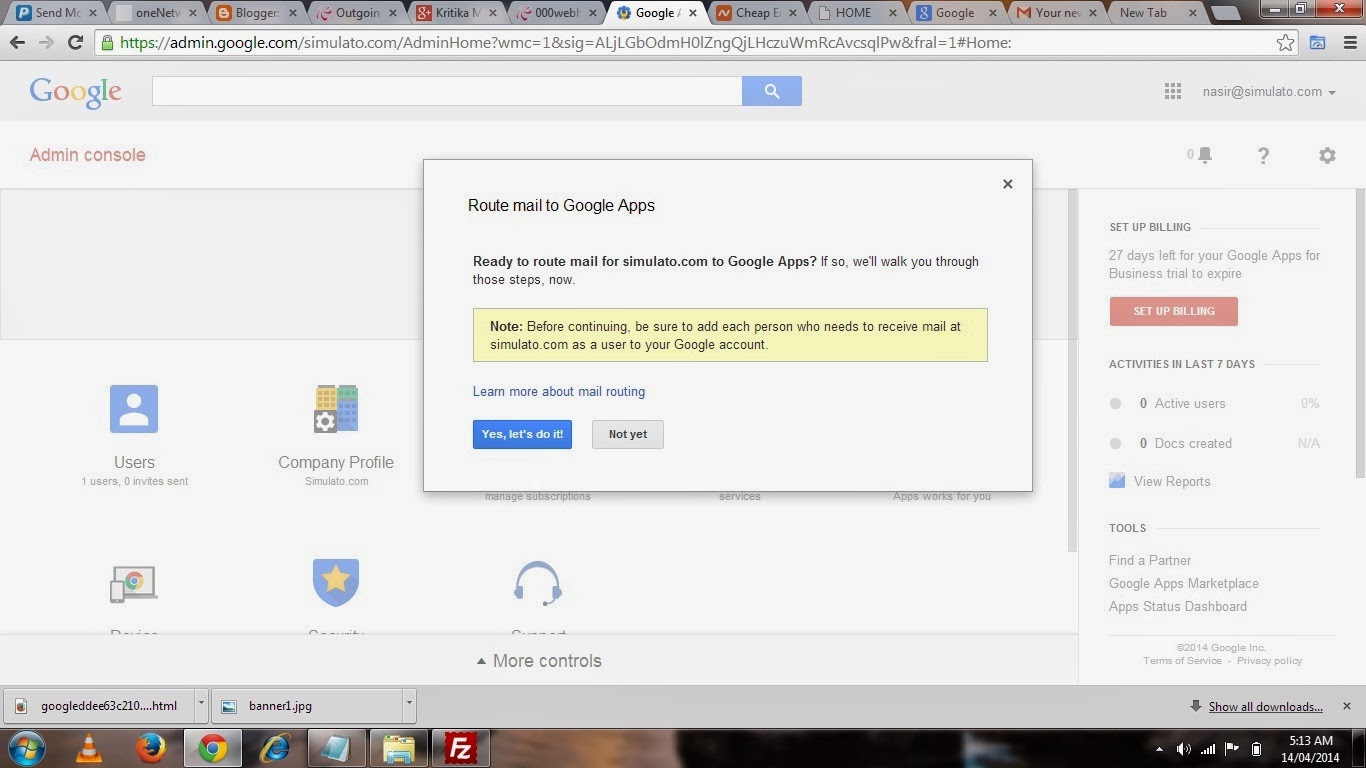
12. Click on the button Set Up Gmail and then it will show you the message as shown in the picture-9(R) so make sure you have added all the user with their Email address and then click "Yes, Lets do it!".
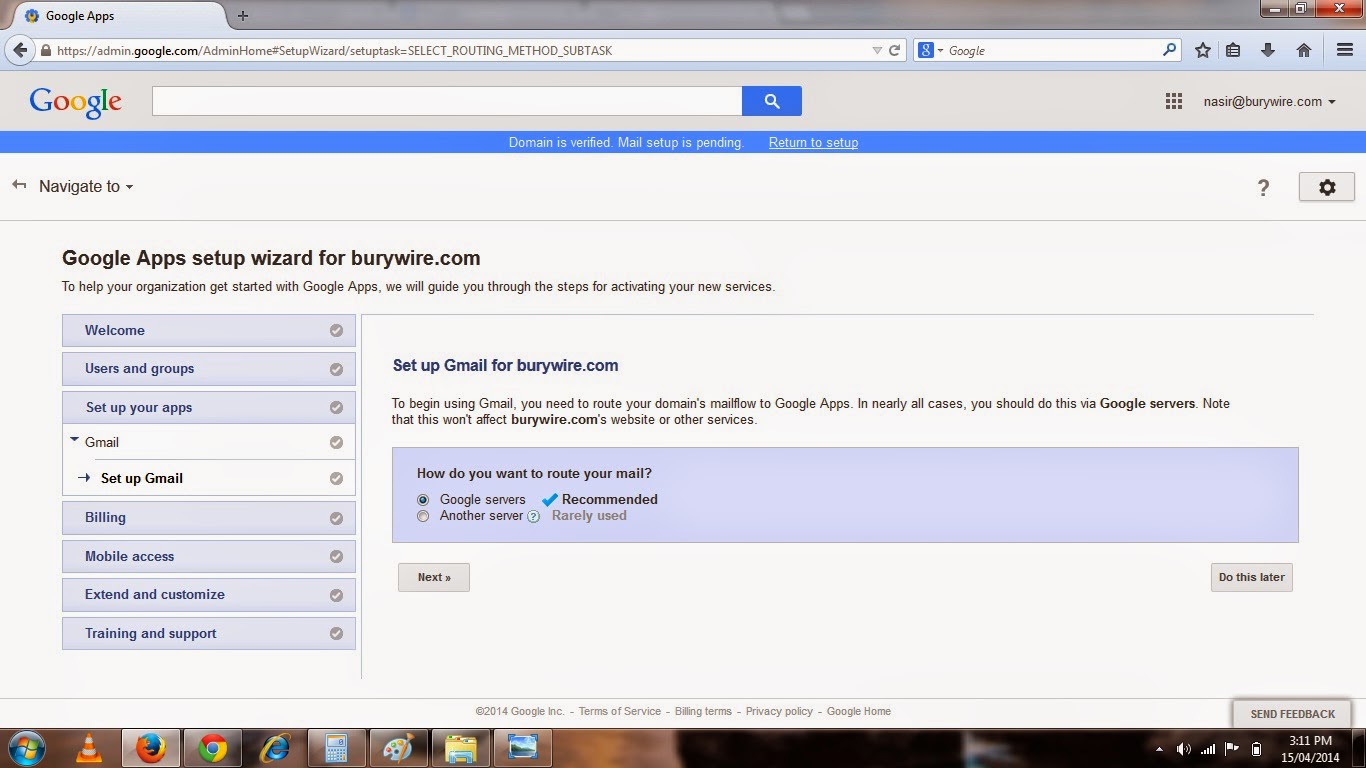
13. No in the next page as shown in the Pic-9(s) Set up Gmail for Burywire.com ( which is my other domain) select Google Servers to route your Email to and then click Next.
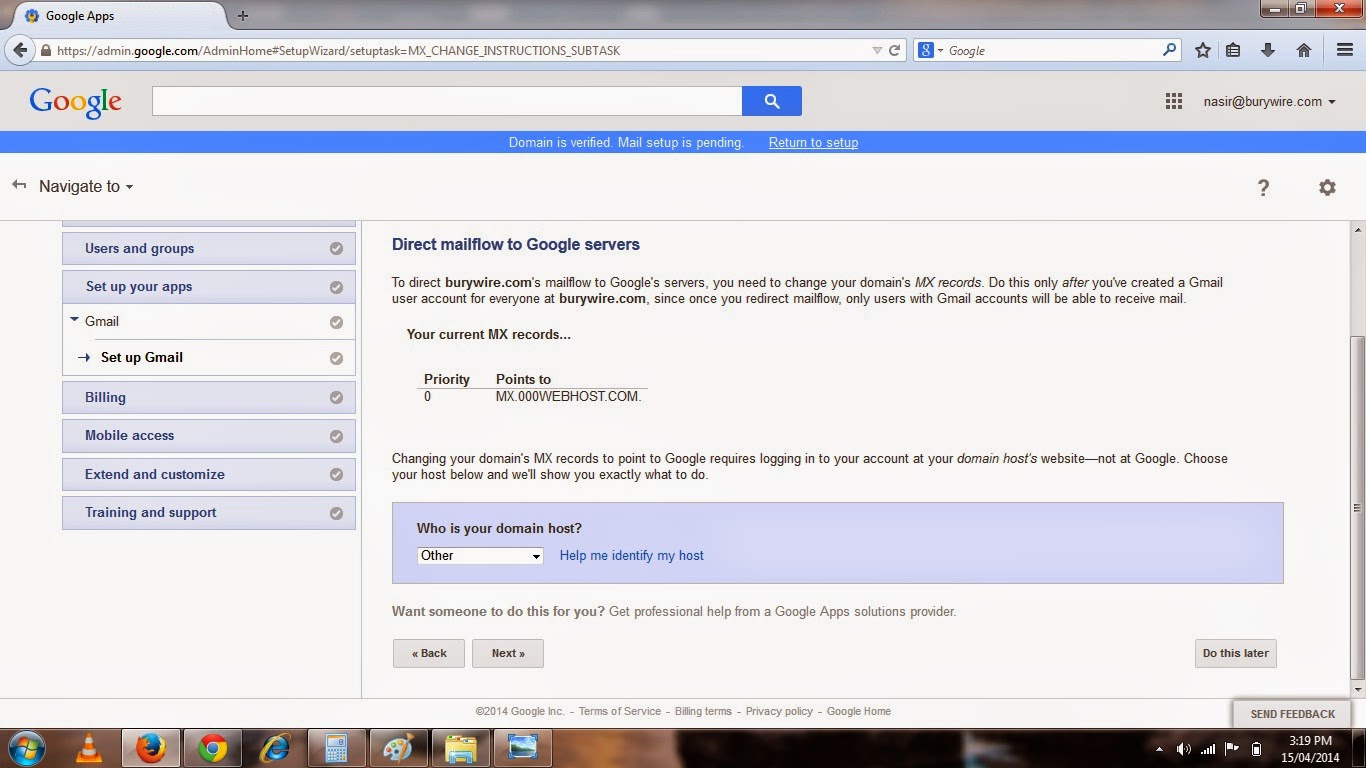
14. Click on the next and the Next page will show you the existing MX records for your Email server.Which is MX.000WEBHOST.COM, and this is what you have to change to Google s MX records.
15. Now select the Domain host from the Drop Down list if it is available in the list otherwise select Other and click next.
Alrighty!! So we are good to go now and enjoy the Feature and services of Google and move freely, Manage Nicely and stay connected to you friends on Google+ .
And other good thing is that after you have set up Gmail for your business you can go ahead and make changes in your Email clients like Microsoft Outlook or Mac Mail and use Incoming and Outgoing Mail server of Gmail which are POP.GMAIL.COM and SMTP.GMAIL.COM respectively.
Now before I wrap up here is a quick learning guide from Google that will help you understand Google App a little deeper.
Note:- Please feel free to contact me in case you have any doubt or concern.Write a mail to nasir@simulato.com or leave a comment.Any suggestion to improve the contents will be highly appreciated.
Today I am going to write a very interesting topic which would be very helpful for a small business people who uses their business email only in their office and has limitation.After reading this article they could change the way they manage their email and use it freely from anywhere with great features of Gmail, Google Talk, Hangouts, Contacts, Task, Lookup( Look all the addresses in your company), Google Docs and Google Drive.
I have a domain name registered as Simulato.com where for my business Email I used to Login from a designated computer which has the Microsoft outlook configured or if I Have to login from a different place I had to login to My Web hosting provider and from there I could Login to my Web Mail and that did not have all the great features available as Gmail provides.So I took this decision to Host my Email Services to Google and now I login to my Email ( info@simulato.com ) from Gmail as a Google account and save my documents in Google Drive with all the Gmail Features like Google Talk and Hangouts.And I am always connected because I have also configured my business Email on my Android Phone.
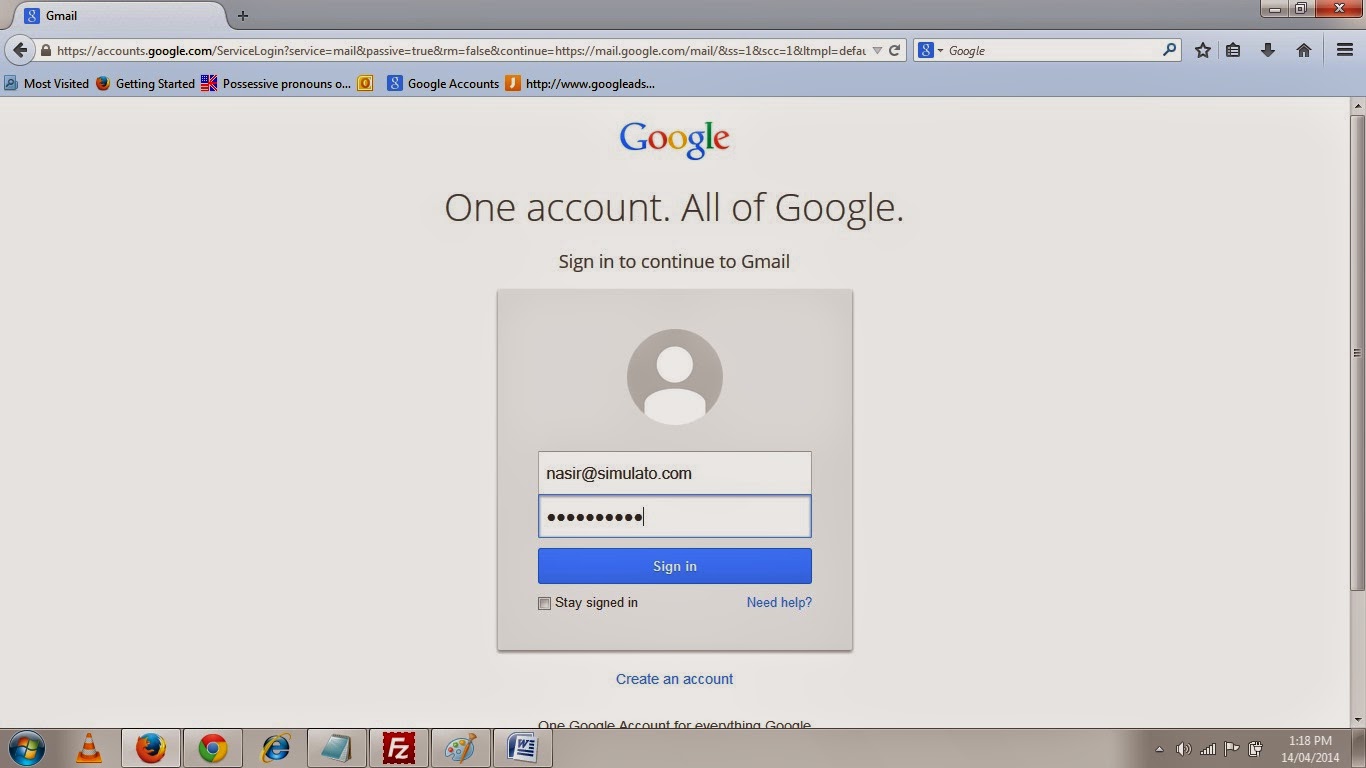 |
| Pic-9(a) |
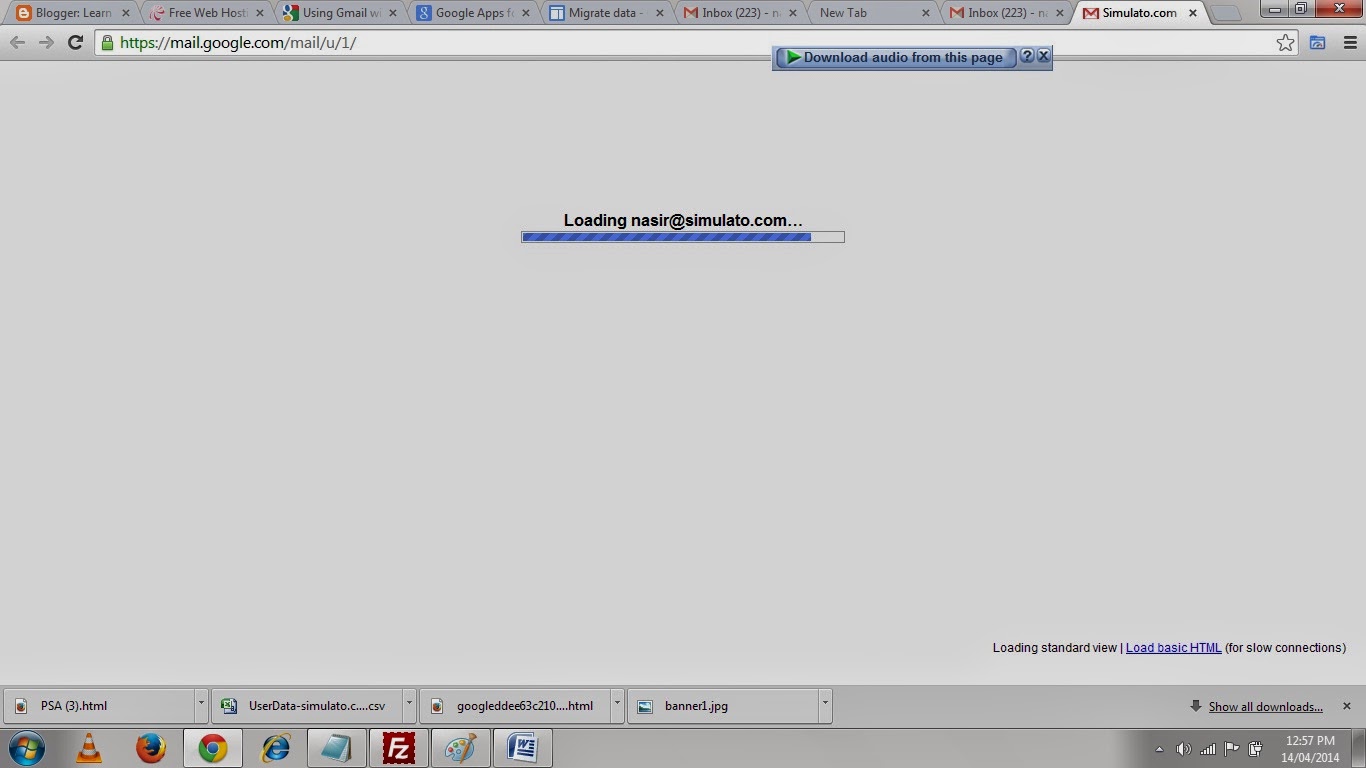 |
| Pic-9(b) |
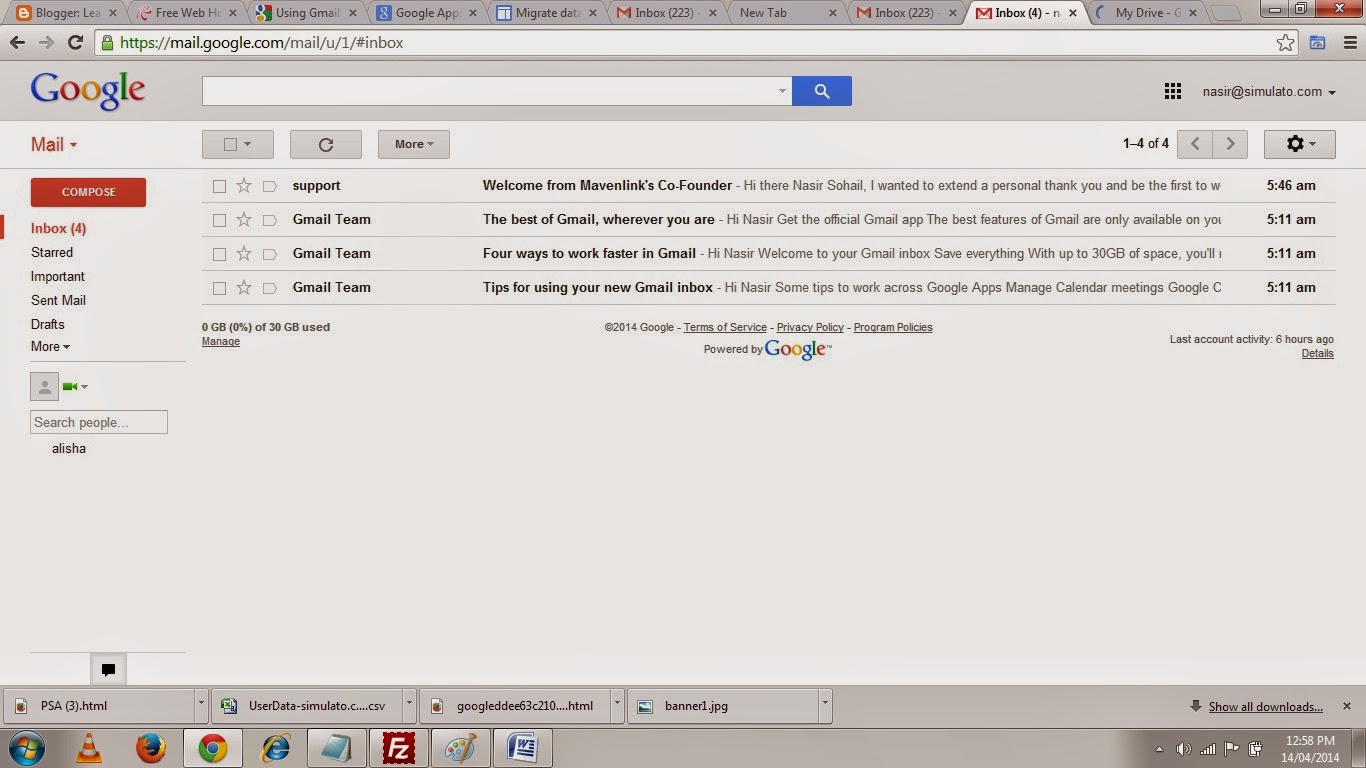 |
| Pic-9(c) |
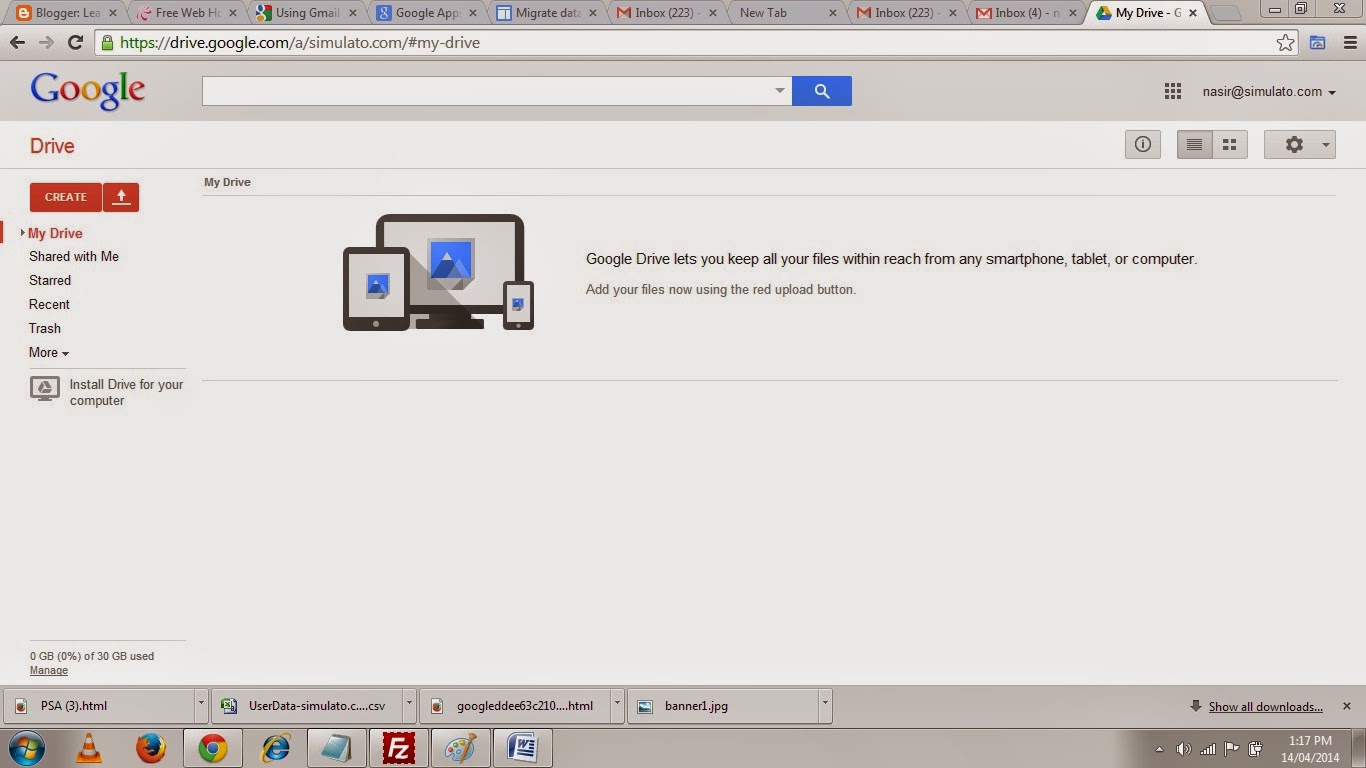 |
| Pic-9(d) |
Steps to host your Email on Google.
1. Log on to Google Apps for Business by Clicking here.
 |
| Pic-9(e) |
 |
| Pic-9(f) |
 |
| Pic-9(g) |
 |
| Pic-9(h) |
 |
| Pic-9(i) |
 |
| Pic-9(j) |
 |
| Pic-9(k) |
 |
| Pic-9(L) |
 |
| Pic-9(m) |
8. You can also select the Alternate Method by clicking on the alternate method tab to verify the ownership of this domain wherein you have to either put a Meta tag or just upload a file to your website as shown below in the picture- 9(o) and access that file and your are done.
 |
| Pic-9(n) |
 |
| Pic-9(o) |
 |
| Pic-9(p) |
11. After you have logged in again you will see the option to set up Gmail for you organization at the top as shown in the picture-9(q) below.
 |
| Pic-9(q) |
 |
| Pic-9(r) |
 |
| Pic-9(s) |
 |
| Pic-9(t) |
 |
| Pic-9(u) |
 |
| Pic-9(v) |
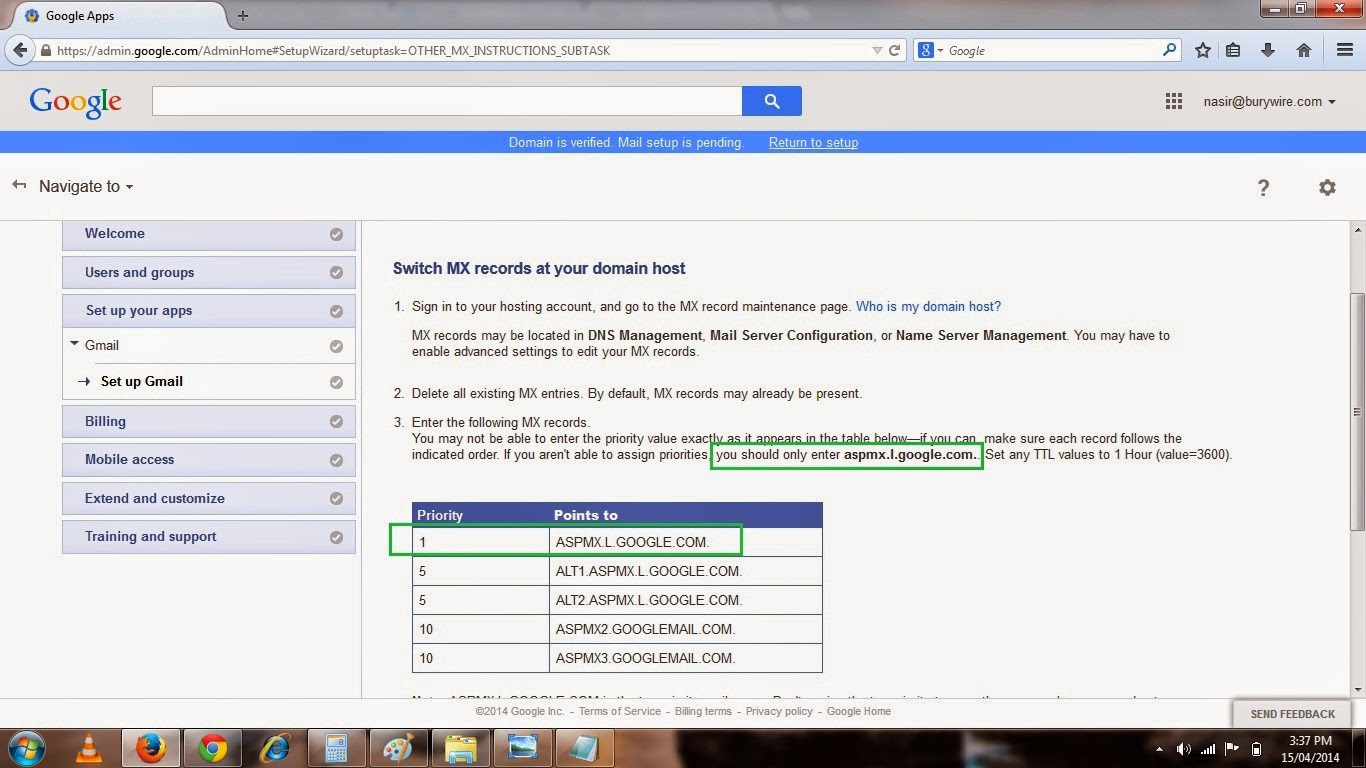
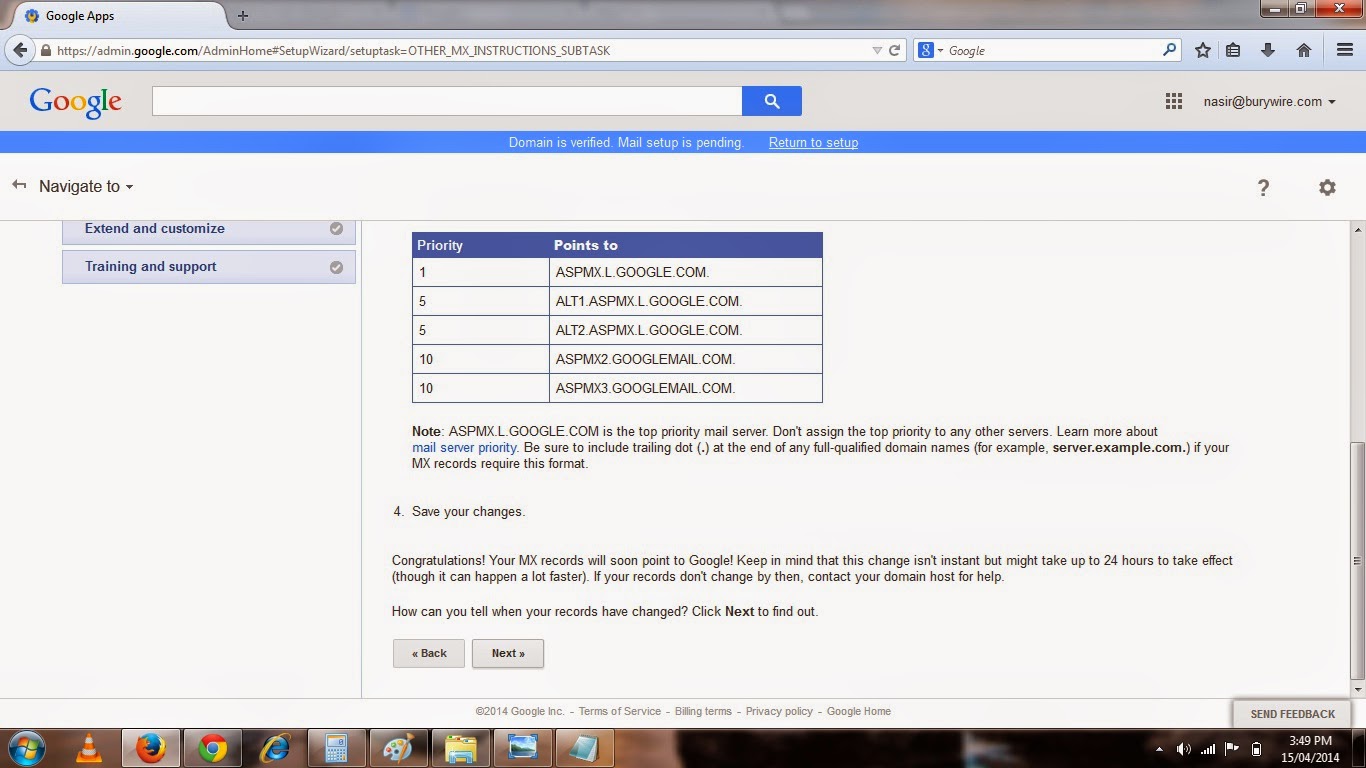
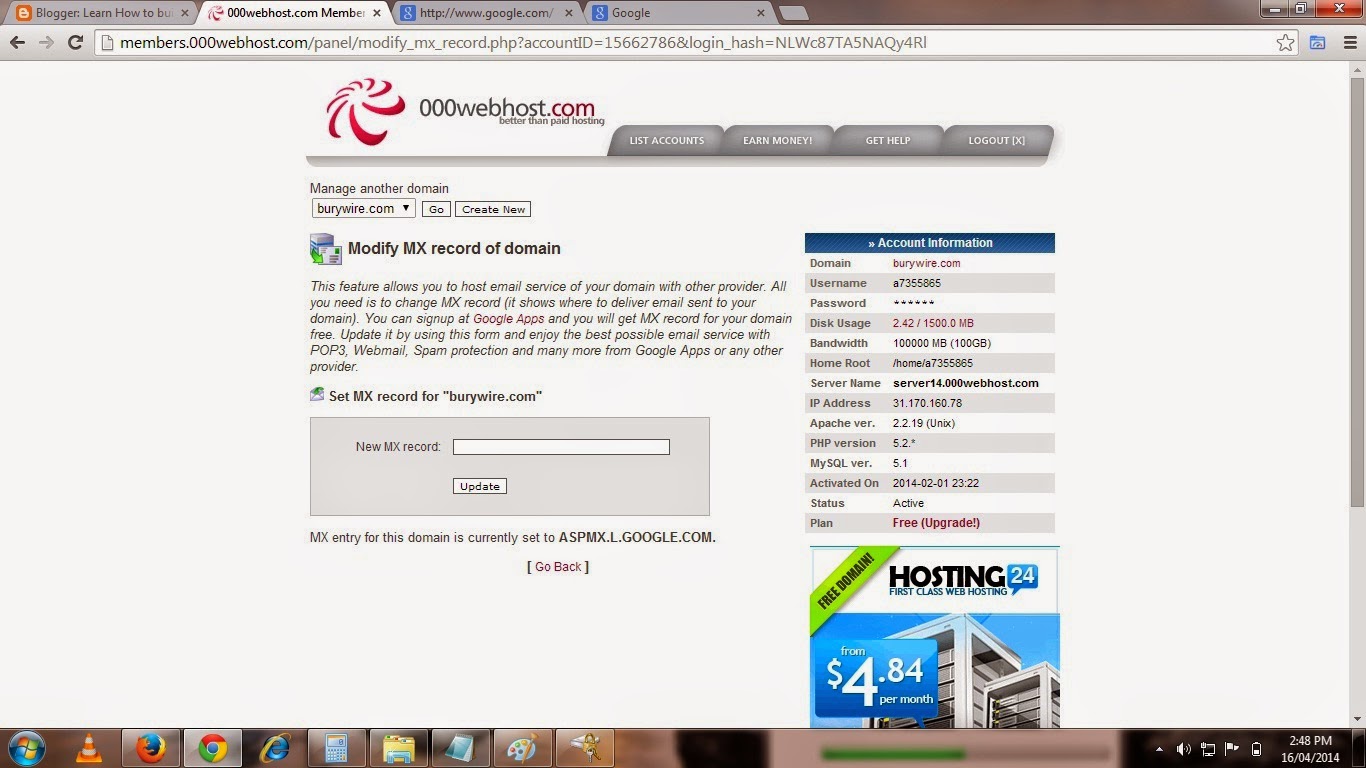
16. Now I would also recommend you to keep reading on each page you see during setup for more information. Now in the page shown above in the Pic-9(v) , I am gonna copy the first Email server address "ASPMX.L.GOOGLE.COM" and set this up as the MX record on my web host provider which is 000webhost.com.
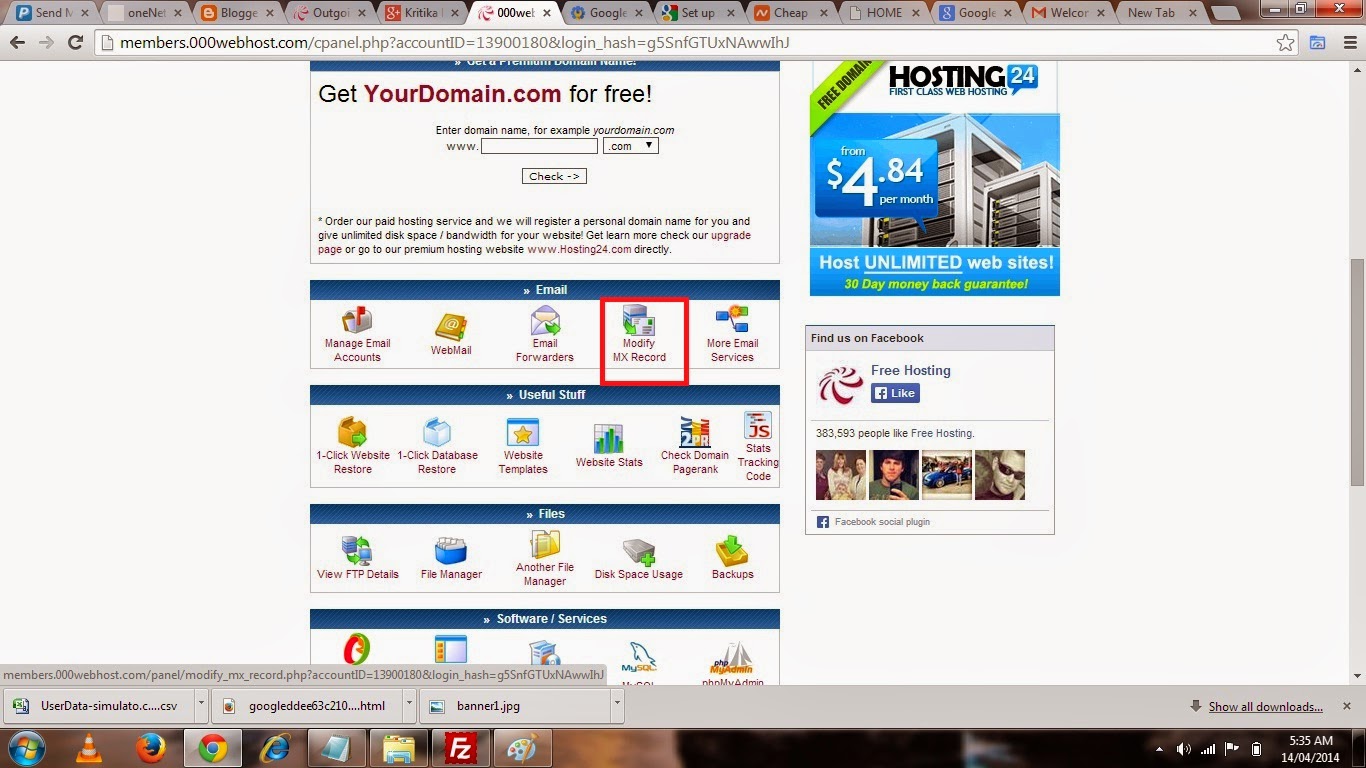
17. So I logged into the control panel of my hosting provider and then clicked on Modify MX Record as shown in the Pic-9(w).
 |
| Pic-9(w) |
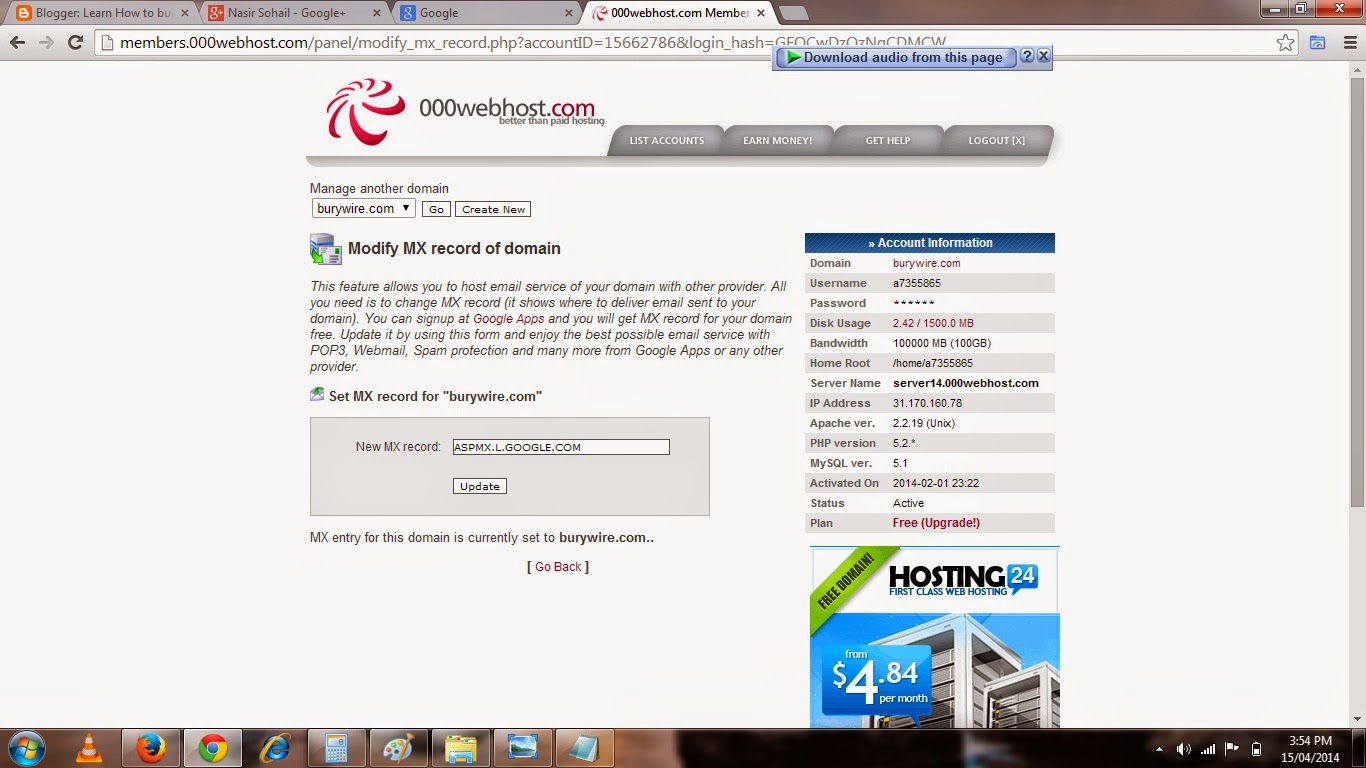
18. Now in the next page, paste or type the Mail server of Google as shown in the picture-9(x).
19. Click on update and come back to Google Apps page and click on Next.And you are set.Now go to Gmail.com and login with your business Email Id and Password.The Administrator will give the password for all the other user to login to Gmail from their business email ID.
 |
| Pic-9(x) |
 |
| Pic-9(y) |
Alrighty!! So we are good to go now and enjoy the Feature and services of Google and move freely, Manage Nicely and stay connected to you friends on Google+ .
And other good thing is that after you have set up Gmail for your business you can go ahead and make changes in your Email clients like Microsoft Outlook or Mac Mail and use Incoming and Outgoing Mail server of Gmail which are POP.GMAIL.COM and SMTP.GMAIL.COM respectively.
Now before I wrap up here is a quick learning guide from Google that will help you understand Google App a little deeper.
Using Gmail with Google Apps
Using Gmail with Google Apps is a lot like using it with your personal Gmail account, but with added enhancements for working in a company or other organization.
Using Gmail with Google Apps now? Get Gmail help for businsess users at the Google Apps learning center.
Whats different about Google Apps Gmail
- Business email address. Google Apps lets you have an email address at your own domain—with the format name@your_domain.com—rather than name@gmail.com.
- More than just email. Google Apps is more than just Gmail for your organization. It includes a suite of web-based productivity and collaboration tools that include online documents, calendars, video chat, and much more.
- Different editions. There are different versions of Google Apps, such as for businesses, schools, or government organizations, each of which might have different features and capabilities. Learn more
- Administrative controls. With Google Apps, you can have an administrator manage and control peoples email accounts across your domain, from a central Admin panel.
Using Gmail at work or school
- Gmail Send and receive mail. Watch video
- Google Calendar View and add calendar events. Learn more
- Google Talk Send instant messages.
- Googe Docs View and edit docs! Watch video
- Contacts Manage and get in touch with your contacts.
- Tasks Add and check off tasks. Watch video
- Lookup Quickly look up contacts at your domain
Note:- Please feel free to contact me in case you have any doubt or concern.Write a mail to nasir@simulato.com or leave a comment.Any suggestion to improve the contents will be highly appreciated.
Go to link Download
Subscribe to:
Posts (Atom)