Showing posts with label business. Show all posts
Showing posts with label business. Show all posts
Monday, May 8, 2017
How to configure your business E mail account on Microsoft Outlook Outlook Express or on your Android Phone
How to configure your business E mail account on Microsoft Outlook Outlook Express or on your Android Phone
Hello Everyone,
Welcome Back!, I am here again with a new topic on How to configure your Email client software like Microsoft Outlook and Outlook Express for your business or personal email(i.e Gmail).I still remember the days when I was working as a Technical support Officer with one of the reputed U.S based MNC.And I used to get calls related to Email issues which would be so much frustrating for the Clients because for some of them 50% of their whole business was dependent on their business or personal email.
So Lets start with How to configure the Email Client software to send and receive email on your desktop.Before we start I would like to tell you that there are numerous Email client Software available in the market, Some of the famous are Mozilla Thunderbird, Opera, Windows Live Mail, Pegasus Mail, IncrediMail, Mulberry , Foxmail, DreamMail, Alpine, MailBird, eM Client, Eudora,Mac Mail, Entourage, Outlook Express,Microsoft Outlook etc.
But Microsoft Outlook,Outlook express and Mac Mail are widely used. No Matter which Email client you are gonna configure, they all have almost the same way to configure like you need to go to the option and select Accounts or go to Tools menu and then Account settings.Once you have reached the account Settings page then you need to know a couple of information to connect the Email client with the Mail server.And those information are for sure User Name and Password for the Email account,then Incoming and Outgoing Mail server, Incoming or POP3 Port and Outgoing or SMTP Port number, and If they require SSL connection. And these information are easily available in the Cpanel of your hosting or Domain administration accounts or in the help Section of the Publicly used Web Mail (Gmail, yahoomail etc.).
Now first of all I am gonna show you how to find the Email account settings for the free hosting provider 000webhost.So login to members area and then go to C panel, then Navigate to Email section and click Manage Email Accounts as shown in the picture 4-(a).
Then its gonna show you a list of all the Email accounts as shown in the picture 4(b) below
here click the POP/IMAP configuration Link for the email account you want to set up with your Email client like Microsoft Outlook then its gonna show you the setting like Incoming Mail Server , Outgoing Mail Server, User Name and Password as shown in the picture 4(c).
As we see here the 000webhost does not provide you with an Outgoing Mail Server with free hosting Account.But you can use your ISP(Internet Service Provider) SMTP server.Call your ISP to know there SMTP Server.Now note Down all the information you have got here and open Microsoft Outlook from All program in start menu as shown in the picture 4(d).
Now this is the first time I am Launching the Microsoft Outlook so in the very beginning its gonna ask me to configure Outlook with an Email Account as in the Picture 4(e)
So Click next and then select Yes then Click Next again as in Picture 4(f).Now you will get Auto Account Setup Screen as shown in the Picture 4(g), Which is normally used for well known famous Email account Like Yahoomail, Gmail, AOL, ATT.NET etc. Where you just Enter the Email ID and password and outlook will search for Incoming and Outgoing Mail Server with port number and Configure itself.But Right now We have to configure our business Email ID (Nasir@simulato.com/Alisha@simulato.com) So Click to check Manually Configure Server Settings or additional Server types and then Click next as in the Picture 4(g).
Now Select Internet E-Mail Option and click next and then you will be asked to enter details like
Go to Outgoing Server Tab as shown in the Picture 4(k) Below.Here I am gonna select the second option Log on using and Put in my Gmail User Name and Password.Normally here we have to select First option Use Same Settings as my Incoming Mail Server because Incoming Mail server and Outgoing Mail server settings are always the same.
Then Move on to advance Tab and here you have to make changes if the incoming mail server and outgoing mail server uses a different Port number instead of the default one and also you need to select SSL or TLS if they require authentication.So here as shown in the picture 4(L) I need to make changes to my Outgoing mail server settings as I have used Gmail Outgoing server.So I changed the Port No. to 587 and Selected the authentication Type to TLS as Gmail uses this Settings.Then click on OK.
Now you will be back to Internet Email Settings Page as shown in the Picture 4(m) ,Here Click on Test Account Settings button and then it will test the incoming and outgoing server settings and shows a tick Mark next to each task it performs.So here I have configured my outlook correctly.
Standard Configuration Information For IMAP.
Differences Between POP and IMAP
I am also showing you the differences in the table below to have a solid knowledge on IMAP and POP.I collected these information.htm and http://help.thunderbird.edu/content/what-difference-between-imap-and-pop-protocol.
Nasir ...
Welcome Back!, I am here again with a new topic on How to configure your Email client software like Microsoft Outlook and Outlook Express for your business or personal email(i.e Gmail).I still remember the days when I was working as a Technical support Officer with one of the reputed U.S based MNC.And I used to get calls related to Email issues which would be so much frustrating for the Clients because for some of them 50% of their whole business was dependent on their business or personal email.
So Lets start with How to configure the Email Client software to send and receive email on your desktop.Before we start I would like to tell you that there are numerous Email client Software available in the market, Some of the famous are Mozilla Thunderbird, Opera, Windows Live Mail, Pegasus Mail, IncrediMail, Mulberry , Foxmail, DreamMail, Alpine, MailBird, eM Client, Eudora,Mac Mail, Entourage, Outlook Express,Microsoft Outlook etc.
But Microsoft Outlook,Outlook express and Mac Mail are widely used. No Matter which Email client you are gonna configure, they all have almost the same way to configure like you need to go to the option and select Accounts or go to Tools menu and then Account settings.Once you have reached the account Settings page then you need to know a couple of information to connect the Email client with the Mail server.And those information are for sure User Name and Password for the Email account,then Incoming and Outgoing Mail server, Incoming or POP3 Port and Outgoing or SMTP Port number, and If they require SSL connection. And these information are easily available in the Cpanel of your hosting or Domain administration accounts or in the help Section of the Publicly used Web Mail (Gmail, yahoomail etc.).
Now first of all I am gonna show you how to find the Email account settings for the free hosting provider 000webhost.So login to members area and then go to C panel, then Navigate to Email section and click Manage Email Accounts as shown in the picture 4-(a).
 |
| 4-(a) |
Then its gonna show you a list of all the Email accounts as shown in the picture 4(b) below
 |
| 4-(b) |
here click the POP/IMAP configuration Link for the email account you want to set up with your Email client like Microsoft Outlook then its gonna show you the setting like Incoming Mail Server , Outgoing Mail Server, User Name and Password as shown in the picture 4(c).
 |
| 4-(c) |
As we see here the 000webhost does not provide you with an Outgoing Mail Server with free hosting Account.But you can use your ISP(Internet Service Provider) SMTP server.Call your ISP to know there SMTP Server.Now note Down all the information you have got here and open Microsoft Outlook from All program in start menu as shown in the picture 4(d).
 |
| 4(d) |
 |
| 4(e) |
So Click next and then select Yes then Click Next again as in Picture 4(f).Now you will get Auto Account Setup Screen as shown in the Picture 4(g), Which is normally used for well known famous Email account Like Yahoomail, Gmail, AOL, ATT.NET etc. Where you just Enter the Email ID and password and outlook will search for Incoming and Outgoing Mail Server with port number and Configure itself.But Right now We have to configure our business Email ID (Nasir@simulato.com/Alisha@simulato.com) So Click to check Manually Configure Server Settings or additional Server types and then Click next as in the Picture 4(g).
 |
| 4(f) |
 |
| 4-(g) |
 |
| 4(h) |
Name, Email ID , Account Type,Incoming Mail Server, Outgoing Mail Server,Username and Password.
Look at the picture 4(i) below I have used the Incoming mail server (mx.000webhost.com) of 000webhost.com while the outgoing mail Server of Gmail, because 000webhost.com does not provide you with an Outgoing Mail server with a free hosting account but 000webhost is good for a starting business or a Testing account. And you can later upgrade to a premium account.
 |
| 4(i) |
Now to set the Incoming and Outgoing server Port we have to click on More Settings.. button located on the bottom right hand side which will show you a New Window Internet Email Settings as shown in the picture 4(j) below.So you have 4 tabs on here.You Dont need to do anything on the first Tab(General)
 |
| 4(j) |
 |
| 4(k) |
 |
| 4(L) |
 |
| 4(m) |
Bingo!! You have successfully configured your business Email account.Now if you have to configure your Gmail or any other Email account you will just need to click on Tools->Account Settings as shown in the Picture 4(n) below.After clicking on Account Settings you will get account settings window which will list the account configured in your outlook you can add a new Email Account by clicking on the new button or Change the existing one by highlighting the Email account and then click change button which will take you to the same Internet Email settings page where you have to make changes as shown in the Picture 4(i).
 |
| 4(n) |
 |
| 4(O) |
So thats all we needed to do to configure the outlook.And you can have your own companys Email ID like yourname@yourcompanyname.com working.And its a very simple process which will take Just 20 Minutes to setup even if you start from scratch ( like from booking your companys domain to setting up your Email Address.) for information on how to book your domain and how to host it read my first post on this blog.And to learn how to create your Email ID on your hosting server read this post.
Same way you can configure your outlook with Gmail.You just need to know the settings of Gmail account.I am writing below the settings of Gmail Accounts .Here you have two options to configure your Gmail Account in your Email Client, either using the POP or using IMAP.
So if you have to configure your outlook with Gmail or you need to add Gmail into outlook just click on new as shown in the picture 4(O).And you can have your Personal Gmail account and your business Account both configured with outlook.
Standard configuration instructions for POP:
Incoming Mail (POP3) Server - requires SSL: | pop.gmail.com Use SSL: Yes Port: 995 |
Outgoing Mail (SMTP) Server - requires TLS or SSL: | smtp.gmail.com Use Authentication: Yes Port for TLS/STARTTLS: 587 Port for SSL: 465 |
Server timeouts | Greater than 1 minute, we recommend 5 |
Full Name or Display Name: | [your name] |
Account Name or User Name: | your full email address (including @gmail.com or @your_domain.com) |
Email Address: | your email address (username@gmail.com or username@your_domain.com) |
Password: | your Gmail password |
Differences Between POP and IMAP
I am also showing you the differences in the table below to have a solid knowledge on IMAP and POP.I collected these information.htm and http://help.thunderbird.edu/content/what-difference-between-imap-and-pop-protocol.
IMAP | POP |
The IMAP protocol, by default, allows the user to keep all messages on the server. It constantly synchronizes the e-mail program with the server and displays what messages are currently present. All the actions performed on the messages (reading, moving, deleting...) will be done directly on the server. | The POP protocol, by default, is set to download all the messages from the e-mail server onto your computer. This means that all the actions performed on the messages (reading, moving, deleting...) will be performed on ones computer. Because everything is kept on the user’s computer, the user will not be able to reopen messages from any location other than the computer where the messages have been downloaded. |
Because everything is kept on the server the user will be able to access the e-mail in the inbox from any computer in the world connected to the Internet and can will always find the same settings in their e-mail account. | Once e-mail is downloaded it can be accessed only using the same computer. |
All messages as well as their attachments will be downloaded into desktop PC during the check new email process. | A whole message will be downloaded only when it is opened for display from its content. |
Mailboxes can only be created on desktop PC. There is only one mailbox (INBOX) exists on the server. | Multiple mailboxes can be created on the desktop PC as well as on the server. |
Filters can transfer incoming/outgoing messages only to local mailboxes. | Filters can transfer incoming/outgoing messages to other mailboxes no matter where the mailboxes locate (on the server or the PC). |
Outgoing email is stored only locally on the desktop PC. | Outgoing email can be filtered to a mailbox on server for accessibility from other machine. |
Messages are deleted on the desktop PC. Comparatively, it is inconvenient to clean up your mailbox on the server. | Messages can be deleted directly on the server to make it more convenient to clean up your mailbox on the server. |
Messages may be reloaded onto desktop PC several times due to the corruption of system files. | The occurrence of reloading messages from the server to PC is much less when compared to POP3. |
Incoming Mail (IMAP) Server - Requires SSL
imap.gmail.com
Port: 993
Requires SSL:Yes
Outgoing Mail (SMTP) Server - Requires TLS
smtp.gmail.com
Port: 465 or 587
Requires SSL: Yes
Requires authentication: Yes
Use same settings as incoming mail server
Full Name or Display Name: [your name]
Account Name or User Name: your full Gmail address (username@gmail.com). Google Apps users, please enter username@your_
Read more »
Go to link Download

Monday, March 27, 2017
How To Make a Pinterest Business Page
How To Make a Pinterest Business Page
How To Make a Pinterest Business Page - Maybe youve thought about how to create a business page pinterest, how to make a pinterest business page or how to set up a business page pinterest. Well, I have a little story for you about how to start a business pinterest page.
Pinterest is a visual social-based technologies. Features that exist on Pinterest allows users to indicate board-board favorite by way of pin. Pinterest also predicted to foster engagement between buyers and sellers.
Engagement in order to wake the buyer, the seller should publish the board-board appeal. In addition to drawing, the board also needs to have a value-added so that the interested buyers to always follow the activities of sellers on Pinterest. By doing so, the brand products are sold will be top of mind buyers.
There are three unique and creative waysve done some overseas companies in growing its customer engagement through Pinterest.
Every one pin a dollar appreciated
A Japanese electronics company from ever implementing a social campaign. They make a board that contains the gadget of choice. Then, each customer is me repin one pin will donate one dollar for a foundation.
Ways social campaigns such as this makes the customer actively involved in these activities. In addition, the electronics company claimed, with the campaign, the brand awareness of its products are created and the buyer arising from the engagement.
Using guest pinners
One creative way to use more Pinterest is by asking a public figure or an expert to fill the board. Sellers can make a special board contributor category. The Board will be filled with the result pin of the community leaders. So, it would be interesting Pinterestnya page and always awaited by customers.
Naturally, the chosen contributors are people who are experts in the field or understand the products sold by the online store owner.
Trying to introduce a business carried on to the buyer personally
Engagement can be due to personal emotional bond between sellers and buyers. To foster the personal connection, the seller can introduce yourself through Pinterest.
There are two friends from Vermont, USA, who introduced the ice cream business through Pinterest. Board that they have helped the customer to understand who is the founder of the business, what is the background of the establishment of their ice cream business, anyone who works there, the pin of the customer, until the ice cream recipe that they sell. They said, this board is made so that the customer can feel that they are very caring and want their customers to participate in any activity of an ice cream shop.
I hope to inspire you
Go to link Download
Wednesday, March 1, 2017
How to start a computer repair business
How to start a computer repair business
How to start a computer repair business
And the computer has crashed? Are you stressed about? Finding the right computer geek repair is too important to be good for the computer, and you. Hed talk in numbers, model, serial number, the cost of a new PC until they were missing quite sure what happened, what was low, and who is who, but you had only £ 2,000 on a brand new desktop tower. Video clips of a marriage effect, the functionality of the MC for the introductions, toasts, a dance, pie crust. These days, the repair of computers and a bit "you better informed and even computers are far less likely that this type of collapse was inevitable that Mr. Red Dwarf was to establish, in the bad times.
. Job Specialist MS: The course is very practical for any task or appointment. These companies often have the equipment to send to a kind of hub, where the work is done by the staff even more. . Comp TIA A +, Network +, Comp TIA, Comp TIA Security +: These courses are for getting to work. Some of these centers need to restore the vehicles with the defective computer components to collect and pass the work after the repair. Although the problem is broad and includes the hardware, a technician immediately available 24/7 in most stores, to your place. If the screen is blank and nothing is checked to ensure that the ports plugged
Second Everyone who appeared for a technical solution can probably be more effective check on this type of support services. So, in a way that your PC is not the risk of infection by viruses, such as selecting a particular scheme at any time on the track. To read the details about the best way to get the nature of space, what do you have for a home or your business the best way to decide on construction law and more, go to determine. com / Computer Repair Houston let technology work for you instead of against you.
Although there are methods of choice, such as "certified" for example, replacing cables (for testing), with large cables, cable tester is quite a must-have for almost any technical Fix PC arsenal. As with affected phone support is to correct the instructions from a remote area of ??these instructions on your PC. The course of studies is carried out within the Graduate School of crucial importance in obtaining a career. The article by Cardone probably the most important sources for PC Restore, a map of the publication, when plugged into a slot growth, represents a problem-free code on a small screen that are used to problems can be identified. Take your time, please contact the company computer repair geek and ask the questions listed above. With a company that has as a substitute for a man or a woman, its assets, such as the geek who can not be repaired at your home on your computer may solve everything, but has a job, and the team geek colleagues , which in turn can fall and get the problem solved.
Two important educational opportunities are available and students have to complete one of them to prepare for the appeal. Many software tools and applications are designed to prevent data loss. They run a full scan and find the root of the problem and solve it for you. Normally you can choose to restore files when this option is offered. We wait and larger servers and make sure that these servers are functioning properly and not crash often.
With the support of all these details, the most desirable organization of repair in Seattle. For more information, visit the website. Some directories offer is to discover the "Directions" services to the precise location of the service. During the boot process, have owned computers sometimes have problems, the corruption of the registry. Who does his work in an organization can not afford to waste their time if their technology is suddenly worse, people who were most of these systems on-line technical support.
How to start a computer repair business
. Job Specialist MS: The course is very practical for any task or appointment. These companies often have the equipment to send to a kind of hub, where the work is done by the staff even more. . Comp TIA A +, Network +, Comp TIA, Comp TIA Security +: These courses are for getting to work. Some of these centers need to restore the vehicles with the defective computer components to collect and pass the work after the repair. Although the problem is broad and includes the hardware, a technician immediately available 24/7 in most stores, to your place. If the screen is blank and nothing is checked to ensure that the ports plugged
Second Everyone who appeared for a technical solution can probably be more effective check on this type of support services. So, in a way that your PC is not the risk of infection by viruses, such as selecting a particular scheme at any time on the track. To read the details about the best way to get the nature of space, what do you have for a home or your business the best way to decide on construction law and more, go to determine. com / Computer Repair Houston let technology work for you instead of against you.
Although there are methods of choice, such as "certified" for example, replacing cables (for testing), with large cables, cable tester is quite a must-have for almost any technical Fix PC arsenal. As with affected phone support is to correct the instructions from a remote area of ??these instructions on your PC. The course of studies is carried out within the Graduate School of crucial importance in obtaining a career. The article by Cardone probably the most important sources for PC Restore, a map of the publication, when plugged into a slot growth, represents a problem-free code on a small screen that are used to problems can be identified. Take your time, please contact the company computer repair geek and ask the questions listed above. With a company that has as a substitute for a man or a woman, its assets, such as the geek who can not be repaired at your home on your computer may solve everything, but has a job, and the team geek colleagues , which in turn can fall and get the problem solved.
Two important educational opportunities are available and students have to complete one of them to prepare for the appeal. Many software tools and applications are designed to prevent data loss. They run a full scan and find the root of the problem and solve it for you. Normally you can choose to restore files when this option is offered. We wait and larger servers and make sure that these servers are functioning properly and not crash often.
With the support of all these details, the most desirable organization of repair in Seattle. For more information, visit the website. Some directories offer is to discover the "Directions" services to the precise location of the service. During the boot process, have owned computers sometimes have problems, the corruption of the registry. Who does his work in an organization can not afford to waste their time if their technology is suddenly worse, people who were most of these systems on-line technical support.
How to start a computer repair business
Go to link Download
Friday, January 27, 2017
How the Cloud Optimizes Your Business
How the Cloud Optimizes Your Business

Telecommuting Services
With the popularity of mobile devices growing by leaps and bounds, more businesses than ever are now looking at telecommuting as a way to not only save money, but also allow their employees to work from home or handle aspects of the job while on the go. Cloud computing allows employees to easily access data on their mobile devices, and it also allows employers to more easily hire off-site workers. By doing so, operational costs are reduced since the employer does not need to provide a physical work location for employees.Outsourcing Services
Cloud computing allows for additional savings by making outsourcing even easier. Business activities such as customer service can be outsourced offsite or even overseas, making this a much more cost-effective option. By not having to do in-house hiring and provide a work location, thousands and sometimes millions of dollars can be saved.Access Control
One of the biggest advantages to cloud computing is the safety of data. With hackers and scammers everywhere, IT support is made safer and more secure through the use of cloud computing. Physical servers are constantly being targeted by criminals hoping to gain access to personal information of customers or confidential information from businesses, so its imperative to have a secure system in place. Cloud computing provides peace of mind when it comes to managed IT services, making sure tighter security is in place and access to files, data and other information is made safer than ever.Data Duplication
When physical servers need to be used for data duplication, costs can be extremely high. However, cloud computing can solve this problem by performing the same tasks using virtual servers rather than physical ones, saving a business additional money on their managed IT services. Many businesses need to have multiple copies of information available in order to keep business operations streamlined, so using cloud computing allows this to be accomplished for pennies on the dollar compared to more traditional methods.Business Relocation
As todays business world is prone to change, many businesses decide to relocate due to business trends or to save money. For businesses using traditional servers, relocation can be expensive as well as time-consuming. However, with cloud computing relocating becomes much easier and less expensive. Rather than taking time to set up new servers and other IT equipment, a business can instead relocate and almost immediately pick up right where it left off at its previous location.With all of these reasons, its no wonder cloud computing has achieved its current level of popularity. Keeping data safer, lowering costs and making business operations easier than ever before are just a few of the many reasons smart businesses everywhere are making cloud computing their first choice.
Image credit: ddpavumba
Go to link Download
Tuesday, October 18, 2016
Guest Posting How Can They Affect With The Growth Of Your Business
Guest Posting How Can They Affect With The Growth Of Your Business
When you create a website for your company or business or even a store, your main goal is to create enough traffic to your webpage. Instead of trying to create a wonderful online page without any help, taking assistance from the guest bloggers will be the best way to enhance the traffic to your website.
There are many benefits from opting for guest blogging that are listed below.
Since the blogs will be from someone who is from the outer circle of your advertising department, their main focus will be to use the right tone that can grab the attention of the visitors. Hence, they focus on using right pitch, which might not generate enough advertisement at the beginning weeks, but can guarantee with leaving behind strong impression on every visitor approaching your website.
Right tone in the blogs and promotional articles about any product is the best way to stay fresh for longer months in the mind of your target customers. This might even enhance the chances of making your product, the most opted one in the market.
Usage of right keywords is the main source of generating traffic. With the help of internal links and a garnish of some short bio, the guest post can surely create the right type of “anchor text”, as required in guiding the visitors directly to your website. With the increase of shared guest posts related to your product in your blog, you can expect some blogs that wish to back link with your webpage.
You can find many website that welcomes millions of visitors almost all the times. By using such web links as the source, you can generate enough traffic, with constant introduction of something new to learn about your product. Always remember that using the same information or advertising blog in all websites might even reduce the number of visits to your webpage.
There are many benefits from opting for guest blogging that are listed below.
Helps you with Establishing Credibility and Expertise
The products that are promoted on your website will usually be frowned upon, if it is not advertised in the right manner. Hence, it becomes necessary that you share its incredible features and other such useful information with your audience, instead of sticking with a product promotional tone.Since the blogs will be from someone who is from the outer circle of your advertising department, their main focus will be to use the right tone that can grab the attention of the visitors. Hence, they focus on using right pitch, which might not generate enough advertisement at the beginning weeks, but can guarantee with leaving behind strong impression on every visitor approaching your website.
Right tone in the blogs and promotional articles about any product is the best way to stay fresh for longer months in the mind of your target customers. This might even enhance the chances of making your product, the most opted one in the market.
Helps your Products with Creating Right Backlinks, and In-turn Enhances Search Rankings
The main focus of any best known SEO strategy is to increase the ranking in the list of most visited links, in any search tool. The more your website gets inbound links with excellent information, the higher the ranking of your search engine reaches in the list.Usage of right keywords is the main source of generating traffic. With the help of internal links and a garnish of some short bio, the guest post can surely create the right type of “anchor text”, as required in guiding the visitors directly to your website. With the increase of shared guest posts related to your product in your blog, you can expect some blogs that wish to back link with your webpage.
Helps to Enhance the Audience Circle for your Product
With the help of guest blogs, you can easily visit the website of other site’s audience. The right tone usage in the guest blogs can guarantee with making your website visible to almost every visitor, looking for similar kind of products.You can find many website that welcomes millions of visitors almost all the times. By using such web links as the source, you can generate enough traffic, with constant introduction of something new to learn about your product. Always remember that using the same information or advertising blog in all websites might even reduce the number of visits to your webpage.
Helps you with Enhancing Industry Connections
The best way to generate higher traffic is not only to buy guest posts, but also to keep connections with the other industries. Appearance of such blogs in some well reputed bloggers site has its own way of making your product famous.Go to link Download
Sunday, October 2, 2016
Host your business Email with Google Use your Business Email account on Gmail and Login from Anywhere Anytime
Host your business Email with Google Use your Business Email account on Gmail and Login from Anywhere Anytime
Hi Friends,
Today I am going to write a very interesting topic which would be very helpful for a small business people who uses their business email only in their office and has limitation.After reading this article they could change the way they manage their email and use it freely from anywhere with great features of Gmail, Google Talk, Hangouts, Contacts, Task, Lookup( Look all the addresses in your company), Google Docs and Google Drive.
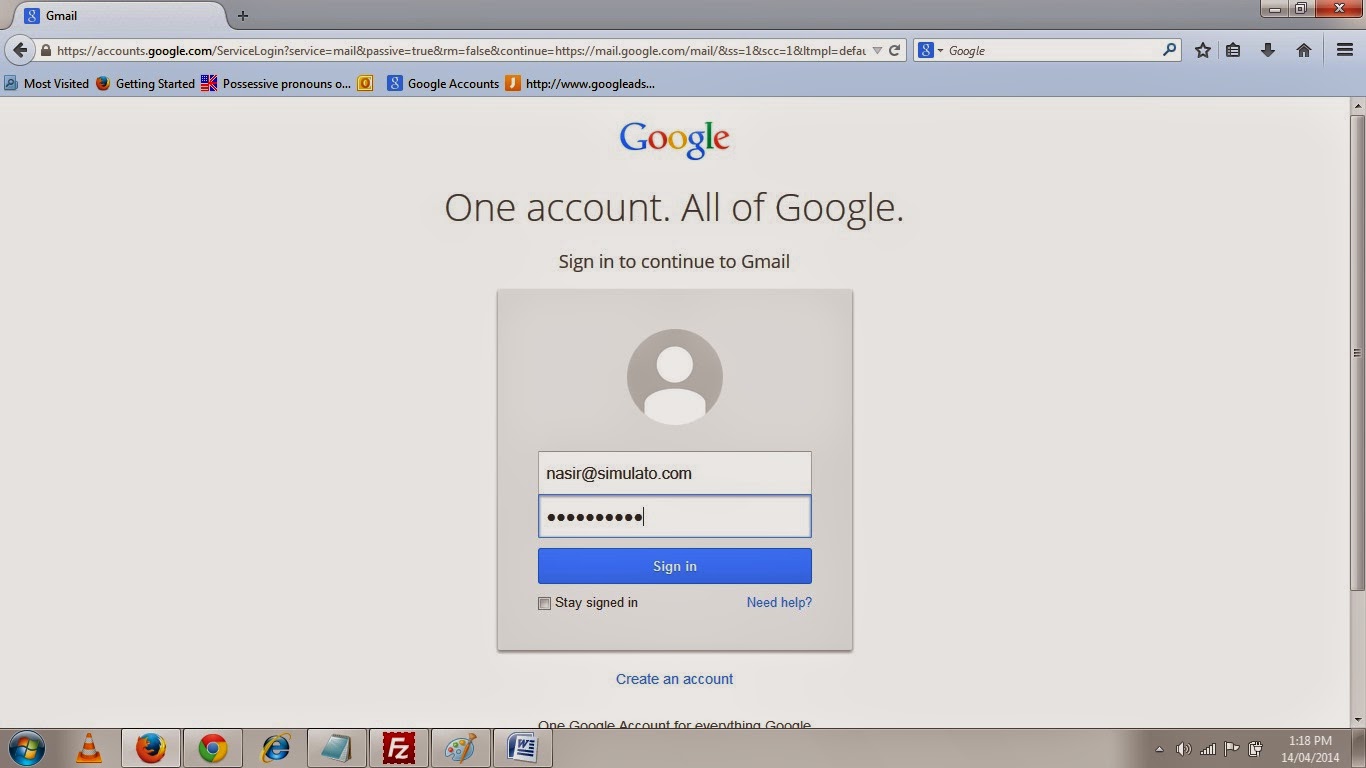
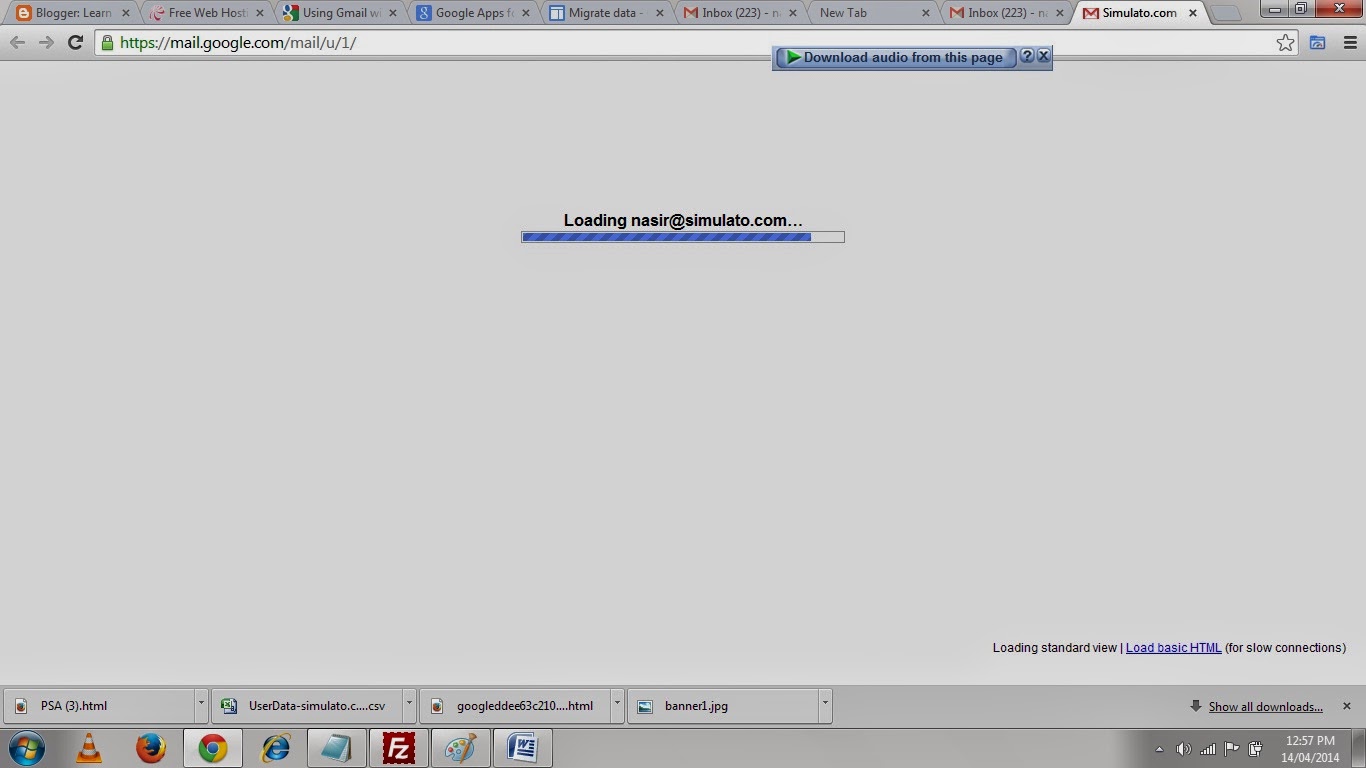
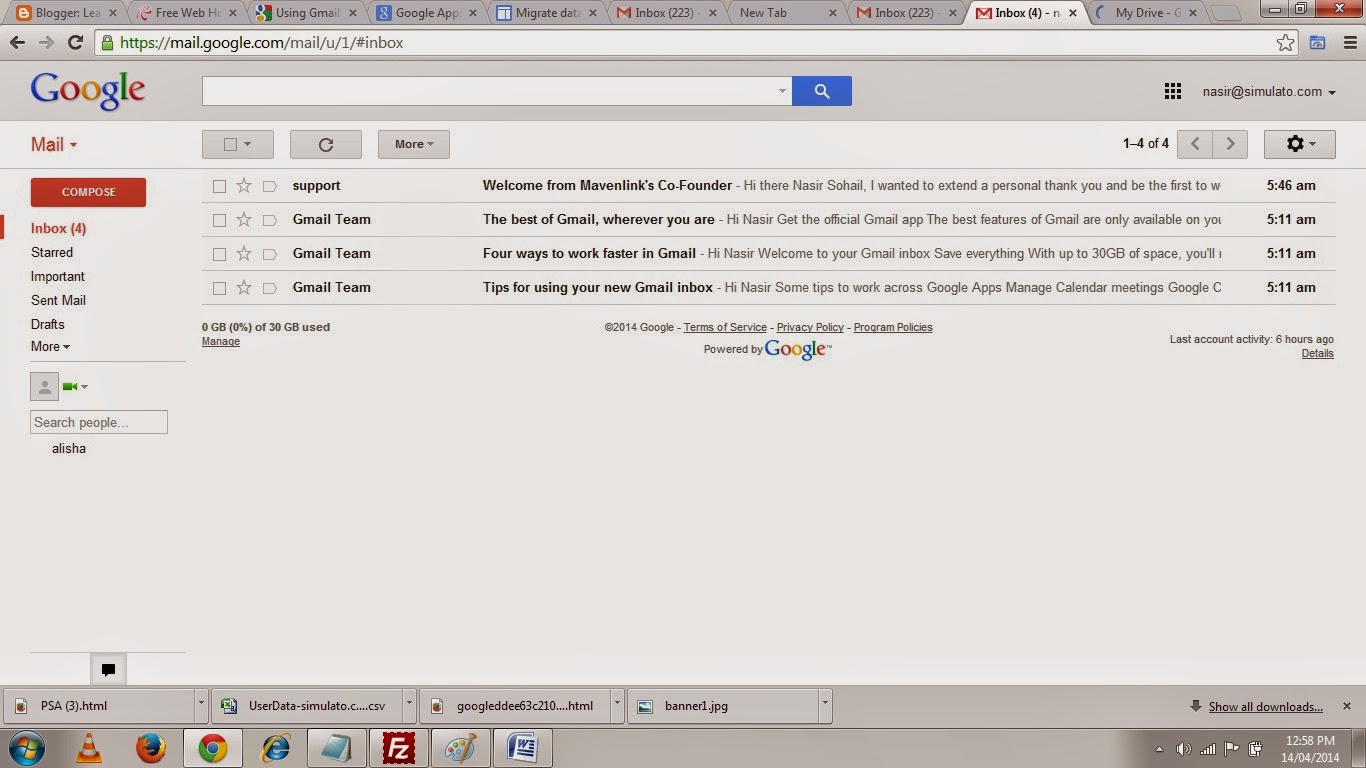
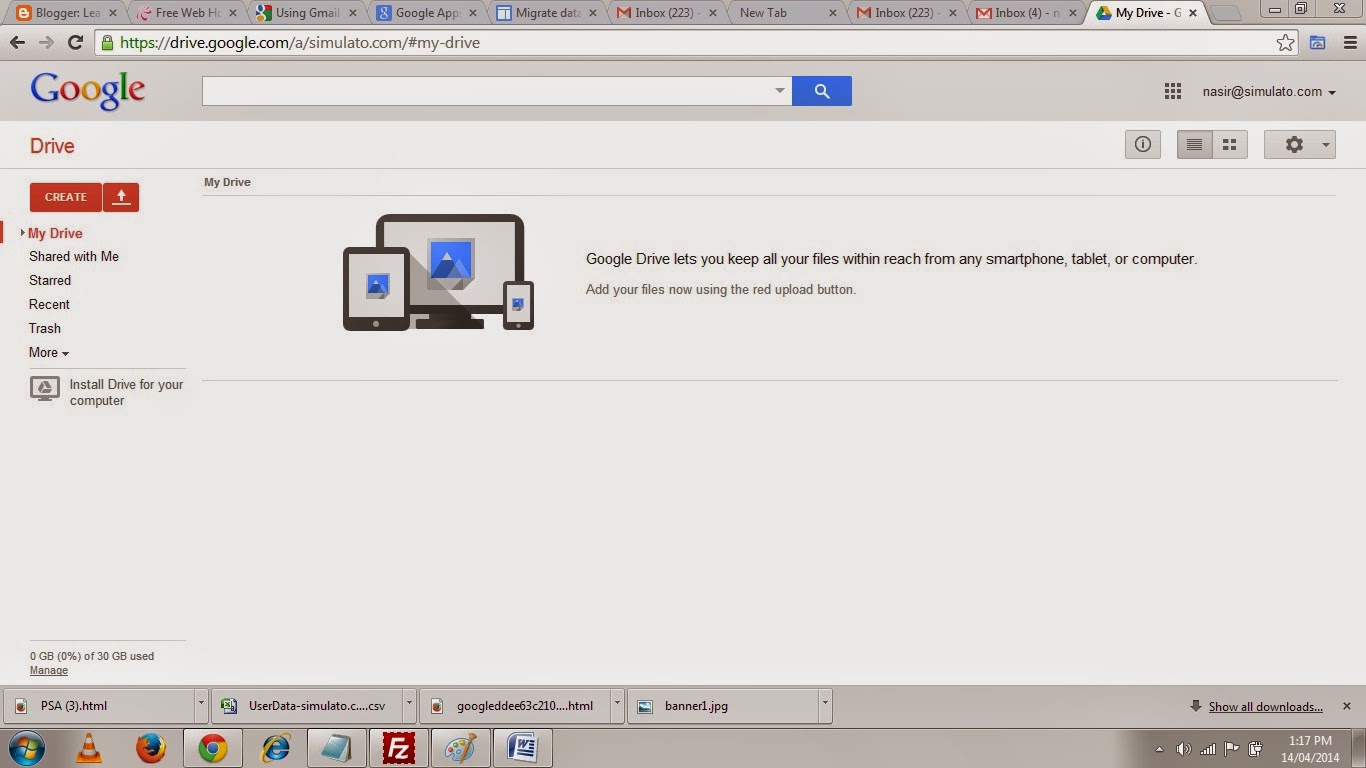
I have a domain name registered as Simulato.com where for my business Email I used to Login from a designated computer which has the Microsoft outlook configured or if I Have to login from a different place I had to login to My Web hosting provider and from there I could Login to my Web Mail and that did not have all the great features available as Gmail provides.So I took this decision to Host my Email Services to Google and now I login to my Email ( info@simulato.com ) from Gmail as a Google account and save my documents in Google Drive with all the Gmail Features like Google Talk and Hangouts.And I am always connected because I have also configured my business Email on my Android Phone.
Now I am gonna show you how can host your Business Email account for you and Your employees on Google.
Steps to host your Email on Google.
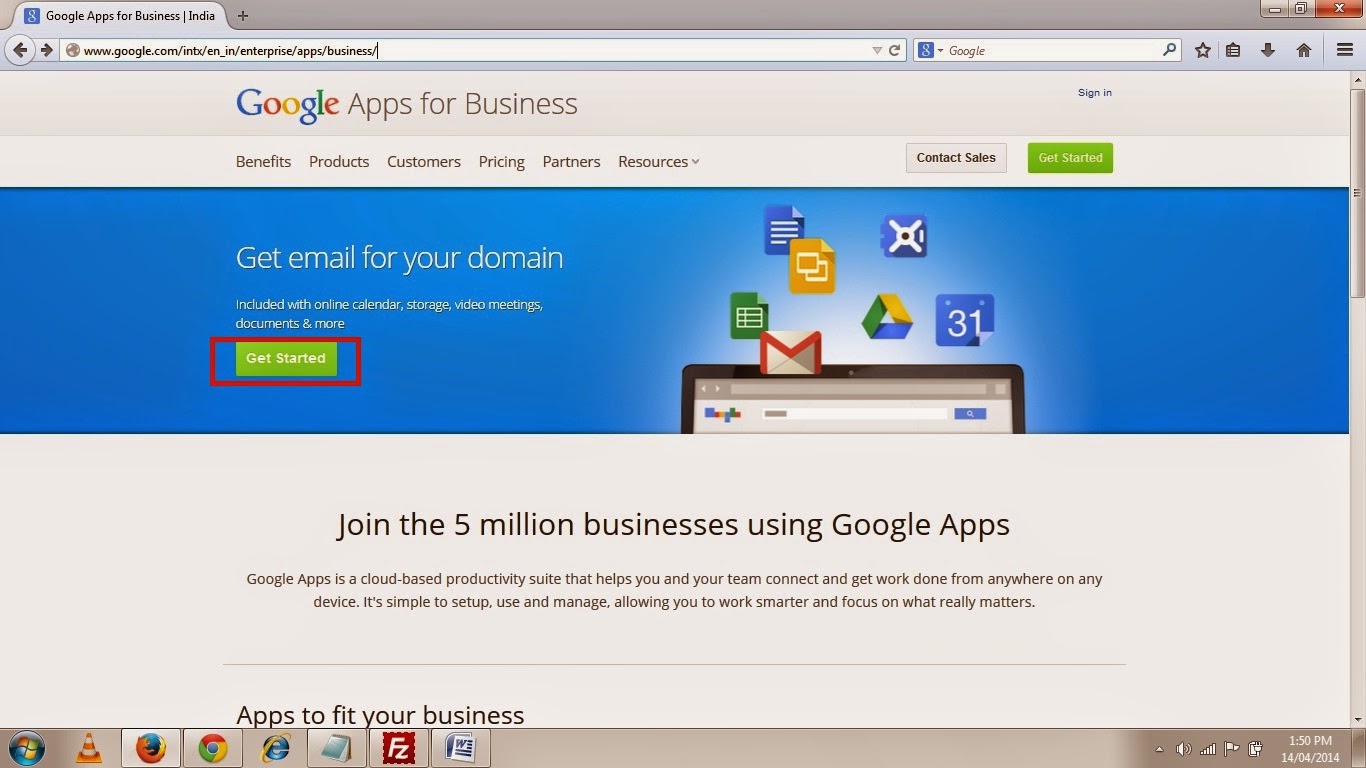
1. Log on to Google Apps for Business by Clicking here.
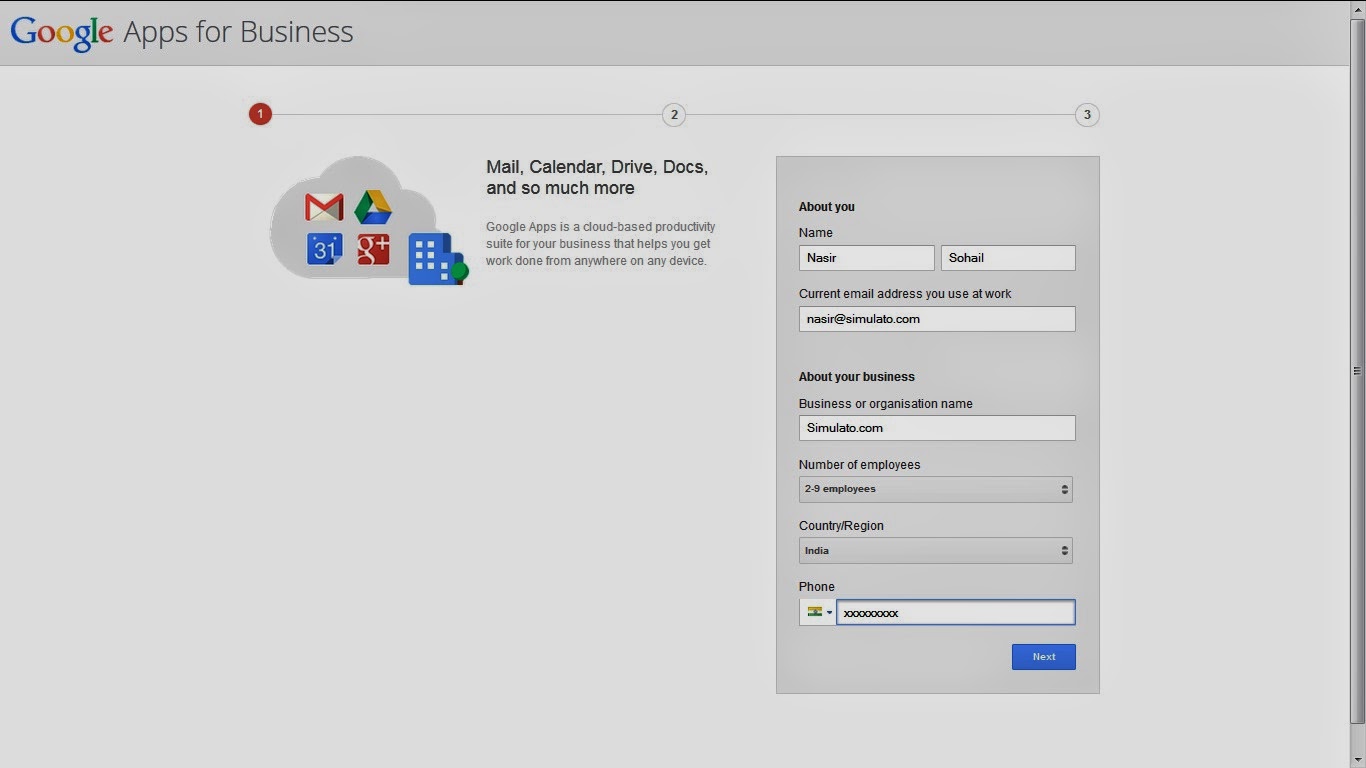
2. Click Get started and on the next page you will see a Form to fill up as shown in the picture below, so Fill up the Form and Click Next.
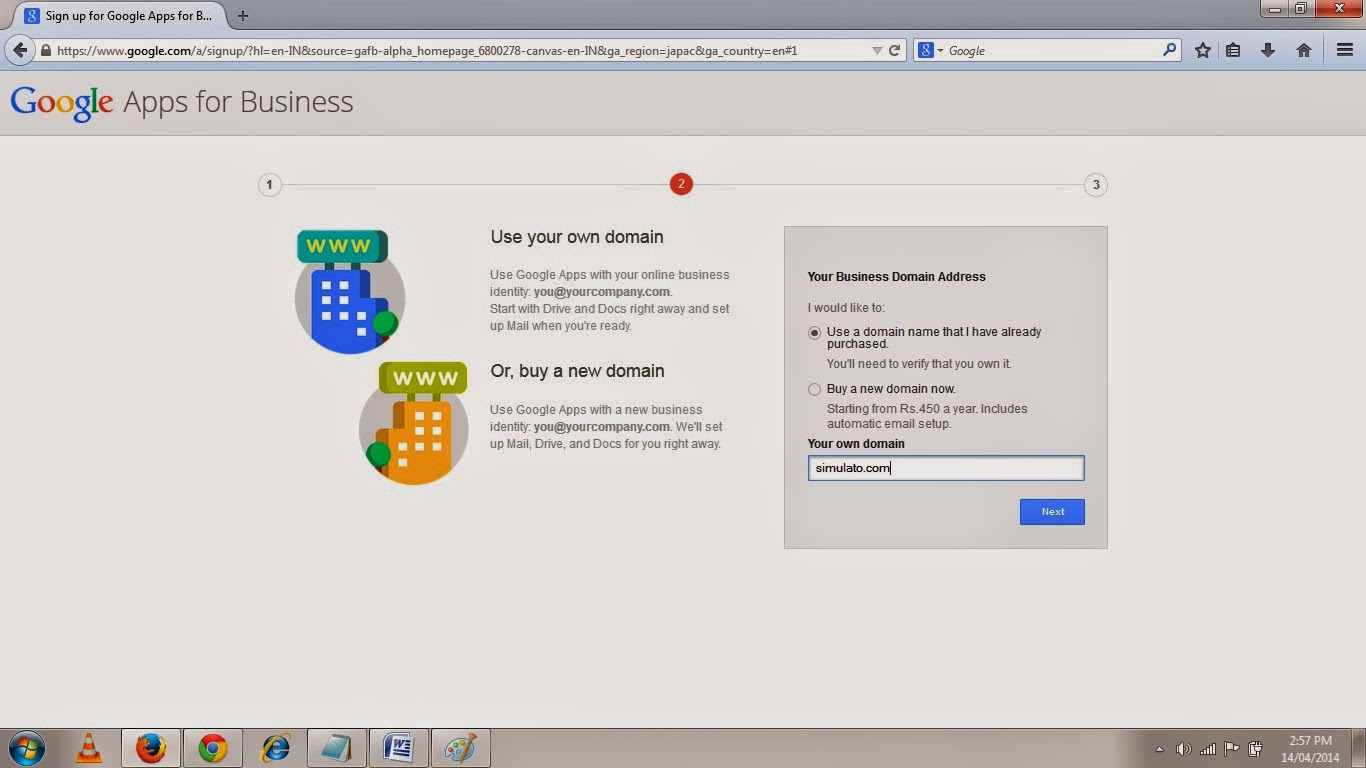
3. In the next page you will be asked about your business Domain Address.Select the option use a Domain Name that I have already purchased and then type in the Domain name and then click next.
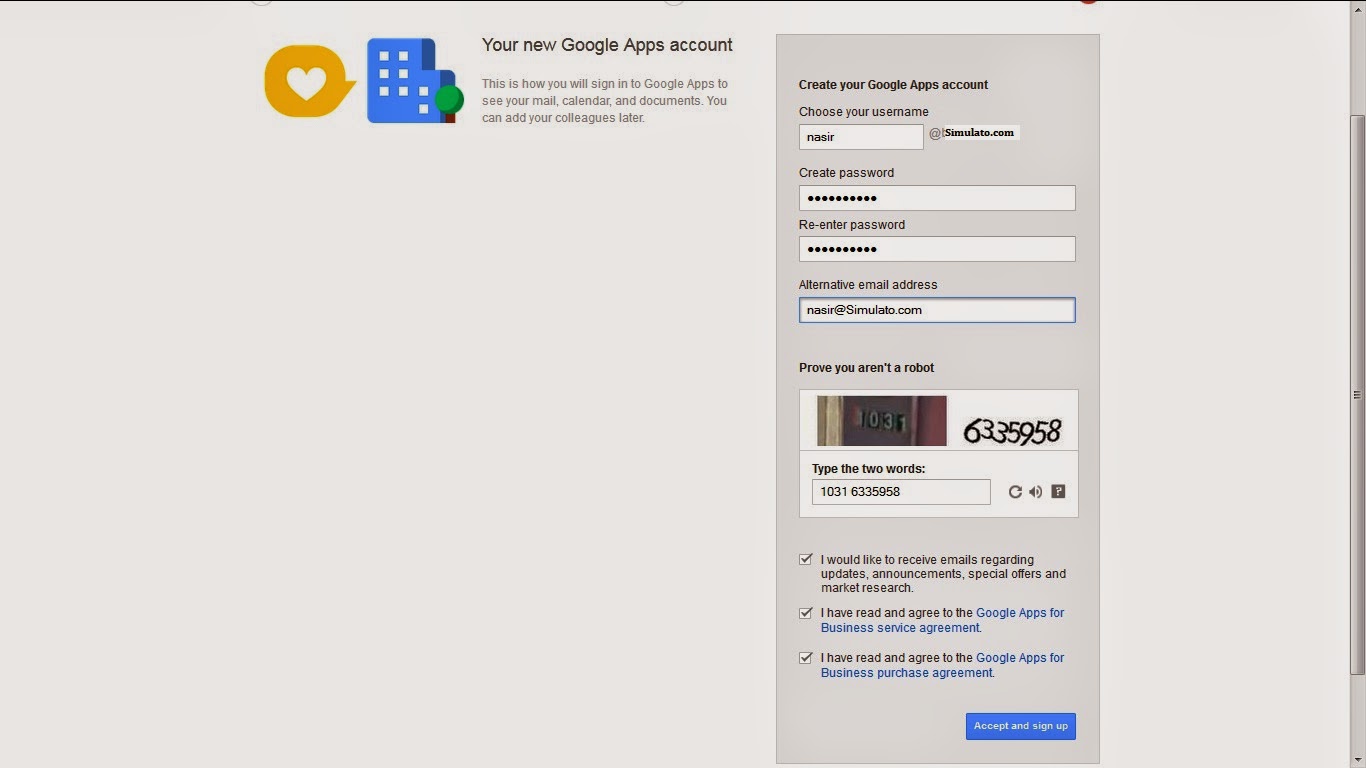
4. In the next page you will be asked to create your Google Apps Account Which will be your Admin account that you will use to sign in to Google Apps to see your mail, calendar, and documents. You can add your colleagues later.So Fill in the form as shown in the Picture below and Click Accept and Sign Up.
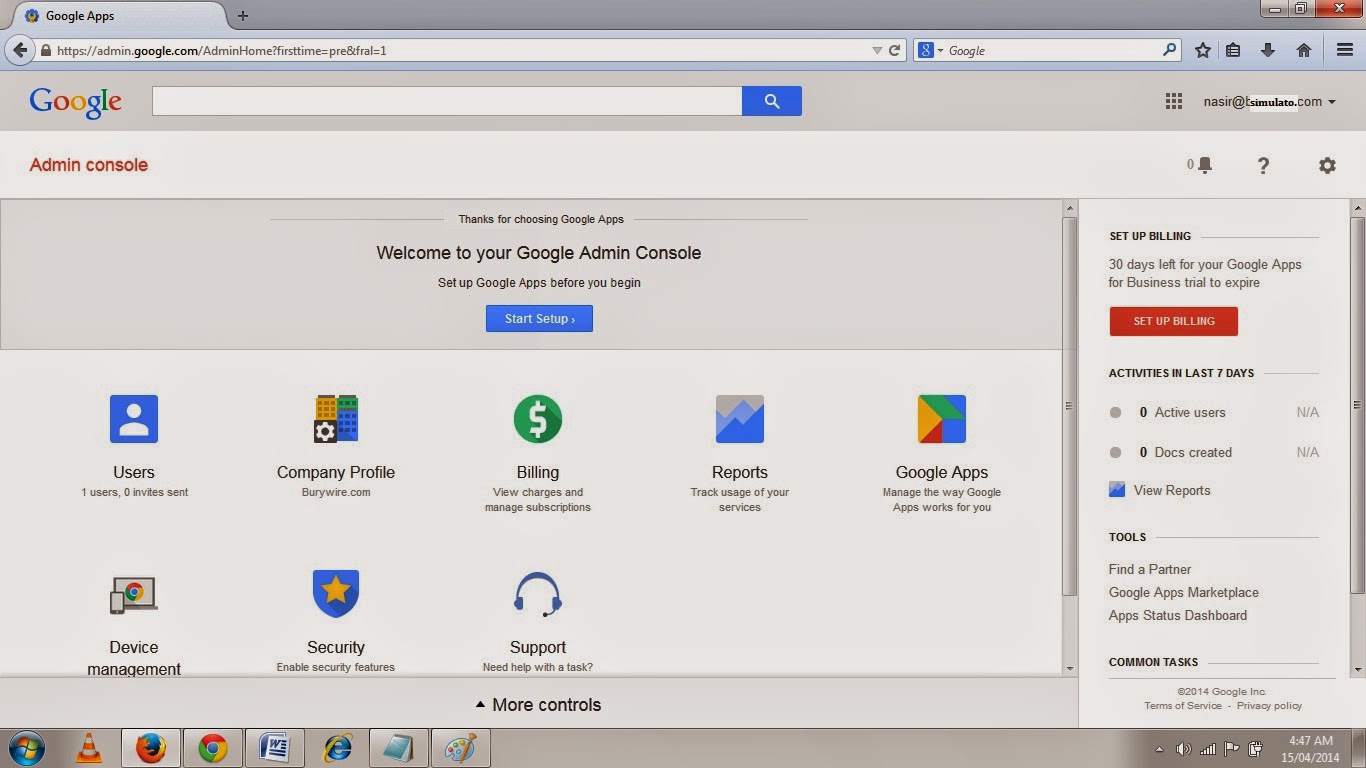
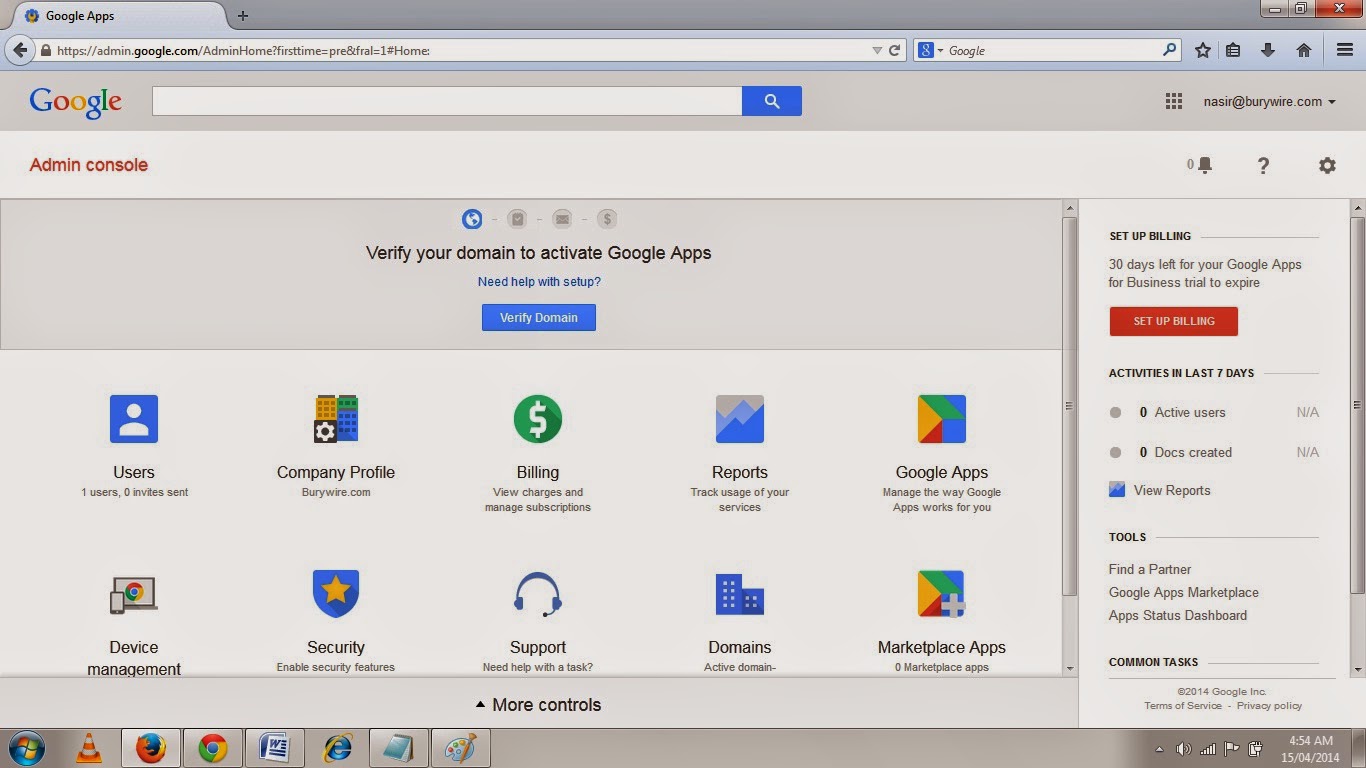
5. After you have accepted and signed up you will reach to your Dashboard.Where you have to first click on the Start Setup button and then the first thing you have to do is Verify your domain to let Google know that you own this domain.
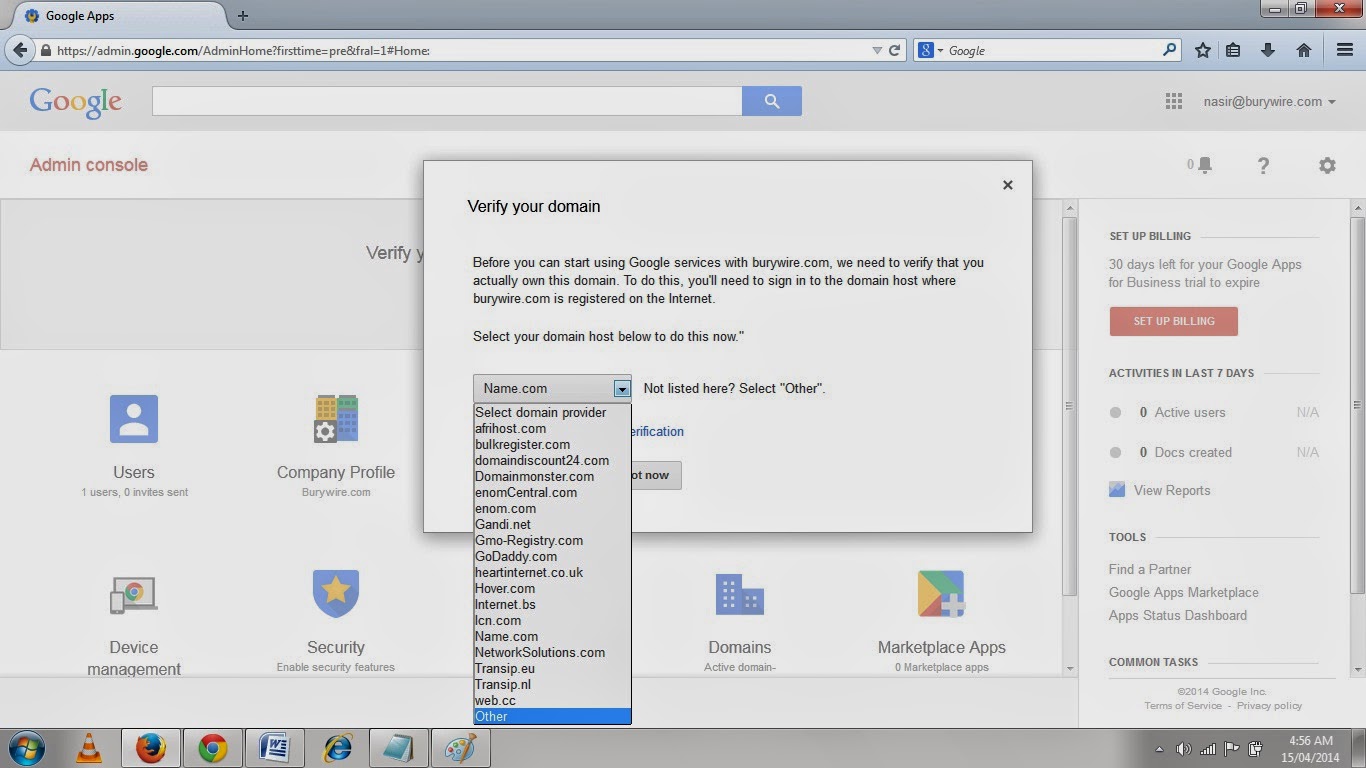
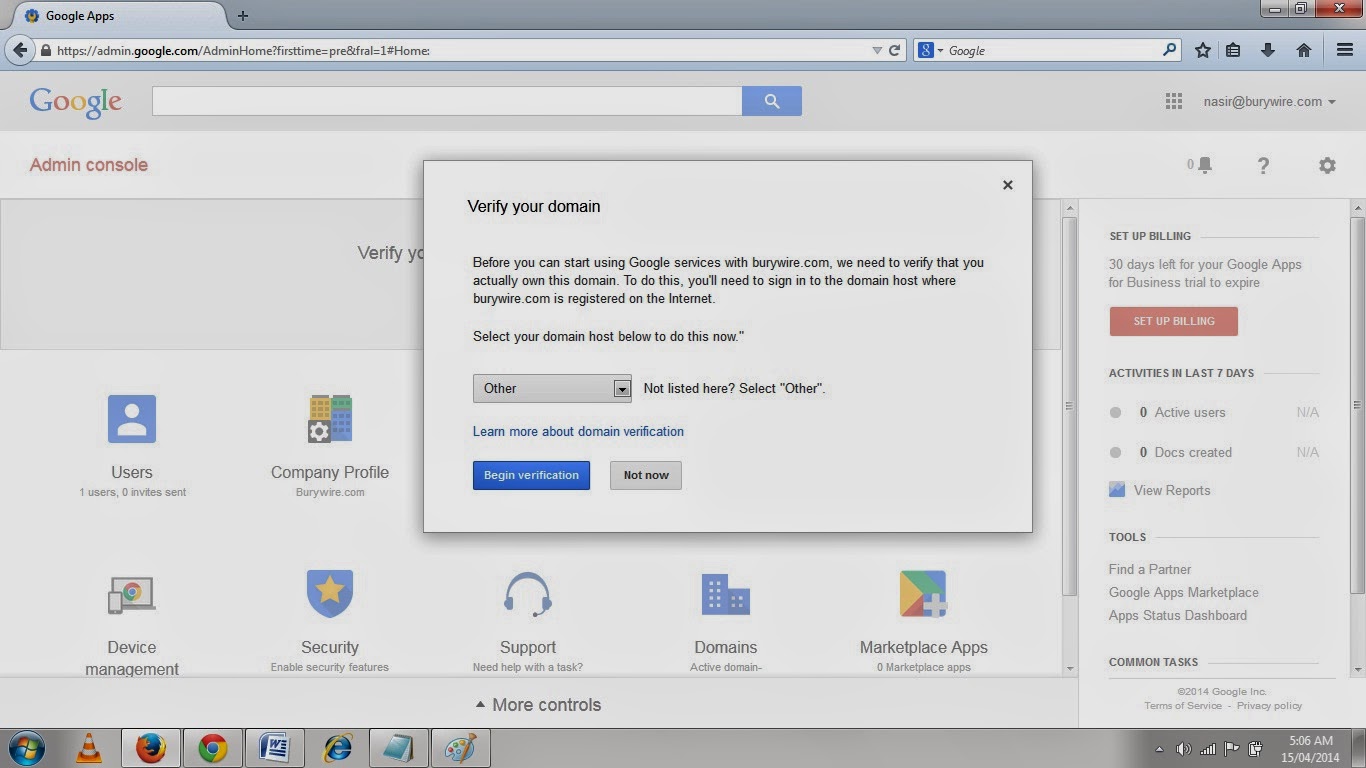
6. Click on Verify domain and then select the domain Registrar where to got your domain registered in my case it was Namecheap.com so I selected Other in the first list and then click Begin Verification, Then it showed me another larger list of all available famous registrar so select Namecheap here.
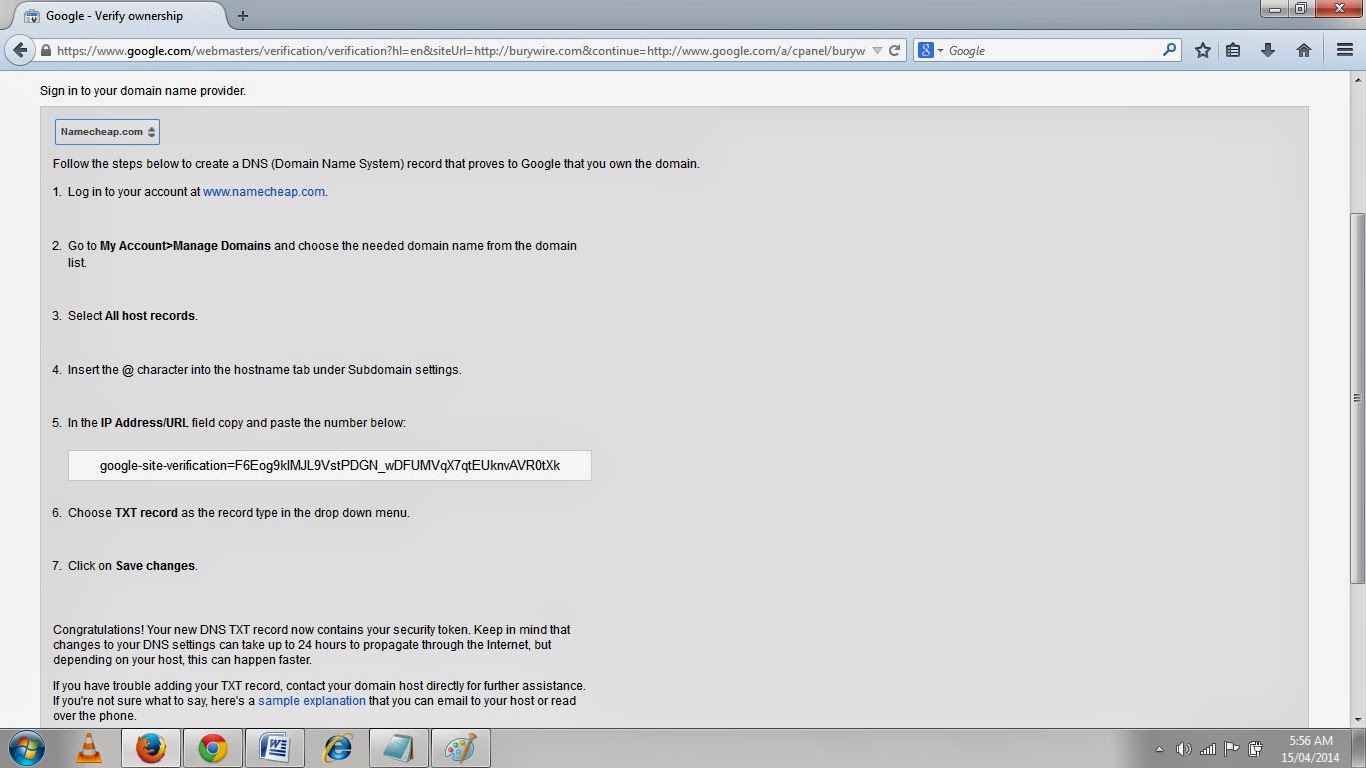
7. Now in the next page as shown in the Pic-9(m) if you can find your Domain Registrar select that or just select Other again.Now If your Domain Registrar is available it will show you couple of options to verify your domain either by adding a meta tag to the head tag of the home page or just creating an MX records or by adding a TXT records or a CNAME records, but the option to edit records will only be available when you have hosted your site with your domain Registrar.If you have hosted your website to a different hosting service provider then you have to go to your hosting service provider and probably change the MX( mail exchange) records to host your mailing solution to somewhere else after you have verified your domain to Google.
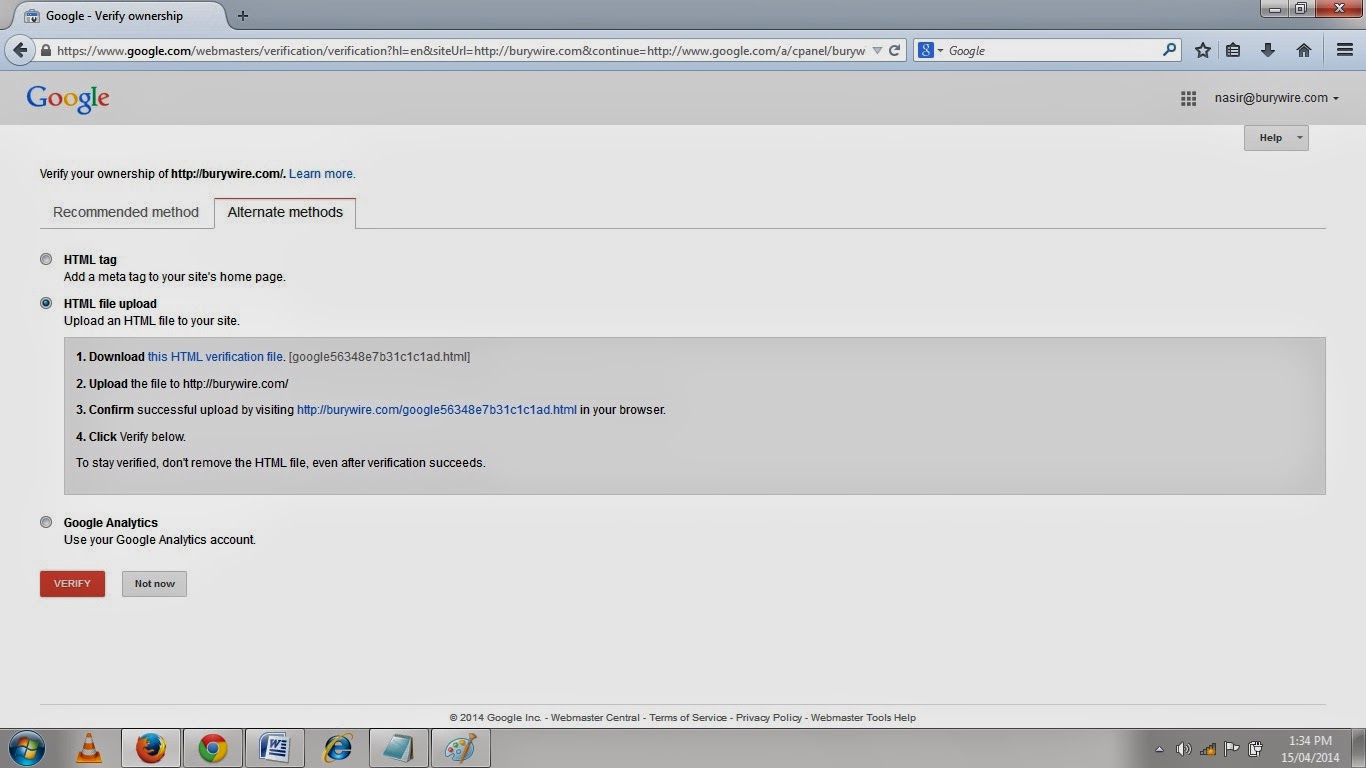
8. You can also select the Alternate Method by clicking on the alternate method tab to verify the ownership of this domain wherein you have to either put a Meta tag or just upload a file to your website as shown below in the picture- 9(o) and access that file and your are done.
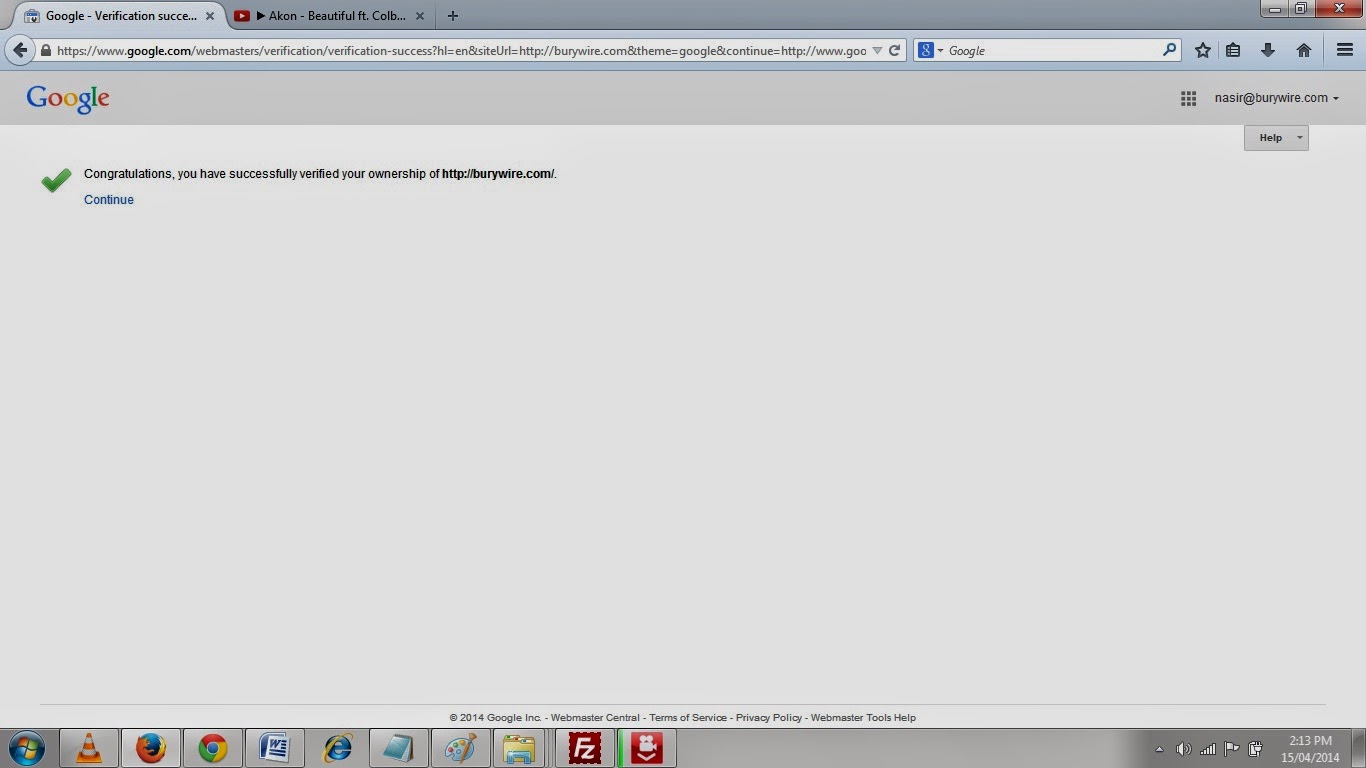
9. So I downloaded the file as shown in the picture-9(o) and then accessed the files in my browser by clicking on the link shown in the line 3. in pic-9(o).And once you have accessed the file click on Verify tab and you will see the message congratulations you have successfully verified the ownership of your Domain.
10. Click continue and You will be asked to login again.So login and then add all the user and their email addresses before you setup the Email with Google.So by now you have verified the ownership of the domain to Google and now Google will tell you what that Mail Exchange record ( MX Record ) is which you have to change for your existing hosting service provider.
11. After you have logged in again you will see the option to set up Gmail for you organization at the top as shown in the picture-9(q) below.
12. Click on the button Set Up Gmail and then it will show you the message as shown in the picture-9(R) so make sure you have added all the user with their Email address and then click "Yes, Lets do it!".
13. No in the next page as shown in the Pic-9(s) Set up Gmail for Burywire.com ( which is my other domain) select Google Servers to route your Email to and then click Next.
14. Click on the next and the Next page will show you the existing MX records for your Email server.Which is MX.000WEBHOST.COM, and this is what you have to change to Google s MX records.
15. Now select the Domain host from the Drop Down list if it is available in the list otherwise select Other and click next.
Alrighty!! So we are good to go now and enjoy the Feature and services of Google and move freely, Manage Nicely and stay connected to you friends on Google+ .
And other good thing is that after you have set up Gmail for your business you can go ahead and make changes in your Email clients like Microsoft Outlook or Mac Mail and use Incoming and Outgoing Mail server of Gmail which are POP.GMAIL.COM and SMTP.GMAIL.COM respectively.
Now before I wrap up here is a quick learning guide from Google that will help you understand Google App a little deeper.
Note:- Please feel free to contact me in case you have any doubt or concern.Write a mail to nasir@simulato.com or leave a comment.Any suggestion to improve the contents will be highly appreciated.
Today I am going to write a very interesting topic which would be very helpful for a small business people who uses their business email only in their office and has limitation.After reading this article they could change the way they manage their email and use it freely from anywhere with great features of Gmail, Google Talk, Hangouts, Contacts, Task, Lookup( Look all the addresses in your company), Google Docs and Google Drive.
I have a domain name registered as Simulato.com where for my business Email I used to Login from a designated computer which has the Microsoft outlook configured or if I Have to login from a different place I had to login to My Web hosting provider and from there I could Login to my Web Mail and that did not have all the great features available as Gmail provides.So I took this decision to Host my Email Services to Google and now I login to my Email ( info@simulato.com ) from Gmail as a Google account and save my documents in Google Drive with all the Gmail Features like Google Talk and Hangouts.And I am always connected because I have also configured my business Email on my Android Phone.
 |
| Pic-9(a) |
 |
| Pic-9(b) |
 |
| Pic-9(c) |
 |
| Pic-9(d) |
Steps to host your Email on Google.
1. Log on to Google Apps for Business by Clicking here.
 |
| Pic-9(e) |
 |
| Pic-9(f) |
 |
| Pic-9(g) |
 |
| Pic-9(h) |
 |
| Pic-9(i) |
 |
| Pic-9(j) |
 |
| Pic-9(k) |
 |
| Pic-9(L) |
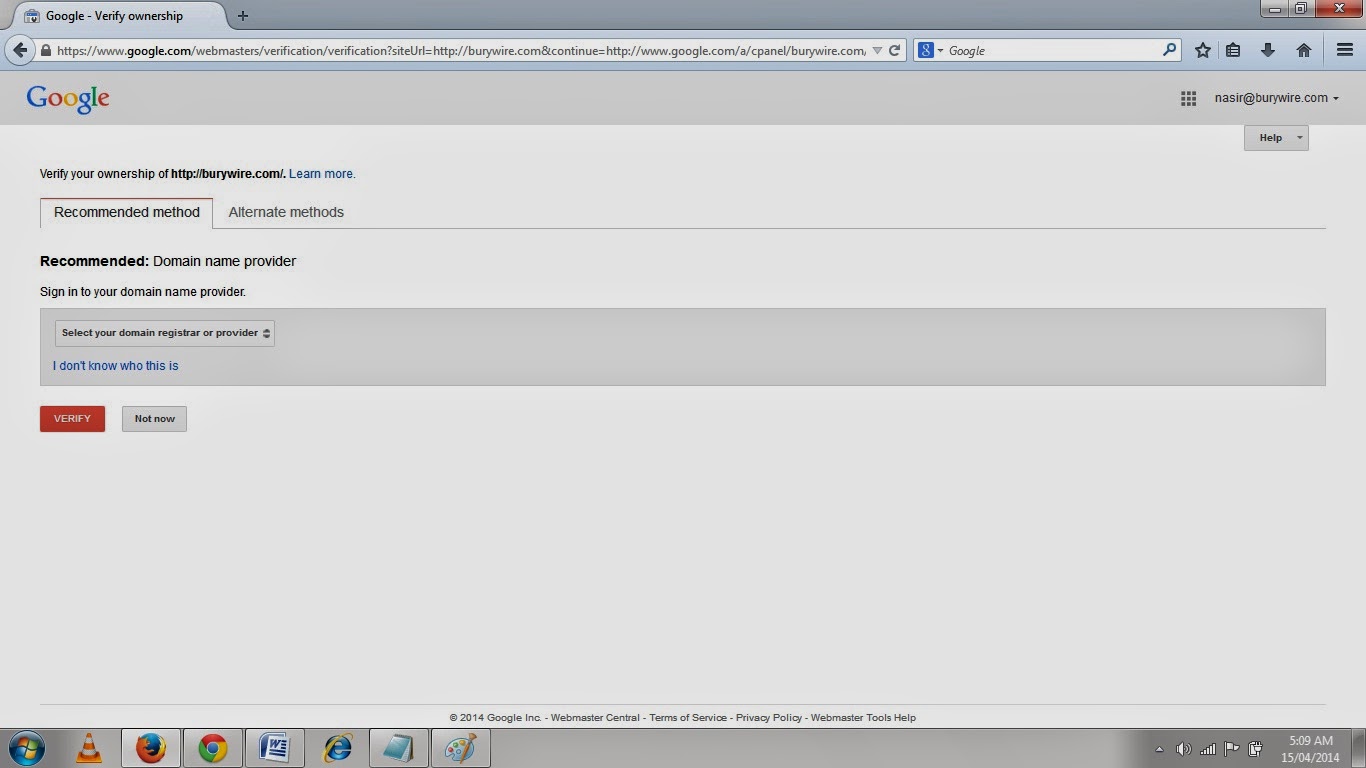 |
| Pic-9(m) |
8. You can also select the Alternate Method by clicking on the alternate method tab to verify the ownership of this domain wherein you have to either put a Meta tag or just upload a file to your website as shown below in the picture- 9(o) and access that file and your are done.
 |
| Pic-9(n) |
 |
| Pic-9(o) |
 |
| Pic-9(p) |
11. After you have logged in again you will see the option to set up Gmail for you organization at the top as shown in the picture-9(q) below.
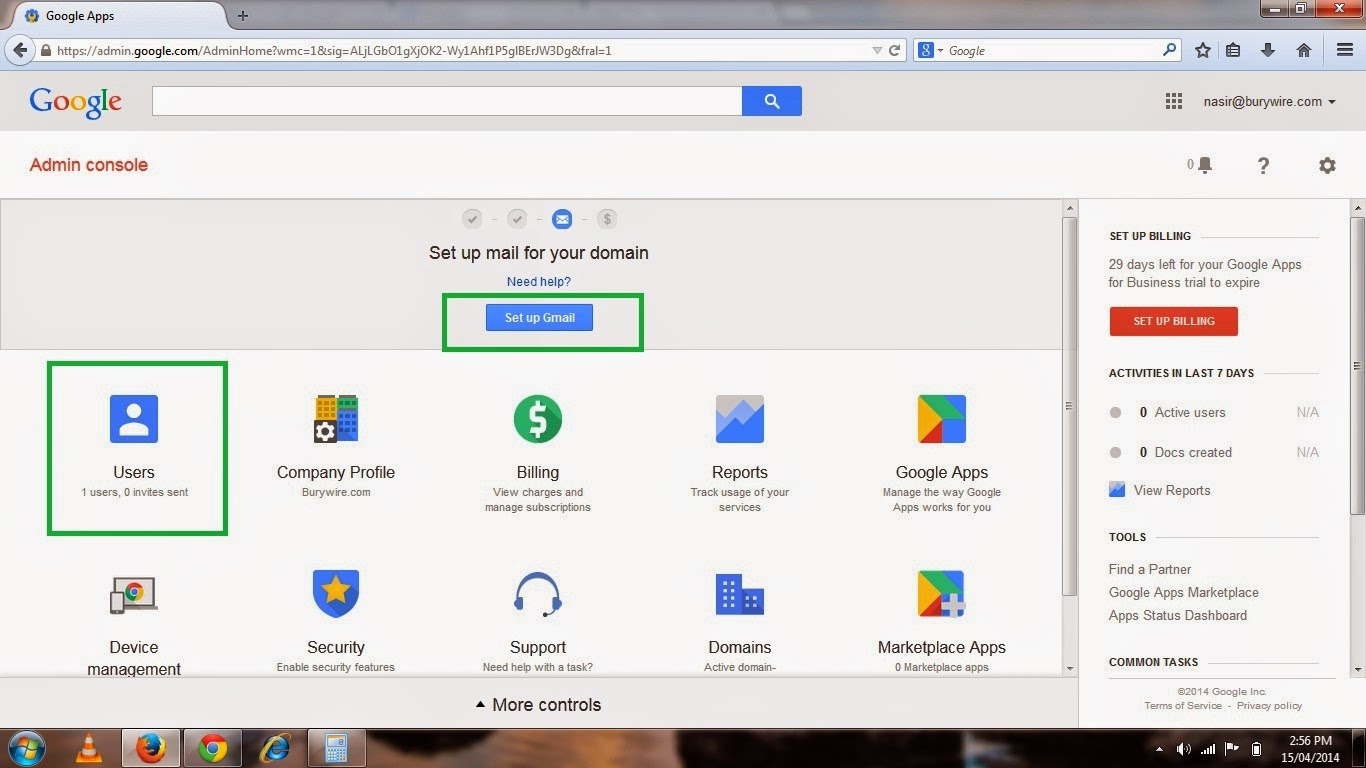 |
| Pic-9(q) |
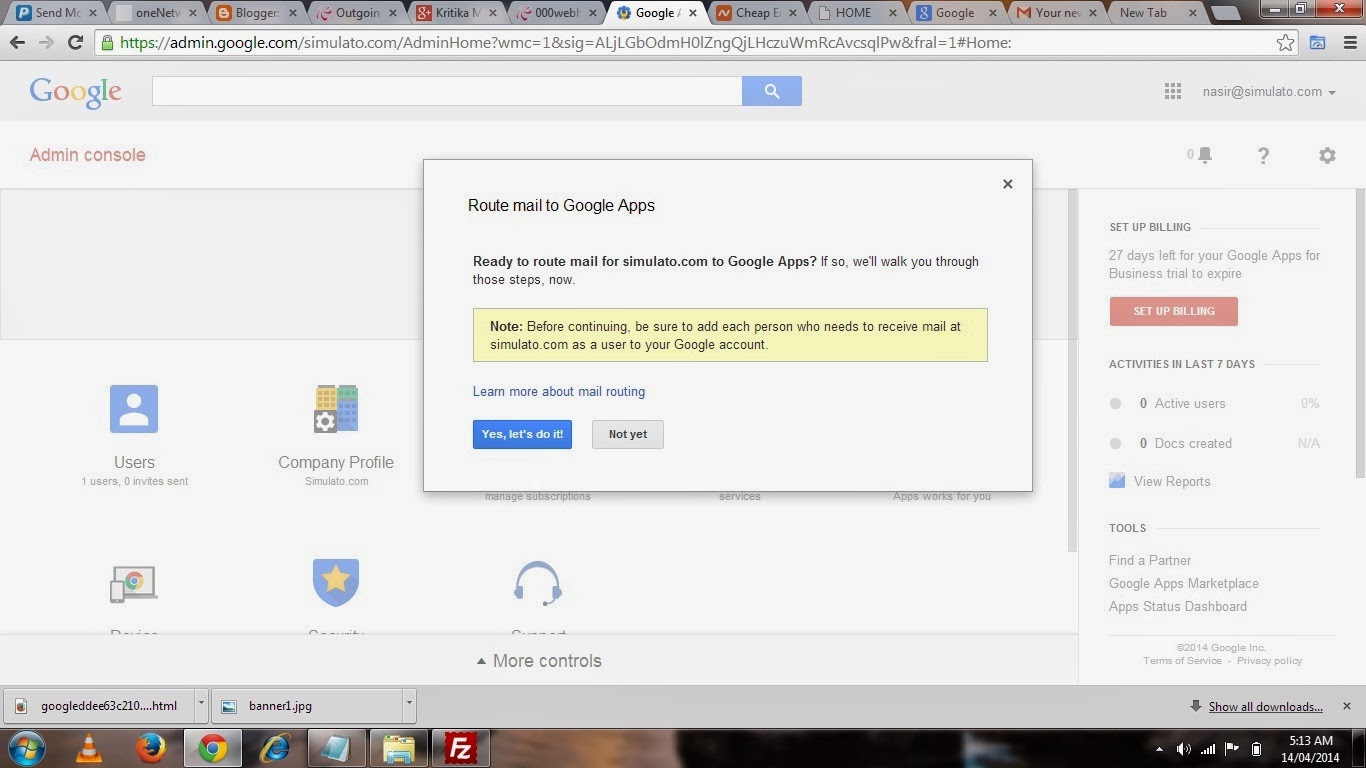 |
| Pic-9(r) |
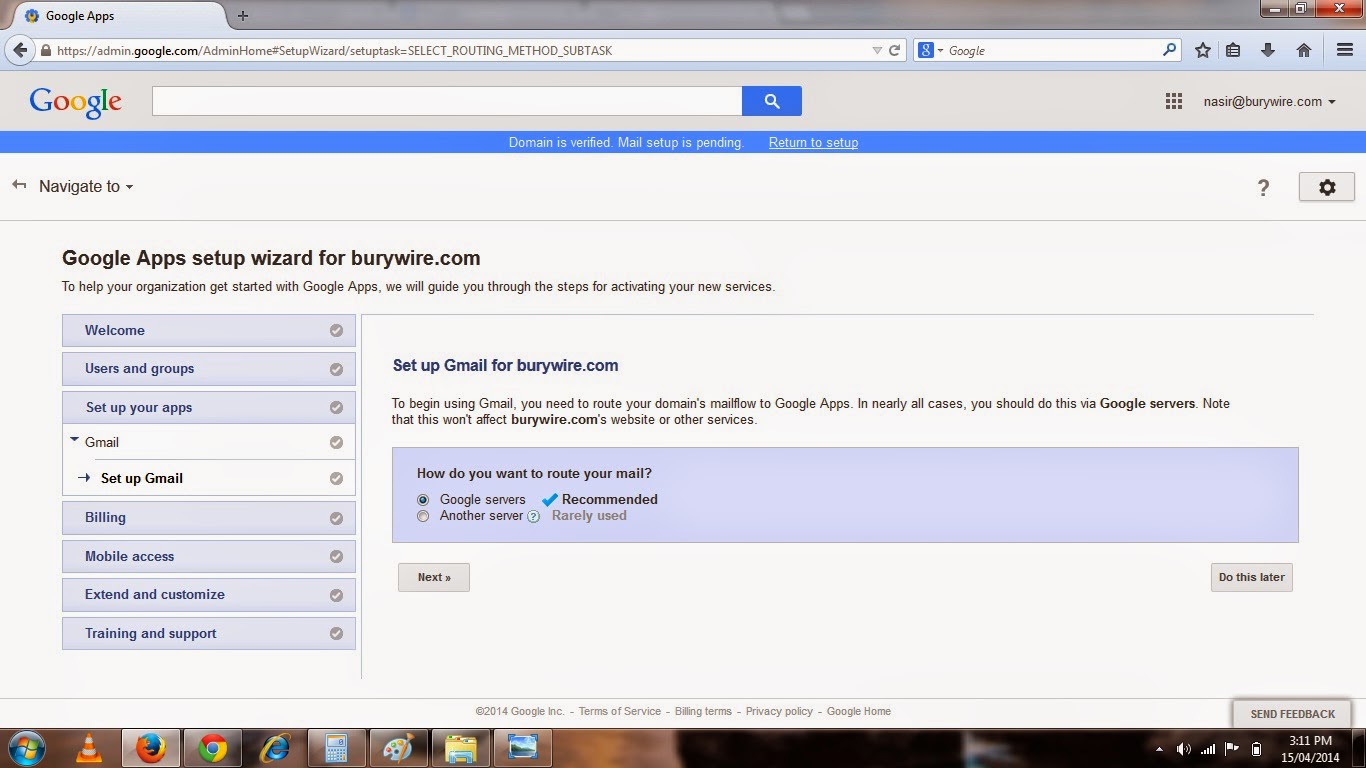 |
| Pic-9(s) |
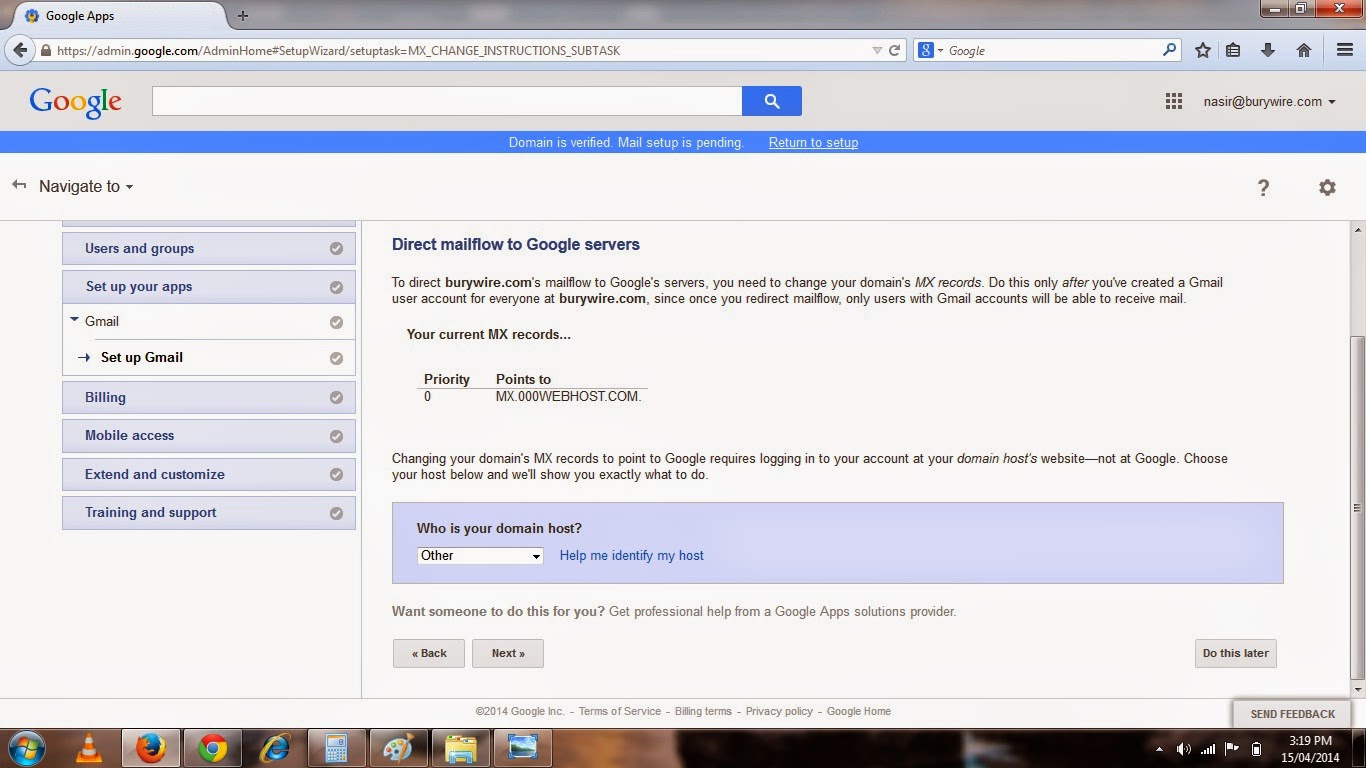 |
| Pic-9(t) |
 |
| Pic-9(u) |
 |
| Pic-9(v) |
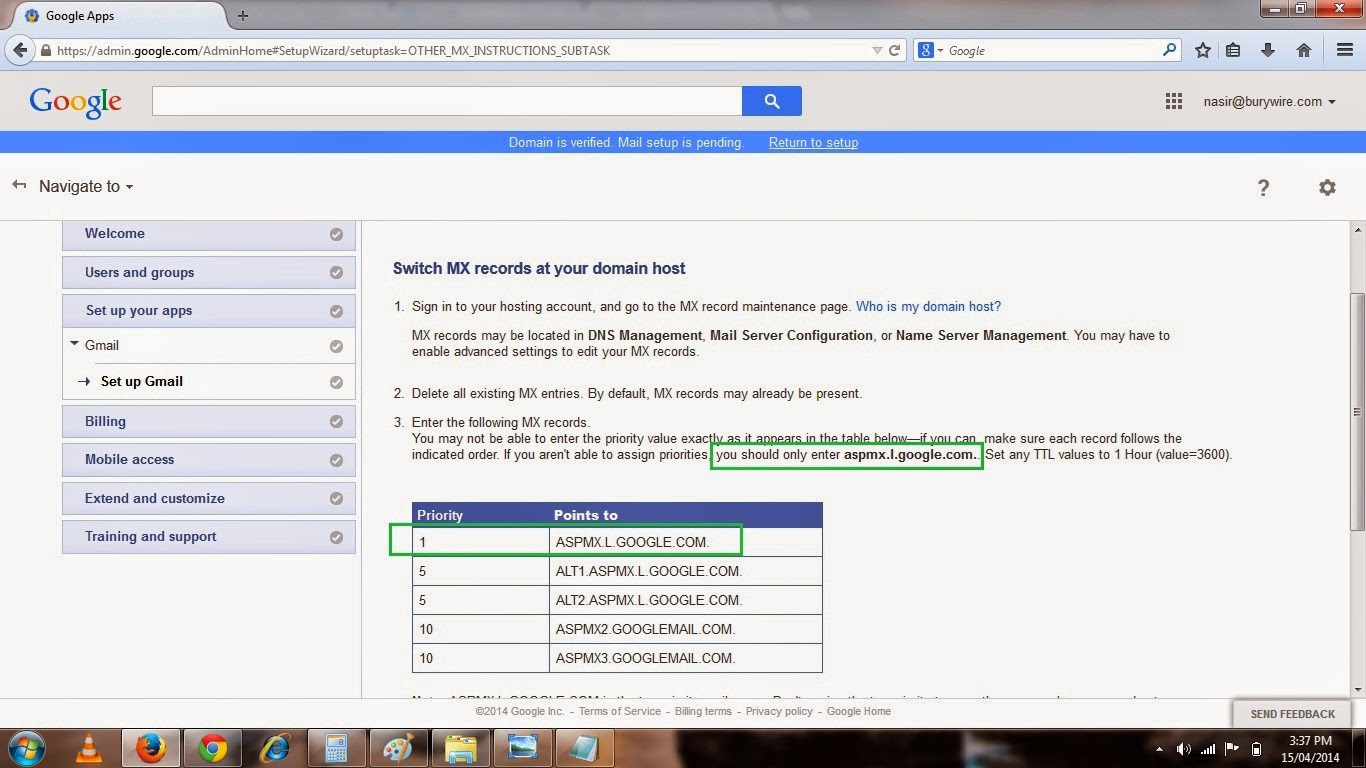
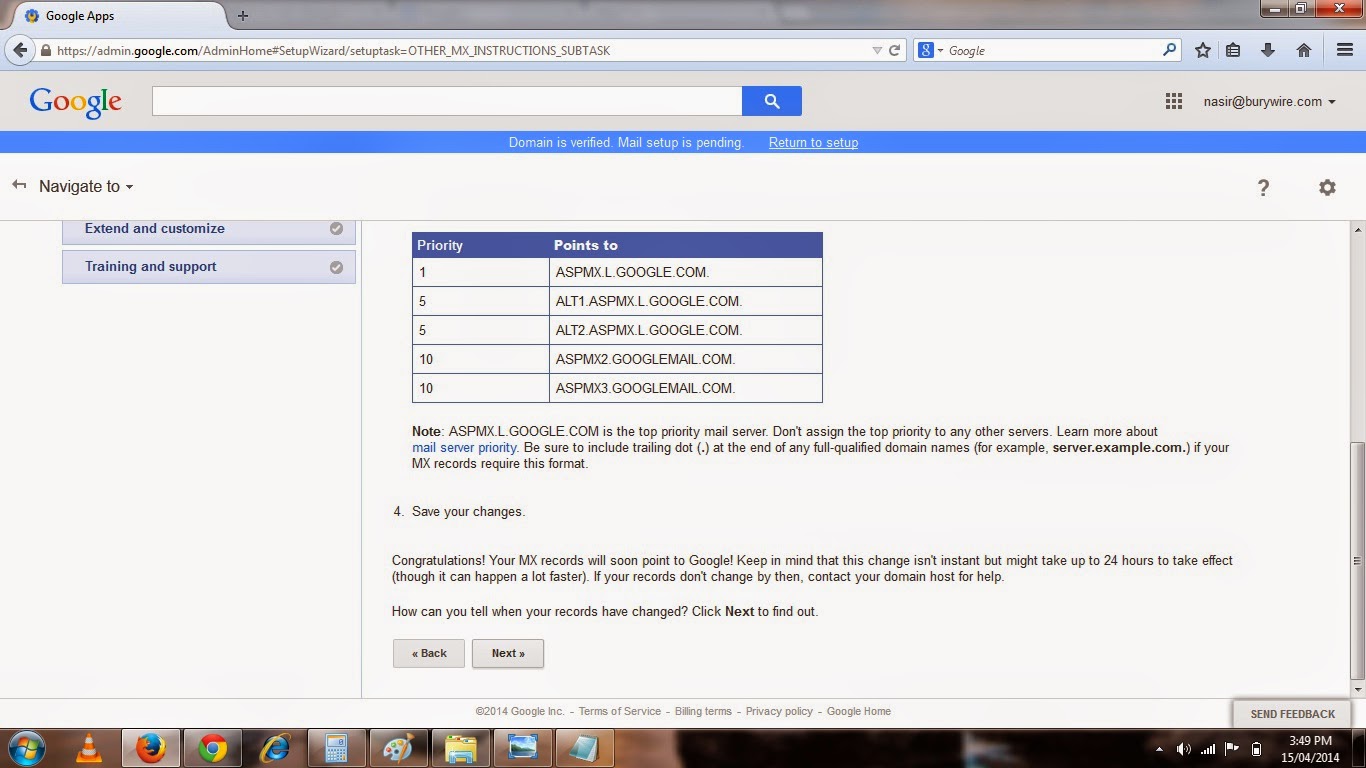
16. Now I would also recommend you to keep reading on each page you see during setup for more information. Now in the page shown above in the Pic-9(v) , I am gonna copy the first Email server address "ASPMX.L.GOOGLE.COM" and set this up as the MX record on my web host provider which is 000webhost.com.
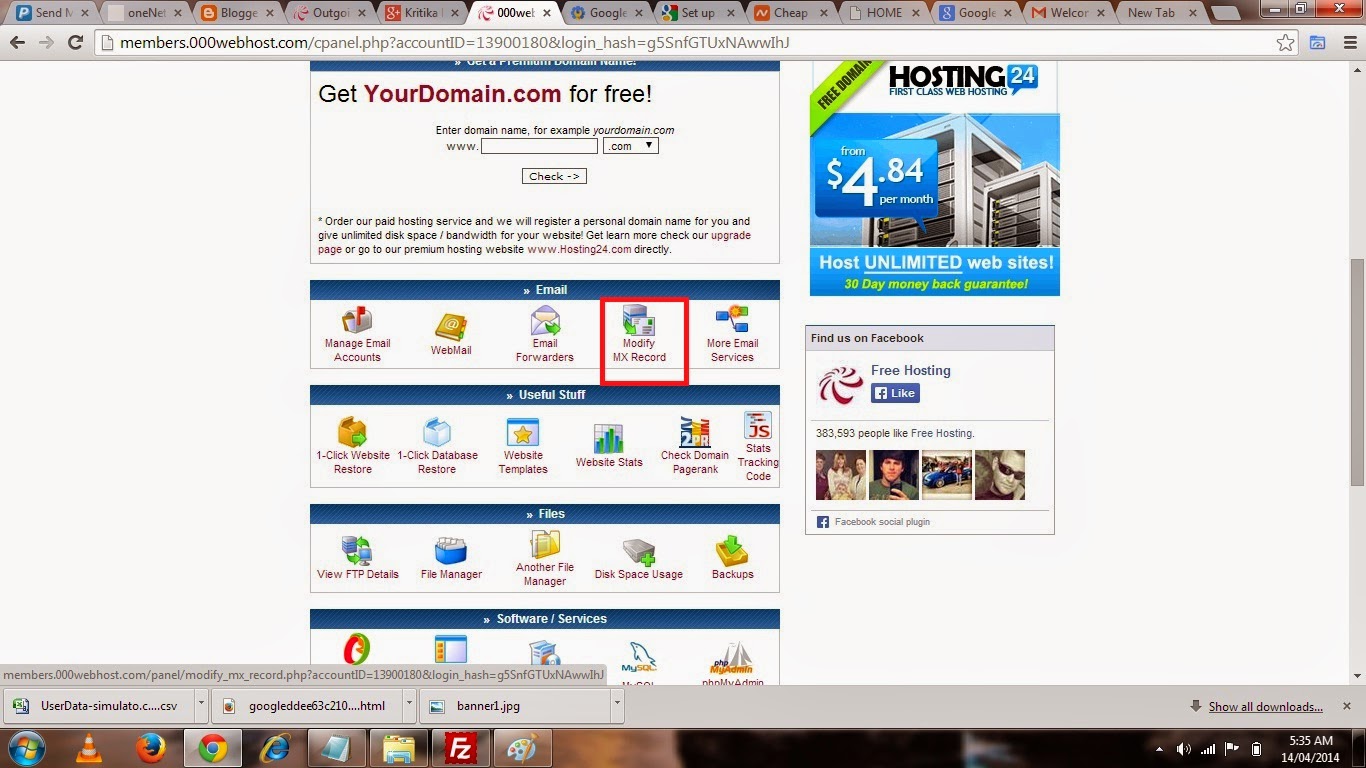
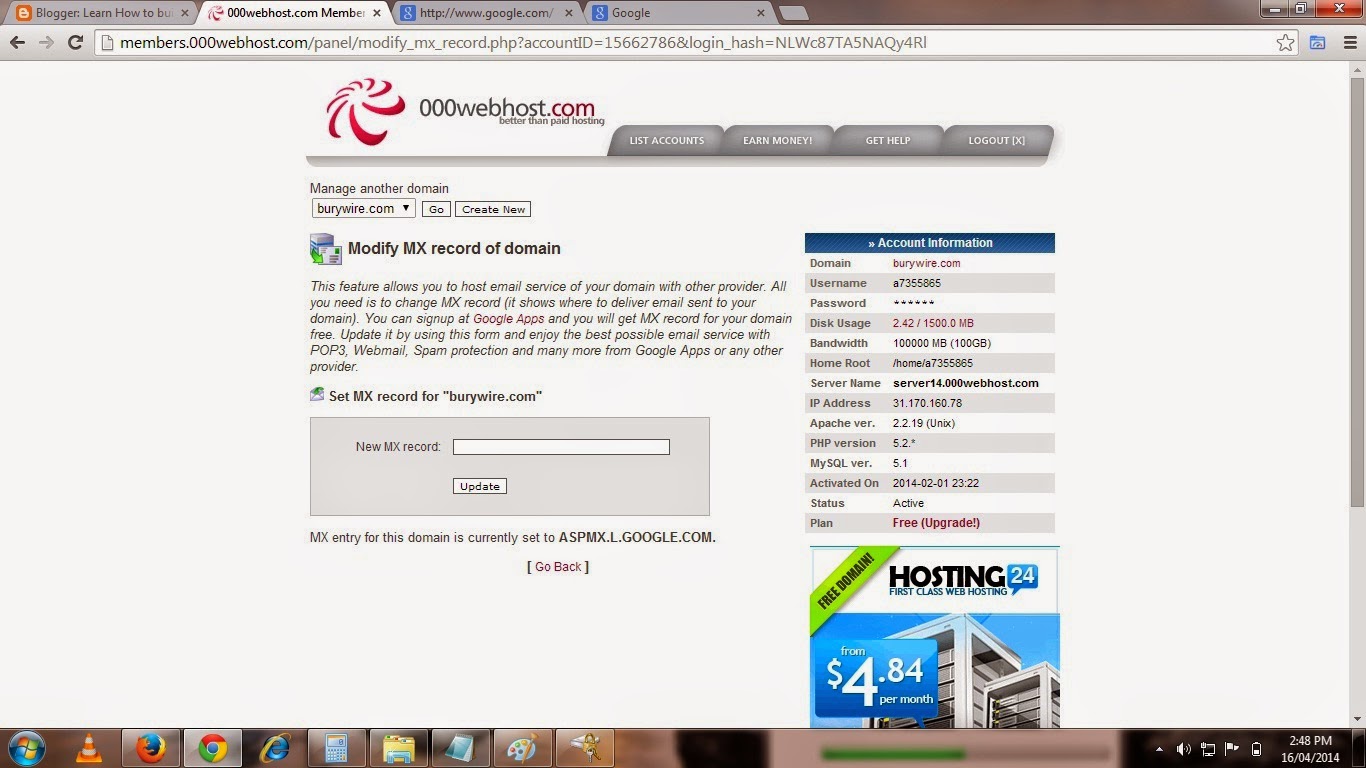
17. So I logged into the control panel of my hosting provider and then clicked on Modify MX Record as shown in the Pic-9(w).
 |
| Pic-9(w) |
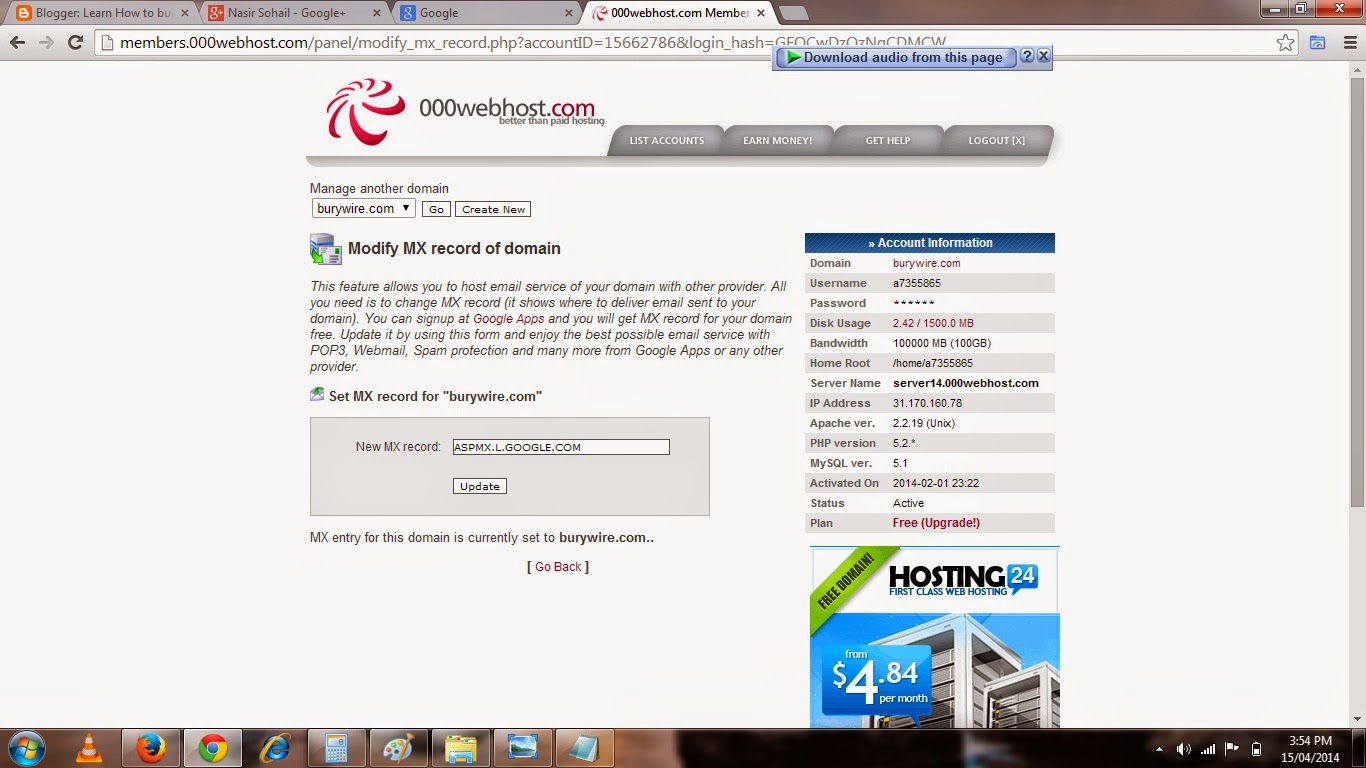
18. Now in the next page, paste or type the Mail server of Google as shown in the picture-9(x).
19. Click on update and come back to Google Apps page and click on Next.And you are set.Now go to Gmail.com and login with your business Email Id and Password.The Administrator will give the password for all the other user to login to Gmail from their business email ID.
 |
| Pic-9(x) |
 |
| Pic-9(y) |
Alrighty!! So we are good to go now and enjoy the Feature and services of Google and move freely, Manage Nicely and stay connected to you friends on Google+ .
And other good thing is that after you have set up Gmail for your business you can go ahead and make changes in your Email clients like Microsoft Outlook or Mac Mail and use Incoming and Outgoing Mail server of Gmail which are POP.GMAIL.COM and SMTP.GMAIL.COM respectively.
Now before I wrap up here is a quick learning guide from Google that will help you understand Google App a little deeper.
Using Gmail with Google Apps
Using Gmail with Google Apps is a lot like using it with your personal Gmail account, but with added enhancements for working in a company or other organization.
Using Gmail with Google Apps now? Get Gmail help for businsess users at the Google Apps learning center.
Whats different about Google Apps Gmail
- Business email address. Google Apps lets you have an email address at your own domain—with the format name@your_domain.com—rather than name@gmail.com.
- More than just email. Google Apps is more than just Gmail for your organization. It includes a suite of web-based productivity and collaboration tools that include online documents, calendars, video chat, and much more.
- Different editions. There are different versions of Google Apps, such as for businesses, schools, or government organizations, each of which might have different features and capabilities. Learn more
- Administrative controls. With Google Apps, you can have an administrator manage and control peoples email accounts across your domain, from a central Admin panel.
Using Gmail at work or school
- Gmail Send and receive mail. Watch video
- Google Calendar View and add calendar events. Learn more
- Google Talk Send instant messages.
- Googe Docs View and edit docs! Watch video
- Contacts Manage and get in touch with your contacts.
- Tasks Add and check off tasks. Watch video
- Lookup Quickly look up contacts at your domain
Note:- Please feel free to contact me in case you have any doubt or concern.Write a mail to nasir@simulato.com or leave a comment.Any suggestion to improve the contents will be highly appreciated.
Go to link Download
Subscribe to:
Posts (Atom)