Showing posts with label cloud. Show all posts
Showing posts with label cloud. Show all posts
Friday, April 21, 2017
IBM builds a service to help you know who to trust in the cloud
IBM builds a service to help you know who to trust in the cloud
Networking experts create an experimental system to offer better security in the promiscuous world of the cloud.

Today even the simplest web app can rely on a diverse mix of online services.
These services support a range of crucial functions in modern applications: Facebook for authentication, Box for storage, Twilio for messaging, Square for payments, Google AdSense for advertising and more.
Moving further down the software stack, it is also becoming increasingly common to weave together apps using even smaller on-demand components, such as Amazon ElastiCache or the cloud-based graph database GrapheneDB.
IBM predicts this trend of gluing together online services into "mesh applications" will accelerate as the number of cloud platforms continues to increase, growing beyond Amazon Web Services, Microsoft Azure, Google Cloud Platform, Heroku, IBM BlueMix, CloudFoundry and others available today.
The challenge for firms is that every time they bolt a new cloud-based service onto an app the company is trusting data and the smooth running of their software to a potentially unknown third party.
A new security model for the cloud
In a world where many different and sometimes geographically dispersed services regularly share data, networking experts say a new approach to application security is needed.
"Despite the shift in how applications are being disaggregated, the management of security between services and tenants remains largely the same: one focused on a perimeter defense with a largely static security configuration," write researchers from IBM Watson Research Center, the University of Colorado and Princeton University.
"While isolation enables tenants to reason about their perimeter, perimeter defense is widely considered insufficient."
With the many different cloud services that make up these applications regularly swapping data and commands, attacks on apps can be hard to detect, the researchers argue, as criminals can "rely on their relative anonymity to bypass the perimeter".
In such complex systems, software-defined networking (SDN) and network function virtualization (NFV) are increasingly being used to enforce security policies on traffic as it flows over the network.
While the programmable infrastructures that SDN and NFV enable can boost security for these mesh applications, the researchers believe these automated systems need better guidance.
To help address the issue of knowing which cloud services can be trusted, IBM and its research partners have designed an experimental system called Seit, which means reputation in Arabic.
Seit is designed to be integrated into cloud management systems to help track the reputation of different services.
Seit allows cloud-based services to interface with its reputation manager, which acts as a repository for ratings assigned to cloud-based services or tenants. These ratings are based on the past behaviour of these services and are automatically generated from alerts, events, and status updates from the cloud infrastructure components these services rely on, such as firewalls, load balancers and network controllers.
When different online services are preparing to interact, they query Seit to discover each others crowd-sourced reputation. Using this information each service can then decide how, and if, they should interact, based on their respective reputations and expectations.
To allow cloud services to engage in this reputation sharing, Seit provides a framework that enables a software shim to be created around cloud infrastructure components. This shim allows cloud services and tenants to interface with Seits reputation manager.
The researchers say Seit makes it easier to isolate cloud services and tenants that are likely to cause problems, as well as optimizing communication between services.
Because reputations are updated each time cloud services or tenants interact with each other, Seit also proved able to warn about malicious and problematic behaviour as it emerged. For example, in a recreation of a denial of service (DoS) attack similar to that launched from AWS EC2 instances in 2014, Seit lowered the reputation of the compromised virtual machines spewing out large amounts of DoS traffic, to the point where the instances driving the attack were isolated.
The researchers provide various examples of how they used Seit - including creating an SDN controller that blocked or screened network traffic from virtual machines with a low reputation, allowing a cloud service broker to filter services offered on CloudFoundry by reputation and building a reputation-guided load balancer.
"Using our emulated environment, we show that Seit can provide improved security by isolating malicious tenants, reduced costs by adapting the infrastructure without compromising security, and increased revenues for high quality service providers by enabling reputation to impact discovery," the researchers claim in the paper.
IBM and its partners have trialled Seit with various cloud and network components, including the Floodlight SDN controller, CloudFoundry, the HAProxy load balancer, the Snort intrusion detection system and the Nagios monitoring system.
In future they plan to integrate more components with Seit, improve the systems performance and study scalability challenges when managing a large number of components and tenants spread across autonomous clouds in different locations.
Go to link Download

Monday, January 30, 2017
How do I get real player cloud icon off my computer
How do I get real player cloud icon off my computer
Hi Friends,
Today we got an issue where our Tier-1 support engineer spent almost four hours in trying to get rid of Real player cloud icon which is a system folder icon that shows in my computer under others list underneath the hard drive icons.It looks just like the icons listed under other in the following picture but you can not find an easy way to remove it.Real Player Cloud icon is such a stubborn icon that you can not get rid of easily.
This issue actually occurred after one of our clients uninstalled the Real player Cloud from his computer.He did not know that he would not completely get rid of the real player.So after it was uninstalled he went to Computer and found the Real Player Cloud system folder there.He tried to remove it, he checked the add remove program ( Program and features ) and scrolled through the list but did not find Real Player there.He then checked the control panel if he could find the real player cloud icon so that he could uninstall it from there but did not find any icons for Real player.Checked the start up items by going to Run-> typing "Msconfig" and in the system configuration utility clicked on start up and unchecked everything he could find related to the Real Player Cloud.So after doing all this he Googled about this issue and reached a support forum for Real Player here is the link of that support forum https://realnetworks.zendesk.com/entries/26869617-Uninstall-Realplayer-Cloud he read it and tried all the steps to get Rid of that.So he re-installed and uninstalled it but the same issue persists.
After the uninstall he was instructed to do the following
Delete the RealPlayer folders.
To delete the folders for RealPlayer located at:
c:program files ealRealPlayer
c:program filescommon files eal
1. Go to My Computer.
2. Go to C: or Local Disk (C:).
3. Go to the Program Files folder.
4. Go to the Real folder.
5. Delete the RealPlayer folder: c:program files ealRealPlayer
6. Go back to the Program Files folder.
7. Go to the Common Files folder.
8. Delete the Real folder: c:program filescommon files eal
NOTE: If you have a 64-bit operating system, the RealPlayer folders will be in a different location:
c:program files x86 ealRealPlayer
c:program files x86common files eal
1. Go to My Computer.
2. Go to C: or Local Disk (C:).
3. Go to the Program Files folder.
4. Go to the Real folder.
5. Delete the RealPlayer folder: c:program files x 86 ealRealPlayer
6. Go back to the Program Files folder.
7. Go to the Common Files folder.
8. Delete the Real folder: c:program files x86common files eal
After doing all these troubleshooting he was told to delete RPcloudview.dll file he searched through the computer and could not find that.He also checked process named recordingmanager.exe*32 and rndlresolversvc.exe*32 , Ended the process and deleted the file associated with them but could not get rid of the icon.
When I got this case escalated to me I got confused for some time as what to do next.
When I searched the Google I found apart from the Main executable file of Real Player (C:Program Files eal ealplayer ealplay.exe) there are multiple other files which were installed and they are as following.
rdsf3260.dll - RealPlayer (32-bit) (Audio Filter Plugin)
convert.exe - RealConverter
dbghelp.dll (by Microsoft) - Debugging Tools for Windows(R) (Windows Image Helper)
dunzip32.dll (by Inner Media) - DynaZIP-32 Multi-Threading UnZIP DLL
fixrjb.exe - RealNetworks RealPlayer (RealNetworks Fix RJB Application)
hxaudiodevicehook.dll - HXAudioDeviceHook Module
ierjplug.dll - ierjplug Module
mediainfo.dll (by MediaArea.net) - MediaInfo (All about your audio and video files)
mmcdda32.dll - RealNetworks CD Extract Component
realcleaner.exe - RealCleaner
realconverter.exe
realjbox.exe
realshare.exe - RealShare (RealShare Launcher)
realtrimmer.exe - RealTrimmer
rjbres.dll - RealPlayer (Resources)
rjdlg.dll - My Media Component
rjprog.dll
rjwmapln.dll - Windows Media Audio import plugin
rndevicedbbuilder.exe - rndevicedblauncher (RN Device DB Builder)
rpau3260.dll - rpautostream Module
rphelperapp.exe - RealNetworks Helper Application
rpplugprot.dll - rpplugprot module
rpshell.dll - RealPlayer Shell Extensions
rpshellextension.dll (by RealPlayer) - RealPlayer shellextension
rpshellsearch.dll - RealPlayer Search Shell Extension
rpwa3260.dll - RealPlayer Plugin
tnetdtct.dll - RealNetworks Online Utility
tpasdk.dll - RealNetworks Playback System
tsasdk.dll - RealNetworks Utility Services
wmdmhelper.dll - RealNetworks Products (32-bit) (WMDM PD Helper Plugin)
cddbcontrol.dll (by Gracenote) - CDDBControl Core Module
cddblink.dll (by Gracenote) - CddbLink Module
cddbmusicid.dll (by Gracenote) - CddbMusicID M
So in order to remove the real player cloud icon from my computer folder I am supposed to delete these files and folder too but I did not deal with any of those files.
I went to the C:/ drive and open the "Documents and Settings" folder .Go to your Windows username folder and click the "Application Data" folder and then find the "Real" folder and delete it.For windows 7 you can go to c:/users/UserName/AppData and delete the folder named Real from there.
I started researching and found this nice article to delete Namespace key contents from registry.This key lists several cryptic folders which define the icons that are displayed in My Computer in Windows Explorer.So delete all the subkeys listed under NameSpace key.To delete them do the following steps.
Steps to delete NameSpace Key contents
1). Click on start, Go to Run and Type Regedit and click ok.
2). Then navigate to the following key "HKEY_LOCAL_MACHINESOFTWAREMicrosoftWindowsCurrentVersionExplorerMyComputerNameSpace"
3). I deleted all the key under NameSpace and rebooted the computer I still see the Real Player Cloud icon in My Computer in Windows Explorer.
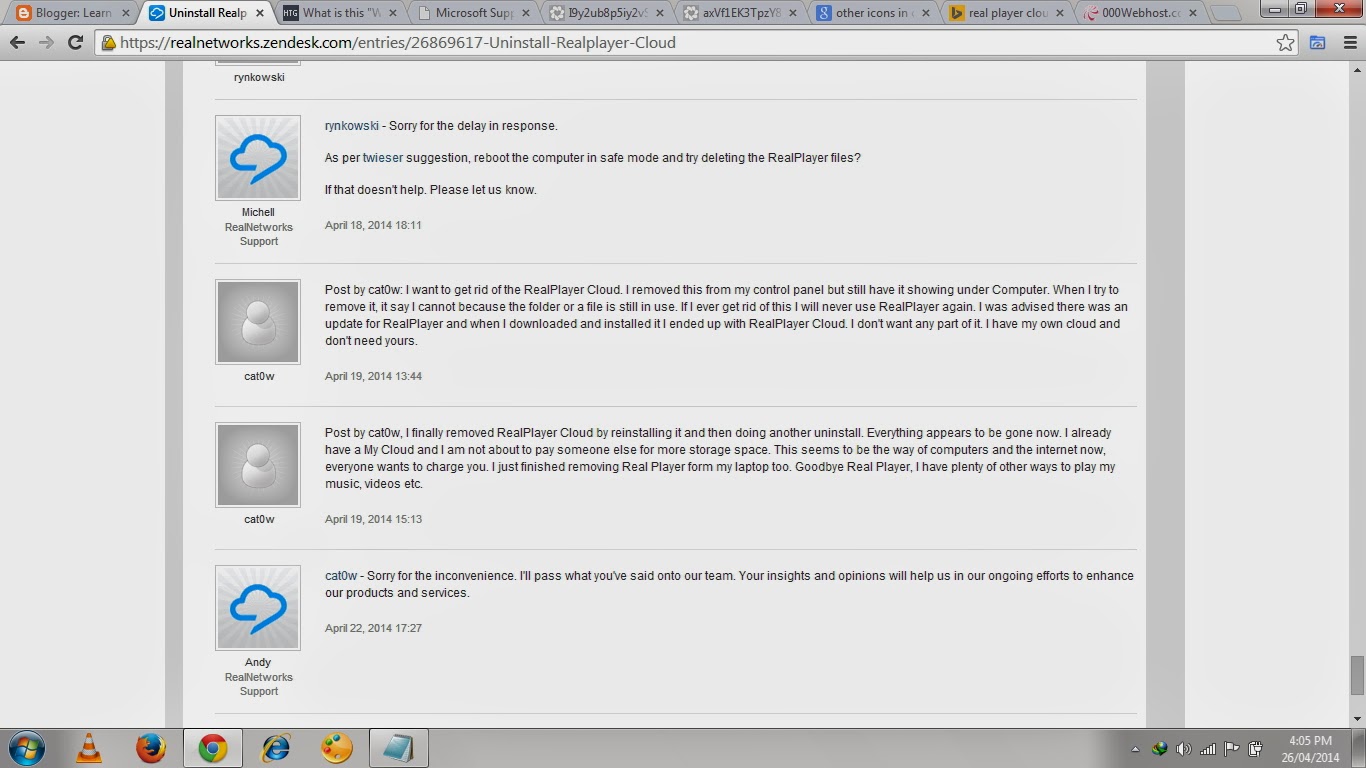
I searched the forum and found this apologies as shown in the picture- 13 (c) below from Real network support guys that they were sorry for the inconvenience and they apologize and are researching to fix this issue.
4. So then I opened the registry and started finding keys with keyword Real Player, Cloud and Real network and deleted all the keys related to Real player or Real player cloud or real network and I got 80% success as the Real Player cloud does not show up but I still had a Light White color Icon which reads System Folder in My Computer in Windows Explorer.
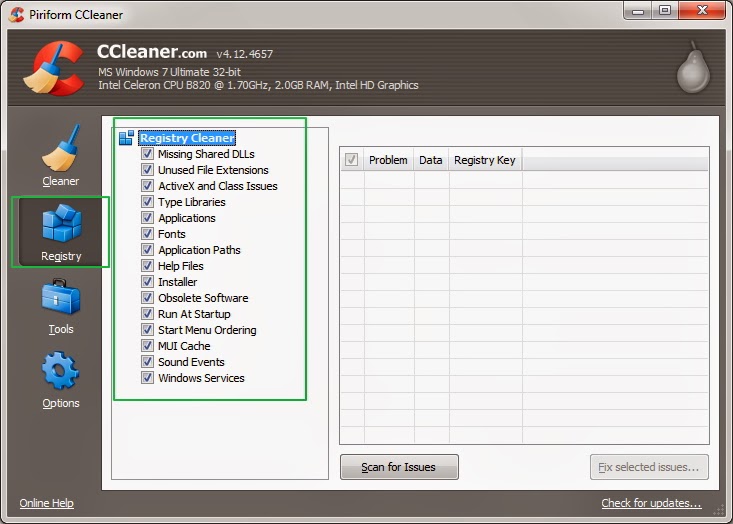
Then this Idea struck in my mind that why dont I clean the registry for left over file.So I Opened CCleaner and Clicked the Registry option at the left hand side and selected all the items to scan.So I scanned the registry with CCleaner as shown in the Pic-13(e) and It fixed all the issues related ton Registry and Bingo....!!!
That Real Player Cloud has gone away...I restarted the computer and It just worked fine.
Now I repent spending that much time in Removing Real Player Cloud icon while I wonder I could just take that off My Computer within 5 minutes after scanning the registry with CCleaner and fixing all the issues.
Conclusion: To remove real Player cloud icon from computer first delete the namespace and delegated folder entry from registry as shown in the above steps and then remove from other places in registry and clean the leftover registry items using the Ccleaners the regitry fix option.
Thanks for reading...
Happy Troubleshooting..!!!
Nasir
Today we got an issue where our Tier-1 support engineer spent almost four hours in trying to get rid of Real player cloud icon which is a system folder icon that shows in my computer under others list underneath the hard drive icons.It looks just like the icons listed under other in the following picture but you can not find an easy way to remove it.Real Player Cloud icon is such a stubborn icon that you can not get rid of easily.
 |
| RealPlayer Cloud icon, Pic-13(a) |
This issue actually occurred after one of our clients uninstalled the Real player Cloud from his computer.He did not know that he would not completely get rid of the real player.So after it was uninstalled he went to Computer and found the Real Player Cloud system folder there.He tried to remove it, he checked the add remove program ( Program and features ) and scrolled through the list but did not find Real Player there.He then checked the control panel if he could find the real player cloud icon so that he could uninstall it from there but did not find any icons for Real player.Checked the start up items by going to Run-> typing "Msconfig" and in the system configuration utility clicked on start up and unchecked everything he could find related to the Real Player Cloud.So after doing all this he Googled about this issue and reached a support forum for Real Player here is the link of that support forum https://realnetworks.zendesk.com/entries/26869617-Uninstall-Realplayer-Cloud he read it and tried all the steps to get Rid of that.So he re-installed and uninstalled it but the same issue persists.
After the uninstall he was instructed to do the following
Delete the RealPlayer folders.
To delete the folders for RealPlayer located at:
c:program files ealRealPlayer
c:program filescommon files eal
1. Go to My Computer.
2. Go to C: or Local Disk (C:).
3. Go to the Program Files folder.
4. Go to the Real folder.
5. Delete the RealPlayer folder: c:program files ealRealPlayer
6. Go back to the Program Files folder.
7. Go to the Common Files folder.
8. Delete the Real folder: c:program filescommon files eal
NOTE: If you have a 64-bit operating system, the RealPlayer folders will be in a different location:
c:program files x86 ealRealPlayer
c:program files x86common files eal
1. Go to My Computer.
2. Go to C: or Local Disk (C:).
3. Go to the Program Files folder.
4. Go to the Real folder.
5. Delete the RealPlayer folder: c:program files x 86 ealRealPlayer
6. Go back to the Program Files folder.
7. Go to the Common Files folder.
8. Delete the Real folder: c:program files x86common files eal
After doing all these troubleshooting he was told to delete RPcloudview.dll file he searched through the computer and could not find that.He also checked process named recordingmanager.exe*32 and rndlresolversvc.exe*32 , Ended the process and deleted the file associated with them but could not get rid of the icon.
When I got this case escalated to me I got confused for some time as what to do next.
When I searched the Google I found apart from the Main executable file of Real Player (C:Program Files eal ealplayer ealplay.exe) there are multiple other files which were installed and they are as following.
rdsf3260.dll - RealPlayer (32-bit) (Audio Filter Plugin)
convert.exe - RealConverter
dbghelp.dll (by Microsoft) - Debugging Tools for Windows(R) (Windows Image Helper)
dunzip32.dll (by Inner Media) - DynaZIP-32 Multi-Threading UnZIP DLL
fixrjb.exe - RealNetworks RealPlayer (RealNetworks Fix RJB Application)
hxaudiodevicehook.dll - HXAudioDeviceHook Module
ierjplug.dll - ierjplug Module
mediainfo.dll (by MediaArea.net) - MediaInfo (All about your audio and video files)
mmcdda32.dll - RealNetworks CD Extract Component
realcleaner.exe - RealCleaner
realconverter.exe
realjbox.exe
realshare.exe - RealShare (RealShare Launcher)
realtrimmer.exe - RealTrimmer
rjbres.dll - RealPlayer (Resources)
rjdlg.dll - My Media Component
rjprog.dll
rjwmapln.dll - Windows Media Audio import plugin
rndevicedbbuilder.exe - rndevicedblauncher (RN Device DB Builder)
rpau3260.dll - rpautostream Module
rphelperapp.exe - RealNetworks Helper Application
rpplugprot.dll - rpplugprot module
rpshell.dll - RealPlayer Shell Extensions
rpshellextension.dll (by RealPlayer) - RealPlayer shellextension
rpshellsearch.dll - RealPlayer Search Shell Extension
rpwa3260.dll - RealPlayer Plugin
tnetdtct.dll - RealNetworks Online Utility
tpasdk.dll - RealNetworks Playback System
tsasdk.dll - RealNetworks Utility Services
wmdmhelper.dll - RealNetworks Products (32-bit) (WMDM PD Helper Plugin)
cddbcontrol.dll (by Gracenote) - CDDBControl Core Module
cddblink.dll (by Gracenote) - CddbLink Module
cddbmusicid.dll (by Gracenote) - CddbMusicID M
So in order to remove the real player cloud icon from my computer folder I am supposed to delete these files and folder too but I did not deal with any of those files.
I went to the C:/ drive and open the "Documents and Settings" folder .Go to your Windows username folder and click the "Application Data" folder and then find the "Real" folder and delete it.For windows 7 you can go to c:/users/UserName/AppData and delete the folder named Real from there.
I started researching and found this nice article to delete Namespace key contents from registry.This key lists several cryptic folders which define the icons that are displayed in My Computer in Windows Explorer.So delete all the subkeys listed under NameSpace key.To delete them do the following steps.
Steps to delete NameSpace Key contents
1). Click on start, Go to Run and Type Regedit and click ok.
2). Then navigate to the following key "HKEY_LOCAL_MACHINESOFTWAREMicrosoftWindowsCurrentVersionExplorerMyComputerNameSpace"
 |
| Remove real player cloud icon from registry Pic-13(b) |
I searched the forum and found this apologies as shown in the picture- 13 (c) below from Real network support guys that they were sorry for the inconvenience and they apologize and are researching to fix this issue.
 |
| Pic-13(c) |
 |
| Pic-13(d) |
Then this Idea struck in my mind that why dont I clean the registry for left over file.So I Opened CCleaner and Clicked the Registry option at the left hand side and selected all the items to scan.So I scanned the registry with CCleaner as shown in the Pic-13(e) and It fixed all the issues related ton Registry and Bingo....!!!
That Real Player Cloud has gone away...I restarted the computer and It just worked fine.
 |
| Pic-13(e) |
Now I repent spending that much time in Removing Real Player Cloud icon while I wonder I could just take that off My Computer within 5 minutes after scanning the registry with CCleaner and fixing all the issues.
Conclusion: To remove real Player cloud icon from computer first delete the namespace and delegated folder entry from registry as shown in the above steps and then remove from other places in registry and clean the leftover registry items using the Ccleaners the regitry fix option.
Thanks for reading...
Happy Troubleshooting..!!!
Nasir
Go to link Download
Friday, January 27, 2017
How the Cloud Optimizes Your Business
How the Cloud Optimizes Your Business

Telecommuting Services
With the popularity of mobile devices growing by leaps and bounds, more businesses than ever are now looking at telecommuting as a way to not only save money, but also allow their employees to work from home or handle aspects of the job while on the go. Cloud computing allows employees to easily access data on their mobile devices, and it also allows employers to more easily hire off-site workers. By doing so, operational costs are reduced since the employer does not need to provide a physical work location for employees.Outsourcing Services
Cloud computing allows for additional savings by making outsourcing even easier. Business activities such as customer service can be outsourced offsite or even overseas, making this a much more cost-effective option. By not having to do in-house hiring and provide a work location, thousands and sometimes millions of dollars can be saved.Access Control
One of the biggest advantages to cloud computing is the safety of data. With hackers and scammers everywhere, IT support is made safer and more secure through the use of cloud computing. Physical servers are constantly being targeted by criminals hoping to gain access to personal information of customers or confidential information from businesses, so its imperative to have a secure system in place. Cloud computing provides peace of mind when it comes to managed IT services, making sure tighter security is in place and access to files, data and other information is made safer than ever.Data Duplication
When physical servers need to be used for data duplication, costs can be extremely high. However, cloud computing can solve this problem by performing the same tasks using virtual servers rather than physical ones, saving a business additional money on their managed IT services. Many businesses need to have multiple copies of information available in order to keep business operations streamlined, so using cloud computing allows this to be accomplished for pennies on the dollar compared to more traditional methods.Business Relocation
As todays business world is prone to change, many businesses decide to relocate due to business trends or to save money. For businesses using traditional servers, relocation can be expensive as well as time-consuming. However, with cloud computing relocating becomes much easier and less expensive. Rather than taking time to set up new servers and other IT equipment, a business can instead relocate and almost immediately pick up right where it left off at its previous location.With all of these reasons, its no wonder cloud computing has achieved its current level of popularity. Keeping data safer, lowering costs and making business operations easier than ever before are just a few of the many reasons smart businesses everywhere are making cloud computing their first choice.
Image credit: ddpavumba
Go to link Download
Subscribe to:
Posts (Atom)