Showing posts with label share. Show all posts
Showing posts with label share. Show all posts
Monday, May 22, 2017
How to Share Printer for Computers on LAN
How to Share Printer for Computers on LAN
Not only from Network printer, it is possible to print from other computers on LAN by sharing local printer connected on one computer on Local Area Network. To do this, you have to share the printer on LAN and have to install the shared printer on the computer from which you want to print. In this post I am describing the methods and steps for sharing printers on LAN.
How to Share a Local Printer on LAN
Here are some steps for sharing a local printer on Local Area Network.
- At first, Go to the control panel and click on "view devices and printers" located under Hardware and Sound option.
- Under the printers category right click on printers name which you want to share and choose on "printer properties" option.
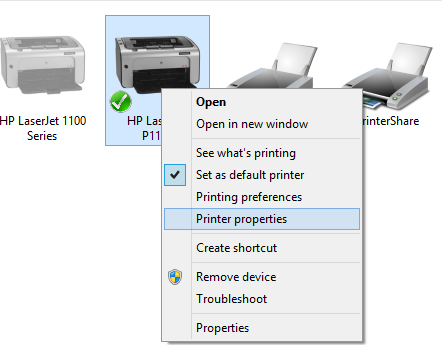
- Then printer properties dialog box will appear as given below, click on sharing Tab.
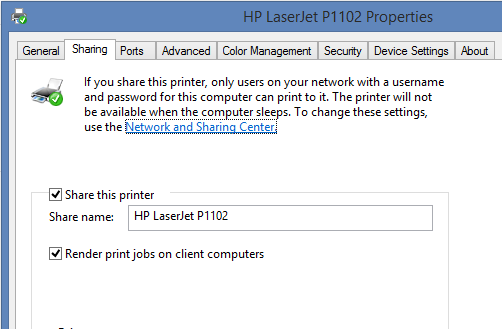
- Select on the "share this printer" option also give the name for the printer which is being shared as given on the picture below.
- After completing all of the task click on OK to close the dialog box.
How to Install Shared Printer in Client Computer on LAN
To complete the steps for sharing local computer on LAN and to print through client computer, you have to install this shared printer on the client computer also. The required steps to complete this task are given below.
- At first, Go to the control panel as mentioned on the previous steps and click on "Add printer" option.

- The wizard started to search for installed shared printers on LAN, if the printer you have to install is listed select it and go to next until finish.

- If the printer is not listed from searching, Click on the option "The printer that I want isnt Listed".
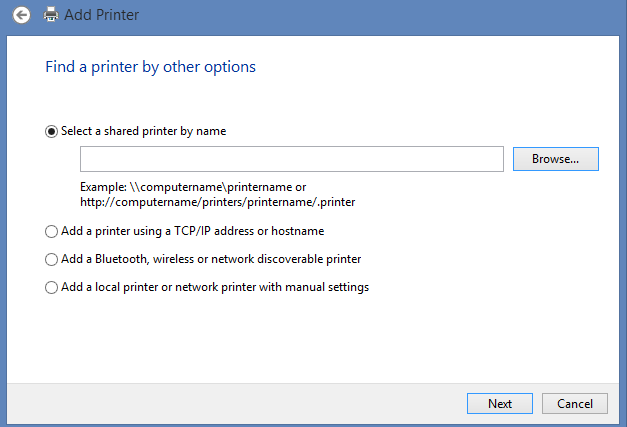
- On find a printer by other options click on "select a shared printer by name" and click on Browse button.
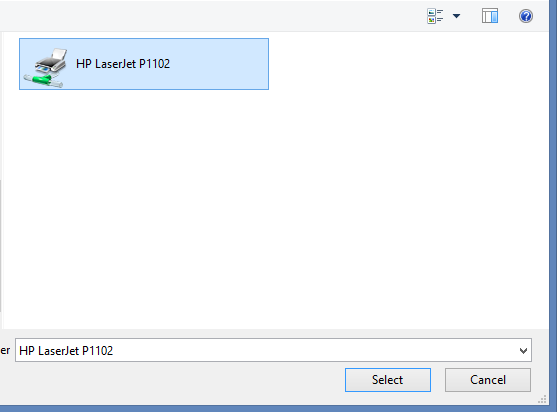
- Open the computer from where you want to install printer, here you may ask for login if the computer having printer is protected by a password.
- After opening computer, select the desired printer you want to install and click on next in wizard until finish.
- Now your printer is ready, you can print any document selecting on this printer but you should be noted that the host computer must be turned on while printing.
Related Posts
How to make USB boot drive to Install Windows ?
How to Keep Computer from Sleeping
Top 5 Free Methods to Make Your Computer Faster
How to Know Your Computer Configuration Easily
Top 10 Questions that Computer Beginner may Asked
How to Manage Drives Using Drive Tools
How to Share Printer for Computers on LAN
What are the Basic Components of operating Systems.
How to Share Drive Folder and File in Computer Network
What is Cyber Crime and What are the types?
What is intellectual property law?
What is literal and non-literal copying of computer programs?
Go to link Download

Wednesday, February 15, 2017
Fury 2014 Hollywood Movie Watch Online Zee Share com
Fury 2014 Hollywood Movie Watch Online Zee Share com
Fury 2014 Hollywood Movie Watch Online | Zee Share.com
Go to link Download
Sunday, October 30, 2016
How to Share Drive Folder and File in Computer Network
How to Share Drive Folder and File in Computer Network
You can share drives, folders and files of your PC to your Computer Network, after sharing these, you can access them from another computers in same computer network. It can be shared for specific computer or for everyone as your requirement. But you should be careful for security of your files, folders and drives while sharing them on the network. Today I am going to describe some methods for sharing drives, folders and files in computer network.
How to Share Drive in Computer Network
You can share your computer drive in computer network, using the following methods.
- At first Go to "My Computer" from Desktop or Start Menu and Open it.
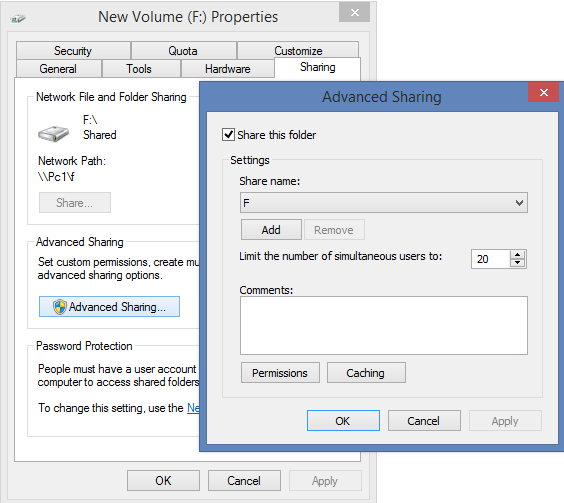
- Right Click on the required drive which you want to share and Choose "Share width" and the "Advanced sharing.." As given below.

- After that, drive properties window will appear, then click on "Advanced sharing" button.
- That displays advanced sharing dialog box then select on the "Share this folder" check box, give required comments and the share name as given on the screen below.
- After completing all of these click on OK button.
How to Share Folder and Files in Computer Network
You can share your computer folders and files in computer network, using the following methods.
- At first, Go to your folder or file and right click on it, Choose "Share with" option and then click on "Specific people.." as on the screen below.
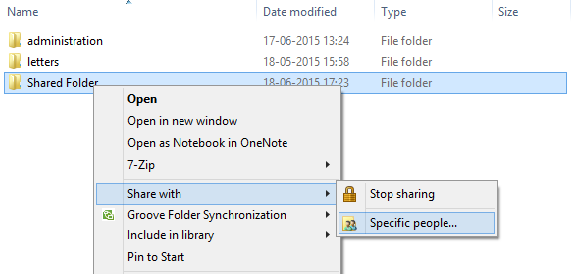
- On the File sharing dialog box, choose people to share with, you can select specific computer or can choose everyone and click on "share" button at last.

- If you want to Stop sharing them on computer network, Go to step 1 and choose "Stop sharing" option instead of "Specific people".
- After clicking on "Stop Sharing" option, you can see file sharing dialog from where you can choose the option "Stop Sharing" - To remove all the permissions for all the people and "Change Sharing Permissions" option - To add or remove people or change the permission.
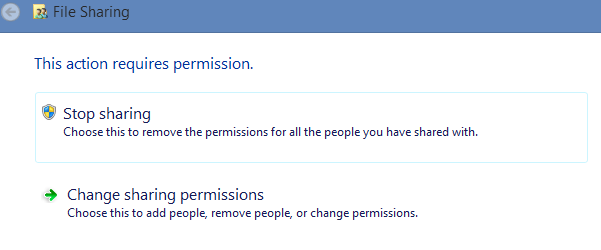
- While changing permissions, you can do as given on the step 2.
Related Posts
How to make USB boot drive to Install Windows ?
How to Keep Computer from Sleeping
Top 5 Free Methods to Make Your Computer Faster
How to Know Your Computer Configuration Easily
Top 10 Questions that Computer Beginner may Asked
How to Manage Drives Using Drive Tools
How to Share Printer for Computers on LAN
What are the Basic Components of operating Systems.
How to Share Drive Folder and File in Computer Network
What is Cyber Crime and What are the types?
What is intellectual property law?
What is literal and non-literal copying of computer programs?
Go to link Download
Subscribe to:
Posts (Atom)