Showing posts with label folder. Show all posts
Showing posts with label folder. Show all posts
Sunday, March 5, 2017
How to speed up a folder load in Windows
How to speed up a folder load in Windows
How to Speed Up a Windows Folder that Loads Very Slowly

There is a curious phenomenon many of you have likely come across: even with a fast computer, there are some folders Windows loads with agonizing slowness. Fortunately the fix is simple and the results are immediate.
Why Your Folders Load So Slowly
There is a long standing Windows Explorer feature that dates all the way back to Windows Vista wherein you can tell Windows Explorer what kind of content is in specific folders, in order to optimize how that content is displayed.
For example: you can tell Windows Explorer that a particular folder is where you store your music files, and it will present those files in a way most useful for browsing music (e.g. in detailed list format with column options like file playtime automatically enabled). Even if you never tell Windows Explorer what to do, it automatically defaults some folders to various settings (the “Music” library folder is, naturally, defaulted to music-type file display) and then uses a feature called Automatic Folder Type Discovery on the rest. The automatic discovery system is a best-guess as to what is in the folder based on the number of files of various types, last files added, and so on.

When it works, it’s a great feature. When it doesn’t work, it’s a rather annoying bug: when a folder with a large number of files is optimized for “pictures”, it immediately churns through all the files in the folder, regardless of whether or not the folder is in thumbnail view, in order to check and refresh all the thumbnails for all the files found therein.
Even on a beefy computer with a modern processor, plenty of RAM, and a speedy solid state drive, this process can take anywhere from 10-15 seconds to in excess of a minute depending on how many files are in the folder. On older computers it can even completely lock up Windows Explorer (not just the folder in question).
A prime example of this agonizingly slow file-churn-bug in action is the Windows “Downloads” folder which, thanks to that whole Automatic Folder Type Discovery feature, is typically set to picture mode on most computers. If we were placing wagers on what brought you to this article, we’d happily wager that you came in search of a solution to your Downloads folder taking minutes to load and display the files. Don’t worry, we won’t judge your cluttered Downloads folder if you don’t judge ours.
Fortunately solving the problem is as simple as telling Windows to stop treating the folder like an image gallery.
How to Change Your Folder Optimizations
As long as you know where to look, it’s easy peasy to change your folder optimizations. First, locate the folder you’re having problems with. Typically most people only have one folder that is particularly sluggish, but if you have a whole host of folders that are misbehaving you can take a top-down approach and change the settings for the parent folder to apply the changes to all the subfolders.
Once you’ve located the folder, simply right-click on either the folder itself in Windows Explorer or, if you have the folder open, on a blank area within the Windows Explorer pane. Select, from the right-click context menu, “Properties”.

Within the Properties menu, select the “Customize” tab.

In the customize tab, you’ll find an entry “Optimize this folder for:” with a drop down menu. The options in the drop down menu are: “General items”, “documents”, “pictures”, “music”, and “videos”. Select “General items”.

If you wish to apply the changes to all the folders within that folder, select “Also apply this template to all subfolders” beneath the drop down menu.

Click “Apply” then “OK” at the bottom of the Properties menu. Back in the troublesome folder, press F5 to reload the folder.

The changes should take place immediately and the dreaded waiting-for-folder-to-load time should be long gone.
Go to link Download

Monday, January 30, 2017
How To Hide Folder in Windows 7 With Command Prompt
How To Hide Folder in Windows 7 With Command Prompt
How To Hide Folder in Windows 7 With Command Prompt is quite easy. A condition we have a data file that we think are important or privacy and we do not want other users to use your PC to open the file even process them. One option is to hide the solution file so as not affordable by the views of others. Actually, there are various ways that we can do to hide our important files, such as using software Locker file that has been widely circulated on the Internet. But on this occasion I will try to share How to hide important files are pretty simple without using third-party software support by using the Command Prompt application. Your files will not be visible even if you turn on show hidden files. Heres Step:
1. Open the command prompt application. Or press Win + R. Then type cmd. then Enter
After Open a Command Prompt window. Type the disk where the file your secret. eg I will hide the folder named Fathin Disks are located in the "D" >> Songs >> Fathin. I then type D:. Enter. Type cd tracks again. Once the folder named Fathin invisible attributes are now staying put for menghidden. Just type attrib + s + h Fathin.
Click the image to make it more clear
Description of each attribute command can be seen by typing attrib /? .
So a little review about Tricks How to hide Secret Files using CMD. May be useful.
1. Open the command prompt application. Or press Win + R. Then type cmd. then Enter
After Open a Command Prompt window. Type the disk where the file your secret. eg I will hide the folder named Fathin Disks are located in the "D" >> Songs >> Fathin. I then type D:. Enter. Type cd tracks again. Once the folder named Fathin invisible attributes are now staying put for menghidden. Just type attrib + s + h Fathin.
Click the image to make it more clear
Description of each attribute command can be seen by typing attrib /? .
So a little review about Tricks How to hide Secret Files using CMD. May be useful.
Go to link Download
Friday, December 9, 2016
Hide Folder with Batch File and CLSID
Hide Folder with Batch File and CLSID
This post is about hiding a folder in Windows using command prompt and CLSID.
This trick also work with windows 7 and Windows 8.
Commonly we use some encryption software to lock the secure data like Folder Lock but this trick is for hiding some private stuff ;) if you want to avoid direct access to folder.
Now we will create two batch files (available for download at bottom) one will hide the folder and another will unlock the folder using a secure word you can say password.
The technique is very simple we will change properties of locker folder completely same as some system folder, using windows commands. Therefore, accessing the locked folder will result in system file instead of actual folder path and making batch files of these commands will make lock and unlock process very easy.
About CLSID:
CLSID are Windows class id for various windows class objects like My Computer, Control Panel, and Administrative Tools etc. we will use My Computer class id to make the locker behave like Computer Folder and clicking on that will show My Computer screen like hard drives.
Commands:
We will use these commands
To change the locker name unlock the locker and rename the folder but also search and replace "locker" with "new_folder_name" in both files as folder name is hardcoded in batch files.
To change the unlock password open "unlock.bat" in notepad and look for "password" replace this word with your password.
Comment your queries and suggestions!
This trick also work with windows 7 and Windows 8.
Commonly we use some encryption software to lock the secure data like Folder Lock but this trick is for hiding some private stuff ;) if you want to avoid direct access to folder.
Now we will create two batch files (available for download at bottom) one will hide the folder and another will unlock the folder using a secure word you can say password.
The technique is very simple we will change properties of locker folder completely same as some system folder, using windows commands. Therefore, accessing the locked folder will result in system file instead of actual folder path and making batch files of these commands will make lock and unlock process very easy.
About CLSID:
CLSID are Windows class id for various windows class objects like My Computer, Control Panel, and Administrative Tools etc. we will use My Computer class id to make the locker behave like Computer Folder and clicking on that will show My Computer screen like hard drives.
Commands:
We will use these commands
- First, rename the folder to make it system folder.
rename Locker "Computer.{20D04FE0-3AEA-1069-A2D8-08002B30309D}" - Then apply system attribute to completely hide this folder.
attrib +h +s "Computer.{20D04FE0-3AEA-1069-A2D8-08002B30309D}" - Revert the same process to unlock the folder.
Click here to download batch files
- Download zip file that contain whole structure of locker.
- To lock: Extract the zip file containing two files one to unlock and another to lock. "Lock.bat" should be inside the "locker" folder, to lock folder close all applications and files that are inside of locker folder and run that file then folder will be locked and hidden it will also make all files path invalid those are inside the locker folder. Therefore, no one can access using history of video player and from other apps recent files section.
- To unlock: run "unlock.bat" it will show blank cmd screen type "password" and hit enter, "Locker" folder will be visible immediately.
To change the locker name unlock the locker and rename the folder but also search and replace "locker" with "new_folder_name" in both files as folder name is hardcoded in batch files.
To change the unlock password open "unlock.bat" in notepad and look for "password" replace this word with your password.
Comment your queries and suggestions!
Go to link Download
Thursday, November 24, 2016
How To Change Folder Color! Guide With Screenshots
How To Change Folder Color! Guide With Screenshots

Folder Colorizer is a small Windows application created to assign a different color to any folder on your system.
Basic technical knowledge is enough because Folder Colorizer introduces an entry in the Context Menu and thus allows you to simply right click a folder to change its color.
The application already comes with eight predefined colors, but it also allows you to define your very own and even save it by writing down an unique name.
It’s all just a matter of clicks and while this could be very well considered just a task more appropriate for rookies, it could come in handy to every computer user out there.
The application doesn’t affect system performance in any way and the best of all is that it works smoothly on all Windows versions on the market. What’s more, it only asks for administrator privileges in order to change the color of system-protected folders.
Last but not least, you don’t even need to let the app running in order to keep the new folder colors, so computer performance isn’t affected at all.
All things considered, Folder Colorizer is an app that could help plenty of users out there, offering one of the most user-friendly approaches on the market. Shell integration clearly helps a lot and since it’s all so intuitive, the lack of a help manual shouldn’t bother you too much.
Guide:
1)Download The Latest Version Of Software From The Given Links
2)Install The Software
3)Right Click On Folder(which you want to customize) & Then


Download Links:
Folder Colorizer (Size 1.3MB) | Mirror 1
Go to link Download
Sunday, October 30, 2016
How to Share Drive Folder and File in Computer Network
How to Share Drive Folder and File in Computer Network
You can share drives, folders and files of your PC to your Computer Network, after sharing these, you can access them from another computers in same computer network. It can be shared for specific computer or for everyone as your requirement. But you should be careful for security of your files, folders and drives while sharing them on the network. Today I am going to describe some methods for sharing drives, folders and files in computer network.
How to Share Drive in Computer Network
You can share your computer drive in computer network, using the following methods.
- At first Go to "My Computer" from Desktop or Start Menu and Open it.
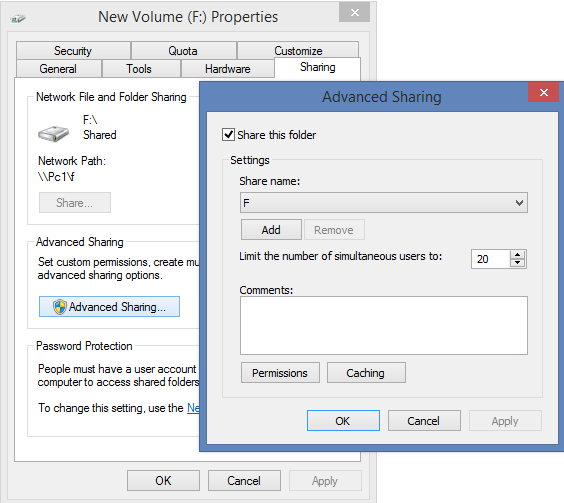
- Right Click on the required drive which you want to share and Choose "Share width" and the "Advanced sharing.." As given below.

- After that, drive properties window will appear, then click on "Advanced sharing" button.
- That displays advanced sharing dialog box then select on the "Share this folder" check box, give required comments and the share name as given on the screen below.
- After completing all of these click on OK button.
How to Share Folder and Files in Computer Network
You can share your computer folders and files in computer network, using the following methods.
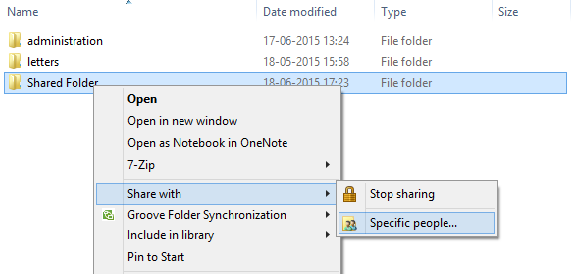
- At first, Go to your folder or file and right click on it, Choose "Share with" option and then click on "Specific people.." as on the screen below.
- On the File sharing dialog box, choose people to share with, you can select specific computer or can choose everyone and click on "share" button at last.

- If you want to Stop sharing them on computer network, Go to step 1 and choose "Stop sharing" option instead of "Specific people".
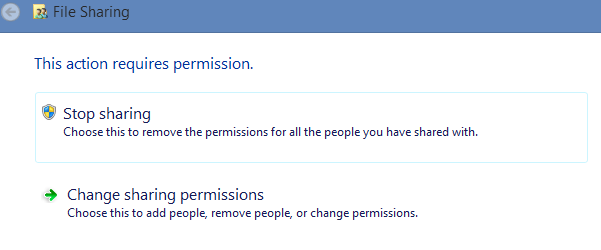
- After clicking on "Stop Sharing" option, you can see file sharing dialog from where you can choose the option "Stop Sharing" - To remove all the permissions for all the people and "Change Sharing Permissions" option - To add or remove people or change the permission.
- While changing permissions, you can do as given on the step 2.
Related Posts
How to make USB boot drive to Install Windows ?
How to Keep Computer from Sleeping
Top 5 Free Methods to Make Your Computer Faster
How to Know Your Computer Configuration Easily
Top 10 Questions that Computer Beginner may Asked
How to Manage Drives Using Drive Tools
How to Share Printer for Computers on LAN
What are the Basic Components of operating Systems.
How to Share Drive Folder and File in Computer Network
What is Cyber Crime and What are the types?
What is intellectual property law?
What is literal and non-literal copying of computer programs?
Go to link Download
Thursday, September 29, 2016
icolor Folder
icolor Folder

Icon Pack

About
iColorFolder allows to customize the color of every Windows XP folder
Organise your files more easily
With iColorFolder, give some color to Windows XP folders. With just a right-click, colorize your folders, and discover a new intuitive way to classify your files. A quick look is now enough to identify the folder you are looking for !
Classify your folders by Family
You can now classify your folders by Family. Red is an Important folder, Orange is Urgent, Green is Familial… Choose the attributions that you like, so you’ll never delete an important folder by error.
A fast and light tool
iColorFolder is a very light soft, that doesn’t stay in memory. It uses a native functionnality of Windows XP to be more efficient. Discover it’s simplicity : with a single right-click on a folder you colorize it ; the necessary and only the necessary. iColorFolder is proudly an Open-Source software.
Fully skinnable
iColorFolder is bundled with three apparences : the default apparence of Windows XP folders, a Mac OS X skin and a Snow.E2 skin. If your system is already customized with shellpacks like WinOSX, you’ll keep the same folder apparence. If you want more skins, you can download the Screenshots Section some images describing iColorFolder and presenting it’s functionalities. Try it ! If you don’t like it, you can uninstall it fully and quickly.
Go to link Download
Subscribe to:
Comments (Atom)