Showing posts with label prompt. Show all posts
Showing posts with label prompt. Show all posts
Thursday, April 27, 2017
How to speed up internet connection only with Command Prompt
How to speed up internet connection only with Command Prompt
Read a new article that discusses about how to speed up internet connection but use the command in cmd / command prompt. usually the hell did I know it had to use the software again or set dns and so forth. who still have problems with internet speeds should try it this way. okay, just as How to speed up internet connection only with Command Prompt
following command on the run in cmd:
1. open cmd as administrator
2. after a change in his address to open the drive "C: ", I typed "cd C /" and then enter
3. Now type the following command netsh interface tcp set global autotuning = disabled
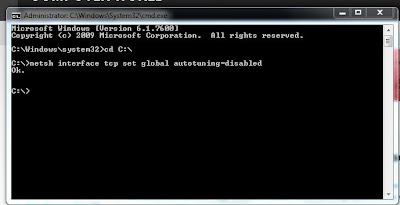
finished last press enter!!!!
now live internet connection check again here www.speedtest.net and see the difference.
note: check the internet speed here www.speedtest.net first before you try this. so I can see the difference.
following command on the run in cmd:
1. open cmd as administrator
2. after a change in his address to open the drive "C: ", I typed "cd C /" and then enter
3. Now type the following command netsh interface tcp set global autotuning = disabled
finished last press enter!!!!
now live internet connection check again here www.speedtest.net and see the difference.
note: 1. to reverse its original type the following command netsh interface tcp set global autotuning = normal
2. first you need to open cmd as administrator.
Go to link Download

Monday, January 30, 2017
How To Hide Folder in Windows 7 With Command Prompt
How To Hide Folder in Windows 7 With Command Prompt
How To Hide Folder in Windows 7 With Command Prompt is quite easy. A condition we have a data file that we think are important or privacy and we do not want other users to use your PC to open the file even process them. One option is to hide the solution file so as not affordable by the views of others. Actually, there are various ways that we can do to hide our important files, such as using software Locker file that has been widely circulated on the Internet. But on this occasion I will try to share How to hide important files are pretty simple without using third-party software support by using the Command Prompt application. Your files will not be visible even if you turn on show hidden files. Heres Step:
1. Open the command prompt application. Or press Win + R. Then type cmd. then Enter
After Open a Command Prompt window. Type the disk where the file your secret. eg I will hide the folder named Fathin Disks are located in the "D" >> Songs >> Fathin. I then type D:. Enter. Type cd tracks again. Once the folder named Fathin invisible attributes are now staying put for menghidden. Just type attrib + s + h Fathin.
Click the image to make it more clear
Description of each attribute command can be seen by typing attrib /? .
So a little review about Tricks How to hide Secret Files using CMD. May be useful.
1. Open the command prompt application. Or press Win + R. Then type cmd. then Enter
After Open a Command Prompt window. Type the disk where the file your secret. eg I will hide the folder named Fathin Disks are located in the "D" >> Songs >> Fathin. I then type D:. Enter. Type cd tracks again. Once the folder named Fathin invisible attributes are now staying put for menghidden. Just type attrib + s + h Fathin.
Click the image to make it more clear
Description of each attribute command can be seen by typing attrib /? .
So a little review about Tricks How to hide Secret Files using CMD. May be useful.
Go to link Download
Tuesday, November 15, 2016
How to Open Command Prompt With Mouse Click
How to Open Command Prompt With Mouse Click
Open Command Prompt With Mouse Click - I do not care if I spelled outdated, because I just found out how to open CMD with the click of a mouse. If we used to open the Command Promt should RUN (Win + R) then type the command Command.

And here To Open Command Prompt with Mouse Click:
Location of the mouse diarrhea desktop
Hold down the SHIFT key on the keyboard
Press the SHIFT key while right-clicking the Open command windows Click here
Have a computer article about How to Open Command Prompt With Mouse Click beneficial to you
And here To Open Command Prompt with Mouse Click:
Location of the mouse diarrhea desktop
Hold down the SHIFT key on the keyboard
Press the SHIFT key while right-clicking the Open command windows Click here
Have a computer article about How to Open Command Prompt With Mouse Click beneficial to you
Go to link Download
Friday, September 30, 2016
How To Compile Java Program In Windows Command Prompt
How To Compile Java Program In Windows Command Prompt
This time I will discuss about How To Compile Java Program In Windows Command Prompt. Actually, this post should be in the early days before I post the java program, but rather than not, I will share the stages ...
1. you install Platform (JDK) first, if not there you can download HERE
2. After installing the JDK, you set java path by opening Explorer, right click on Computer -> Properties -> Advanced System Settings -> Environment Variables
3. Then select the "path" and select edit.
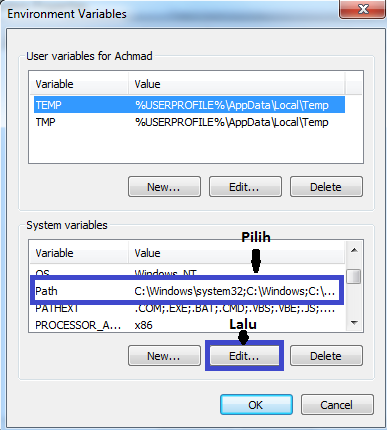
4. Enter the address of java bin folder already installed (example: C: Program Files Java jdk1.7.0 bin) to the Path earlier by:
-. Add mark; (semicolon) at the end of the variable value and copy the bin folder above address.
5. After that, check on your CMD (click the Windows icon, type CMD) is already in place or not. Previously moved first directory where you saved the java file, for example stored in the directory "D", then typing cd D: then D:.
Then, typing javac nameclass.java (Change nameclass with namakelas your files), then typing java nameclass.
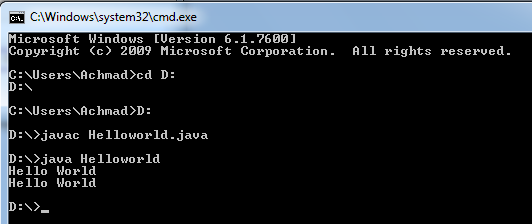
6. Completed. (^ _ ^)
A few of my discussion on How to Compile Java Programs in Command Prompt, may be useful.
1. you install Platform (JDK) first, if not there you can download HERE
2. After installing the JDK, you set java path by opening Explorer, right click on Computer -> Properties -> Advanced System Settings -> Environment Variables
3. Then select the "path" and select edit.
4. Enter the address of java bin folder already installed (example: C: Program Files Java jdk1.7.0 bin) to the Path earlier by:
-. Add mark; (semicolon) at the end of the variable value and copy the bin folder above address.
5. After that, check on your CMD (click the Windows icon, type CMD) is already in place or not. Previously moved first directory where you saved the java file, for example stored in the directory "D", then typing cd D: then D:.
Then, typing javac nameclass.java (Change nameclass with namakelas your files), then typing java nameclass.
6. Completed. (^ _ ^)
A few of my discussion on How to Compile Java Programs in Command Prompt, may be useful.
Go to link Download
Subscribe to:
Posts (Atom)