Showing posts with label internet. Show all posts

Thursday, May 4, 2017

How To Install Apps Without Google Play Store and Internet

How To Install Apps Without Google Play Store and Internet



Why I decided to post this topic. Imagine following situations:

  • You dont want to connect your Google account because you afraid of "To many Pattern Attempt"
  • Google Play Store Slow Down Your Smartphone and Internet. So You want to keep it Off
  • You have a Google Android device but you dont have Internet connectivity
  • You have Internet connectivity but you dont have Google Play Store in your device
  • You have Google Play Store but you dont have a Google account to sign in
  • Your desired app is not compatible with your Android device
  • Your desired app has been removed from Google Play Store
  • You cant download your desired app due to any other reason

    In any of the above mentioned situations, you wont be able to download and install apps in your Google Android device whether its a mobile phone or tablet. It might be possible that you purchased an Android mobile or tablet which didnt contain Google Play Store (e.g. Nokia X) or it might be also possible that you dont have a Gmail account and you dont want to create a new Google account to sign into Play Store.
    Now the question comes how would you install apps in your Android device if you dont have Play Store or Google account or Internet connection in your device? The answer is using Sideloading feature.
    Sideload an application means offline installation of the app without using Google Play Store in your Android device. In this way you wont need Google Play Store, Google account and Internet connection in your Android device.
    With the help of sideloading feature, you can directly install any desired app in your Android mobile phone or tablet just like you install a software in your Windows PC.
    If you also want to learn this method to install apps offline in your Android device, just check out following simple steps:


    Step 1:

    Download .APK File From Internet
    First of all youll need the .APK file of your desired Android app. Actually all Android apps come in form of a .APK file (Android Package file). When you install an app using Play Store, your Android device automatically downloads and installs its .APK file.
    Since you dont want to download apps using Play Store, youll need to download the .APK file of your desired app from Internet.
    If you can access Internet in your Android device, then you can download the .APK files using a web browser. If you cant access Internet in your device, then youll need to download the .APK files using a computer with Internet connection.
    There are many websites offering .APK files of free apps for download. You just need to search for "App name APK file" on Google and youll get several websites containing the .APK file of your app. For example if you want to download Subway Surfer games .APK file, just search for "Angry Birds APK file" and youll get many download links.
    But if You want to download Purchased or Modded App for free then you can find it on our website at Black Eyezs Software Android Apps & Games.


    Step 2:

    Copy .APK File to SD Card of Android Device
    Once you grab the .APK files of your desired apps, its time to copy those .APK files to SD card (memory card) of your Android mobile or tablet.
    You can either attach the SD card to your computer using a card holder/reader and copy .APK files to it or you can connect your Android device to your computer using data cable and then copy .APK files to its drives using My Computer window.


    Step 3:

    Enable "Apps Installation from Unknown Sources" Option
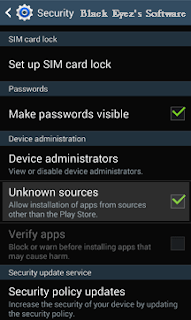
    By default your Android device doesnt allow sideloading feature which means you cant install apps from your SD card but you can enable this feature with the help of following easy steps:
    1. Open Settings page in your Android device and go to Security settings.
    2. Now look for "Unknown Sources" option which contains following information:
    Allow installation of apps from sources other than the Play Store
    OR
    Allow installation of apps from unknown sources
    The option is not enabled by default, just tap on it to enable the option. Itll ask for confirmation, accept it.

    You may also need to disable "Verify Apps" option which disallows or warns you when you try to install apps from unknown sources.
    After changing options, exit from Settings page.


    Step 4:

    Run .APK File Using File Manager
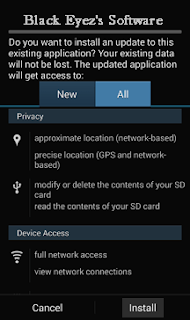
    Thats the final step. Now you can install the apps directly using the built-in File Manager app in your Android device or Download ES File Explorer (best Android file manager) from our site.
    Just Open ES file Explorer or similar apps in your Android device and then navigate to SD card and tap on the downloaded .APK file.
    Itll ask for confirmation, tap on Install button and itll start the installation process.

    Itll take a few seconds and your desired app will be installed in your Android mobile phone or tablet without need of Google Play Store and Internet connection.
    This method also helps when you have more than one Google Android mobile phone or tablet and want to install same apps and games in those devices. With the help of this method, you just need to download those apps only once and then you can install them in multiple devices and also can use as backup without any need of downloading them again and again in all devices. Itll save your time and money.

    Note:-

    If you need any Paid .APK for free contact us, we will upload it in two or three business days.

    Go to link Download

    Read more »

    Thursday, April 27, 2017

    How to speed up internet connection only with Command Prompt

    How to speed up internet connection only with Command Prompt


    Read a new article that discusses about how to speed up internet connection but use the command in cmd / command prompt. usually the hell did I know it had to use the software again or set dns and so forth. who still have problems with internet speeds should try it this way. okay, just as How to speed up internet connection only with Command Prompt

    note: check the internet speed here www.speedtest.net first before you try this. so I can see the difference.

    following command on the run in cmd:

    1. open cmd as administrator

    2. after a change in his address to open the drive "C: ", I typed "cd C /" and then enter

    3. Now type the following command netsh interface tcp set global autotuning = disabled
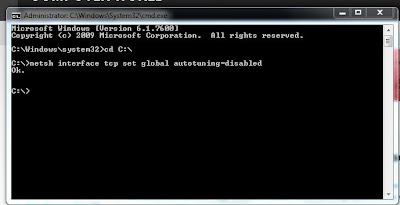
    How to speed up internet connection only with Command Prompt

    finished last press enter!!!!

    now live internet connection check again here www.speedtest.net and see the difference.

    note: 1. to reverse its original type the following command netsh interface tcp set global autotuning = normal
    2. first you need to open cmd as administrator.

    Go to link Download

    Read more »

    How To Increase The Internet Speed in PC

    How To Increase The Internet Speed in PC


    How To Increase The Internet Speed in PC
    Are you slaving yourself to that PC in exchange of a completed coursework? Or are you catching after an oncoming deadline? The more urgent the nature of work, the higher your expectations is for that internet connection.

    And when it fails to deliver, there’s no telling how worse it could be.


    The slow net scenario

    Now, at an era largely characterised by instant gratification, the sight of a loading icon – the circling arrow or the bar of green – could inspire automatic groans. Nobody wants them, unless this slow net thing is epidemic in your neighbourhood.

    What are the causes of this slow internet connection? About.com’s “Internet for Beginners” has identified at least thirteen (13) causes.


    1. Poor hardware
    2. Incorrect router configuration
    3. Leeching internet users
    4. Un-upgraded NIC
    5. Spyware/malware infection
    6. Downloads
    7. ISP’s routing signals
    8. Outdated DNS
    9. Full browser memory cache
    10. Devices disrupt signals
    11. Old PC
    12. Open windows
    13. Unattended dialog box

    Take keen note these 13 represents the different possibilities. These may or may not necessarily disrupt bandwidth connection; it is up to you (dear user) to carefully weigh these things. The key to verifying it is by careful observation and simple logic (ie, is the connection faster with a new DNS, or not?).

    Faster than energy bunnies

    There are many ways of increasing your internet connections speed. The best way to do it is to start with diagnosis. See through those aforementioned causes and learn which among those are causing your internet speed to drop.

    Through a determined cause, you are able to appropriate a targeted solution. For instance, if the problem is caused by poor hardware, then you can purchase a newer and better model. If it’s about the incorrect router configuration, try to correct it or tap your friendly IT expert to do the works.

    Or if the culprit of the internet snail-pace is your leeching neighbours (most likely the case for Wi-Fi connections), strengthen your connection’s password and utilise other security features. Infections, on the other hand, could be fixed through stringent scanning software.

    Obviously, the nature of addressing your internet connection speed has something to do with the basics: consistent upgrades and investment in clearing ups. All of these serve to speed up that connection, probably faster than the proverbial energy bunnies.

    Tech buddies

    Apart from those, don’t skimp on tech savvy relationships. Try to foster a friendly (and not hostile) bond with that tech – the ones from the hardware distributor, the internet connection provider, the tech support team, and so on.

    They’re your key to the better world of lightning speed connection. And though you might approach them for professional service, they would be willing to extend support if you’re consistently nice to them.

    Awakened consciousness

    Lastly, to increase the speed of your internet connection, try not to do things that could disrupt it. Avoid these disruptive things if it can be helped. And if the PC or any other device is shared among the members of the family, encourage them to perform the same measures.
    Image Credit: ddpavumba


    Author Bio:

    Manuella Theissen works as a tech support for a widely recognised hardware brand. If not busy with clients, or writing stuff, Manuella can be observed at the local community service office, as she does code-writing tutorials for free.

    Go to link Download

    Read more »

    Tuesday, April 4, 2017

    Gigabit internet over the air is coming

    Gigabit internet over the air is coming


    Starry is using millimeter wave technology to wirelessly deliver internet connectivity to homes. If successful, it could disrupt cable companies, telcos, and the broadband market.

    The Starry Station is the in-home Wi-Fi station by Starry. It will retail for $350.
    Image: Starry

    Starry, a new startup by the founders of Aereo, wants to deliver faster internet access to your home wirelessly, and with no data caps or complicated contracts. Starry, a part of Project Decibel, announced its debut on Wednesday.

    The technology works by leveraging what Starry claims is "the worlds first millimeter wave band active phased array technology for consumer internet communications." Starry can deliver speeds up to one gigabit—comparable speeds to Google Fiber—using hardware that consumers can install themselves and get connected "in minutes."

    SEE: For the internet to keep growing, we need a next-gen TCP

    Typical Wi-Fi signals exist on the 2.4 GHz or 5 GHz radio bands. Millimeter waves, on the other hand, occupy what is sometimes referred to as the Extremely High Frequency (EHF) range from 30 GHz to 300 GHz. The EHF is traditionally used in fields such as radio astronomy and remote sensing, a geographical field.

    Because these millimeters waves are a higher frequency than what is commonly used in Wi-Fi, and because they interact differently as they travel, they are better suited to transmit large amounts of data.

    Gartners Akshay Sharma said to think of the millimeter waves like the sine waves in calculus.

    "If you pack more ups and downs, or more cycles, per period of time, youre actually packing in more data. So, you can think of them as zeroes and ones in a period of time," Sharma said. "If youve got more zeroes and ones at the higher frequency, youre going to have much higher data rates."

    And, the need for that extra data will be a reality very soon. Sharma mentioned that the May 2015 Cisco Visual Networking Index predicted that, by 2019, 80% of consumer internet traffic will be video. Additionally, the growing use of 4K and 8K video will create even greater strain.

    Also, Sharma said, the technology is being experimented with for use in 5G connectivity as well. Samsung has trials in the higher frequency wave range and Nokia had trials above 70 GHz, he said. Millimeter wave frequency is not a requirement for 5G, but some feel that its the best option to push it forward.

    Starry also makes use of orthogonal frequency-division multiplexing (OFDM), a technique that makes it easier to transmit data over a radio wave by splitting the signal into many, smaller sub signals. Additionally, it also leverages MU-MIMO (multiuser multiple input, multiple output) technology, which helps with bandwidth distribution and is currently being used in Wi-Fi and LTE.

    Along with the new service, the company also announced a hardware product called the Starry Station, a Wi-Fi router that "provides users with a window into their homes internet health and device connectivity."

    The 802.11ac Starry Station features a 3.8-inch capacitive touchscreen and has a built-in speed test, device finder, and parental controls. Additionally, users can get support directly through the Starry Station.

    Small receivers stations are mounted outside of a users home and the signal is sent to the router by a WAN Ethernet connection. This speaks directly to what Sharma said would be the biggest challenge for properly leveraging millimeter wave tech in that higher frequency often "gives you worse in-building penetration if its an outdoor device."

    However, if the hardware is implemented correctly and the signal is routed properly, it seems like they could circumvent the issue with the current setup by having a power antenna outside the home connected by wire to a versatile router inside the home. Still, there are other challenges to using higher frequency bands in that line of sight is required most of the time and weather can interfere with the signal.

    The Starry Station will cost $350 and interested users can reserve one on the companys website until February 5, at which point theyll be available for sale on Starrys website and Amazon. Orders for the Starry Station are to begin shipping this March.

    The Greater Boston area will be the first to get the Starry Internet beta this summer, but more cities will be announced as the year goes on. The company hasnt released any details on pricing yet.

    Top 3 takeaways

    • Starry will use millimeter wave band active phased array technology to deliver gigabit speed internet connection, wirelessly, to your home.
    • Starry also announced the $350 Starry Station, an 802.11ac Wi-Fi station that monitors your home network.
    • Starry presents an interesting option for SMBs and remote workers who need more speed and a fast implementation, and who dont want to wait for fiber to be dug in their area.


    Go to link Download

    Read more »

    Tuesday, February 14, 2017

    Google Secure Socket Layer For Internet Explorer

    Google Secure Socket Layer For Internet Explorer


    SSL is a additional layer of encryption that protects your session with a Server that offers SSL as an option.

    I am sure you guys heard about Googles New SSL for Firefox and Chrome, so how about Internet Explorer?

    Simply go to Create a Search Provider for Internet Explorer then
    Under "URL" Copy and Paste the following into the box:
    https://encrypted.google.com/search?hl=en&q=TEST&aq=f&aqi=g10&aql=&oq=&gs_rfai=
    Under "Name" just label it Google (SSL) and you are done!

    To remove this warning message:
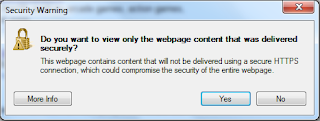

    Simply go to Internet Options -> Security -> Internet -> Custom Level and Choose Enable Display Mixed Content.
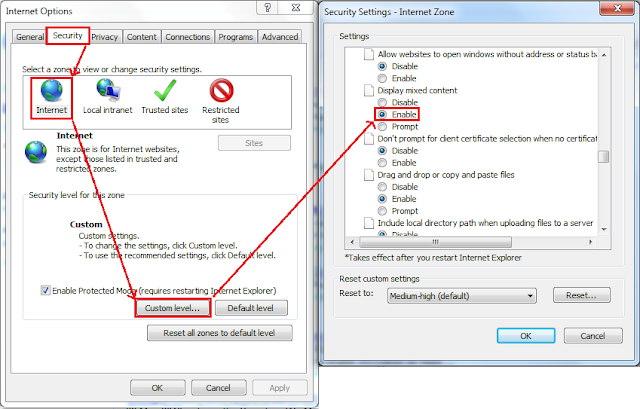

    Thats all =).

    Go to link Download

    Read more »

    Monday, January 30, 2017

    How to boost internet speed by 20 without any software

    How to boost internet speed by 20 without any software


    BEST GREENHOUSES FOR GROOVING VEGETABLES
    ? ? 1(360)241-1624 ?
    ? ? 360organic.us ?

    DURABLE! AFFORDABLE! ALUMINUM + UV POLYCARBONATE 


    Old trick but it work very well!


    ***

       Microsoft reserves 20% of your available bandwidth for their own purposes like Windows Updates and interrogating your PC etc. By using reserved bandwidth, you can make your internet connection faster by 20%. Below steps will guide you to increase speed of your Internet.

    important:
    Speed up your PC Disable Scheduled De-fragmentation SSD

    Speed up your PC Disable System Restore on SSD

    ***

    Limit Reservable Bandwidth Setting in Windows XP,Windows 7,  Windows 8
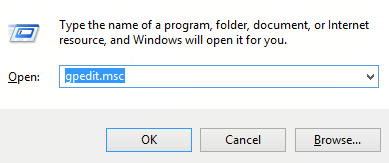
    1. Press Windows Key + R combination, type put gpedit.msc in Run dialog box and hit Enter to open the Local Group Policy Editor.


    2. Navigate here:
    Computer Configuration -> Administrative -> Network -> Qos Packet Scheduler
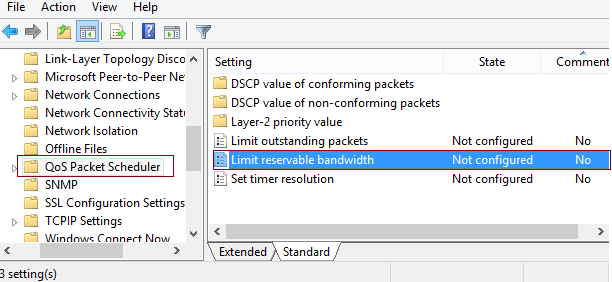
    3. In the right pane of this window, look for the settings named Limit reservable bandwidth, it must be showing a Not Configured status by default. Double click on the same setting to modify it:
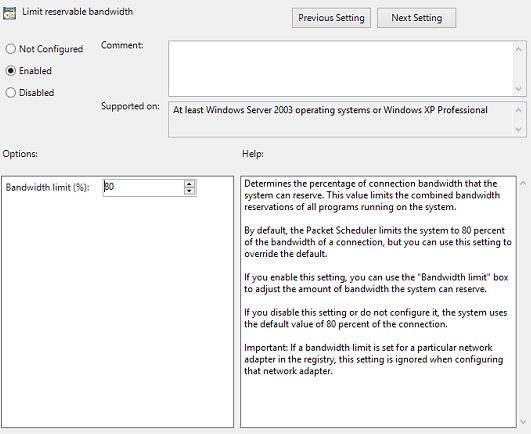
    This policy setting determines the percentage of connection bandwidth that the system can reserve. This value limits the combined bandwidth reservations of all programs running on the system. By default, the Packet Scheduler limits the system to 80 percent of the bandwidth of a connection, but you can use this setting to override the default. If you enable this setting, you can use the “Bandwidth limit” box to adjust the amount of bandwidth the system can reserve. If you disable this setting or do not configure it, the system uses the default value of 80 percent of the connection. If a bandwidth limit is set for a particular network adapter in the registry, this setting is ignored when configuring that network adapter.
    4. Now, in the above shown window, select Enabled and in the Options section; you could input the percentage for limiting the bandwidth. If you input 0 percent here, you can gain the reserved bandwidth reserved by the system. 
    Click Apply followed by OK then. You may now close the Local Group Policy Editor and reboot the system with gained bandwidth.

    For these who dont have gpedit in there systems:
    Thanks to "jwils876" @ DA has shared a small setup file to enable Group Policy Editor in Windows 7 Starter, Home Basic and Home Premium editions.
    The installer has been originally created by "davehc" @ Windows7forums, so thanks goes to him as well.
    For Windows 7 64-bit (x64) users! Youll also need to go to "SysWOW64" folder present in "C:Windows" folder and copy "GroupPolicy", "GroupPolicyUsers" folders and gpedit.msc file from there and paste them in "C:WindowsSystem32" folder.
    If you are getting "MMC could not create the snap-in" error message while running gpedit.msc, check out following steps to fix the problem. Basically it happens when your username in Windows contains more than one word.
    Run the installer and leave it at the last step (do not click on the "Finish" button).
    Now go to C:WindowsTempgpedit folder.
     If you are running 32-bit (x86) edition of Windows 7, right-click on x86.bat file and choose Open With  Notepad option. If you are running 64-bit (x64) edition of Windows 7, right-click on x64.bat file and choose "Open With -> Notepad" option.
    Youll find a total of 6 lines containing the following string in the file:
    %username%:f
    Edit those lines and replace %username% with "%username%"
    For example:
    Original:  %WinDir%SysWOW64gpedit.dll /grant:r %username%
    New:  %WinDir%SysWOW64gpedit.dll /grant:r "%username%"
    Save and run the file (right-click -> Run as Administrator.
     Thats it. Youll have working gpedit.msc.

    Additional information

    What is the difference between BIOS and CMOS?

    What are the F1 through F12 keys?  

    How to use system recovery options in Windows?

    Random black screen while playing games


    How to Delete and Clear Recent Items in Windows 7 Jump Lists

    How to enter the BIOS or CMOS setup
    What is the difference between BIOS and CMOS?
    What are the F1 through F12 keys?  

    MISSCELLENIOUS ITEMS


    Durable Greenhouses made from Polycarbonate UV Protected material and Aluminum


    ALSO PLEASE VISIT THIS VIDEOS AND SEE IF YOU FIND SOMETHING NEED:

    Windows Registry Tools can be downloaded here: 
    How to kip your PC Private by deleting DATA Permanently 
    http://askpctech.blogspot.com/2016/03/kip-your-pc-privat.html


    This tutorial is made up on request several  users, is well is fallowing video:
    1)How to Delete Paint Recent Pictures from List in Windows 7 

    2)Win 7– Fix for “Safely Remove Hardware and Eject Media” not working How To

    3)Windows 10 How to Fix Black Screen After Booting

    4)How To Remove Windows 10 Upgrade Notification On Windows 7 And Windows 8

    5)How to Delete Face book Page Permanently - 2015

    6)How to Uninstall Windows 10 and Downgrade to Windows 7 or 8.1

    7)detected: not-a-virus:remoteadmin.win32

    8)How to change pictures into icons for folders

    9)Speed up your PC Disable System Restore on SSD

    10)Speed up your PC Disable Scheduled De-fragmentation SSD

    11)2015 Black screen of DEATH Windows 7 & 8 - with cursor at start-up SOLVED

    12)Upon start up only wallpaper shows FIX
    13)Here is video on Windows 7 & 8 - Black screen with cursor at start-up FIX 

    You can also open Task Manager by pressing Ctrl+Shift+Esc.
    14) I bought a windows 7 PC but it Look alike old PC FIX:

    15) Windows 7 & 8 - Black screen with cursor at start-up FIX:

    16) How To Fix Minecraft OpenGL Error Windows 7 xp vista 720p :

    17) removing bars using regscanner regedit & file shredder 720p:

    18) How to Recover windows Explorer from error 2014 720p

    19) HOW TO Save on battery online 

    20) Windows 7 & 8 - Black screen with cursor at start-up FIX 

    Upon start up only wallpaper shows no icons
    CTL+ALT+DEL then click file and new task. then type explorer.exe and press ok
    Best Greenhouse system 2015 

    Go to link Download

    Read more »

    Saturday, January 7, 2017

    How to Fix 32 bit internet explorer 11 on 64 bit windows 7

    How to Fix 32 bit internet explorer 11 on 64 bit windows 7


    32 bit internet explorer 11 on 64 bit windows 7

    My computer is running Windows 7 Home Premium Service Pack 1 on a 64 bit operating system.  A while back, Internet Explorer was automatically updated to Version 11.0.9600.16476, Update version 11.0.2.  This seems to be the 32 bit version.  Should I update
    to the 64 bit version of IE 11?  If so, how?

    Keys to the Problem 32 bit internet explorer 11 on 64 bit windows 7

    Download Error Fixer (Free)

    No all you should have to do is activate Enhanced Protection Mode,
    http://www.sevenforums.com/tutorials/280434-internet-explorer-10-enable-32-bit-64-bit-ie10-windows-7-a.html

    To check for Windows updates. Open Windows Update by clicking the Start button , clicking All Programs, and then clicking Windows Update. In the left pane, click Check for updates, and then wait while Windows looks for the latest updates for your computer. If any updates are found, click Install updates.

    Install the latest updates for Windows and for the program displaying the error. Note that the update for the program might be listed as an optional update on the Windows Update page.

    Open Windows Update by clicking the Start button Picture of the Start button. In the search box, type Update, and then, in the list of results, click Windows Update.

    Another Safe way to Fix the Problem: 32 bit internet explorer 11 on 64 bit windows 7:


    How to Fix 32 bit internet explorer 11 on 64 bit windows 7 with SmartPCFixer?

    1. You can Download SmartPCFixer here. Install it on your computer. When you open SmartPCFixer, it will perform a scan.

    2. After the scan is finished, you can see the errors and problems which need to be repaired.

    3. When the Fixing part is finished, your computer has been speeded up and the errors have been fixed


    Related: How to Fix 3371 Errors in Windows XP,7,8&8.1?,Repair Corrupt Cab Files Error - How to Fix,Skchui.dll Error - How to Fix,Symantec Antivirus Slows Down Computer Error - How to Resolve,Error Windows Xp System Restore Incomplete Fix Solution,How to Fix - After updating from Internet Explorer 6 to Internet Explorer 9, my Favorites are lost?,How to Fix - Combination Stacked-Clustered Chart in Excel - Align data with horizontal tick marks?,Solution to Error: Macro to search and copy rows to different sheets based on cell value,Need solution to this problem in order to stop Vista from beeping.__"Your version of Microsoft Deprecated DLL Components isnt compatible with this version of Windows",Server Error in / Application.Site also runtime error [Solved]
    Read More: Fast Solution to Problem: 64-bit Windows 7 Ultimate very slow navigate,How to Resolve - 403 Forbidden Access for Google?,[Solution] 64-bit Windows cannot register FM20.DLL,Solution to Error: 64 bit system getting 32 bit updates,Solution to Problem: 32 bit IE wont launch unless run as administrator in 64bit ultimate. but 64 bit IE launch just fine.,2 msn.com site,2007 Performance Issue / Very slow saves to network share,Can I use my HP D110A web service printer as a proxy server?,can i use a zoom 56k v.92/v.90 modem with 64b dileup? netzero said i might have the rong modem?,Can I downgrade to win 32-bit?

    Go to link Download

    Read more »

    Monday, December 5, 2016

    IDM Internet Download Manager

    IDM Internet Download Manager


    Internet download manager Full version:


    IDM Tips and Tricks


    Internet Download Manager is a tool which brings you to download anything.

    Now you can download more better more saver and more faster

    download from youtube and more famous video sharing websites download anything and anywhere .

    Download IDM  and enjoy!
    Metallic animated spinning green arrow pointing down

    http://www.4shared.com/rar/jSL_Ye1Z


    Hack or crack IDM manually :


    Step 1: Download the Latest IDM from Here or If you already have IDM installed Update it by going to Help---}} then to check for Updates.If you dont wanna update your version, Just click on Registration.


    Step2: When you click on registration, Now a new dialog(window) appears that is asking for Name, Last Name, Email Address and Serial Key.

    Step3: Now Enter you name, last name, email address and in field of Serial Key enter any of the following Keys:


    RLDGN-OV9WU-5W589-6VZH1

    HUDWE-UO689-6D27B-YM28M

    UK3DV-E0MNW-MLQYX-GENA1

    398ND-QNAGY-CMMZU-ZPI39

    GZLJY-X50S3-0S20D-NFRF9

    W3J5U-8U66N-D0B9M-54SLM

    EC0Q6-QN7UH-5S3JB-YZMEK

    UVQW0-X54FE-QW35Q-SNZF5

    FJJTJ-J0FLF-QCVBK-A287M


    And click on ok to register.


    Step4: After you click ok, it will show an error message that you have registered IDM using fake serial key and IDM will exit. Now here the hack starts.


    Step5: Now Go to START => Then go to RUN and type the following text and click enter:


    notepad %windir%system32driversetchosts


    Note : For Windows 7 users, due to security reasons you will not be able to save hosts file.

    so follow this steps :

    First of all go to C:/ drive then go to Windows Folder and then go to System32 folder and then go to Drivers folder and then go to Etc Folder, in the Etc folder you will see the hosts file.


    Step6 (windows 7 or vista): Now right click on hosts file and go to its properties, then go to security tab and then select your admin account, just below u will see an edit button (in front of change permissions), Now give the user full control and write and read rights and then click on apply and then click on Ok, now u will be able to edit the hosts file and save changes in it.


    Step7 (windows 7 or vista): For more Details Go To: ( How to edit Windows 7 or Vista Hosts File)


    Open with Notepad


    Now copy the below lines of code and add to hosts file as shown above image box :


    127.0.0.1 tonec.com

    127.0.0.1 www.tonec.com

    127.0.0.1 registeridm.com

    127.0.0.1 www.registeridm.com

    127.0.0.1 secure.registeridm.com

    127.0.0.1 internetdownloadmanager.com

    127.0.0.1 www.internetdownloadmanager.com

    127.0.0.1 secure.internetdownloadmanager.com

    127.0.0.1 mirror.internetdownloadmanager.com

    127.0.0.1 mirror2.internetdownloadmanager.com


    After adding these piece of code, save the notepad file. And exit from there.


    Now start your Internet download manager, and now you IDM has been converted to full version and specially when you update next time, your registration will not expire.


    That means it will remain full version for life time and you can update it without any problem in future.


    thanks to : http://idmforfree.blogspot.com/p/idm-tips.html


    You Are Done, Enjoy 


    For Google Integration 

    Metallic animated spinning green arrow pointing down

                Download Here


    Free to ask :


    Go to link Download

    Read more »

    Wednesday, October 12, 2016

    IDM Internet Download Manager 6 23 build 9 with Crack Serial Key

    IDM Internet Download Manager 6 23 build 9 with Crack Serial Key


    IDM - Internet Download Manager 6.23 build 9 with crack and serial key has now come up after its old version which has some more better features and bug fixes than its older versions like improved download engine and better recognition of video files in google chrome. Internet Download Manager fully activated has the ability to increase the download speed of your files because it uses a parallel download system which manages the download speed and files properly and provide maximum download speed. IDM 6.23 cracked is a very well known and famous download manager software all over the world and is the best source to download files in high speed.


    Internet Download Manager 6.23 build 9 with Crack & Serial Key

    IDM Free full version software also gives you the feature to set scheduled downloading by using which IDM will automatically start to download the files and it also recovers the broken and interrupted downloads in case of any lost connection or system failure. Internet Download Manger (IDM) 6.23 build 9 is not free to use software but by using the IDM crack file, you can activate the licensed version of IDM free of cost and it will work for life time. You can easily download IDM 6.23 build 9 crack and patch file from asimbaba.blogspot.com.

    How To Install?

    Close/uninstall previous version of IDM;
    Install version 6.23 build 9 from setup folder;
    IDM may show you some notification like "You have registered IDM with a fake serial number" dont get frightened, just close those notifications;
    Close IDM from system trey if it is still open (IDM must be closed during patching process);
    Copy all files(2) in "Crack" folder and past (replace) it in original installed folder (normally C:Program FilesInternet Download Manager);
    Run reg file. Done!


    Download Link

    Go to link Download

    Read more »

    Tuesday, October 4, 2016

    Hướng dẫn gọi video giữa các điện thoại Samsung mà không cần internet

    Hướng dẫn gọi video giữa các điện thoại Samsung mà không cần internet


    Chào t?t c? m?i ng??i!? Khi nói ??n g?i Video m?i ng??i th??ng ngh? ngay ??n cài ??t hay ??ng ký Internet. Các thu?t ng? Viber, Zalo, Facebook ... ?ã quá quen thu?c v?i m?i ng??i. 
    N?u b?n ?ang dung ?i?n tho?i Smartphone Samsung, ng??i thân b?n c?ng ?ang dùng thì vi?c g?i Video th?t s? d? dàng và vi?c cài ??t Internet ?ã ???c lo?i b?. Không nh?ng th? G?i Video th?c s? d? dàng, Ch?t l??ng hình ?nh âm thanh h?n c? s? mong ??i. 
    N?u b?n ch?a t?ng làm, thì bài h??ng d?n c?a mình s? giúp b?n gi?m ???c m?t ph?n th?i gian.
    B??c 1: ch?n sim dùng cho Cu?c goi Video
    • B?ng cách vào: Cài ??t/ Qu?n lý SIM, ? ?ây ch? có 1 sim nên m?c ??nh g?i Video là SIM hi?n có trên máy (M?ng hi?n t?i)


    B??c 2: Cài ??t ch? ?? m?ng WCDMA ho?c WCDMA/GMS, cho SIM ?ã ch?n
    • ??u tiên ta vào Cài ??t vào ph?n KHÔNG DÂY VÀ M?NG


    • Ch?n ph?n Nhi?u m?ng h?n ta ???c h?p tho?i


    • Khi vào ?ây ta ch?n ph?n Ch? ?? m?ng ?? ??a m?ng v? WCDMA (ho?c WCDMA/GSM)


    Sau ?ó Ta Ch?n 1 trong 2 ch? ?? nh? hình gi?i ??u ???c,


    Xong B??c 2 ta th? g?i xem thành công ch?a, n?u ch?a thành công ta th?c hi?n B??c 3

    B??c 3: Là b??c c?u hình APN cho SIM.
    B??c này ???c th?c hi?n cho m?t s? máy không t? ??ng nh?n c?u hình t? ??ng. 
    ?? cài ??t c?u hình APN có r?t nhi?u cách các b?n có th? tham kh?o trên m?ng, ? ?ây mình h??ng d?n Thi?t ??t APN th? công theo cách th? công.
    • T? h?p tho?i Các m?ng di ??ng ta ch?n ?i?m truy c?p.


    • H?p tho?i APN xu?t hi?n, Tr??ng h?p máy này là sim Viettel và máy không có ho?c ch?a t? ??ng nh?n APN nênTa tich vào d?u "+" ?? thêm hay t?o m?i APN


    • ? ?ây theo quan ?i?m riêng c?a mình ch? quan tâm t?i 2 tham s? quan tr?ng là Tên, APN


    • Tên Thì ta có th? ??t tên tùy thích. ? ?ây m?ng viettel nên minh ??t tên là Viettel. (Sim Vina b?n có th? ??t tên là Vinaphone,Sim MobiFone có th? ?? mà Mobifone...)


    APN ta ??t chính xác theo t?ng APN c?a các nhà m?ng
    • ??i v?i nhà m?ng Viettel: APN: v-internet
    • ??i v?i nhà m?ng Mobifone: APN: m-wap
    • ??i v?i nhà m?ng VinaPhone: APN: m3-world
    • ??i v?i nhà m?ng Vietnamobile: APN: internet
    • ??i v?i nhà m?ng Beeline: APN: internet...

    ?? ?ây nhà m?ng nhà m?ng Viettel nên APN là : v-internet


    • Sau khi thi?t l?p xong ta l?u l?i c?u hình v?a t?o b?ng cách tích vào "ba ch?m" trên góc ph?i nh? hình r?i nh?n L?u


    • Sau l?u l?i ta Ch?n C?u hình trong APN là c?u hình v?a t?o


    • ?? g?i ???c Cu?c g?i Video Thì ?i?u ki?n c? hai máy ?i?n tho?i Smartphone là dòng SAMSUNG và ?ã ???c thi?t l?p ?? g?i nh? trên.


    Sau khi thi?t l?p xong b?n có th? g?i m?t Cu?c g?i video cho ng??i thân c?a b?n, Chúc các b?n thành công, Vui v?.

    Thân chào

    Go to link Download

    Read more »