Showing posts with label play. Show all posts
Showing posts with label play. Show all posts
Tuesday, May 23, 2017
How to buy apps in the android market or play store using a credit card
How to buy apps in the android market or play store using a credit card
How to buy apps in the android market or play store using a credit card - Even though many android apps are free, but sometimes there are also interesting applications yet paid, for those of you who use credit cards here are the steps to make a purchase through the app store play.
Make sure your credit card is issued by active local bank. Or if you have a debit card, the card must be valid internationally. And supported google wallet, usually type VISA / Mastercard. Record Number of credit cards, note cards behind the three numbers, and month / year expired.
For example:
Card No.: 1234 5678 9012 3456
No. On the back of the card: 123
Expired: 12/99
Open the application you want to buy.
Click on a price, then you will go into google wallet, just click proceed.
Complete input your card details, name and address of card suits, and phone numbers.
If it is then your card is ready for use, is there a charge, if based on the info from google wallet here -> http://www.google.com/wallet/faq.html use charge cards are not charged a penny, so you will be charged according to the application fee purchased. Well if it is active. Then you can buy the application directly.
Fill in your password (email password that you use to play store), if it is okay. Then the application can be downloaded directly purchased.
Well done, for now you can directly buy the application, if the application is purchased, in the handset anywhere in the home account status will remain the same then purchased.
So if you do not like the application, whether it can refund, yes for the application you are able to do a preview, if it does not fit anymore open the program and click refund (the same with the delete key applications). And the refund is active about 15 minutes. If after 15 minutes through the refund process should report to the developer and of course more complicated. For clarity -> http://support.google.com/googleplay/bin/answer.py?hl=en&answer=134336
Happy shopping, do not be wasteful. And do not be late to pay bills that are not subject to interest.
Hopefully useful.
Go to link Download

How to Play 3D movies on Sharp TV from USB Flash Drive
How to Play 3D movies on Sharp TV from USB Flash Drive
Sharp TV 3D movie playback question:
“ I want to stream 3D with my new Sharp TV -- thats why I bought it! Since I still need a Bluray Player, can I buy a Bluray player that can stream Vudu 3D movies that I can view on my Sharp TV? Any recommendations? Ive read the reviews on the LG BD670 and they are not good. Any other compatible Blurays that are better?”
Are you trying to find out the answer? Self-help is better than help from others. So, if you have purchased 3D Blu-ray, 2D Blu-ray, or downloaded MKV, AVI, WMV, MOV, M4V, FLV, MPG, etc. videos, you can follow the guide below to convert videos to 3D videos, and then play 3D movies on Sharp TV from USB or NAS.
- First you will need to know that Sharp Aquos TV supported best 3D compatible format is 3D MP4 format, other formats are not well supported, so you are recommended to play all kinds of 3D movies on Sharp TV with MP4 format.
- Second, you need to convert 3D movies to 3D MP4, or to convert 2D movies to 3D MP4, and then you can watch 3D on Sharp Aquos TV without problems.
Now you can follow the easy steps below to convert 2D/3D to 3D compatible format for Sharp TV for playback.
Thanks to a variety of very cool Pavtube 3D Video Converter Ultimate, it helped lots of 3D movie fans and very easy to use. It not only for Create 3D movies out of 2D sources, but also can create 3D movies out of source 3D Blu-ray content in 5 different 3D video formats: MKV, MP4, MOV, WMV and AVI for multiple 3D media players like HTC EVO 3D, LG Optimus 3D P920, 3D HDTV, 3D game consoles, etc.
What’s more, this app is regarded as a great Blu-ray ripping program to help users to convert 2D/3D Blu-ray collections for various HDTVs including but not limited to Sharp TV, Samsung HDTV, Sony Bravia HDTV, LG Smart TV, Toshiba TV, Hisense HDTV, Seiki TV, VIZIO TV and so forth. For Mac users, iMedia Converter for Mac is a helpful app to encode videos for further usage. Here is the review.
Step 1. Load the downloaded 3D video files.
Launch the 3D movies Converter on PC, and click “Add Video” button to load your favorite 3D movies(MKV, MOV, AVI, ISO, MTS, M4V, FLV, etc). Mac users can try a Mac 3D Video Converter. Besides,It allows you complete 3D to 3D Blu-ray conversion by ripping 3D Blu-ray discs and DVD discs to different brands of TVs, mobile devices, media players, editing software, etc.

Step 2. Set Sharp TV Blu-ray Player friendly format.
Click Format and select “MP4 Side-by-Side 3D Video(*.mp4)” under 3D Video. In general, MP4 is a well-accepted file format for Sharp TV, media players or 3DTV and keep up the video quality. Of course, 3D video in .mp4, 3D video in .avi are supported as well. Differences Between Anaglyph 3D and Side-by-Side 3D.

Tips: You can also Click “Format” drop-down option. You are directly select TV optimized file format under “TVS” menu, select the suitable TV format according to your TV brand.

Step 3. Start converter 3D Movies.
Hit on the “Convert” button and 2D/3D Blu-ray to Sharp TV conversion begins. After the conversion completes, open output folder and you will find the copied or ripped movies. Now you could store ripped 3D Blu-ray movies on NAS, USB, HDD, and Plex media server, then stream to USB/NAS for watching on Sharp TV.
How wonderful it will be if we can enjoy 3D movies on Sharp TV by ourselves. After you read this article you will get the best 3D movie converter, which can help you convert 2D/3D movies to 3D movies in any formats you need, and then you can play 3D movies on Sharp TV from USB or NAS smoothly.
Read More:
“ I want to stream 3D with my new Sharp TV -- thats why I bought it! Since I still need a Bluray Player, can I buy a Bluray player that can stream Vudu 3D movies that I can view on my Sharp TV? Any recommendations? Ive read the reviews on the LG BD670 and they are not good. Any other compatible Blurays that are better?”
Are you trying to find out the answer? Self-help is better than help from others. So, if you have purchased 3D Blu-ray, 2D Blu-ray, or downloaded MKV, AVI, WMV, MOV, M4V, FLV, MPG, etc. videos, you can follow the guide below to convert videos to 3D videos, and then play 3D movies on Sharp TV from USB or NAS.
- First you will need to know that Sharp Aquos TV supported best 3D compatible format is 3D MP4 format, other formats are not well supported, so you are recommended to play all kinds of 3D movies on Sharp TV with MP4 format.
- Second, you need to convert 3D movies to 3D MP4, or to convert 2D movies to 3D MP4, and then you can watch 3D on Sharp Aquos TV without problems.
Now you can follow the easy steps below to convert 2D/3D to 3D compatible format for Sharp TV for playback.
Thanks to a variety of very cool Pavtube 3D Video Converter Ultimate, it helped lots of 3D movie fans and very easy to use. It not only for Create 3D movies out of 2D sources, but also can create 3D movies out of source 3D Blu-ray content in 5 different 3D video formats: MKV, MP4, MOV, WMV and AVI for multiple 3D media players like HTC EVO 3D, LG Optimus 3D P920, 3D HDTV, 3D game consoles, etc.
What’s more, this app is regarded as a great Blu-ray ripping program to help users to convert 2D/3D Blu-ray collections for various HDTVs including but not limited to Sharp TV, Samsung HDTV, Sony Bravia HDTV, LG Smart TV, Toshiba TV, Hisense HDTV, Seiki TV, VIZIO TV and so forth. For Mac users, iMedia Converter for Mac is a helpful app to encode videos for further usage. Here is the review.
Step 1. Load the downloaded 3D video files.
Launch the 3D movies Converter on PC, and click “Add Video” button to load your favorite 3D movies(MKV, MOV, AVI, ISO, MTS, M4V, FLV, etc). Mac users can try a Mac 3D Video Converter. Besides,It allows you complete 3D to 3D Blu-ray conversion by ripping 3D Blu-ray discs and DVD discs to different brands of TVs, mobile devices, media players, editing software, etc.
Step 2. Set Sharp TV Blu-ray Player friendly format.
Click Format and select “MP4 Side-by-Side 3D Video(*.mp4)” under 3D Video. In general, MP4 is a well-accepted file format for Sharp TV, media players or 3DTV and keep up the video quality. Of course, 3D video in .mp4, 3D video in .avi are supported as well. Differences Between Anaglyph 3D and Side-by-Side 3D.
Tips: You can also Click “Format” drop-down option. You are directly select TV optimized file format under “TVS” menu, select the suitable TV format according to your TV brand.
Step 3. Start converter 3D Movies.
Hit on the “Convert” button and 2D/3D Blu-ray to Sharp TV conversion begins. After the conversion completes, open output folder and you will find the copied or ripped movies. Now you could store ripped 3D Blu-ray movies on NAS, USB, HDD, and Plex media server, then stream to USB/NAS for watching on Sharp TV.
How wonderful it will be if we can enjoy 3D movies on Sharp TV by ourselves. After you read this article you will get the best 3D movie converter, which can help you convert 2D/3D movies to 3D movies in any formats you need, and then you can play 3D movies on Sharp TV from USB or NAS smoothly.
Read More:
- How to play MKV/AVI files on Apple TV via PlexConnect
- Remove DRM and Play iTunes Movies on Amazon Fire TV
- 3D Blu-ray to 2D - Can I play 3D blu-ray discs on a 2D TV?
- Enjoy Downloaded 4K Videos to Panasonic Viera TV
- Watch Downloaded H.265/HEVC 4K movie on LG Ultra HD 4K TV
Go to link Download
Thursday, May 4, 2017
How To Install Apps Without Google Play Store and Internet
How To Install Apps Without Google Play Store and Internet
Why I decided to post this topic. Imagine following situations:
- You dont want to connect your Google account because you afraid of "To many Pattern Attempt"
- Google Play Store Slow Down Your Smartphone and Internet. So You want to keep it Off
- You have a Google Android device but you dont have Internet connectivity
- You have Internet connectivity but you dont have Google Play Store in your device
- You have Google Play Store but you dont have a Google account to sign in
- Your desired app is not compatible with your Android device
- Your desired app has been removed from Google Play Store
- You cant download your desired app due to any other reason
In any of the above mentioned situations, you wont be able to download and install apps in your Google Android device whether its a mobile phone or tablet. It might be possible that you purchased an Android mobile or tablet which didnt contain Google Play Store (e.g. Nokia X) or it might be also possible that you dont have a Gmail account and you dont want to create a new Google account to sign into Play Store.
Now the question comes how would you install apps in your Android device if you dont have Play Store or Google account or Internet connection in your device? The answer is using Sideloading feature.
Sideload an application means offline installation of the app without using Google Play Store in your Android device. In this way you wont need Google Play Store, Google account and Internet connection in your Android device.
With the help of sideloading feature, you can directly install any desired app in your Android mobile phone or tablet just like you install a software in your Windows PC.
If you also want to learn this method to install apps offline in your Android device, just check out following simple steps:
Step 1:
Download .APK File From InternetFirst of all youll need the .APK file of your desired Android app. Actually all Android apps come in form of a .APK file (Android Package file). When you install an app using Play Store, your Android device automatically downloads and installs its .APK file.
Since you dont want to download apps using Play Store, youll need to download the .APK file of your desired app from Internet.
If you can access Internet in your Android device, then you can download the .APK files using a web browser. If you cant access Internet in your device, then youll need to download the .APK files using a computer with Internet connection.
There are many websites offering .APK files of free apps for download. You just need to search for "App name APK file" on Google and youll get several websites containing the .APK file of your app. For example if you want to download Subway Surfer games .APK file, just search for "Angry Birds APK file" and youll get many download links.
But if You want to download Purchased or Modded App for free then you can find it on our website at Black Eyezs Software Android Apps & Games.
Step 2:
Copy .APK File to SD Card of Android DeviceOnce you grab the .APK files of your desired apps, its time to copy those .APK files to SD card (memory card) of your Android mobile or tablet.
You can either attach the SD card to your computer using a card holder/reader and copy .APK files to it or you can connect your Android device to your computer using data cable and then copy .APK files to its drives using My Computer window.
Step 3:
Enable "Apps Installation from Unknown Sources" OptionBy default your Android device doesnt allow sideloading feature which means you cant install apps from your SD card but you can enable this feature with the help of following easy steps:
1. Open Settings page in your Android device and go to Security settings.
2. Now look for "Unknown Sources" option which contains following information:
Allow installation of apps from sources other than the Play Store
OR
Allow installation of apps from unknown sources
The option is not enabled by default, just tap on it to enable the option. Itll ask for confirmation, accept it.
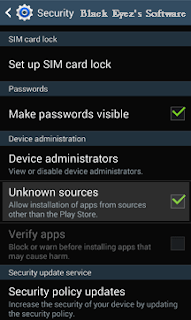
You may also need to disable "Verify Apps" option which disallows or warns you when you try to install apps from unknown sources.
After changing options, exit from Settings page.
Step 4:
Run .APK File Using File ManagerThats the final step. Now you can install the apps directly using the built-in File Manager app in your Android device or Download ES File Explorer (best Android file manager) from our site.
Just Open ES file Explorer or similar apps in your Android device and then navigate to SD card and tap on the downloaded .APK file.
Itll ask for confirmation, tap on Install button and itll start the installation process.
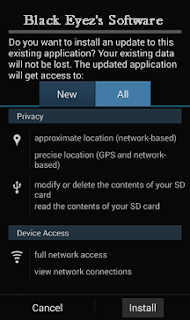
Itll take a few seconds and your desired app will be installed in your Android mobile phone or tablet without need of Google Play Store and Internet connection.
This method also helps when you have more than one Google Android mobile phone or tablet and want to install same apps and games in those devices. With the help of this method, you just need to download those apps only once and then you can install them in multiple devices and also can use as backup without any need of downloading them again and again in all devices. Itll save your time and money.
Note:-
If you need any Paid .APK for free contact us, we will upload it in two or three business days.
Go to link Download
Tuesday, March 21, 2017
Google Play Music 6 0 200 For Android
Google Play Music 6 0 200 For Android

Description:-
Google Play Music provides free, ad-supported radio for what you’re doing, how you’re feeling, or what you want to hear. Instantly start radio stations based on songs, artists, or albums, or browse by genre, mood, activity, decade, and more. Bring your own music collection with you by uploading 50,000 of your own songs; then listen to them across Android and the web, for free.
Want more? Subscribe to remove the ads and get on-demand access to millions of songs. Plus, download anything to your mobile device and listen even when you’re not connected.
Free features:
Radio curated by experts for anything you want to hear
Store up to 50,000 songs from your personal music collection
Smart recommendations based on your taste
Listen on Android and the web
Subscription-only features:
Ad-free, uninterrupted listening
On-demand access to over 30 million songs
Download music to your device and listen when you’re not connected
Skip as many songs as you like
Version:-
6.0.200
Requirements:-
4.1 + or Up
File Size:-
7 MB
Previews:-


Download Link:-

Go to link Download
Wednesday, February 22, 2017
How To Change Google Account In Google Play Play Store Android
How To Change Google Account In Google Play Play Store Android
To change the google account on google play / play android store, or replace google account on google play / play android store, follow the steps below:
For Android phone non-rooted
Home back to the first.
click Menu
Heading to Settings-> Application-> Manage Application.
Locate and click Google Apps
Click the "Clear Data", when appearing prompted, "All information youve saved in this, the application will be deleted permanently", click OK
Then press the "Back" and then to click "Synchronize Data" or through, Home> Menu> Settings> Data synchronization, it will display a wizard to insert a new Google account, this wizard also appears when we recently bought a new android handset or when weve just done a wipe through hardreset.
For Android phone is already rooted
Hp must be rooted first.
After in-root, use root explorer.
Insert into the data / system
Delete the file "accounts.db"
Once removed, please in-Restart / Reboot.
For Android phone non-rooted
Home back to the first.
click Menu
Heading to Settings-> Application-> Manage Application.
Locate and click Google Apps
Click the "Clear Data", when appearing prompted, "All information youve saved in this, the application will be deleted permanently", click OK
Then press the "Back" and then to click "Synchronize Data" or through, Home> Menu> Settings> Data synchronization, it will display a wizard to insert a new Google account, this wizard also appears when we recently bought a new android handset or when weve just done a wipe through hardreset.
For Android phone is already rooted
Hp must be rooted first.
After in-root, use root explorer.
Insert into the data / system
Delete the file "accounts.db"
Once removed, please in-Restart / Reboot.
Go to link Download
Saturday, January 14, 2017
Glo night plan 200 for 1Gb it lasts for 7days play WWTBM on Android
Glo night plan 200 for 1Gb it lasts for 7days play WWTBM on Android

For Glo subscribers, you can also use Glo night plan
?: #200 for 1Gb,
The good part of it is that it lasts for 7days
So even if you sleep off today,you can still use it tomorrow
m Just dial *777# and follow the prompt.
MTN Who Wants To Be A Millionaire Free App Launched,You Can Now Win
Money Online
MTN has recently developed the WWTBAM app which is on Google Play
Store for free and will be available on Facebook in the coming weeks.
Using the app will not only be for leisure or intellectual gains, top
players will win weekly and monthly cash prizes
But guys trust me,I can never trust MTN.No hating,but they are not trying at all
Go to link Download
Sunday, January 8, 2017
How To Remove Apps From Google Play Account
How To Remove Apps From Google Play Account
Heres How to Remove Applications on Google Play Store. Android users often spend a share of data services by downloading the application. Software does exist that have a very large size and mostly in the form of games. Download the application, especially the free ones often becomes a habit.

Sometimes you can see it on Google Play Store or in some online media and direct download. Later you realize that the longer the application or in fact not useful at all and immediately delete it.
But when you want to install one of the apps that have been removed and see there are many applications that once downloaded, you definitely hard to find. Now Google have updated their online store the application and the user can easily remove a variety of important applications.
The trick, open the Google Play Store on the device. Then tap the Google Play Store is in the upper right corner and you will be brought to the My Apps menu. After that you will see a variety of applications that are now being installed in the device. Slide the screen to the left and will appear All Apps page.
There you can see all the apps I have ever downloaded. For the record, you will realize that not all apps can be removed. Some of these applications will be inscribed Disabled. While that can be removed is that having a round icon with oblique streaks.
If you press any of the applications you want to remove, Google will ask for permission to do so. Then if you want to directly delete some applications, press any application you want removed, and you can choose the other. Good luck.
Go to link Download
Wednesday, December 7, 2016
How To Remove Credit Card Information From Google Play Store
How To Remove Credit Card Information From Google Play Store
Remove Google Play Store Credit Card - After you add your credit card information to buy apps or games on Google Play store, the information will be stored in your account. That means, if someone else is accessing your Google account, she can put on your credit card. To prevent this, make sure your accounts are safe and remove credit card information from your Google account.
Remove Credit Card Details From Google Play Store:
1. Open the Google Wallet site and log into your account.
2. Once logged in, click on the Payment methods on the left of the screen.

3. Find the credit card that you want to delete and click the Delete button at the bottom of the card information.

4. Next, click Yes, remove it. Make sure you remove the correct credit card information or you need to add it again.

5. Once the card information is deleted, you can click on the Payment methods again to make sure. In our cases, we only had one credit card so now her list is empty and there is a message Please click the button above to add a credit card.

So, how to remove credit card information from google play store. may be useful for you.
Go to link Download
Monday, November 21, 2016
Giải pháp cà i kho ứng dụng CH Play cho Xiaomi Redmi Note 3
Giải pháp cà i kho ứng dụng CH Play cho Xiaomi Redmi Note 3
Xiaomi Redmi Note th? h? th? 3 v?a ???c trình làng ? Trung Qu?c v?i m?c giá không th? h?p d?n h?n. So v?i ng??i ti?n nhi?m Redmi Note 2, chi?c Xiaomi Redmi Note 3 ???c nâng c?p toàn di?n v? m?t thi?t k? s? d?ng khung kim l?ai nguyên kh?i, trang b? c?m bi?n vân tay và ??c bi?t viên Pin lên t?i 4000mAh. Nh?ng khi v? Vi?t Nam thì máy ch?a có kho ?ng d?ng Play Store nên vi?c t?i ?ng d?ng g?p c?n tr?, ? bài vi?t này Android Blog Vi?t s? h??ng d?n các b?n cài ??t CH Play

- Quy trình th?c hi?n t??ng ??i ??n gi?n, vi?c các b?n c?n là t?i File này v? máy tính :
T?I V? : Download
T?I V? : Download
- Sau khi ?ã ti?n hành t?i v? các b?n copy file apk ?ó vào máy r?i cài ??t nh? hình ?nh bên d??i :

- Khi b?n làm xong nh?ng b??c trên máy s? t?i 4 file bao g?m nh?ng d?ch v? c?a Google Play máy s? yêu c?u b?n cho phép cài ??t thì mình c? ok h?t cho máy cài xong tr? ra màn hình th??ng th?c k?t qu? là kho ?ng d?ng CH Play ?ã ???c cài ??t thành công.

- D?ch v? Google ??y ??, các b?n có th? vào Setting thêm tài kho?n Google ?? ??ng b? danh b?n nh? máy bình th??ng.

Go to link Download
Thursday, November 17, 2016
How to Play Movies from iTunes to a TV without an Apple TV
How to Play Movies from iTunes to a TV without an Apple TV
Question from Quora: How can I play movies from iTunes to a TV without an Apple TV?
A 1: There are many ways to do so. You can move the iTunes movies to external hard drive or a USB, then play it on your TV via usb port. Or you can stream the iTunes videos to TV via plex or Chromecast. But, to finish this, you should first remove DRM from iTunes videos.
A 2: You can stream iTunes movies to a TV via Nexus Player. Nexus Player is Google Cast-ready, meaning it can receive a stream from a Chromebook, Android or iOS phones or tablets, and display it on a TV.
In this guide, we will offer you the top way of get iTunes movie purchases or rentals to watch on your HDTV.
Hot Search: TOP 10 4K Ultra HD TVs | Best Smart TV Brand Reviews | iTunes to Android | iTunes videos to Surface RT |iTunes to Roku 3…
So how to remove DRM protection from iTunes movies? That is a easy job as long as you have a DRM Removal.Pavtube ChewTune (Review) is a exact user-friendly, professional and popular DRM Removal on the market. This software can remove DRM protection from iTunes movies and turn them to other video format with high quality to adapt to your HD TV. Except for transferring iTunes movies to HD TV via USB, it also can deal with BBC iPlayer video, Amazon movies, Zune Marketplace videos, etc so that you can watch them on TV, tablet, game console and other players.
With it you can remove DRM protection and convert iTunes movies and Episodes losslessly to USB drive supported normal MP4 format in 6X fast speed. For Mac users, you can turn to Pavtube ChewTune for Mac.
Now you can download the right version of Pavtube iTunes DRM Video Converter and begin to transfer iTunes videos to HD TV via USB by following the instructions below.
Free download and install:
Step 1. Download and install Pavtube ChewTune. There would be a command window pop up during the installation, please do not shut down it and let it running until the installation completed.

Step 2. Add iTunes Movies and choose target format. Drag and drop your videos to it directly, or you can click icon to import them as below.

Let’s click the drop-down-list besides “Format” and choose “Same as the source video”for Samsung 4K UHD TV.

Step 3. Customize target video specs. (Optional)
Click “Settings” as above to enter Profile Settings window, you can find settings for video size, codec, bitrate and frame rate. Change them at your own needs.
Step 4. Start (batch) conversion.
Now click the big red “Convert” icon to start converting DRM videos; this converter will activate your media player automatically and start to play this video (let’s keep it running). The player windows cannot be removed or closed. After conversion, click “Open output folder” to quick locate the converted video. Now, you can move the converted videos files to your USB drive.
Follow these steps to transfer the iTunes library to a USB Flash Drive for HD TV:
a. Plug your USB flash drive into your computer’s port. Launch iTunes on your computer
b. Go to the “Edit” menu within iTunes and click on “Preferences.”
c. Click on the “Advanced” tab to see where exactly your iTunes library is stored. It will be an XML file.
d. Open your library by going to the “Start” menu, selecting “computer,” clicking on the appropriate drive and browsing to the location of the file.
e. Open a second window in “computer” and click on the icon for your flash drive. Drag and drop your library to the drive. This could take a long
time, depending on the size of your library.
Now, you can transfer the converted videos to your USB flash drive and you are free to move all the movies to USB flash drive.
Other Two Methods for Watching iTunes Movies on TV
A: Watch itunes movies on TV via computer
Step 1- If you already have the iTunes on your computer then another way you can salvage those rented movies from going waste is to play the videos on iTunes via the computer. By connecting the computer to the TV you can make sure that you can watch the same through iTunes that is connected in the computer.
Step 2- If you can acquire an HDMI cable then most of your problems are over. By directly connecting what is visible on your computer onto the TV you will have perfect transmission that also does not affect the image quality and definition.
Step 3- You can use the TV remote control to go to the setting. The settings will specify the switch for the TVs input to the correct port. You can even connect and set the graphics adapter and continue to choose and use the TV screen as the monitor where you will be primarily watching the movies. By using this simple step you can play any iTunes on your preferred screen of watching. Do keep that popcorn by your side.
Step 4- You can also join your computer with your TV via other kinds of audio and video cables. To connect audio cables you will need to get a Miniplug-to-RCA stereo cable and by connecting this to your headphone jack on your computer and the audio port on your TV. For a video input you will need two methods. If you have an S-video connection on the PC then you can use an S-video cable to connect to the RCA ports that are available on your TV. A VGA or DVI connection can help with directly connecting your TV and your computer, making the display work like a monitor.
B: Watch Video from Your iPad on your TV
There are two methods under this that can help you watch videos on a TV. The first ia the option of Airplay and the other is the option of connecting the iPad to the TV directly. Whichever suits your pocket and fancy can be used to combat the boredom that you are feeling.
AirPlay
Step 1- The AirPlay feature has been started specifically for those who want to watch movies online on their TV. You can use the wireless system to watch Commercial flicks as well as the videos you shot and the other rented movies from iPad to an Apple TV box. There is need that you have an HDTV for the same.
Step 2- Once you start watching any movie on the iPad, you can tap the AirPlay button which you will be able to find in the setting sections of the video controls. Though you will be able to watch only one screen at one go, you will still be able to stream in any of the movies that you have been watching to the Apple TV box and then you have to refer to the steps that concern the Apple TV section.
Step 3- The best part about this method is that while your movie is streaming on the TV you can multitask on you tablet and continue working if your times is not totally free. Your kids can continue watching a movie and entertaining themselves while you finish your pending work. It must be said that rented movies show trouble when being fixed up to a TV.
AV Adapter cables
You can buy an adapter cable and join them to the TV do get brilliant picture quality. These cables are often supplied by Apple itself but you might not want to go in for expensive cables and by them off locally in the market. This will also save you a pretty penny when considering the overall cost for watching movies on a TV.
Now, just choose the way you like for enjoy iTunes Movies on TV. Have fun!
Read More:
A 1: There are many ways to do so. You can move the iTunes movies to external hard drive or a USB, then play it on your TV via usb port. Or you can stream the iTunes videos to TV via plex or Chromecast. But, to finish this, you should first remove DRM from iTunes videos.
A 2: You can stream iTunes movies to a TV via Nexus Player. Nexus Player is Google Cast-ready, meaning it can receive a stream from a Chromebook, Android or iOS phones or tablets, and display it on a TV.
In this guide, we will offer you the top way of get iTunes movie purchases or rentals to watch on your HDTV.
Hot Search: TOP 10 4K Ultra HD TVs | Best Smart TV Brand Reviews | iTunes to Android | iTunes videos to Surface RT |iTunes to Roku 3…
So how to remove DRM protection from iTunes movies? That is a easy job as long as you have a DRM Removal.Pavtube ChewTune (Review) is a exact user-friendly, professional and popular DRM Removal on the market. This software can remove DRM protection from iTunes movies and turn them to other video format with high quality to adapt to your HD TV. Except for transferring iTunes movies to HD TV via USB, it also can deal with BBC iPlayer video, Amazon movies, Zune Marketplace videos, etc so that you can watch them on TV, tablet, game console and other players.
With it you can remove DRM protection and convert iTunes movies and Episodes losslessly to USB drive supported normal MP4 format in 6X fast speed. For Mac users, you can turn to Pavtube ChewTune for Mac.
Now you can download the right version of Pavtube iTunes DRM Video Converter and begin to transfer iTunes videos to HD TV via USB by following the instructions below.
Free download and install:
Step 1. Download and install Pavtube ChewTune. There would be a command window pop up during the installation, please do not shut down it and let it running until the installation completed.
Step 2. Add iTunes Movies and choose target format. Drag and drop your videos to it directly, or you can click icon to import them as below.
Let’s click the drop-down-list besides “Format” and choose “Same as the source video”for Samsung 4K UHD TV.
Step 3. Customize target video specs. (Optional)
Click “Settings” as above to enter Profile Settings window, you can find settings for video size, codec, bitrate and frame rate. Change them at your own needs.
Step 4. Start (batch) conversion.
Now click the big red “Convert” icon to start converting DRM videos; this converter will activate your media player automatically and start to play this video (let’s keep it running). The player windows cannot be removed or closed. After conversion, click “Open output folder” to quick locate the converted video. Now, you can move the converted videos files to your USB drive.
Follow these steps to transfer the iTunes library to a USB Flash Drive for HD TV:
a. Plug your USB flash drive into your computer’s port. Launch iTunes on your computer
b. Go to the “Edit” menu within iTunes and click on “Preferences.”
c. Click on the “Advanced” tab to see where exactly your iTunes library is stored. It will be an XML file.
d. Open your library by going to the “Start” menu, selecting “computer,” clicking on the appropriate drive and browsing to the location of the file.
e. Open a second window in “computer” and click on the icon for your flash drive. Drag and drop your library to the drive. This could take a long
time, depending on the size of your library.
Now, you can transfer the converted videos to your USB flash drive and you are free to move all the movies to USB flash drive.
Other Two Methods for Watching iTunes Movies on TV
A: Watch itunes movies on TV via computer
Step 1- If you already have the iTunes on your computer then another way you can salvage those rented movies from going waste is to play the videos on iTunes via the computer. By connecting the computer to the TV you can make sure that you can watch the same through iTunes that is connected in the computer.
Step 2- If you can acquire an HDMI cable then most of your problems are over. By directly connecting what is visible on your computer onto the TV you will have perfect transmission that also does not affect the image quality and definition.
Step 3- You can use the TV remote control to go to the setting. The settings will specify the switch for the TVs input to the correct port. You can even connect and set the graphics adapter and continue to choose and use the TV screen as the monitor where you will be primarily watching the movies. By using this simple step you can play any iTunes on your preferred screen of watching. Do keep that popcorn by your side.
Step 4- You can also join your computer with your TV via other kinds of audio and video cables. To connect audio cables you will need to get a Miniplug-to-RCA stereo cable and by connecting this to your headphone jack on your computer and the audio port on your TV. For a video input you will need two methods. If you have an S-video connection on the PC then you can use an S-video cable to connect to the RCA ports that are available on your TV. A VGA or DVI connection can help with directly connecting your TV and your computer, making the display work like a monitor.
B: Watch Video from Your iPad on your TV
There are two methods under this that can help you watch videos on a TV. The first ia the option of Airplay and the other is the option of connecting the iPad to the TV directly. Whichever suits your pocket and fancy can be used to combat the boredom that you are feeling.
AirPlay
Step 1- The AirPlay feature has been started specifically for those who want to watch movies online on their TV. You can use the wireless system to watch Commercial flicks as well as the videos you shot and the other rented movies from iPad to an Apple TV box. There is need that you have an HDTV for the same.
Step 2- Once you start watching any movie on the iPad, you can tap the AirPlay button which you will be able to find in the setting sections of the video controls. Though you will be able to watch only one screen at one go, you will still be able to stream in any of the movies that you have been watching to the Apple TV box and then you have to refer to the steps that concern the Apple TV section.
Step 3- The best part about this method is that while your movie is streaming on the TV you can multitask on you tablet and continue working if your times is not totally free. Your kids can continue watching a movie and entertaining themselves while you finish your pending work. It must be said that rented movies show trouble when being fixed up to a TV.
AV Adapter cables
You can buy an adapter cable and join them to the TV do get brilliant picture quality. These cables are often supplied by Apple itself but you might not want to go in for expensive cables and by them off locally in the market. This will also save you a pretty penny when considering the overall cost for watching movies on a TV.
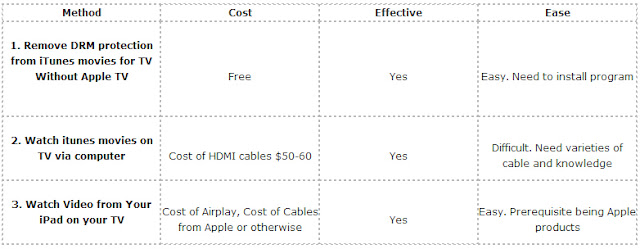
Comparison Chart
Now, just choose the way you like for enjoy iTunes Movies on TV. Have fun!
Read More:
- Encode H.265 video for iPhone/iPad/Apple TV on Mac
- Backup Furious 7 Blu-ray on Apple TV 3, 2, 1
- Playable 3D MKV files on 3D TV with 3D Experience
- Convert H.265/HEVC to PS4 for Samsung TV via Mac El Capitan
- 3D Blu-ray to ATV 4 - Stream 3D Blu-ray to Apple TV 4
Go to link Download
Friday, November 11, 2016
Google Play had twice as many app downloads as Apple’s App Store in 2015
Google Play had twice as many app downloads as Apple’s App Store in 2015
There were twice as many downloads from the Google Play store globally as there were from Apple’s App Store, according to 2015 stats from app metrics company App Annie.
Overall, the report says, Google Play saw around 200 million (Android) versus 100 million (iOS) downloads over the course of the year, largely driven by Android’s growth in emerging markets. Brazil, India, Indonesia, Turkey and Mexico accounted for nearly half of Android’s download growth.
While that impressive growth in users might be good news for Google’s ad business – a larger user base means a bigger, more enticing pool of people that advertisers can reach – Apple’s App Store revenue still far outstripped Play, though both made gains across the year.

App Annie says that the App Store’s revenue growth was driven primarily by users in China, the US and Japan, accounting for nearly 90 percent of the increase.
Google is still struggling to shake Apple’s dominance in some markets, however. For example, in the UK, iOS downloads and revenue put the country in fourth place globally for Apple but the UK’s contribution to Google Play doesn’t even make it into the top 10.
Other highlights in the report show an increase in the number of Apple Watch apps – from 3,000 in April to 14,000 by December – and that global revenue for music streaming services was 2.2 times higher in 2015 than 2014.
Finally, and potentially more concerning for anyone particularly invested in online privacy matters, the report says that all of the top five apps by monthly active users are owned by Google or Facebook – given that 11 percent of the world use Messenger alone, that’s not altogether surprising.
Go to link Download
Saturday, October 8, 2016
Google Play Play Store How to Register Download Solution Explanation In Complete
Google Play Play Store How to Register Download Solution Explanation In Complete
Google Play (Play Store), How to Register, Download, Solution Explanation In Complete - With this I will review more about Google Play, How to Register, Complete Solution In explanation we provide here. Maybe for Android smartphone users are already familiar with Google Play bukan.Android Market is synonymous with Android users. For that reason, Google stripped the name. To change the impression of the user by changing the name into Googles Android Market Play Play Store.Google a digital content services spanning Googles online store for products such as music / songs, books, apps, games, or cloud-based media players. This service can be accessed either via the web, android applications (Play Store), and Google TV.

Android devices can run applications from third party developers. When the installation process, the device asks whether the application allows users to access and modifications to the device, such as accessing the Internet, make calls, send SMS, read and write data on the memory card, access the contact list, send the data users, or others. This is what makes Android devices vulnerable to viruses or malware. However, so far reports of a virus attack or malware is still relatively very little. For the Android users should be especially careful with such virus attacks. Android Operating system for mobile devices has grown rapidly over recent years with the growing number of smart phone users. One trigger was the large number of applications offered on Google Play with hundreds of thousands of applications, many of which are free.
For the first one was. how to register google play account:
- Visit the site: play.google.com
- Login / login to your Gmail account.
- Done.
Well there you are logged into the admin Google Play. Have a look around and left right. His name is also a new store, may still feels strange. However, soon you too will get used.
Next up is. how to download apps from google play store.
Google Play can be accessed from Android devices version 2.1 and above. Here are some steps in installing apps from Android Market (Google Play).
- Search for the desired application. We can search for applications based on classification, or directly use the search facility.
- When we click on an application, a description will appear on the description, the rating given to its users, and reviews or comments from our users.
- When you click install, then the application will be downloaded and the download process will take place as a background process, so that the user can re surfing in the Android Market (Google Play).
- Applications that have been downloaded from Google Play will appear in the menu downloads. Users can delete apps from this menu.
Format used by the application Android phone is Android Package Files (GER). Applications downloaded from Google Play (Android Market) does not automatically installed after downloaded. Necessary services file manager to install these applications. Down on Android version 2.1, the application will be installed in the internal memory of the device. However, the Android version 2.2, the application can be installed on external memory, internal memory so the device can more freely. The most common problems experienced by users when accessing Google Play Android can not download applications to devices they own. Therefore I give Problem Solution Download Apps on Google Play (Play Store) which Ive provided below:
1. Clear the cache and data on the application or Google Play
Based on the many reports of users who have overcome this problem by moving the cache and or data on Google Play application. The trick is to access Google Play via Settings-> Application Settings -> Manage applications -> Google Play.
Choose clear cache (some users also do clear data). After that, restart your device, and you can download the application from Google Play as well as the App Store (iOS), and BlackBerry App World.
2. Clean Proxy
If the first method does not work, another way is to eliminate / clean the proxies used (internet and MMS). Sign in to APN settings that you use to access the Internet and clean the proxy settings. After that try to access Google Play. In the same case it clears.
3. Replace Google Account Play
Another way is also reported to be successful by some users is to change the Google account you use to access Google Play. The trick is to add the new Google accounts through account management. Then go to Google Play, select the Account menu and replace with the new account you created. To add a new account on the device being used, you have to sign up to Google and create a new account.
4. Google Play Revert to the previous version (Android Market)
Some users managed to solve this problem by returning to the previous version of Google Play (Android Market).
It can be seen at point number 1, but by choosing Uninstall Updates.Versi Google Play will be returned to the old version of the Android Market. Restart the device and access to back Google Play.
5. Done Overcome problems.
So that I can inform you on Google Play (Play Store) - How to Register, Download, Solution Explanation In Full, hopefully this information can help you in mengaskes Google Play (Play Store) comfortably. Do not miss the next info.
Go to link Download
Subscribe to:
Posts (Atom)