Showing posts with label credit. Show all posts
Showing posts with label credit. Show all posts
Tuesday, May 23, 2017
How to buy apps in the android market or play store using a credit card
How to buy apps in the android market or play store using a credit card
How to buy apps in the android market or play store using a credit card - Even though many android apps are free, but sometimes there are also interesting applications yet paid, for those of you who use credit cards here are the steps to make a purchase through the app store play.
Make sure your credit card is issued by active local bank. Or if you have a debit card, the card must be valid internationally. And supported google wallet, usually type VISA / Mastercard. Record Number of credit cards, note cards behind the three numbers, and month / year expired.
For example:
Card No.: 1234 5678 9012 3456
No. On the back of the card: 123
Expired: 12/99
Open the application you want to buy.
Click on a price, then you will go into google wallet, just click proceed.
Complete input your card details, name and address of card suits, and phone numbers.
If it is then your card is ready for use, is there a charge, if based on the info from google wallet here -> http://www.google.com/wallet/faq.html use charge cards are not charged a penny, so you will be charged according to the application fee purchased. Well if it is active. Then you can buy the application directly.
Fill in your password (email password that you use to play store), if it is okay. Then the application can be downloaded directly purchased.
Well done, for now you can directly buy the application, if the application is purchased, in the handset anywhere in the home account status will remain the same then purchased.
So if you do not like the application, whether it can refund, yes for the application you are able to do a preview, if it does not fit anymore open the program and click refund (the same with the delete key applications). And the refund is active about 15 minutes. If after 15 minutes through the refund process should report to the developer and of course more complicated. For clarity -> http://support.google.com/googleplay/bin/answer.py?hl=en&answer=134336
Happy shopping, do not be wasteful. And do not be late to pay bills that are not subject to interest.
Hopefully useful.
Go to link Download

Wednesday, January 11, 2017
How to Create an Apple ID without Credit Card
How to Create an Apple ID without Credit Card
Millions of people have this question as how to create an Apple ID without entering their Credit Cards detail in Apples System?.Its because they are scared of being hacked by some unethical person as several instances have occurred in the past few years where big companies like apple were reported to be hacked with passwords and credit card number shown in the systems.
A few years ago, linking a credit card to an Apple account was mandatory. But Apple has changed its stance and has been letting users create an Apple ID without a credit card for a while now.Having an Apple ID is a prerequisite to do just about anything related to Apple services. If you want to buy music on iTunes, download apps in the App Store,Reinstall OS X or use iCloud, you must have an Apple ID
Whatever your reason might be to do so, I am going to show you how to create an Apple ID without a credit card.
Note that if you don’t link a credit card or other payment method to your Apple ID, you will obviously not be able to complete purchases, but you will however be able to download free content, such as free apps, free music or free books.
The main reason of writing this post is, while creating Apple ID it asks to set up a payment method where you have the option to provide Credit/Debit card details or use Paypal, Redeem a gift certificate or select None as a payment method for the free Apple ID,sometimes this option of selecting None is not available or not shown or the option none is there, but after you select next, it loops you to the top of the screen and nothing happens. It also says "For assistance, contact iTunes Support" or "Please contact iTunes support to complete this transaction"
Solutions: This issue of not showing None option as a payment method or looping you to the same payment method screen is always resulted when you are using an existing or old Apple ID that you have already created before either on a windows PC or otherwise and did not set up payment method.As per the Apple there could be following major reasons of not showing None when editing your Apple ID payment information.
Why can’t I select None when I edit my Apple ID payment information?
You might not be able to see or select the None payment option for one of these reasons. If you dont want to use a credit card, you can use another form of payment, such as a gift card.
1. If you have an unpaid balance or payment due
You cant select None as your payment type until you pay your balance. To see which order you need to pay for, view your purchase history on a Mac or PC. When you sign in to the store, you might see a message that there was a billing issue with your last order. Click the Billing Info button to see the order.
After you pay for the order, you can change your payment information to None.
2. If youre using the iTunes Store or App Store for the first time
If youre using the store for the first time with an existing Apple ID, you must provide a payment method. After you create the account, you can change your payment information to None.
If youre creating a new Apple ID, you might be able to create an account without entering your credit card details.
3. If you changed your country or region
When you change the country or region of an existing Apple ID, you must provide a payment method and update your billing options. If you want to remove your payment method after you change the country or region, you can change your payment information to None.
4. If youre a part of Family Sharing
When you set up Family Sharing, the family organizer must provide a payment method. If your family includes a child account, the family organizer must use a credit card as the payment method. This payment method will be used for all purchases initiated by family members and can only be changed by the family organizer.
If you already have an Apple ID
If youve already created your Apple ID, youll need to add a payment method when you first use it to sign in to the iTunes Store, App Store, or iBooks Store. But you can optionally remove the payment method after you sign in to the store. You wont be asked for a payment method again until you make your first purchase.
If you dont have an Apple ID
If you havent created your Apple ID, follow the steps below to create one and a store account at the same time, without adding a payment method.
On an iPhone, iPad, or iPod touch
If you use Family Sharing, and you’re the family organizer, you can’t set your payment information to None. Youll need to use a credit card or debit card.
On a Mac or PC
1. Open iTunes, then go to the iTunes Store by clicking the iTunes Store button at the top of the window.
2. Scroll down and find the country flag in the lower-right corner of the window. If its not the flag of the country where you live, click it and choose your country or region.
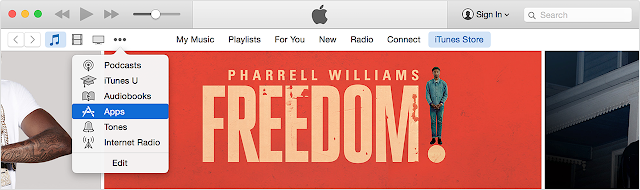
3. Go to the App Store, Music, TV Shows, or Books section of the store by clicking on one of the icons in the upper-left corner.
4. Download a free app, song, video, or book. To find free items, look in the right column of the window and click any link that includes the word "Free," such as "Free on iTunes" or "Top Free." When you find a free item, click Get beneath its icon.
5. When youre asked to sign in with an Apple ID, click Create Apple ID.
6. Follow the onscreen instructions. When youre asked for payment information, choose None as the payment type. See what to do if None isnt showing or you cant select it.
7. After you enter all of the information required, youll be asked to verify your Apple ID by email. You must verify your Apple ID before you can begin using it. D
In worst scenario where the None option is still not available try following options.
1. Leave the payment method to default VISA and enter a gift card code and your address then click next it will fail but the NONE option will appear the next time , Select none and click next and you are DONE. It worked for some people as claimed on apple support forum.
"it says you can use a itunes voucher in the end I bought a £15.00 itunes voucher and inputted the code and it let me complete my account set up and start to download apps and music. When I then went back into my account details (after completeing the set up) the "none" option had appeared, thats something apple needs to look at, why isnt the "none" option available from the start?"
2. Provide your Credit/Debit Card details, download a free app and then login to https://appleid.apple.com/us/ go to modify the payment information. At this point the none option will be available and you would be able to select this and clear the visa card information.
3. Clear your browsers Caches and Cookies delete history and then try to create a new Apple ID with the Email ID you never ever have tried registering/using your preferred apple id/e-mail address.
Incoming search terms
Apple ID, Creating apple id without credit card, select payment option none,payment option none not available in apple id creation,how to create apple id witout credit/debit card,Create apple with paypal,create apple ID without payment information
Source of information: http://www.apple.com
A few years ago, linking a credit card to an Apple account was mandatory. But Apple has changed its stance and has been letting users create an Apple ID without a credit card for a while now.Having an Apple ID is a prerequisite to do just about anything related to Apple services. If you want to buy music on iTunes, download apps in the App Store,Reinstall OS X or use iCloud, you must have an Apple ID
Whatever your reason might be to do so, I am going to show you how to create an Apple ID without a credit card.
Note that if you don’t link a credit card or other payment method to your Apple ID, you will obviously not be able to complete purchases, but you will however be able to download free content, such as free apps, free music or free books.
The main reason of writing this post is, while creating Apple ID it asks to set up a payment method where you have the option to provide Credit/Debit card details or use Paypal, Redeem a gift certificate or select None as a payment method for the free Apple ID,sometimes this option of selecting None is not available or not shown or the option none is there, but after you select next, it loops you to the top of the screen and nothing happens. It also says "For assistance, contact iTunes Support" or "Please contact iTunes support to complete this transaction"
 |
| How to Create an Apple ID without Credit Card? |
 |
| How to Create an Apple ID without Credit Card? |
Solutions: This issue of not showing None option as a payment method or looping you to the same payment method screen is always resulted when you are using an existing or old Apple ID that you have already created before either on a windows PC or otherwise and did not set up payment method.As per the Apple there could be following major reasons of not showing None when editing your Apple ID payment information.
Why can’t I select None when I edit my Apple ID payment information?
You might not be able to see or select the None payment option for one of these reasons. If you dont want to use a credit card, you can use another form of payment, such as a gift card.
1. If you have an unpaid balance or payment due
You cant select None as your payment type until you pay your balance. To see which order you need to pay for, view your purchase history on a Mac or PC. When you sign in to the store, you might see a message that there was a billing issue with your last order. Click the Billing Info button to see the order.
After you pay for the order, you can change your payment information to None.
2. If youre using the iTunes Store or App Store for the first time
If youre using the store for the first time with an existing Apple ID, you must provide a payment method. After you create the account, you can change your payment information to None.
If youre creating a new Apple ID, you might be able to create an account without entering your credit card details.
3. If you changed your country or region
When you change the country or region of an existing Apple ID, you must provide a payment method and update your billing options. If you want to remove your payment method after you change the country or region, you can change your payment information to None.
4. If youre a part of Family Sharing
When you set up Family Sharing, the family organizer must provide a payment method. If your family includes a child account, the family organizer must use a credit card as the payment method. This payment method will be used for all purchases initiated by family members and can only be changed by the family organizer.
Create an Apple ID for iTunes Store, App Store, or iBooks Store account without a credit card or other payment method
If you already have an Apple ID
If youve already created your Apple ID, youll need to add a payment method when you first use it to sign in to the iTunes Store, App Store, or iBooks Store. But you can optionally remove the payment method after you sign in to the store. You wont be asked for a payment method again until you make your first purchase.
If you dont have an Apple ID
If you havent created your Apple ID, follow the steps below to create one and a store account at the same time, without adding a payment method.
On an iPhone, iPad, or iPod touch
- Open the App Store, iTunes Store, or iBooks Store.

How to Create an Apple ID without Credit Card? - Choose any free app, song, video, or book.

How to Create an Apple ID without Credit Card? - Tap Get next to the item, then tap again to get it.

How to Create an Apple ID without Credit Card? - When youre asked to sign in with an Apple ID, tap Create New Apple ID.

How to Create an Apple ID without Credit Card? - Follow the onscreen instructions. When youre asked for payment information, choose None. See what to do if None isnt showing or you cant select it.

How to Create an Apple ID without Credit Card? - Even though you are creating the account without choosing a credit card, Apple still requires you to enter your name, address and phone number. You can always enter the address and phone number of your school. Scroll down and enter your name, address and phone number, then tap "Next".

How to Create an Apple ID without Credit Card? - After you enter all of the information required, youll be asked to verify your Apple ID by email. Apple will send you a confirmation email to the email address you provided. Check your emails and click the “Verify” link in the email Apple sent you, then log in using your newly created username (your email address) and password.
- Finally, go back to the App Store application, and sign in your new account.
If you use Family Sharing, and you’re the family organizer, you can’t set your payment information to None. Youll need to use a credit card or debit card.
On a Mac or PC
1. Open iTunes, then go to the iTunes Store by clicking the iTunes Store button at the top of the window.
 |
| How to Create an Apple ID without Credit Card? |
2. Scroll down and find the country flag in the lower-right corner of the window. If its not the flag of the country where you live, click it and choose your country or region.
 |
| Select Language |
3. Go to the App Store, Music, TV Shows, or Books section of the store by clicking on one of the icons in the upper-left corner.
 |
| How to Create an Apple ID without Credit Card? |
4. Download a free app, song, video, or book. To find free items, look in the right column of the window and click any link that includes the word "Free," such as "Free on iTunes" or "Top Free." When you find a free item, click Get beneath its icon.
 |
| How to Create an Apple ID without Credit Card? |
5. When youre asked to sign in with an Apple ID, click Create Apple ID.
 |
| How to Create an Apple ID without Credit Card? |
6. Follow the onscreen instructions. When youre asked for payment information, choose None as the payment type. See what to do if None isnt showing or you cant select it.
 |
| How to Create an Apple ID without Credit Card? |
7. After you enter all of the information required, youll be asked to verify your Apple ID by email. You must verify your Apple ID before you can begin using it. D
In worst scenario where the None option is still not available try following options.
1. Leave the payment method to default VISA and enter a gift card code and your address then click next it will fail but the NONE option will appear the next time , Select none and click next and you are DONE. It worked for some people as claimed on apple support forum.
"it says you can use a itunes voucher in the end I bought a £15.00 itunes voucher and inputted the code and it let me complete my account set up and start to download apps and music. When I then went back into my account details (after completeing the set up) the "none" option had appeared, thats something apple needs to look at, why isnt the "none" option available from the start?"
2. Provide your Credit/Debit Card details, download a free app and then login to https://appleid.apple.com/us/ go to modify the payment information. At this point the none option will be available and you would be able to select this and clear the visa card information.
3. Clear your browsers Caches and Cookies delete history and then try to create a new Apple ID with the Email ID you never ever have tried registering/using your preferred apple id/e-mail address.
**************End of Article*************
Incoming search terms
Apple ID, Creating apple id without credit card, select payment option none,payment option none not available in apple id creation,how to create apple id witout credit/debit card,Create apple with paypal,create apple ID without payment information
Source of information: http://www.apple.com
Go to link Download
Wednesday, December 7, 2016
How To Remove Credit Card Information From Google Play Store
How To Remove Credit Card Information From Google Play Store
Remove Google Play Store Credit Card - After you add your credit card information to buy apps or games on Google Play store, the information will be stored in your account. That means, if someone else is accessing your Google account, she can put on your credit card. To prevent this, make sure your accounts are safe and remove credit card information from your Google account.
Remove Credit Card Details From Google Play Store:
1. Open the Google Wallet site and log into your account.
2. Once logged in, click on the Payment methods on the left of the screen.

3. Find the credit card that you want to delete and click the Delete button at the bottom of the card information.

4. Next, click Yes, remove it. Make sure you remove the correct credit card information or you need to add it again.

5. Once the card information is deleted, you can click on the Payment methods again to make sure. In our cases, we only had one credit card so now her list is empty and there is a message Please click the button above to add a credit card.

So, how to remove credit card information from google play store. may be useful for you.
Go to link Download
Monday, October 24, 2016
Glo 100 for 800 credit
Glo 100 for 800 credit

Glo Nigeria is here again!!!!...wow! Glo just unleashed new amazing tariff plan package for all their new subscriber named
"Glo Jollifica8" .
This new offer form glo jollifica8 lets new subscriber enjoy 800% bonus on every recharge which simply means that you get 8times value of every recharge you make on your new Glo sim and its also including bonus to call all local networks, browse freely and get free data for internet surfing.
"Glo Jollifica8" .
This new offer form glo jollifica8 lets new subscriber enjoy 800% bonus on every recharge which simply means that you get 8times value of every recharge you make on your new Glo sim and its also including bonus to call all local networks, browse freely and get free data for internet surfing.
How To Active The Glo Jollifica8 Bonus
Its very simple and clear, just like I said earlier its works for new subscriber (users) all you need is to get a new Glo sim,register then wait for it to be activated once is done, it be automatically be on Glo jollifica8 tariff plan.
Then,start recharging by dailing
*123*PIN# you will automatically receive 8 times the value of your recharge plus free data bonus.
*123*PIN# you will automatically receive 8 times the value of your recharge plus free data bonus.
N100 recharge gives N800 + 10MB (N50) = N850
N200 recharge gives N1,600 + 25MB (N100) = N1,700
N500 recharge gives N4,000 + 50MB (N200) = N4,200
N1,000 recharge gives N8,000 + 100MB (N400) = N8,400
N5,000 recharge gives N40,000 + 500MB (N2,000) = N42,000
N200 recharge gives N1,600 + 25MB (N100) = N1,700
N500 recharge gives N4,000 + 50MB (N200) = N4,200
N1,000 recharge gives N8,000 + 100MB (N400) = N8,400
N5,000 recharge gives N40,000 + 500MB (N2,000) = N42,000
The good part of it is that you can share your gift data to friends and colleagues on glo network.to share data dail *606# then follow the prompts
How To Check The Glo Jollifica8 Bonus And Balance
How To Check The Glo Jollifica8 Bonus And Balance
Simple,dial #122# for Voice/data benefits and *606# for data gift bonus.
ALSO READ
ENJOY AWOOF DATA PLAN FROM GLO OVERLOADED BUNDLES
ALSO READ
ENJOY AWOOF DATA PLAN FROM GLO OVERLOADED BUNDLES
So guys, what did think about this new Glo tariff plan? I cant just wait to get my own Glo sim...what about you?
Kelvin Alexander


Go to link Download
Subscribe to:
Posts (Atom)