Showing posts with label remove. Show all posts
Showing posts with label remove. Show all posts
Wednesday, April 12, 2017
How to Remove HELP YOUR FILES Virus and Restore Encrypted Files
How to Remove HELP YOUR FILES Virus and Restore Encrypted Files
HELP_YOUR_FILES.TXT, HELP_YOUR_FILES.HTML, and HELP_YOUR_FILES.PNG belong to the new variant of the CryptoWall ransomware. If all your files have random extensions (ie: 0hrpfndfq.p5r or d0prg.m4) appended on the end of the legit extension (ie: DOC, XLS, PDF, EXE etc) and you see HELP_YOUR_FILES files in every directory then your computer is infected with ransomware. It doesnt take a genius or a technical hotshot to know that there are an ever increasing plethora of malicious software programs lurking in the darkest reaches of the internet that are used by cyber criminals to manipulate us into handing over our data or details. Our bank accounts and our identities can be at serious risk – and so too can our actual computers. Protecting yourself when youre online is now more important than ever before.

One type of malware that you really do need to educate yourself about - even though it is not quite as infamous as some of its cousins - is something called ransomware. But dont be fooled into thinking that even though its not talked about as much as adware or spyware that you can ignore its very existence. Believe me when I say that ransomware is definitely something that poses a very real threat to all of us and it is definitely something that you do not want on your PC.
What is HELP_YOUR_FILES ransomware?
HELP_YOUR_FILES will attack you in a few different ways. As with many types of malware it might be hidden in an attachment sent via a spam email. Other variants of this ransomware programs are upping their game and moving with the times by hiding in links that are sent in an instant messenger app. Yet others follow the tried and tested route of being packaged with another software program or app that the ransomware has infected. Last but not least, if you have paid a visit to a website that has been compromised by the malware then you will also unfortunately be put at risk. CryptoWall ransomware seems to be the most commonly delivered payload by the Angler EK. At the moment, its possibly the most active and sophisticated exploit kit. Once installed, it injects code into explorer.exe or svchost.exe processes and disables system restore. Unfortunately, it can delete Volume Shadow Copies too.
When you think about it, if it seems that if every time you are online that you are at risk, then you wouldnt really be exaggerating – and this of course makes it of paramount importance why you need to not only protect yourself with firewalls and anti-viruses but to also proactively make sure you are using best practices when it comes to working or playing on the internet.
Being extremely careful when you open email attachments or click on links is crucial, even if you do know the sender – whos to say that your friend or colleague hasnt had their email or messenger app hacked?

What HELP_YOUR_FILES ransom virus can do
As the name suggests, it will kidnap your files, encrypt them so that you are unable to access them and then demand a ransom for their release. The ransom note will be left on your computer in the form of an HTML file or text/image files and will tell you in no uncertain terms how much you have to pay, and by what method, if you ever want to see your files again. HELP_YOUR_FILES.HTML ransom note:
Cannot you find the files you need?
Is the content of your files that you have watched not readable?
It is normal because the files names, as well as the data in your files have been encrypted.
Congratulations!!!
You have become a part of large community CryptoWall.
As you can see, it claims to be a part of the CryptoWall family. And it probably is because certain elements are clearly copied from previous CryptoWall variants. The note will tell you that once you have paid you will be sent a code that will allow you to decrypt your documents. However, this is not a guarantee and there are countless examples of people having handed over their hard earned cash only to be sent a big fat nothing in return.
What should I do if Ive been infected?
Its easy to say, but try not to panic. And whatever you do, dont pay the ransom unless the encrypted files are very important and you cant afford to lose them. If the encrypted files are not very important or you dont have money to pay the ransom, you can remove try to restore your files (at least some of them) using Shadow Explorer, Recuva and some other specialized tools listed below. Please note that even of you decide to pay the ransom theres really no guarantee that cyber crooks will recover your files. If you have any questions, please leave a comment below. Last, but not least, if theres anything you think I should add or correct, please let me know. It might be a pain but the issue needs to be dealt with – and the way to do it is by not giving in, not paying up and not letting the attackers win.
Written by Michael Kaur, http://deletemalware.blogspot.com
Step 1: Removing HELP_YOUR_FILES and related malware:
Before restoring your files from shadow copies, make sure HELP_YOUR_FILES is not running. You have to remove this malware permanently. Thankfully, there are a couple of anti-malware programs that will effectively detect and remove this malware from your computer.
1. First of all, download and install recommended anti-malware scanner. Run a full system scan and remove detected malware.

2. Then, download ESET Online Scanner and run a second scan to make sure there are no other malware running on your computer.
Thats it! Your computer should be clean now and you can safely restore your files. Proceed to Step 2.
Step 2: Restoring files encrypted by HELP_YOUR_FILES virus:
Method 1: The first and best method is to restore your files from a recent backup. If you have been regularly performing backups, then you should use your backups to restore your files.
Method 2: Try to restore previous versions of files using Windows folder tools. To learn more, please read Previous versions of files.
Method 3: Using the Shadow Volume Copies:
1. Download and install Shadow Explorer. Note, this tool is available with Windows XP Service Pack 2, Windows Vista, Windows 7, and Windows 8.
2. Open Shadow Explorer. From the drop down list you can select from one of the available point-in-time Shadow Copies. Select drive and the latest date that you wish to restore from.
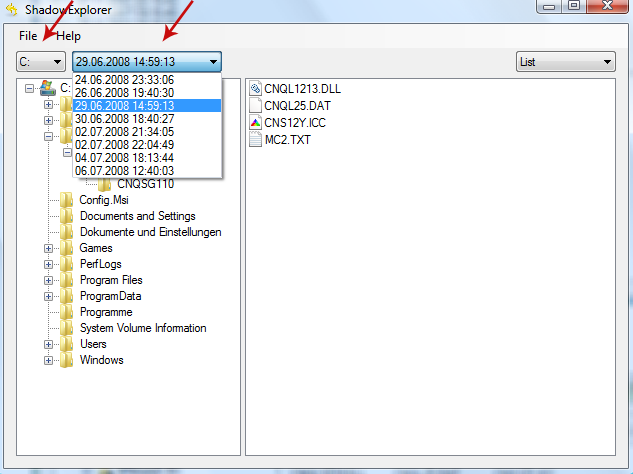
3. Righ-click any encrypted file or entire folder and Export it. You will then be prompted as to where you would like to restore the contents of the folder to.
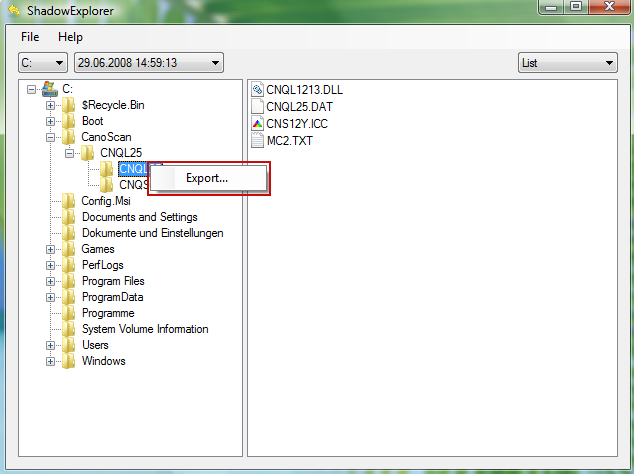
Hopefully, this will help you to restore all encrypted files or at least some of them.
Go to link Download

Wednesday, April 5, 2017
How to Remove HELP DECRYPT Virus and Restore Encrypted Files
How to Remove HELP DECRYPT Virus and Restore Encrypted Files
HELP_DECRYPT.HTML, HELP_DECRYPT.TXT and HELP_DECRYPT.PNG files belong to the CryptoWall 3.0 ransomware. If all your files have a random extension (ie: .xnldzbl) appended on the end of the legit extension (ie: DOC, EXE etc) and you see HELP_DECRYPT files in every directory then your computer is infected with ransomware. Your files were encrypted and you can only get them back by paying the ransom or using backups. If you dont have backups you can still use data recovery tools listed below and hope for the best. We are all well aware of the many dangers associated with the numerous types of malicious software, or malware. From spyware and adware to Trojan Horses and Potentially Unwanted Programs we have to be on guard against all of these attackers. However, one type of malware might have passed you by as it never seems to garner the same publicity as the others, chiefly because it seems to come and go in waves, and that is ransomware. However regardless of whether or not it is a constant threat, you definitely need to know of its existence, as this is one unpleasant threat that you really do want to keep a watchful eye out for.

HELP_DECRYPT has a few different names and you may also come across the terms crypto-virus, cryptoware, crypto-Trojan or crypto-worm, regardless of what this malware is called, what YOU need to know is what it can do and how you should react if it has infected your computer.
HELP_DECRYPT infects your computer by taking advantage of your curiosity
The majority of ransomware is disseminated by email. More specifically, in files that are attached to messages. These spam emails will either look like a tempting special offer that you simply cant miss out on, or they may come via a friend or acquaintance in your contact list that has been hacked. The attachment is carrying the HELP_DECRYPT virus and once you have clicked on the file, video clip or document to open it, it will install itself on your PC.
Some variants if this ransomware may also attack you if you have been unlucky enough to visit a compromised website that has been infected with it.
How do you lower the chances of being infected by HELP_DECRYPT virus? Well unfortunately it is not possible to know in advance whether a website has been compromised but you can definitely be proactive when it comes to emails (and instant messenger chat windows that come with links embedded in them). Weve been told it a thousand times, but it is shocking the amount of people who still cant resist opening emails – and even attachments – that come from an unknown sender.
What does HELP_DECRYPT do to your computer?
It has been created to extort money from you. Its as simple as that. And to increase the chances of you giving in to its demands it needs to give you the most cause for alarm that it possibly can.
If youre under attack from this ransom virus your files or documents will be held hostage and you will receive a ransom note, either by email or in a pop-up window that is asking for an amount of money in return for the release of your data or files. The release normally comes in the form of a code that tells you youll be able to use it in order to unlock your file or files. However, not all of these codes actually work so handing over the ransom is no indication you will even get your files back.
What should I do if Ive been infected?
Its easy to say, but try not to panic. And whatever you do, dont pay the ransom unless the encrypted files are very important and you cant afford to lose them. If the encrypted files are not very important or you dont have money to pay the ransom, you can remove try to restore your files (at least some of them) using Shadow Explorer, Recuva and some other specialized tools listed below. Please note that even of you decide to pay the ransom theres really no guarantee that cyber crooks will recover your files. If you have any questions, please leave a comment below. Last, but not least, if theres anything you think I should add or correct, please let me know. It might be a pain but the issue needs to be dealt with – and the way to do it is by not giving in, not paying up and not letting the attackers win.
Written by Michael Kaur, http://deletemalware.blogspot.com
Step 1: Removing HELP_DECRYPT and related malware:
Before restoring your files from shadow copies, make sure HELP_DECRYPT is not running. You have to remove this malware permanently. Thankfully, there are a couple of anti-malware programs that will effectively detect and remove this malware from your computer.
1. First of all, download and install recommended anti-malware scanner. Run a full system scan and remove detected malware.

2. Then, download ESET Online Scanner and run a second scan to make sure there are no other malware running on your computer.
Thats it! Your computer should be clean now and you can safely restore your files. Proceed to Step 2.
Step 2: Restoring files encrypted by HELP_DECRYPT virus:
Method 1: The first and best method is to restore your files from a recent backup. If you have been regularly performing backups, then you should use your backups to restore your files.
Method 2: Try to restore previous versions of files using Windows folder tools. To learn more, please read Previous versions of files.
Method 3: Using the Shadow Volume Copies:
1. Download and install Shadow Explorer. Note, this tool is available with Windows XP Service Pack 2, Windows Vista, Windows 7, and Windows 8.
2. Open Shadow Explorer. From the drop down list you can select from one of the available point-in-time Shadow Copies. Select drive and the latest date that you wish to restore from.
3. Righ-click any encrypted file or entire folder and Export it. You will then be prompted as to where you would like to restore the contents of the folder to.
Hopefully, this will help you to restore all encrypted files or at least some of them.
Go to link Download
Monday, March 27, 2017
How to Remove TermBlazer Ads Malware Uninstall Guide
How to Remove TermBlazer Ads Malware Uninstall Guide
Chances are you know exactly what TermBlazer or Term Blazer adware is and what it can do but unless youve actually had to deal with an advertising supported software infestation on your computer you might not realize what a nightmare this adware can be. Its true that adware is not as malicious as some other malware types but that doesnt mean you should grin and bear it if you do wind up with the nastier type of adware on your PC. Some online advertising is nothing more than literal adverts – links or traditional ads that are aiming to get you to click on them and visit their website and spend your hard earned cash. But there are others that display endless ads by TermBlazer and pop-up or pop-under windows that dont seem to disappear, no matter how many times you try and close them.
What is TermBlazer?
In its most innocent format, it is merely online marketing, however even that can have a rather creepy side. And thats because it customizes the adverts that you see displayed on your computer monitor to match your interests. How does it do this? By installing a component on your computer, usually web browser extension, that monitors which websites you visit and the goods or services that you view. The component records this data and sends it back to the person or company who created the adware – so that they can then decide which ads by TermBlazer you are shown. Clearly this rather aggressive form of marketing has been designed to increase the chances of you visiting a site and spending money, therefore generating revenue for the programmer and the website. As a knock on effect, this also increases traffic to the site which helps it rank higher in the search engines.

How does TermBlazer infect my computer?
Most adware programs come packaged with other programs, TermBlazer is no exception. These can be anything from a shared TV series download, to wallpapers, games or even reputable software upgrades. It doesnt even matter whether or not you pay for them; adware programmers (and advocates) show no mercy and will attach it to virtually anything downloadable, clickable or installable! So, when you download this software, file, program or download you will also be downloading the adware onto your computer too. And of course, youll also be downloading the tracking device that records which websites you visit.
The side effects of TermBlazer
Make no bones about it; a true adware problem can be a nightmare to deal with. Not only is it annoying to be bombarded with pop-up windows and spooky to think that someone knows which websites you are visiting but the tracking component can cause your computer to run much more slowly than usual. It might also slow your Internet connection down and youll find web pages are constantly crashing.
Protect yourself from adware. Install a good anti-malware and start being a little more discerning when it comes to downloading software! If its already too late in your computer is infected, then please follow the steps in the removal guide below to remove TermBlazer and related malware from the system. If you have any questions, please leave a comment down below. Good luck and be safe online!
Written by Michael Kaur, http://deletemalware.blogspot.com
TermBlazer Ads Removal Guide:
1. First of all, download anti-malware software and run a full system scan. It will detect and remove this infection from your computer. You may then follow the manual removal instructions below to remove the leftover traces of this malware. Hopefully you wont have to do that.

2. Remove TermBlazer related programs from your computer using the Add/Remove Programs control panel (Windows XP) or Uninstall a program control panel (Windows 7 and Windows 8).
Go to the Start Menu. Select Control Panel ? Add/Remove Programs.
If you are using Windows Vista or Windows 7, select Control Panel ? Uninstall a Program.

If you are using Windows 8, simply drag your mouse pointer to the right edge of the screen, select Search from the list and search for "control panel".
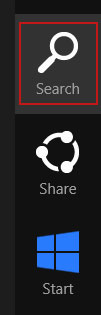
Or you can right-click on a bottom left hot corner (formerly known as the Start button) and select Control panel from there.
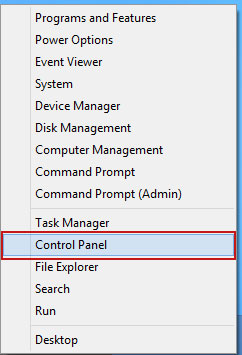
3. When the Add/Remove Programs or the Uninstall a Program screen is displayed, scroll through the list of currently installed programs and remove the following:
- TermBlazer
- GoSave
- Active Discount
- SaveNewaAppz
- and any other recently installed application
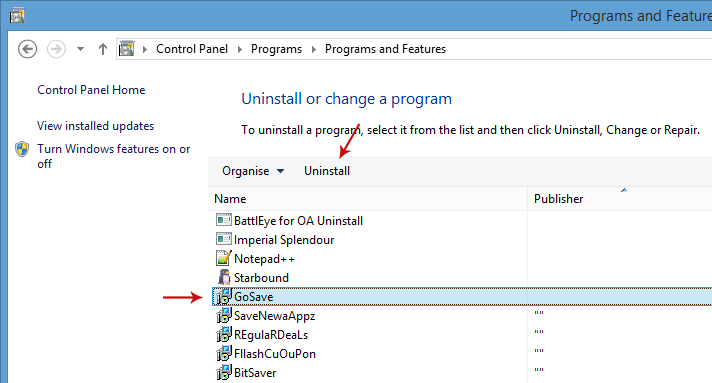
Simply select each application and click Remove. If you are using Windows Vista, Windows 7 or Windows 8, click Uninstall up near the top of that window. When youre done, please close the Control Panel screen.
Remove TermBlazer related extensions from Google Chrome:
1. Click on Chrome menu button. Go to Tools ? Extensions.
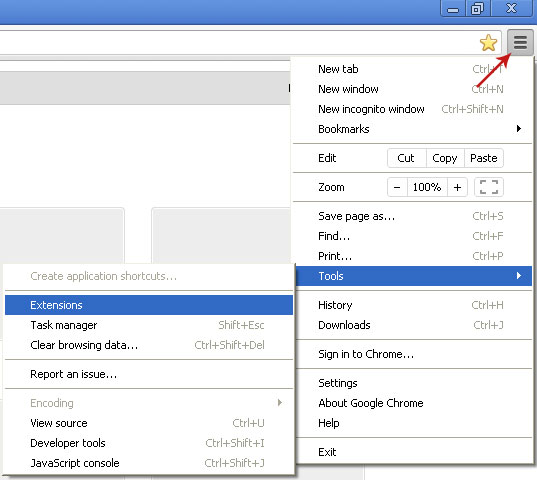
2. Click on the trashcan icon to remove TermBlazer, Active Discount, MediaPlayerV1, Gosave, HD-Plus 3.5 and other extensions that you do not recognize.
If the removal option is grayed out then read how to remove extensions installed by enterprise policy.

Remove TermBlazer related extensions from Mozilla Firefox:
1. Open Mozilla Firefox. Go to Tools ? Add-ons.

2. Select Extensions. Click Remove button to remove TermBlazer, Active Discount, Gosave, MediaPlayerV1, HD-Plus 3.5 and other extensions that you do not recognize.
Remove TermBlazer related add-ons from Internet Explorer:
1. Open Internet Explorer. Go to Tools ? Manage Add-ons. If you have the latest version, simply click on the Settings button.

2. Select Toolbars and Extensions. Click Remove/Disable button to remove the browser add-ons listed above.
Go to link Download
Wednesday, March 8, 2017
How to Remove Bit Cryptor Virus and Restore Encrypted Files
How to Remove Bit Cryptor Virus and Restore Encrypted Files
Bit Cryptor or BitCryptor is a file-encrypting ransom virus (ransomware) that encrypts your files using AES-256 encryption algorithm so they are not accessible and repairable without the unique encryption key. In order to get the key and decrypt your files you need to pay a ransom of 1 bitcoin which is currently about $240. It targets all version of Windows. Files stored on Network-Attached Storage (NAS) and other computers on the same network can be encrypted as well. Just like any other ransomware it scans your computer for data files and then encrypts them silently in the background. Most users probably wont even notice anything suspicious. Once the ransom virus has encrypted your files it will display a Bit Cryptor program that contains instructions on how to get your files back. As you can see, it has a countdown clock and apparently the ransom cost will increase if you wont pay on time. Each victim has a unique bitcoin payment address. Cyber criminals allow you to decrypt one file for free.

You know as well as I do that as we all spend increasingly large portions of our waking lives working, playing, shopping and browsing online, the higher the risks of contracting a computer virus or being infected by ransomware are. There is big money to be made in the cyber crime industry and malicious programmers are creating online attackers that are now more sophisticated than ever before. Its like watching a dog chase its tail, watching antiviruses and malicious software play this endless game of outsmarting each other with their creations. But where does that leave us – the people who rely on the internet to earn money, relax or simply keep our busy lives in order? Well where were left is in the position of now having to be increasingly alert if we want to defend ourselves from becoming yet another faceless victim in the online war.
But the issue is that because the two sides of good and evil are constantly battling to stay one step ahead of each other, ransomware is constantly reinventing itself and finding new ways to cause havoc on our PCs or extort our hard earned cash from us. Bit Cryptor is a good example of how cyber criminals constantly improves their malware making it more sophisticated and dangerous. This particular variant, unlike most ransomware, block Task Manager and other program that can be used to disable it. As a result, it might be difficult to run anti-malware software and remove the ransom virus. Bclock.exe is the main process of this ransomware. Its usually located in C:Users[YourUserName]AppDataRoamingMicrosoftWindows folder. So, in case you cant open anti-malware programs or Windows tools, try to remove or at least disable the bclock.exe program first. If you cant do this using Task Manager, try Process Explorer. Theres also a filelist.locklst file which contains a list of all files encrypted. Dont delete it. Its not dangerous and besides you may still need it.
Heres how BitCryptor Your files have been encrypted wallpaper stored in %Temp%wallpaper.jpg looks like:

What is ransomware?
Ransomware is, to put it frankly, a nightmare. Yes, Bit Cryptor is a nightmare too. Not only does it try and con you out of money, it also causes major issues on your computer, and it can cause you very real stress and upset too. It certainly is something that is worth taking the time to learn a little more about. Ransomware seems to come and go so read on and make sure that the next time its doing the rounds you stand the best possible chance of not falling victim to it.
Youre probably already one step ahead at this point and have guessed that ransomware is a type of malware that operates by holding you hostage. Actually, it holds your files, data, programs or operating system to ransom, but when your life is stored on our computers it may as well be you! In a nutshell, ransomware will kidnap, or lock, your computer and hold it hostage until you pay a release fee. It also display a ransom note in a text file, not just the Bit Cryptor decryptor window.
Your personal documents and files on this computer have just been encrypted.
The original files have been deleted and will only be recovered by following the steps described below.
Click on "Show encrypted files" to see a list of files that got encrypted.
The encryption was done with a unique generated encryption key (using AES-256).
This means that encrypted files are of no use until they get decrypted using a key stored on a server.
This server will only release the key if the amount of Bitcoins (displayed left of this window) is send to the Bitcoin address shown on the left of this window.
Each time the timer expires, the total cost will raise with the starting price.
...
How does Bit Cryptor infect you?
Like most types of malware, Bit Cryptor will infect you through a program, file or app that you have downloaded. Some ransomware attacks websites, infecting them and then you the visitor by default. Other ransomware is hidden in an attachment sent in a spam email or instant chat application. Finally, you may even be unlucky enough to be the victim of something called a drive-by installation which is when youve stumbled across a website that has been infected by the malicious software.
What to do when this ransomware attacks?
Dont panic. And DONT pay a ransom. Instead, follow the removal guide below on how to salvage your data and clean your computer ASAP. There are a few tools that can help you to restore at least some of your files without paying a ransom. Even though, theres no guarantee that these tools will help you, theres also no reason not to try them out. Who knows, maybe you will be the lucky one. Good luck and be safe online!
Written by Michael Kaur, http://deletemalware.blogspot.com
Step 1: Removing Bit Cryptor and related malware:
Before restoring your files from shadow copies, make sure Bit Cryptor virus is not running. You have to remove this malware permanently. Thankfully, there are a couple of anti-malware programs that will effectively detect and remove this malware from your computer.
1. First of all, download and install recommended anti-malware scanner. Run a full system scan and remove detected malware.

IMPORTANT! If you cant download or run it, please restart your computer in Safe Mode with Networking or Safe Mode and try again. Also, try to disable bclock.exe using Process Explorer.
2. Then, download ESET Online Scanner and run a second scan to make sure there are no other malware running on your computer.
Thats it! Your computer should be clean now and you can safely restore your files. Proceed to Step 2.
Step 2: Restoring files encrypted by Bit Cryptor crypto virus:
Method 1: The first and best method is to restore your files from a recent backup. If you have been regularly performing backups, then you should use your backups to restore your files.
Method 2: Try to restore previous versions of files using Windows folder tools. To learn more, please read Previous versions of files.
Method 3: Using the Shadow Volume Copies:
1. Download and install Shadow Explorer. Note, this tool is available with Windows XP Service Pack 2, Windows Vista, Windows 7, and Windows 8.
2. Open Shadow Explorer. From the drop down list you can select from one of the available point-in-time Shadow Copies. Select drive and the latest date that you wish to restore from.
3. Righ-click any encrypted file or entire folder and Export it. You will then be prompted as to where you would like to restore the contents of the folder to.
Hopefully, this will help you to restore all encrypted files or at least some of them.
Go to link Download
Thursday, February 9, 2017
How to Easily Remove Numbers in Calculator app
How to Easily Remove Numbers in Calculator app

For those of you who frequently use the Calculator app on the iPhone for counting, tips this time you should not miss. It should be noted, is meant here is the Calculator app in Apples native applications not third-party applications.
Now try to open the Calculator app on your iPhone or iPod Touch and enter any number. Just type any number, make sure the more than two digits to try this trick. Afterwards, delete the numbers.
You probably are one iDevice user who always uses the Clear to remove the numbers in Calculator app. The way it is considered easy because it could erase the entire number on a screen iPhone without deleting them one by one. But it also means that when you are just one type of the numbers then all the numbers will be erased and you have to type from scratch.
Well, did you know that deleting numbers in Calculator app you can do with a single swipe? Try just swipe from left to right, in the box where the figures before you type. What you are used to?
Exactly! Calculator app will only delete the last digit you type. This is not a trick that is extraordinary as various jailbreak tweaks that are widely available but it would be very important tips for you who often work with numbers :)
Go to link Download
Friday, February 3, 2017
How to remove sad face icon in iPod
How to remove sad face icon in iPod

Today, iPod has become an important part of our life because of its multi-functionality features. For example, it can be used for listening music, to watch video, to store documents, to store and view photos, etc. Another plus point of iPod is its size. Because of its small it is easy to carry it with you anywhere like college, office, etc. It has become users’ companion to fade away their loneliness. Sometimes, when you switch on the iPod, you may see a sad face icon on its screen.
Appearance of such sad face icon means you cannot access the data stored in iPod. There can be various reasons behind that sad face icon, which may enforce you to use data recovery software like iPod recovery. Mentioned below are the reasons for occurrence of sad face icon:
- Battery of the iPod is weak i.e. not charged enough to start the iPod.

- You have updated an application iPod, which is causing this problem.
- Virus contamination.

- Corruption of file system used to store data in iPod.
- You have installed any application in iPod, which is not installed properly.


If you are thinking to format the iPod or setting it back to factory settings then you must be ready to loss all of the data stored in iPod. You are suggested to format iPod or set it to factory settings only when you have backup of the data stored in iPod. If you do not have complete backup then use of an iPod data Recovery tool is always suggested to resolve the issue without losing a bit of data stored in iPod.
Go to link Download
Wednesday, January 11, 2017
How To Full Remove uninstall any Program From Your PC
How To Full Remove uninstall any Program From Your PC
Clean Uninstall any program from Your PC..

Download Uninstall Tool Full Version

Download Method

Go to link Download
Sunday, January 8, 2017
How To Remove Apps From Google Play Account
How To Remove Apps From Google Play Account
Heres How to Remove Applications on Google Play Store. Android users often spend a share of data services by downloading the application. Software does exist that have a very large size and mostly in the form of games. Download the application, especially the free ones often becomes a habit.

Sometimes you can see it on Google Play Store or in some online media and direct download. Later you realize that the longer the application or in fact not useful at all and immediately delete it.
But when you want to install one of the apps that have been removed and see there are many applications that once downloaded, you definitely hard to find. Now Google have updated their online store the application and the user can easily remove a variety of important applications.
The trick, open the Google Play Store on the device. Then tap the Google Play Store is in the upper right corner and you will be brought to the My Apps menu. After that you will see a variety of applications that are now being installed in the device. Slide the screen to the left and will appear All Apps page.
There you can see all the apps I have ever downloaded. For the record, you will realize that not all apps can be removed. Some of these applications will be inscribed Disabled. While that can be removed is that having a round icon with oblique streaks.
If you press any of the applications you want to remove, Google will ask for permission to do so. Then if you want to directly delete some applications, press any application you want removed, and you can choose the other. Good luck.
Go to link Download
Wednesday, January 4, 2017
How to remove autorun inf virus
How to remove autorun inf virus
What is autorun.inf virus?
Autorun.inf is a virus that copy itself from USB drive to your local drives. Normally it exist in USB drive and it can infect your system in many ways. when you will open the drive it automatically hide itself so it cannot be deleted manually.How to remove autorun.inf virus?
The solution is very simple. Download "Autorun Eater" and you will get rid of all problems caused by autorun.infSecondly it can also fix task manager problem, fix registry problems and also can enable folder options.
Go to link Download
Wednesday, December 21, 2016
How to Remove HELP TO SAVE FILES txt Virus and Restore Encrypted Files
How to Remove HELP TO SAVE FILES txt Virus and Restore Encrypted Files
HELP_TO_SAVE_FILES.txt is a ransom note that contains links and information on how you can pay the ransom to decrypt your files that were encrypted by Alpha Crypt ransomware. The Trojan ransom encrypts your files using a very strong RSA-2048 encryption algorithm, appends the .ezz extension to each encrypted file and creates multiple HELP_TO_SAVE_FILES.txt files on your computer. Basically, this ransom note can be found in every folder with at least one encrypted file. In this day and age, we all need to know as much as we can about the different types of malware that are out there trying to do us harm. And one of those pieces of malicious software that it is in our interests to know a little more about is ransomware. Staying one step ahead of cyber crime is crucial, therefore if you want to know how to best protect yourself from falling victim to this particularly nasty form of malware, carry on reading as I will give you a couple of simple ways to keep the ransomware at bay.
What is Alpha Crypt and why it creates HELP_TO_SAVE_FILES.txt?
You may have heard of a Trojan ransom because its one of the most commonly found strain of malware. It is also one of the most unpleasant for sure. Not only does it cause carnage on your computer by encrypting your documents but it can have a serious affect on your overall security too, making you even more vulnerable to further attack by other types of malware, for example spyware.
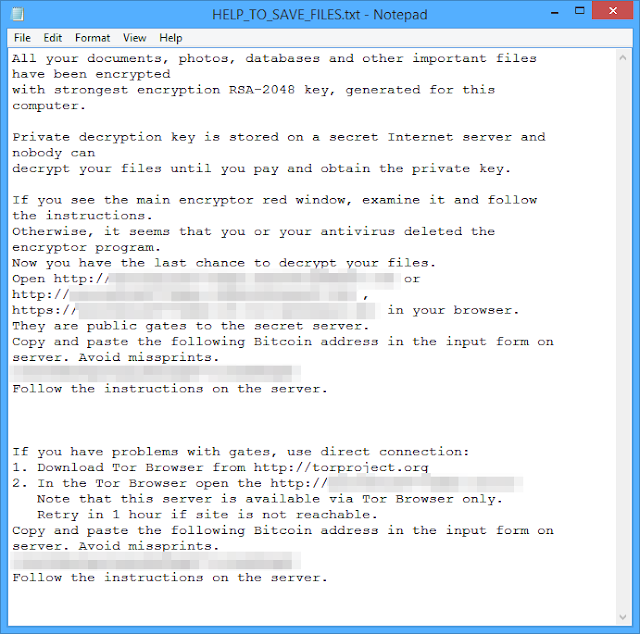
How does this ransomware work?
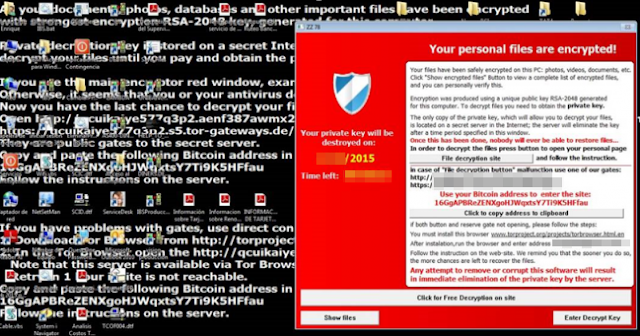
If you have been infected by HELP_TO_SAVE_FILES.txt or Alpha Crypt ransomware it will kidnap your files and hold them hostage until you pay for their release. Some users reported that cyber criminals asked to pay 1 Bitcoin while others mentioned only 0.5 Bitcoin. One way or another, its still at least $100. Its a classic and time worn method of extorting money – the only difference is now were dealing with online kidnapping. But this one is even more evil. It tries to delete shadow copies and even restore points to make it nearly impossible to restore your files. Luckily, it does not always succeeds, so there is a chance you can recover your encrypted data files using file recovery programs such as TeslaCrypt Decryption Tool by Cisco. Cisco programmers did a great job. The tool worked well with the previous version of this ransomware called Tesla Crypt.
- The majority of ransom Trojans are spread via email attachments or links in instant messenger chats. Therefore never open attachments or click on links in messages where you dont know the sender. Other Trojans are packaged with shareware or peer to peer files so only download from reputable sources.
- A smaller, but still significant amount of Trojans are installed during a drive by installation meaning you have visited a website that has been compromised by the malware. Theres no way of telling which sites are infected but bear in mind that the shadier the site, the more chance you have of leaving with some kind of infection
Is there a way to recover my files?
Unfortunately, at this time there is no way to decrypt the files without your unique decryption key which can be bought from cyber criminals for 1BTC. However, do not pay the ransom unless your files are very important to you and are worth more than $100 or $300. And of course, if the tools given below do not work. Instead, follow the removal guide below how to salvage your data and clean your computer ASAP. There are a few tools that can help you to restore at least some of your files without paying a ransom: Shadow Explorer and TeslaCrypt Decryption Tool by Cisco. Even though, theres no guarantee that these tools will help you, theres also no reason not to try them out. Who know, maybe you will be the lucky one. Please follow the steps in the removal guide below.
If you have any questions, please leave a comment below. And now youre done reading this, may I suggest that you back up all your files onto an external hard drive NOW. That way if you are unlucky enough to fall victim to HELP_TO_SAVE_FILES.txt ransomware, youll be able to simply wipe clean your internal disk drive and replace it with up to date data. If you have any questions, please leave a comment down below. Good luck and be safe online!
Written by Michael Kaur, http://deletemalware.blogspot.com
Step 1: Removing Alpha Crypt and related malware:
Before restoring your files from shadow copies, make sure Alpha Crypt is not running. You have to remove this malware permanently. Thankfully, there are a couple of anti-malware programs that will effectively detect and remove this malware from your computer.
1. First of all, download and install recommended anti-malware scanner. Run a full system scan and remove detected malware.

Important! If you cant download or run it, please restart your computer in Safe Mode with Networking or Safe Mode and try again.
2. Then, download ESET Online Scanner and run a second scan to make sure there are no other malware running on your computer.
Thats it! Your computer should be clean now and you can safely restore your files. Proceed to Step 2.
Step 2: Restoring files encrypted by Alpha Crypt virus:
Method 1: The first and best method is to restore your files from a recent backup. If you have been regularly performing backups, then you should use your backups to restore your files.
Method 2: Try to restore previous versions of files using Windows folder tools. To learn more, please read Previous versions of files.
Method 3: Try the TeslaCrypt Decryption Tool by Cisco. Download TeslaDecrypt tool and run it.
Method 4: Try the TeslaDecoder Decryption Tool. Download TeslaDecoder tool and run it.
Method 5: Using the Shadow Volume Copies:
1. Download and install Shadow Explorer. Note, this tool is available with Windows XP Service Pack 2, Windows Vista, Windows 7, and Windows 8.
2. Open Shadow Explorer. From the drop down list you can select from one of the available point-in-time Shadow Copies. Select drive and the latest date that you wish to restore from.
3. Righ-click any encrypted file or entire folder and Export it. You will then be prompted as to where you would like to restore the contents of the folder to.
Hopefully, this will help you to restore all encrypted files or at least some of them.
Go to link Download
Wednesday, December 7, 2016
How To Remove Credit Card Information From Google Play Store
How To Remove Credit Card Information From Google Play Store
Remove Google Play Store Credit Card - After you add your credit card information to buy apps or games on Google Play store, the information will be stored in your account. That means, if someone else is accessing your Google account, she can put on your credit card. To prevent this, make sure your accounts are safe and remove credit card information from your Google account.
Remove Credit Card Details From Google Play Store:
1. Open the Google Wallet site and log into your account.
2. Once logged in, click on the Payment methods on the left of the screen.

3. Find the credit card that you want to delete and click the Delete button at the bottom of the card information.

4. Next, click Yes, remove it. Make sure you remove the correct credit card information or you need to add it again.

5. Once the card information is deleted, you can click on the Payment methods again to make sure. In our cases, we only had one credit card so now her list is empty and there is a message Please click the button above to add a credit card.

So, how to remove credit card information from google play store. may be useful for you.
Go to link Download
Monday, November 28, 2016
How do I remove a computer virus
How do I remove a computer virus
1) free.kaspersky.com/us to remove virus use Kaspersky Security Scan
If your computer is infected with a virus, youll want to remove it as quickly as possible. A fast way to check for viruses is to use an on-line scanner, such as the Kaspersky Scanners. The scanner is a free on-line service that helps you identify and remove viruses, clean up your hard disk, and generally improve your computers performance.
If youre not sure whether your computer has a virus, see How can I tell if my computer has a virus? to check for some telltale signs. To Kaspersky on-line scanner, follow the links to other companies that provide them on the
Free Tools page!
Kaspersky
Security Scan
Download the free, easy-to-use scanner that rapidly finds malware & threats that may be hidden on your PC – even if you already have an anti-virus product or firewall installed. You’ll get a detailed report on your PC’s security status – plus tips on improving your PC’s protection
Kaspersky
Virus Removal Tool
Virus Removal Tool is a utility designed to remove different types of infections from your computer. It employs the effective detection algorithms used by Kaspersky Anti-Virus and AVZ. It cannot substitute a resident anti-virus application.
Kaspersky
Rescue Disk 10
Kaspersky Rescue Disk is designed to scan, disinfect and restore infected operating systems. It should be used when it is impossible to boot the operating system.
Kaspersky
Safe Browser
By filtering out malicious links and inappropriate content, and helping you to avoid phishing websites that may try to steal your confidential information and your identity, Kaspersky Safe Browser helps you safely surf the Web on your iPhone, iPad or Windows Phone device.
Kaspersky Safe Browser for iTunes Kaspersky Safe Browser for Windows Phones
Good luck
<><><><><><><><><><><><><><><><><><><><><><><><><><><><><><>
MORE EXCELLENT TIPS AND TRICKS FOR END USERS:
How to enter the BIOS or CMOS setup
What are the F1 through F12 keys?
Upon start up only wallpaper shows, no icons, no task bar, no start menu, nothing [FIX]
How to Permanently fix a computer with no start menu or desktop icons (Black screen virus)
HOW To OPEN Task Manager
Manually Speed up your Windows 7, XP
How to boost INTERNET speed by 20%
Random black screen while playing games
Start your computer from a Windows 7 installation disc or USB flash drive.
Best ways to speed up Windows 7
How to use system recovery options in Windows?
How To Fix A Windows 7 Reboot Loop
An empty All Programs Folders in Windows 7 and how to fixed it!
How To Fix A Windows 7 Reboot Loop
The BIOS does not detect or recognize the ATA / SATA hard drive
My laptop wont shut down ! Windowws 8, 7, Vista, XP
You in the safe mode and it shows all the programs now what?
SPEED UP YOUR SSD IN WINDOWS 7
Speed up your PC Disable System Restore on SSD
Speed up your PC Disable Scheduled De-fragmentation SSD
Check your hard disk for errors ( Windows XP / 7 / 8 / )
How do I remove a computer virus?
What is the difference between BIOS and CMOS?
<><><><><><><><><><><><><><><><><><><><><><><><><><><><><><>
Fill Free to Donate if you found this tutorial useful. Thank you!
Go to link Download
Tuesday, November 22, 2016
How to Remove Crypt0L0cker Virus and Restore Encrypted Files
How to Remove Crypt0L0cker Virus and Restore Encrypted Files
Here were going to take a look at one type of malware that doesnt seem to get as much attention as some of its better known cousins TorrentLocker and CryptoLocker, and that is Crypt0L0cker ransomware. The only noticeable difference is that Os are replaced with 0 (zeros). Other than that I would say its very similar to TorrentLocker ransom virus except that it adds ".encrypted" to the end of affected file names and drops a few ransom notes DECRYPT_INSTRUCTIONS.txt and DECRYPT_INSTRUCTIONS.html. This is a particularly unpleasant program and just because its not given as much press as spyware or adware, for example, that doesnt mean you can dismiss it as something that you dont need to be too concerned about. On the contrary in fact!

Crypt0L0cker and its aliases
If youve heard of a cryptoworm, cryptoware, a cryptovirus, or a cryprotrojan then youve heard of ransomware as these are all names variously given to the same type of program. But just what exactly is cryptoware, or as we will refer to it, ransomware? As with most types of malicious software, the clue is in the name. Crypt0L0cker, as you may have already guessed, holds your computer, data or files to ransom and then attempts to extort money from you by promising to release them (or decrypt, decode, or unlock them) upon receiving payment which is at least $400.
How does Crypt0L0cker get on to your computer?
There are a couple of different ways that Crypt0L0cker is spread. You may be infected by it having paid a visit to a website that has been compromised by it, or alternatively it can hijack you through an email attachment, a link in a chat application message, or via a computer program. One thing is clear about the murky world of malware – we are at increasing risk every time we log onto our computers and onto the internet.
The ransomware Modus Operandi
As mentioned Crypt0L0cker’s MO is to kidnap your files (PDF, xml, doc, docx, xls, xlsx, just the name a few) or parts of your PCs operating system, demand payment for their release and then – maybe return them to you. And yes, we did say maybe. Lets not forget that we are dealing with an unscrupulous attacker here – chances of them bothering to send you a code to unlock your data once payment has been received are not really all that likely.
WARNING we have encrypted your files with Crypt0L0cker virus
Your important files (including those on the networks disks, USB, etc): photos, videos, documents, etc. were encrypted by Crypt0L0cker virus. The only way to get your files back is to pay us. Otherwise, your files will be lost.
How the Crypt0L0cker demands payment is via – of course – a ransom note. This will either be a text file DECRYPT_INSTRUCTIONS.txt or a HTML pop-up window DECRYPT_INSTRUCTIONS.html, or even an aggressive full screen notification. To make matters worse these ransom notes often portray the kidnapper not as a random third party but as a national, or even international, law enforcement agency. For example, the FBI if your IP address is in the United States or Scotland Yard if you are in the United Kingdom.
The note state that your important files were encrypted – and that you can avoid legal consequences by paying the fine. Thats complete rubbish of course. No national law enforcement agency would send such a demand, so if you receive one – whatever you do, DONT pay it!
Now, the most important part, how to get your files back. The best method is obviously to restore your files from a recent backup. If you have been performing backups, then you should use your backups to restore your files. If you dont have backups then you can try restoring your files with a program called Shadow Explorer. It may work and or may not. I know some users managed to get at least some of their files back using this program. You can try it too. Theres really nothing to lose after all. If you have any questions, please leave a comment down below. Good luck and be safe online!
Written by Michael Kaur, http://deletemalware.blogspot.com
Step 1: Removing Crypt0L0cker and related malware:
Before restoring your files from shadow copies, make sure Crypt0L0cker virus is not running. You have to remove this malware permanently. Thankfully, there are a couple of anti-malware programs that will effectively detect and remove this malware from your computer.
1. First of all, download and install recommended anti-malware scanner. Run a full system scan and remove detected malware.

2. Then, download ESET Online Scanner and run a second scan to make sure there are no other malware running on your computer.
Thats it! Your computer should be clean now and you can safely restore your files. Proceed to Step 2.
Step 2: Restoring files encrypted by Crypt0L0cker virus:
Method 1: The first and best method is to restore your files from a recent backup. If you have been regularly performing backups, then you should use your backups to restore your files.
Method 2: Try to restore previous versions of files using Windows folder tools. To learn more, please read Previous versions of files.
Method 3: Using the Shadow Volume Copies:
1. Download and install Shadow Explorer. Note, this tool is available with Windows XP Service Pack 2, Windows Vista, Windows 7, and Windows 8.
2. Open Shadow Explorer. From the drop down list you can select from one of the available point-in-time Shadow Copies. Select drive and the latest date that you wish to restore from.
3. Righ-click any encrypted file or entire folder and Export it. You will then be prompted as to where you would like to restore the contents of the folder to.
Hopefully, this will help you to restore all encrypted files or at least some of them.
Go to link Download
Thursday, November 3, 2016
How to Remove Strong Signal Ads Malware Uninstall Guide
How to Remove Strong Signal Ads Malware Uninstall Guide
Have you ever been left bewildered because you have switched on your computer, logged in and then discovered that you are the owner of a brand spanking new Strong Signal adware? Or maybe you have noticed lost of Strong Signal ads while surfing the internet. Worried youre starting to lose the plot – after all, youre 99% certain that you didnt install anything new before logging off the last time you used your PC, so what on earth is going on? Dont worry, youre not going crazy, what has happened is that youve been infected by a Potentially Unwanted Program or adware. Different anti-virus engines give slightly different detection and classification but basically both are correct. Its a potentially unwanted program and it displays advertisements.
Ive been infected by a what?!
PUPs and adware programs are something found all too frequently on the Internet. They are a real pain as they will change your default browser settings, display ads and double underline certain words on web pages. They can even replace your default home page and search page. The reason for this being that they can then manipulate your searches so that you are redirected from the website you want to visit to one that the PUPs programmer wants to you to go to instead. Scammers also use Strong Signal and similar programs to display ads on your computer. They can be labeled "Ads by Strong Signal" or simply "by Strong Signal". Either way, that doesnt change the fact how annoying and intrusive these ads can be.
So how did this mysterious Strong Signal adware get onto your computer in the first place? Such programs usually install themselves in a few different ways, and you dont necessarily have to have downloaded any pirated software or visited any websites of a dubious nature – although doing either of these will definitely increase your chances of getting infected by adware!
If you have visited a website – of any type - that has been compromised by adware you will in turn become infected by it. However the most common route to Strong Signal infestation is when you download some software that it has been packaged with. Finally, you may be unlucky enough to have purchased a new computer that has an adware already installed on it. Thankfully, not this adware.
The good news is that many Strong Signal adware variants are easy to remove, even if youre a complete self-confessed technophobe. Others can be a little tougher, but the first thing you should do before calling manufacturer helpdesks or taking your PC into a repair center is to try and remove it yourself. If you are running the Windows Operating System all you need do is follow the simple instructions here:
- Go to the Windows Start icon in the bottom left of your screen
- Go to the Control Panel
- Find Programs and click the link below that says Uninstall a Program
- Identify the adware program and click on it to highlight it. It may be installed under a different name.
- The option to Uninstall will appear at the top of the box – click upon that
- Next scan your computer with anti-malware software
Written by Michael Kaur, http://deletemalware.blogspot.com
Strong Signal Ads Removal Guide:
1. First of all, download anti-malware software and run a full system scan. It will detect and remove this infection from your computer. You may then follow the manual removal instructions below to remove the leftover traces of this malware. Hopefully you wont have to do that.

2. Remove Strong Signal related programs from your computer using the Add/Remove Programs control panel (Windows XP) or Uninstall a program control panel (Windows 7 and Windows 8).
Go to the Start Menu. Select Control Panel ? Add/Remove Programs.
If you are using Windows Vista or Windows 7, select Control Panel ? Uninstall a Program.
If you are using Windows 8, simply drag your mouse pointer to the right edge of the screen, select Search from the list and search for "control panel".
Or you can right-click on a bottom left hot corner (formerly known as the Start button) and select Control panel from there.
3. When the Add/Remove Programs or the Uninstall a Program screen is displayed, scroll through the list of currently installed programs and remove the following:
- Strong Signal
- GoSave
- SalePlus
- SaveNewaAppz
- and any other recently installed application
Simply select each application and click Remove. If you are using Windows Vista, Windows 7 or Windows 8, click Uninstall up near the top of that window. When youre done, please close the Control Panel screen.
Remove Strong Signal related extensions from Google Chrome:
1. Click on Chrome menu button. Go to Tools ? Extensions.
2. Click on the trashcan icon to remove Strong Signal, SalePlus, MediaPlayerV1, Gosave, HD-Plus 3.5 and other extensions that you do not recognize.
If the removal option is grayed out then read how to remove extensions installed by enterprise policy.
Remove Strong Signal related extensions from Mozilla Firefox:
1. Open Mozilla Firefox. Go to Tools ? Add-ons.
2. Select Extensions. Click Remove button to remove Strong Signal, SalePlus, Gosave, MediaPlayerV1, HD-Plus 3.5 and other extensions that you do not recognize.
Remove Strong Signal related add-ons from Internet Explorer:
1. Open Internet Explorer. Go to Tools ? Manage Add-ons. If you have the latest version, simply click on the Settings button.
2. Select Toolbars and Extensions. Click Remove/Disable button to remove the browser add-ons listed above.
Go to link Download
Subscribe to:
Posts (Atom)