Showing posts with label easily. Show all posts
Showing posts with label easily. Show all posts
Thursday, February 9, 2017
How to Easily Remove Numbers in Calculator app
How to Easily Remove Numbers in Calculator app

For those of you who frequently use the Calculator app on the iPhone for counting, tips this time you should not miss. It should be noted, is meant here is the Calculator app in Apples native applications not third-party applications.
Now try to open the Calculator app on your iPhone or iPod Touch and enter any number. Just type any number, make sure the more than two digits to try this trick. Afterwards, delete the numbers.
You probably are one iDevice user who always uses the Clear to remove the numbers in Calculator app. The way it is considered easy because it could erase the entire number on a screen iPhone without deleting them one by one. But it also means that when you are just one type of the numbers then all the numbers will be erased and you have to type from scratch.
Well, did you know that deleting numbers in Calculator app you can do with a single swipe? Try just swipe from left to right, in the box where the figures before you type. What you are used to?
Exactly! Calculator app will only delete the last digit you type. This is not a trick that is extraordinary as various jailbreak tweaks that are widely available but it would be very important tips for you who often work with numbers :)
Go to link Download

Friday, January 13, 2017
How to Know Your Computer Configuration Easily
How to Know Your Computer Configuration Easily
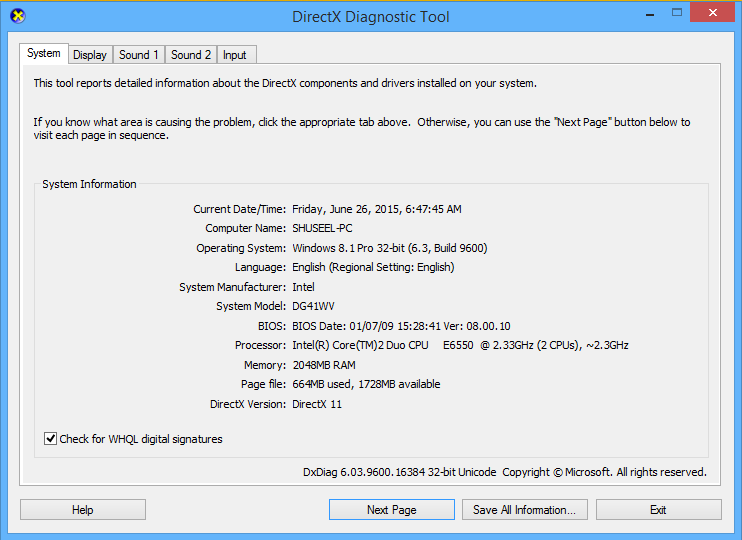
If you dont know your computers configurations like how much RAM is used, which operating system was installed, whats the name of computer, you can find them easily from DirectX Diagnostic Tool. By using this tool you can find not only these things but also know about the configuration of display adapter, sound and input devices. Here is a sort and very easier method to find out those information about computer configuration.
To open DirectX Diagnostic Tool, go to Run and type "dxdiag" then click on OK. The DirectX Diagnostic Tool dialog box will appear which gives information about the following.
Machine name: It includes the name of your computer.
Operating System: It includes the name of Operating system installed on your computer.
Language: It includes the language used on computer.
System Manufacturer: It includes the manufacturer name of system.
System Model: It includes model number of the system.
Processor: It includes the information about the processor.
Memory: It includes how much RAM is used on computer.
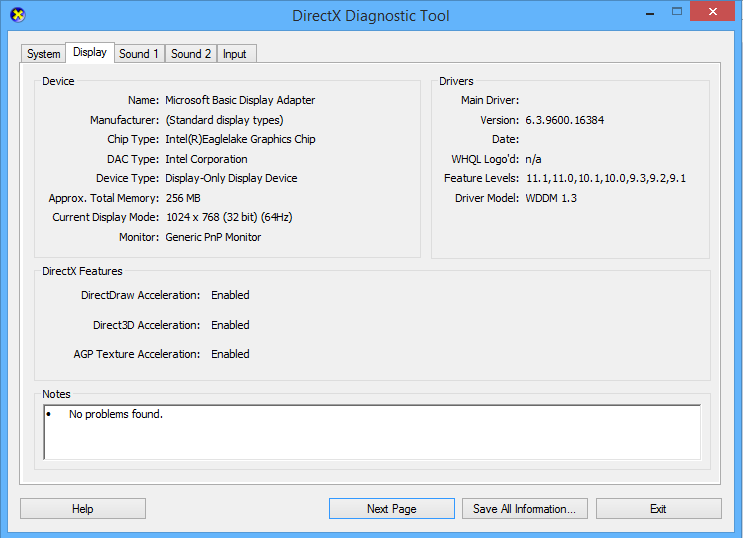
Card name: It is the name of Display Adapter
Manufacturer: It is the name of manufacturer of display adapter.
Chip type: It is the type of Graphics Chip
On sound Tab, you can find the information about your sound devices attached on computer.
And the last Tab of DirectX Diagnostic Tool is input, which includes information about input devices used in computer.
There are different methods to get information about your processor that supports 32-bit or 64-bit and the installed operating system is 32 or 64 bit, I have presented some of them below.
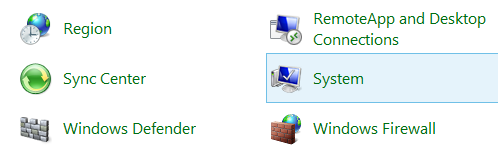
1. At first, go my computer, right click on it and click on properties option or go to control panel and click on system option.
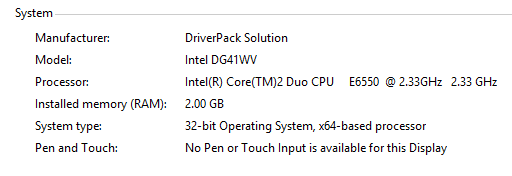
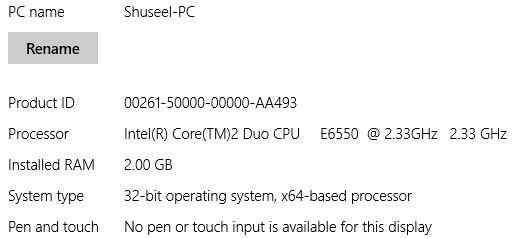
 2. Here the system properties window will appear, on the system block you can find the information about your system model, processor type, installed memory(RAM) and system type which includes what type OS installed 32 or 64 bit and processor supports 32 or 64 bit. Here in the image below system has 32-bit operating system and have 64-bit processor, so in this computer 64-bit operating system can be installed.
How to Open DirectX Diagnostic Tool
To open DirectX Diagnostic Tool, go to Run and type "dxdiag" then click on OK. The DirectX Diagnostic Tool dialog box will appear which gives information about the following.
On the System Tab, you can find the following information.
Machine name: It includes the name of your computer.
Operating System: It includes the name of Operating system installed on your computer.
Language: It includes the language used on computer.
System Manufacturer: It includes the manufacturer name of system.
System Model: It includes model number of the system.
Processor: It includes the information about the processor.
Memory: It includes how much RAM is used on computer.
On the Display Tab, you can find the following information.
Card name: It is the name of Display Adapter
Manufacturer: It is the name of manufacturer of display adapter.
Chip type: It is the type of Graphics Chip
On sound Tab, you can find the information about your sound devices attached on computer.
And the last Tab of DirectX Diagnostic Tool is input, which includes information about input devices used in computer.
How to Know Computer Supports 32-bit or 64-bit
There are different methods to get information about your processor that supports 32-bit or 64-bit and the installed operating system is 32 or 64 bit, I have presented some of them below.
1. At first, go my computer, right click on it and click on properties option or go to control panel and click on system option.
How to Get System Information on Windows 8
On windows 8 you can find system information from PC settings also. You can get PC information from PC settings with the following steps.- At first, search PC setting from window start and open it.

- Go to PC and devices and then PC info.
Related Posts
How to make USB boot drive to Install Windows ?
How to Keep Computer from Sleeping
Top 5 Free Methods to Make Your Computer Faster
How to Know Your Computer Configuration Easily
Top 10 Questions that Computer Beginner may Asked
How to Manage Drives Using Drive Tools
How to Share Printer for Computers on LAN
What are the Basic Components of operating Systems.
How to Share Drive Folder and File in Computer Network
What is Cyber Crime and What are the types?
What is intellectual property law?
What is literal and non-literal copying of computer programs?
Go to link Download
Saturday, January 7, 2017
How to Run Android Apps on Windows PC Easily
How to Run Android Apps on Windows PC Easily

Android is currently the world’s dominant mobile platform, having more than a billion monthly users according to Google’s most recent stats. These users have also downloaded billions of apps from the Google Play Store on their Android smartphones and tablets, which shows Android apps are in high demand everywhere. Those Android fans that want, for some reason, to run Android on their Windows PCs complete with Google Play Store apps can now do so after performing some dead easy steps, as detailed Blow:
1# Download and Install Bluestacks App Player From Here.

2# After opening it, run the setup of bluestacks and the installation process will start. As you can see in the below screenshot.


3# Click on continue button and complete the installation process.

4# Now (if you have internet connection) you are required to enable synchronization with the app store and Google play store by signing in with your Gmail ID.


5# Now app store and app sync are enabled and you can now browse app store.

6# Now you can install and run any app from Google play store as shown in the below images.


Download BlueStacks App Player Offline/Standalone Installer from Here.
Note:-
i. To Feel like real Android please download and install Nova Launcher.
ii. If You dont have internet connection you still can install this Emulator Just SKIP Step# 4, 5 and 6 and use offline apps APKs.
iii. To Download Offline Full version APKs Without Google Playstore Click Here.
Facing Any Issue:-
If You Facing any issue please let me know on my Facebook page for
LIVE CHAT HELP
Go to link Download
Friday, September 30, 2016
How to Create Simple Blogger Template Easily
How to Create Simple Blogger Template Easily
To create successful blog, it needs to create blogger template more attractive and looks more professional. Even you can buy professional blogger template on the web, you may want to create blogger template by yourself for your blog. Creating a professional blogger template is more challenging task, but if you have some knowledge on HTML, XML, CSS and JavaScript, it is possible to create professional blogger template easily by yourself. In this series of tutorial, I am going to teach you basic to advanced steps to create blogger template. Today I am telling you "steps for creating a simple blogger template" with describing basic elements and along with its corresponding style sheet codes.
Step1: Preparing demo blog for creating blogger template
To test blogger template you have created, at first you need to set up a blogger blog and have to add some posts on the blog. To create a blog, go to blogger home page, log in using your Google user name and password and then click on create a blog link to get started. Write posts for a blog by clicking on create a new post button from the blogger dashboard.
Step2: Creating basic elements for blogger template
Open Notepad file write the codes according to the following format and save it as .xml extension.
# Creating XML Part
At first, add the following codes for Document Type Deceleration(DTD) on XML part.
<?xml version="1.0" encoding="UTF-8" ?>
<!DOCTYPE html PUBLIC "-//W3C//DTD XHTML 1.0 Strict//EN" "http://www.w3.org/TR/xhtml1/DTD/xhtml1 -strict.dtd">
<html expr_dir=data:blog.languageDirection ># Creating Header Part
After that, add the following header elements like head and title of the blog.<head>
<title>
<b:if cond=data:blog.pageType == "index">
<data:blog.pageTitle/>
<b:else/>
<b:if cond=data:blog.pageType != "error_page">
<data:blog.pageName/> | <data:blog.title/>
<b:else/>
Page Not Found | <data:blog.title/>
</b:if>
</b:if>
</title>
</head># Creating CSS Part
Add custom css codes for your template in the following format. The css codes must be placed inside<![CDATA[*/ and ]]>
body{
font:normal normal 14px Verdana,Geneva,sans-serif;
color:#000;padding:0 40px 40px 40px;
background:#fff;
font-size:14px;
}
#outer-wrapper{
CSS for outer-wrapper
}
#header-wrapper{
CSS for header-wrapper
}
#titlewrapper{
CSS for titlewrapper
}
#descriptionwrapper{
CSS for descriptionwrapper
}
#menuwrapper{
CSS for menuwrapper
}
#contentwrapper{
CSS for contentwrapper
}
#mainwrapper{
CSS for mainwrapper
}
# Creating a Menu
To create menu for a blog, add the code in the following format. Replace URL and name of the tabs.
<div id=menuwrapper>
<ul class=FirstLevel>
<li><a href=http://www.homepage.com/ target=_self>Home
</a></li>
<li><a href=http://www.homepage.com/menu1.html target=_self>Menu1
</a></li>
<li><a href=http://www.homepage.com/menu2.html target=_self>Menu2
</a></li>
<li><a href=http://www.homepage.com/menu3.html target=_self>Menu3
</a></li>
</ul></div>
# Creating blog content
To add main blog content part, add these codes to create a widget named Blog1.<div id=outer-wrapper>
<div id=header-wrapper>
<b:section class=header id=header maxwidgets=1 showaddelement=no>
<b:widget id=HTML1 locked=true title=Header type=HTML>
</b:widget>
</b:section>
</div>
<div id=content-wrapper>
<div id=main-wrapper>
<b:section class=main id=main showaddelement=no>
<b:widget id=Blog1 locked=true title=Blog Posts type=Blog>
</b:widget>
</b:section>
</div>
</div>
</div>
Step3: Creating gadgets on sidebar and footer.
To create sidebar and footer and to add widgets for them add these code, which allows you to add widgets on sidebar and footer.
<div id=sidebar-wrapper>
<b:section class=sidebar id=sidebar showaddelement=yes>
</b:section>
</div>

<div id=footer-wrapper>
<b:section class=footer id=footer showaddelement=yes>
</b:section>
</div>
Step4: Installing blogger template on required blog.
After creating a code file on Notepad in XML format, test it on demo blog. To install prepared template, click on backup and restore button from template option on blogger dashboard. Click on download full template, the xml file will be downloaded. Then go to the required blog then go to Template › Backup / Restore option and browse and upload that xml file. The template will be applied on your blog.
Related Posts:
- How To Make Simple CSS Stylesheet for a Website ?
- How To Create Simple Menu Using CSS ?
- How to validate required field in a form using javascript
- How to Display Date Format in JavaScript?
- How to Create a Digital Clock in JavaScript?
- What are the Different Ways to Redirect Page in JavaScript?
- How to Detect Visitors Browser Using JavaScript?
- Image Slideshow with Navigation Buttons Using Javascript
- How to Create Simple JavaScript Fade Effect Animation?
- Simple JavaScript Fade Effect Animation Using Jquery
Go to link Download
Subscribe to:
Posts (Atom)