Showing posts with label protect. Show all posts
Showing posts with label protect. Show all posts
Saturday, May 27, 2017
How People Can Protect Themselves
How People Can Protect Themselves
Companies, government and medical institutions should know what to do to protect their business assets, customers and employees. Some data breaches take place after the physical theft of electronic equipment. Businesses should install security measures such as cameras, to record break-ins. Security alarms can scare off thieves who want to gain access to personal or financial information. Business owners can also use the Kensington lock port located on desktop and laptop computers and physically secure them to desks with a strong cable.
Businesses, employees and customers can protect their personal data, such as credit card account numbers, Social Security numbers and bank routing numbers, by encrypting them.
Wireless networks are vulnerable to a theft technique called “wardriving.” Hackers drive through business areas, using a laptop to scan for wireless networks that are not password-protected. These unprotected networks allow the hacker to break into the network, looking for medical and financial data, as well as passwords.

Businesses, employees and customers can protect their personal data, such as credit card account numbers, Social Security numbers and bank routing numbers, by encrypting them.
Wireless networks are vulnerable to a theft technique called “wardriving.” Hackers drive through business areas, using a laptop to scan for wireless networks that are not password-protected. These unprotected networks allow the hacker to break into the network, looking for medical and financial data, as well as passwords.
Created by the marketing team at GreyHeller.
Go to link Download

Saturday, May 6, 2017
How to Password Protect your Windows 7
How to Password Protect your Windows 7
Follow the steps below to create a password for your Windows 7 User account:
Here’s How:
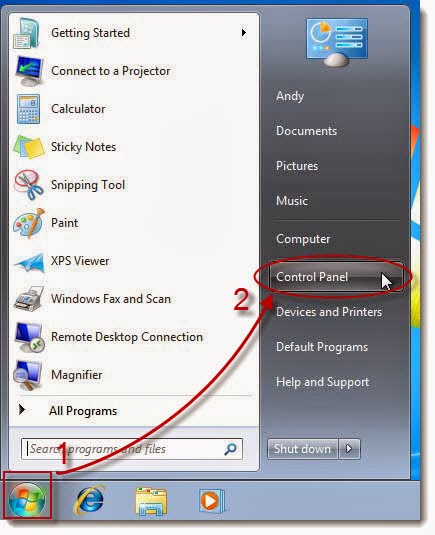
1. Click on ‘Start‘ and then ‘Control Panel‘.
2. Click on the ‘User Accounts and Family Safety’ link.
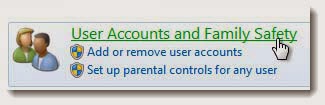
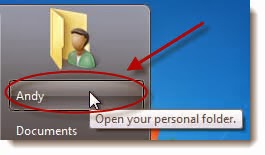
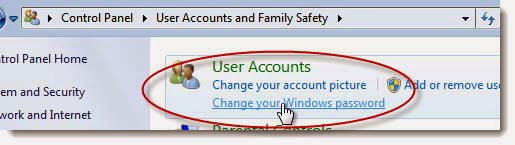
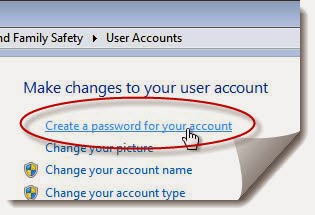
5. In the first two asterisk text boxes, enter the password you want to start using. Entering the password twice helps to make sure that you typed your new logon password correctly.
In this example I use my birthday as my logon password. But I advise you not to use your birthday as a new password because it is easy to guess.
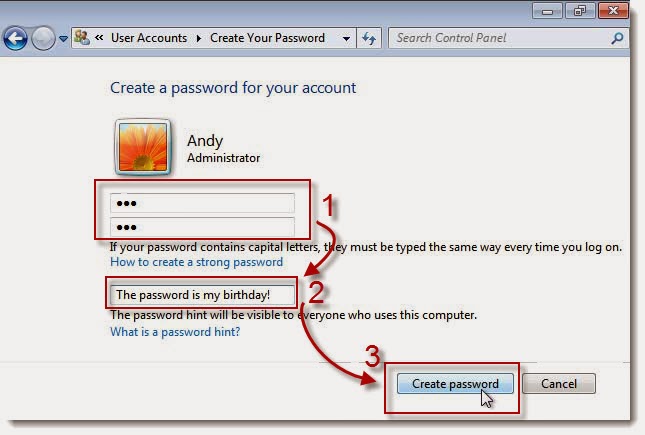
6. In the final text box, you’re asked to Type a password hint. This step is optional but I highly recommend that you use it. If you try logging in to Windows 7 but enter the wrong password, this hint will pop up, hopefully jogging your memory.
7. Click the ‘Create password’ button to confirm your new password.
8. After creating a new password, you will be returned to the User Accounts window. Now you can see the user account ‘Andy’ has been password protected
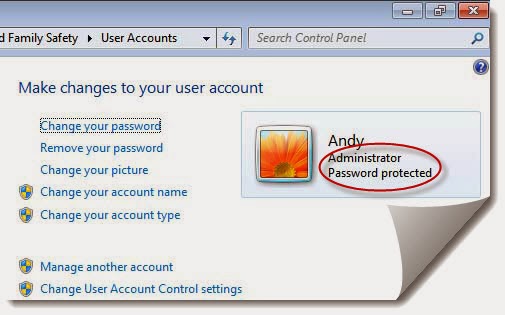
.9. Now that your Windows 7 account has a password setup, you must use this password to log on to Windows 7 from this point forward.
Go to link Download
How to Password Protect Microsoft Word 2010 Document
How to Password Protect Microsoft Word 2010 Document
Different Microsoft Word users have different requirements for their Word documents. Some of them use the Word document to only write down their feelings, some of them use the Word document to assign task, and some of them use it to check out the spelling mistake. For some reasons, they even need to create a password to protect their Word document.

But what if they have no idea about how to password protect Word document by themselves? It doesnt matter. In this article I will take the Word 2010 as an example and you will learn about this.
How to password protect Word 2010 document is a question that we have to figure out. If we know how to do that, then other version of Microsoft Word will be simple enough to encrypt. Now lets see how to password protect a document in Word 2010 as below:
Step 1: Just like other Microsoft Office document, you have to open your Word 2010 document in order to encrypt it. Therefore, if you dont open your Word 2010 document, just double click it.

Step 2: After opening this document, you can see the File menu on the top left corner of the Word document. Just click it and then the Info option will turn out. Move the mouse to it and then the Permissions option will appear. Under this option, there is another option named Encrypt with Password.

Step 3: Click the Encrypt with Password and then it will pop up a window to ask for typing a password. Just type whatever password you would like to and then click the OK button.

Step 4: After step three, you have finished the process to password protect Word 2010 document. The next time when you open this document, you will have to import the password in order to decrypt this Word 2010 document.

Isnt it easy for Word 2010 document encryption? It is the same as the other version of Word. Have you got it? By the way, if you lost this Word password, you can use a Word password recovery tool to retrieve lost password in Word document.
Go to link Download
Sunday, March 19, 2017
How To Protect your PC using Pc Wise Care 365 Pro V4 22 Build 407 Keygen
How To Protect your PC using Pc Wise Care 365 Pro V4 22 Build 407 Keygen
Never Lose Your Pc use PC Wise Care 365 Pro V4.22 Build 407 + Keygen Again Size 6MB

Wise Care 365 Pro
so many PC User must have encountered Terrible Virus attach on PC specially when you collect materials from entrusted sources, like flash Drive , usb cords etc But Wise Care 365 Pro will help you Clean registry and junk files from your PCs. use this app to Protect your privacy and make your PCs more secure. Provide a better option of optimizing and accelerating your computer
Though several PC cleaner utilities that you can use to optimize computer systems but they do not all have the same results. One of the best choices is Wise Care 365, which is an all-in-one utility that cleans both registry and hard disk in general. It includes a number of features that ensure your computer runs at its optimum level.
Basic Features of Pro version
- Real-time System Protection
- Silent Mode
- Faster Boot-up Speed
- Free-up More Drive Space
- One-click PC Checkup
- Clean & Speed-up Computer
- Hardware Inventory
- Privacy Protection
Installation Procedure for Using this App
- Download File From Given Below
- Install Setup Normally
- Run The Application
- Use Keygen And Generate Key To Activate Product
- Share with friends www.applygist.com
Screenshots


To Download, Click the Download Button Bellow
Wise Care 365 Pro v4.22 Build 407 + Keygen (6.6 Mb)

Go to link Download
Sunday, January 1, 2017
How to Protect Your Eyes From the Negative Effects of Digital Devices and Blue Light
How to Protect Your Eyes From the Negative Effects of Digital Devices and Blue Light
BEST GREENHOUSES FOR GROOVING VEGETABLES
? ? 1(360)241-1624 ?

? ? 1(360)241-1624 ?
DURABLE! AFFORDABLE! ALUMINUM + UV POLYCARBONATE
A recent study by Bank of America shows that nearly half of U.S. consumers couldnt last a day without their mobile devices. It makes sense. Think about the first thing that you do in the morning. If youre like me, youre catching up on email before you even get out of bed. Then, you head straight to your computer at work and spend a majority of the day on it or using one of the many other digital devices that are available in todays increasingly-technological society.
But what if I told you that these electronics are emitting a dangerous blue light, which is negatively impacting not only your vision but also your overall health? Its true, and its a major concern for eye doctors across the country.
First, let me be clear: I love technology, and I fully embrace it. I actually use a tablet and Google Glass (definitely a talking point with my patients!) as part of my exam process, because it allows me to spend more time engaging with my patients instead of having my back to them while I work at a computer. But just as I advise my patients to protect their eyes from the sun, I also advise them to take protective measures for their eyes when using digital devices.
Continual extended screen time can impact your eyes in two major ways. The first and most common side effect is digital eye strain. When we look at a screen, our blink rate drops significantly, and our eyes wont put up with that for too long without fuss.
If youve ever experienced slightly blurry vision after staring at the computer all day, that was a sign of digital eye strain. Maybe your eyes feel dry, runny or tired after scrolling through your Facebook feed, or maybe you get a headache after a few hours on the computer. These symptoms are often so common that we dont even recognize them as real issues. While digital eye strain is temporary, if left unaddressed, it can turn into a chronic problem.
If youve ever experienced slightly blurry vision after staring at the computer all day, that was a sign of digital eye strain. Maybe your eyes feel dry, runny or tired after scrolling through your Facebook feed, or maybe you get a headache after a few hours on the computer. These symptoms are often so common that we dont even recognize them as real issues. While digital eye strain is temporary, if left unaddressed, it can turn into a chronic problem.
The easiest way to address digital eye strain is to blink more. That might sound overly simple, but blinking helps to keep eyes lubricated. Another effective way to avoid or help to resolve digital eye strain is to follow the "20-20-20 Rule" -- every 20 minutes, stare at something at least 20 feet away for at least 20 seconds. This exercise engages your distance vision and helps the eye to "reset."
The second -- and more serious -- impact that too much technology consumption can have on our eyes is damage from blue light exposure. Blue light is just what it sounds like -- its a type of light that gives off a blue color. Blue light is harmful, because its the highest energy wavelength of visible light. This energy is also able to penetrate all the way to the back of the eye, through the eyes natural filters, and thats the problem.
Even though blue light is nothing new, the biggest issue is the amount of blue light exposure that we get each day through digital device use. With this exposure increasing over time, we are actually causing permanent damage to our eyes. But unlike digital eye strain, the effects of blue light are cumulative and can lead to eye diseases like macular degeneration.
Children are especially at risk when it comes to the negative effects of blue light exposure. These days, a lot of homework is done online, and many children have access to (or have their own) digital devices that they are using for increasingly longer periods of time. The difference for children is that their eyes are still developing, and they dont yet have the protective pigments in their eyes to help filter out some of this harmful blue light. Thats why, just like with UV radiation, most blue light exposure occurs before kids are 18 years old.
While it may be a great concern for children, adults are susceptible, as well. This is especially true as adults are using digital devices more and more in both their personal and professional lives. So what can you do about it?
First, you can take steps to protect your eyes from the harmful effects of blue light. If youre not able to limit your digital device use, at least cut back on it before bed. Studies show that exposure to blue light a couple of hours before bedtime actually suppresses melatonin and delays deep REM sleep significantly. So cutting back on tech use at night means getting better sleep, making people more productive at both work and school (and speaking from my own personal experience, it makes children more pleasant).
Second, you should consider talking with your eye doctor about lenses that filter out blue light (and no, these arent the old bright orange blue-blocker eyewear from the 90s). The lenses have little-to-no tint and can help to minimize the direct blue light exposure that you get throughout the day. Most of my patients who have these lenses noticed an immediate increase in eye comfort because of the improved contrast, which helps to relax the eyes. And if you have children, I would absolutely recommend these lenses -- especially if they have trouble sleeping at night.
By keeping in mind a few simple ways to protect the eyes, we can take pleasure in knowing that our eyes will last much longer than our trusty smartphones, tablets and computers.
sourse:newsroom

Durable Greenhouses made from Polycarbonate UV Protected material and Aluminum
ALSO PLEASE VISIT THIS VIDEOS AND SEE IF YOU FIND SOMETHING NEED:
Windows Registry Tools can be downloaded here:
How to kip your PC Private by deleting DATA Permanently
http://askpctech.blogspot.com/2016/03/kip-your-pc-privat.html
This tutorial is made up on request several users, is well is fallowing video:
1)How to Delete Paint Recent Pictures from List in Windows 7
2)Win 7– Fix for “Safely Remove Hardware and Eject Media” not working How To
3)Windows 10 How to Fix Black Screen After Booting
4)How To Remove Windows 10 Upgrade Notification On Windows 7 And Windows 8
5)How to Delete Face book Page Permanently - 2015
6)How to Uninstall Windows 10 and Downgrade to Windows 7 or 8.1
7)detected: not-a-virus:remoteadmin.win32
8)How to change pictures into icons for folders
9)Speed up your PC Disable System Restore on SSD
10)Speed up your PC Disable Scheduled De-fragmentation SSD
11)2015 Black screen of DEATH Windows 7 & 8 - with cursor at start-up SOLVED
12)Upon start up only wallpaper shows FIX
13)Here is video on Windows 7 & 8 - Black screen with cursor at start-up FIX
You can also open Task Manager by pressing Ctrl+Shift+Esc.
14) I bought a windows 7 PC but it Look alike old PC FIX:
15) Windows 7 & 8 - Black screen with cursor at start-up FIX:
16) How To Fix Minecraft OpenGL Error Windows 7 xp vista 720p :
17) removing bars using regscanner regedit & file shredder 720p:
18) How to Recover windows Explorer from error 2014 720p
19) HOW TO Save on battery online
20) Windows 7 & 8 - Black screen with cursor at start-up FIX
Upon start up only wallpaper shows no icons
CTL+ALT+DEL then click file and new task. then type explorer.exe and press ok
Best Greenhouse system 2015
Go to link Download
Sunday, October 9, 2016
How to protect your computer from malware infested thumbdrive
How to protect your computer from malware infested thumbdrive
I have seen virus infected thumbdrives especially on computers that is poorly administrated (i.e. Users given administrative privilege) and especially when the users have no clue of the dangers of internet and downloads suspicious files with executable extensions.
Combine this with not-so-frequently updated anti-virus software it is a foregone conclusion malware infection will occur.
This will lead to frequent system crashes and poor Windows Experience and end of the day people usually point fingers at Microsoft etc and not themselves as the cause of malware infection.
As the system gets laden with more and more viruses system crashes and lag occur as the malware attempts to make unauthorised connection to the internet depending on what it was originally designed for.
Most virus do not attempt to disable the computer for obvious reasons.
They want to stay undetected so they can steal data from the infected host or simply use the host as part of a bot network, however things get ugly when more different viruses comes into play.
A virus will compete with other programs including other Virus for system resources if the computer do not have sufficient resource to feed them lag occurs if other viruses attempt to interfere with system files hijacked by other viruses a clash will resulting in system crash and Blue Screen Of Death.
Malware spread via a number of medium Internet as well as Removable Drives.
As the topic is fairly big I shall only focus on how to prevent Virus on thumbdrive from entering your host system.
First of all when I insert a thumbdrive a good anti-virus will attempt to scan it, if the Virus signature match it database it wil immediately isolate the file to prevent it from running as shown below.
 The good news is even if you dont have anti-virus you can prevent them from running and see if the thumbdrive is infected .
Lets take a look at the infected thumbdrive.
Go to Folder Options and make the following changes to enable you to see all the files present on a thumbdrive.
Select "Show Hidden Files and Folders"
Uncheck "Hide Extension For Known File Types"
Uncheck "Hide Protected System Files and Folders"
If you have a Linux/BSD/Solaris System Partition you can boot in it and attempt to take a look into your Windows Partition, all the System Files in the C: will show up (including both important Windows System Files and Malware).

Malware usually obscure themselves as system files so you will not be able to spot them if you do not set the setting shown above.
Take note REAL system files will also reveal themselves so DO NOT delete files if you are not sure they are Windows System Files or not.
Deleting Windows System Files can cause System to be UNBOOTABLE.
Soon you can see other virus showing up.( Note:SPENSER.EXE is no longer on the drive as the Anti-Virus removed it)

A strangely named file can be seen above probably another virus which attempted to copy itself to the thumbdrive but SPENSER.EXE beat it to hijacking of the autorun.inf so it doesnt do anything.
As I have said Viruses hijack system files for them to perform misdeeds on thumbdrive they usually hijack autorun.inf.
Note: autorun.inf is originally a system file to enable users to autolaunch installation programs upon insertion of removable drive.
 Lets take a look at the infected thumbdrives autorun.inf (Right Click Open with Notepad).
 If you remembered earlier the system anti-virus detected SPENSER.EXE
Look at how SPENSER.EXE hijacked the autorun.inf in order to auto launch itself upon insertion of the thumbdrive.
So how can you prevent this?
It is simple. Simply disable autorun in Xp or autoplay in Vista.
If autoplay/autorun is disabled the system will ignore the autorun.inf hence preventing the virus from runnning effectively and if you remember Virus hide themselves as System Files so you will never launch it accidentally.
However this is only for generic virus.
Some Virus are powerpoint or word macros programmed so disable Macro in Office Software will do the trick.

Go to link Download
Subscribe to:
Posts (Atom)