Showing posts with label basic. Show all posts
Showing posts with label basic. Show all posts
Saturday, April 1, 2017
How to Create a Basic Fan Page on Facebook
How to Create a Basic Fan Page on Facebook
Facebook is the undisputed king of social networks. Millions of users visit the social network daily to communicate with friends and family. However, its power as a networking and marketing tool becomes apparent when you take advantage of one of Facebook’s most enduring and powerful features—the fan page.
Facebook fan pages are special, standalone Facebook profiles that can be used to promote a business, bring awareness to a cause, or brand yourself as an artist or professional. Because they look and act like personal profiles, fan pages lend a personal touch to business activities and marketing campaigns. The tips in this tutorial will give you a head start on creating your very own Facebook fan page to show to the world.
1. Log on to Facebook. Scroll all the way down to the bottom of the page where you see the words “Create a Page.” Click on that link. (Alternatively, you can find the “Create a Page” link on the left-hand side of any fan page.)
2. You’ll now see six main category options for the page you’re about to create. Click on the most relevant one. Once you select a general category, Facebook will provide a drop-down menu that asks you to refine the category. Once you do this and agree to Facebook’s terms, click the “Get Started” button.
 Figure 1. Facebook’s Create a Page screen. The main category “Artist, Band or Public Figure” has been selected.
3. You’ll now be taken through a series of steps. Click Continue to progress through each one or Skip if you intend to return to a certain step later.
Step 1: Profile Photo. Here is where you upload the profile picture that will be used for the fan page. This photo can be uploaded from your computer or your website.
Step 2: Get Fans. No fan page is complete without fans. Here is where you can send an invitation to “like” your new page out to your Facebook friends or import contacts from other social media services.
Step 3: Basic Info. Here, you can provide your website’s URL and write a few sentences on what youre going to promote.
4. Your Facebook fan page has now been created! Facebook will prompt you to enter additional information to fully flesh out your page, especially if you’ve skipped some of the steps above. Click “Edit Page” in the upper-right corner of the page to change various settings and add relevant information.

Figure 2. A new fan page on Facebook. Youre prompted in the middle of the page to complete various tasks that will get your new Facebook presence up and running.
5. Start posting status updates! You can begin by clicking on the “Post Update” button that appears in the middle section of the page. Once you have a solid fan base (that is, Facebook users who have “liked” your page) and a steady stream of visitors, posting updates will be the best way to keep them engaged and informed.
That’s all there is to creating a simple Facebook fan page! Promote your new page consistently, keep it regularly updated, and watch your popularity soar.
Go to link Download

Thursday, October 27, 2016
How to Enable “Group Policy Editor” gpedit msc in Windows 7 Home Premium Home Basic and Starter Editions
How to Enable “Group Policy Editor” gpedit msc in Windows 7 Home Premium Home Basic and Starter Editions
BEST GREENHOUSES FOR GROOVING VEGETABLES
? ? 1(360)241-1624 ?

? ? 1(360)241-1624 ?
DURABLE! AFFORDABLE! ALUMINUM + UV POLYCARBONATE
DISCLAIMER: This utility has been shared for the sake of knowledge sharing. Patching system files using 3rd party software might be dangerous for your system. We do not recommend it and well not be responsible if it harms your system.Many times we post tutorials which require Group Policy Editor (gpedit.msc). But some Windows 7 editions (Home Premium, Home Basic and Starter) dont come with Group Policy Editor. Only Windows 7 Professional, Enterprise and Ultimate editions come with Group Policy Editor installed.
Today we are going to share a simple installer which installs the required system files in Windows so that you can enjoy Group Policy Editor in all Windows 7 editions.
"jwils876" @ DA has shared a small setup file to enable Group Policy Editor in Windows 7 Starter, Home Basic and Home Premium editions.
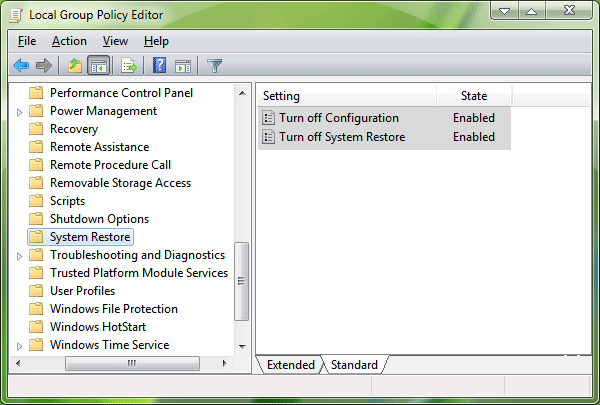
The installer has been originally created by "davehc" @ Windows7forums, so thanks goes to him as well.
First download the setup file using following link: Download Group Policy Editor Installer
Youll find the download link in right-side section of the above mentioned page. After downloading the ZIP file, extract it using WinRAR or Zip. Run the extracted setup.exe file. Itll install the files and youll be able to access gpedit.msc command via RUN or Start Menu search box.
NOTE 1: For Windows 7 64-bit (x64) users! Youll also need to go to "SysWOW64" folder present in "C:Windows" folder and copy "GroupPolicy", "GroupPolicyUsers" folders and gpedit.msc file from there and paste them in "C:WindowsSystem32" folder.
NOTE 2: If you are getting "MMC could not create the snap-in" error message while running gpedit.msc, check out following steps to fix the problem. Basically it happens when your username in Windows contains more than one word.
1. Run the installer and leave it at the last step (do not click on the "Finish" button).
2. Now go to C:WindowsTempgpedit folder.
3. If you are running 32-bit (x86) edition of Windows 7, right-click on x86.bat file and choose "Open With -> Notepad" option. If you are running 64-bit (x64) edition of Windows 7, right-click on x64.bat file and choose "Open With -> Notepad" option.
4. Youll find a total of 6 lines containing the following string in the file:
%username%:f
5. Edit those lines and replace %username%:f with "%username%":f
For example:
Original: icacls %WinDir%SysWOW64gpedit.dll /grant:r %username%:fNew: icacls %WinDir%SysWOW64gpedit.dll /grant:r "%username%":f
6. Save and run the file (right-click -> Run as Administrator).
7. Thats it. Youll have working gpedit.msc.
Thanks "askvg" for the fix...
Durable Greenhouses made from Polycarbonate UV Protected material and Aluminum

ALSO PLEASE VISIT THIS VIDEOS AND SEE IF YOU FIND SOMETHING NEED:
Windows Registry Tools can be downloaded here:
How to kip your PC Private by deleting DATA Permanently
http://askpctech.blogspot.com/2016/03/kip-your-pc-privat.html
This tutorial is made up on request several users, is well is fallowing video:
1)How to Delete Paint Recent Pictures from List in Windows 7
2)Win 7– Fix for “Safely Remove Hardware and Eject Media” not working How To
3)Windows 10 How to Fix Black Screen After Booting
4)How To Remove Windows 10 Upgrade Notification On Windows 7 And Windows 8
5)How to Delete Face book Page Permanently - 2015
6)How to Uninstall Windows 10 and Downgrade to Windows 7 or 8.1
7)detected: not-a-virus:remoteadmin.win32
8)How to change pictures into icons for folders
9)Speed up your PC Disable System Restore on SSD
10)Speed up your PC Disable Scheduled De-fragmentation SSD
11)2015 Black screen of DEATH Windows 7 & 8 - with cursor at start-up SOLVED
12)Upon start up only wallpaper shows FIX
13)Here is video on Windows 7 & 8 - Black screen with cursor at start-up FIX
You can also open Task Manager by pressing Ctrl+Shift+Esc.
14) I bought a windows 7 PC but it Look alike old PC FIX:
15) Windows 7 & 8 - Black screen with cursor at start-up FIX:
16) How To Fix Minecraft OpenGL Error Windows 7 xp vista 720p :
17) removing bars using regscanner regedit & file shredder 720p:
18) How to Recover windows Explorer from error 2014 720p
19) HOW TO Save on battery online
20) Windows 7 & 8 - Black screen with cursor at start-up FIX
Upon start up only wallpaper shows no icons
CTL+ALT+DEL then click file and new task. then type explorer.exe and press ok
Best Greenhouse system 2015
Go to link Download
Subscribe to:
Posts (Atom)