Showing posts with label external. Show all posts
Showing posts with label external. Show all posts
Tuesday, December 27, 2016
How To Install Windows From A Partition Without Any External Media
How To Install Windows From A Partition Without Any External Media
Install Windows From A Partition Without Any External Media
Hey guys this post is really very useful for not only installing windows but many more system management. As you know to format or installing windows you need an external media like Disc Drive or USB Flash Drive. But now can do it with some simple step without any Disc or Flash Drive.
Requirement :
- A Windows CD for first time only(with which you want to format or install your OS)
- EasyBCD Software(You can download free beta version of it from anywhere)
- Free Hard Disk space depending upon the size of your installation disc(for example here we gonna show you this process with Windows 7 and 8. Generally the size of a Windows 7-8 installation Disc is about 4 GB. So here we need 5 GB of free space. Thats means 1 GB more space than the installation disc)
Method :
- Create a partition of about 5 GB. [As you can see in picture (Drive H:)]

Blank Drive - Now open and copy your Windows 8 installation disc into this drive.

Copy OS - Now run EasyBCD and click on Add New Entry from the left side of the application.

Add New Entry - Now click on WinPE

WinPE - Now you have to path boot.wim file from the drive where youve copied your Installation Disc (Here Drive H:). To do this click on path(as you can see in pic) now open Drive H:, go to folder "sources and select the boot.wim file.

Select Path 
boot.wim - Now change the Entry name as Windows Installation or whatever you want.

Entry Name - Now click on Add Entry

Add Entry - Finish :).. Now restart your PC.. And After booting youll be asked for select Windows. Here click on Windows Installation(the Entry you have just created) to go to Windows Setup. And you can continue Windows Installation.
Note: You can view the Entry setting or change Start Up setting or time to select the default operating system. To do this follow the steps given below.
Steps:
1. Click on My Computer properties and open.
 | |||
| My Computer Properties |
 |
| Advance System Setting |
 |
| Start up and Recovery Setting |
 |
| Start up and Recovery Setting |
Go to link Download

Monday, November 14, 2016
H Data External Hard Disk Data Recovery for Format Crash Not Recognized
H Data External Hard Disk Data Recovery for Format Crash Not Recognized

External hard disk data can be lost in different situations. This article introduces H-Data External Disk Data Recovery forretrieving data from formatted crashed not recognized external hard drive.
Data loss on External Hard Disk
1. When I click my external hard disk, PC says that I need to format the disk before I can use it. How can I fix the not formatted error without formatting?
2. My 160GB Western Digital external hard disk stops working, can I recover data off the external hard disk?
3. My external hard disk is shown as a RAW drive in "My Computer". There are thousands of pictures on the external hard disk, but system shows its space as 0 byte. What to do to get back the files from a RAW external hard disk?
H-Data External Hard Disk Data Recovery
View website: http://www.hdatarecovery.com/data-recovery-software-download
View H-Data External Hard Drive Data Recovery on Softonic
H-Data external hard disk data recovery software is professional data recovery tool that can work on all brands of external hard disk to recover files after formatting, deleting, external hard disk crash or corruption, etc. With external hard disk data recovery software, you are able to recover lost pictures, videos, music, documents, emails, and more than 350+ types of files.
Free Download H-Data Recovery to Recover Hard Drive Data
Best to restore data off usb drive, memory card, pen drive, hard disk, external drive etc.

How to use: best external disk recovery software for step by step guide
Step1: Connet external hard disk to Computer
Connect the external hard disk to your computer and run the software on Windows OS. (Windows 8.1/8/7/Vista/XP...)
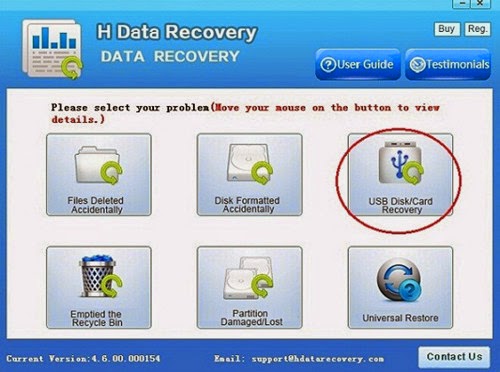
Step2: Select the proper recovery option to begin external data recovery.
Step3: Scan deleted files or lost data on formatted crashed not recognized external hard drive
After you select the "USB disk/Card recovery", press "Next" to start scanning for recoverable photos, videos, and music files.
Step4: Select and recover lost hard disk data
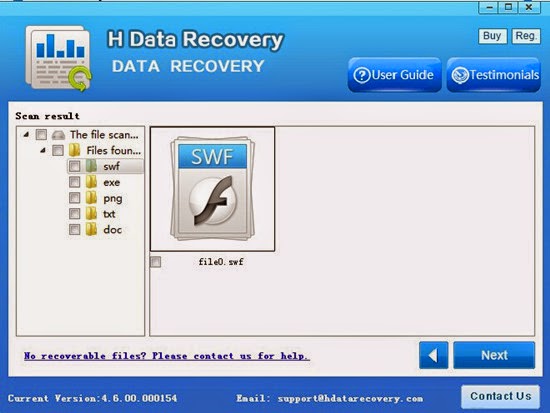
After the program finish scanning all files, you can preview the files you wanted. Then mark the files you need. Click the “Recover” button to recover deleted data on htc one.
View more post
2015 best Hard disk data recovery of laptop hands-on review
Wise option for recovering deleted files from external hard disk
Solution to retrieve Data from a Dead Windows 8 Laptop hard drive
Solution to retrieve Data from a Dead Windows 8 Laptop hard drive
Go to link Download
Sunday, October 30, 2016
How to Load External JavaScript Asynchronously or Dynamically
How to Load External JavaScript Asynchronously or Dynamically
JavaScript makes more easier to manipulate websites, now a days most of the browsers supporting JavaScript codes. When the HTML parser encounters a <script> element, by default, run the script before it can parsing and rendering the document. It is not much problem for inline scripts but if the script source code is in an external file specified with a src attribute, the portions of the document that follow the Script will not appear in the browser until the script has been downloaded and executed.This makes loading of the website much slower, which makes bad user experience for your website and may not also indexing of your website by the search engines.
This Synchronous or blocking script execution is the default only. The <script> tag can have defer and async attributes, which cause scripts to be executed differently. This makes your website loading much faster than before and appears contents of your site by loading at first.
Both the defer and acync attributes are ways of telling the browser that the linked script does not use document.write() and wont be generating document content, and that therefore the browser can continue to parse and render the document while downloading the script. You can use async or defer attributes as the following.
This Synchronous or blocking script execution is the default only. The <script> tag can have defer and async attributes, which cause scripts to be executed differently. This makes your website loading much faster than before and appears contents of your site by loading at first.
Loading JavaScript Asynchronously using async or defer attributes
Both the defer and acync attributes are ways of telling the browser that the linked script does not use document.write() and wont be generating document content, and that therefore the browser can continue to parse and render the document while downloading the script. You can use async or defer attributes as the following.
<script defer src="deferred.js"></script>
<script async src="async.js"></script>
The defer attribute causes the browser to defer execution of the script until after the document has been loaded and parsed and is ready to be manipulated. The async attribute causes the browser to run the script as soon as possible but not to block document parsing while the script is being downloaded. If a <script> tag has both attributes, a browser that supports both will honor the async attribute and ignore the defer attribute. Deferred scripts run in the order in which they appear in the document, while acync scripts run as they load, which means that they may execute out of order.
Here is an example of acync script uses in this blog for Intensedebate comments script source.
You can load and execute scripts asynchronously, even in browsers that do not support the async attribute, by dynamically creating a <script> element and inserting it into the document. Here is an example how to load scripts dynamically.
Here is an example of acync script uses in this blog for Intensedebate comments script source.
<script async=async expr_src=data:post.commentSrc type=text/javascript/>
Loading JavaScript Asynchronously by loading scripts dynamically
You can load and execute scripts asynchronously, even in browsers that do not support the async attribute, by dynamically creating a <script> element and inserting it into the document. Here is an example how to load scripts dynamically.
function loadasync(url){
var head=document.getElementByTagName("head")[0];
var s=document.createElement("script");
s.src=url;
head.appendchild(s);
}
This loadsaync() function finds the <head> tag and attach <script> tag below opening of head tag and loads scripts dynamically. Scripts that are neither included inline within the web page or referenced statically from the web page are loaded into the document and become part of the running JavaScript program.
You can use the following method to execute loadsync() function, when document finished loading.
You can use the following method to execute loadsync() function, when document finished loading.
function loadasync(){ ..................}
request.onreadystatechange=loadasync;
Here is an example of loading JavaScript asynchronously by loading scripts dynamically used in this blog for external scripts from infolinks ads.
I have placed this code at the bottom of HTML codes, i.e. just before </body> tag and have placed the following code where I want to display ads.
<div style=display:none> <div id=adsource-0>
<script type=text/javascript>
var infolinks_pid = 9993182;
var infolinks_wsid = 1;
</script>
 <script language=javascript src=http://resources.infolinks.com/js/infolinks_main.js type=text/javascript/>
 </div>
</div>
<script type=text/javascript>
 source = document.getElementById("adsource-0");
 placeholder = document.getElementById("ad-0");
 placeholder.appendChild(source);
</script>
I have placed this code at the bottom of HTML codes, i.e. just before </body> tag and have placed the following code where I want to display ads.
<div id="ad-0" align="center"></div>
Loading JavaScript Asynchronously when document finishes loading
You can load and execute scripts asynchronously by using setTimeout(), addEventListner(), and attachEvent(). Most objects that can be event targets have a method named addEventListner(), which allows the registration of multiple listeners.
window.addEventListner("load", function(){.....},false);
request.addEventListner("readystatechange", function(){......},false);
The first argument to this function is the name of the event. For IE8 and earlier, you must use a similar method, named attachEvent().
window.attachevent("onload", function() {.....});
Here is an example which define an onLoad() function that registers a function to be run when the document finishes loading. If the document has already loaded, run it asynchronously.
function onLoad(f){
if(onLoad.loaded)
 window.setTimeout(f,0);
elseif (window.addEventListner)
 window.addEventListner("load",f,false);
elseif (window.attachEvent)
 window.attachEvent("onload",f);
}

onLoad.loaded=false;

onLoad(function(){onLoad.loaded=true;});
In the above script window.attachEvent is used for IE8 and earlier. onLoad.loaded=false; sets a flag that indicates the document is not loaded yet and onLoad(function(){onLoad.loaded=true;}); register a function to set the flag when the document does load.
Related Posts:
- How To Create Simple Image Slideshow Using JavaScript ?
- Image Slideshow with Navigation Buttons Using JavaScript
- How to Create JavaScript Image Slideshow with LInks
- How to Display Date Format in JavaScript?
- How to Create a Digital Clock in JavaScript?
- What are the Different Ways to Redirect Page in JavaScript?
- How to Detect Visitors Browser Using JavaScript?
Go to link Download
Subscribe to:
Posts (Atom)