Showing posts with label media. Show all posts
Showing posts with label media. Show all posts
Wednesday, May 24, 2017
GOM Media Player 2 1 18 4762
GOM Media Player 2 1 18 4762
GOM Player is a free multimedia player with popular video and audio codecs built-in. GOM Player supports file formats such as AVI, DAT, MPEG, DivX, XviD, WMV, ASF. Users dont have to install codecs separately. GOM Player is capable of playing incomplete or damaged AVI files by skipping the damaged frames. It can also play locked or partially downloaded files. Its other features include drag-and-drop support, HTTP streaming, editable skins, subtitling, overlay mixer, key remapping, enhanced filter rendering, real-time index rebuilding for AVI files and unicode support among others.

Download Here:
Download Here:
Go to link Download

Tuesday, February 21, 2017
GOOGLE DRIVE MEDIA PENYIMPANAN ONLINE
GOOGLE DRIVE MEDIA PENYIMPANAN ONLINE
GOOGLE DRIVE MEDIA PENYIMPANAN ONLINE
Google drive adalah penyimpanan online atau yang sering disebut dengan sebutan cloud. Google menyediakan penyimpanan data yang free dan mudah diakses dengan meggunakan akun google. Penyimpanan ini sangat aman untuk menyimpan file file penting anda. Google drive ini secara real time mampu mengupload file dengan kecepatan tinggi.
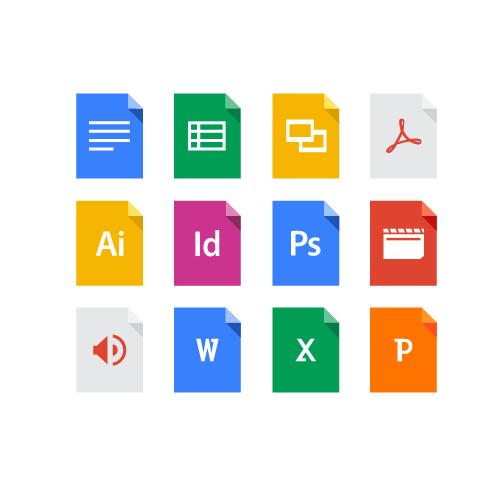
Kapasitas penyimpanan yang besar menjadikan Google drive sebagai altenative penyimpanan. File yang dapat diupload sampai sekitar 5 Gigayte. Dengan kapasihtas yang besar, google drive mampu meyimpan bayak file-file.
Google drive mampu menyimpan 15 GB penyimpanan online untuk menyimpan foto foto, cerita, desains, gambar, rekaman, video dan lainnya.
Google drive juga compitable dengan berbagai macam devices seperti hp, ios, android, os, linux dll. Amankan file file penting anda di google drive sekarang.
https://www.google.com/drive/
Semoga bermanfaat sukses selalu
Go to link Download
Tuesday, December 27, 2016
How To Install Windows From A Partition Without Any External Media
How To Install Windows From A Partition Without Any External Media
Install Windows From A Partition Without Any External Media
Hey guys this post is really very useful for not only installing windows but many more system management. As you know to format or installing windows you need an external media like Disc Drive or USB Flash Drive. But now can do it with some simple step without any Disc or Flash Drive.
Requirement :
- A Windows CD for first time only(with which you want to format or install your OS)
- EasyBCD Software(You can download free beta version of it from anywhere)
- Free Hard Disk space depending upon the size of your installation disc(for example here we gonna show you this process with Windows 7 and 8. Generally the size of a Windows 7-8 installation Disc is about 4 GB. So here we need 5 GB of free space. Thats means 1 GB more space than the installation disc)
Method :
- Create a partition of about 5 GB. [As you can see in picture (Drive H:)]

Blank Drive - Now open and copy your Windows 8 installation disc into this drive.

Copy OS - Now run EasyBCD and click on Add New Entry from the left side of the application.

Add New Entry - Now click on WinPE

WinPE - Now you have to path boot.wim file from the drive where youve copied your Installation Disc (Here Drive H:). To do this click on path(as you can see in pic) now open Drive H:, go to folder "sources and select the boot.wim file.

Select Path 
boot.wim - Now change the Entry name as Windows Installation or whatever you want.

Entry Name - Now click on Add Entry

Add Entry - Finish :).. Now restart your PC.. And After booting youll be asked for select Windows. Here click on Windows Installation(the Entry you have just created) to go to Windows Setup. And you can continue Windows Installation.
Note: You can view the Entry setting or change Start Up setting or time to select the default operating system. To do this follow the steps given below.
Steps:
1. Click on My Computer properties and open.
 | |||
| My Computer Properties |
 |
| Advance System Setting |
 |
| Start up and Recovery Setting |
 |
| Start up and Recovery Setting |
Go to link Download
Sunday, November 6, 2016
Integration between DLNA media player and your home entertainment system
Integration between DLNA media player and your home entertainment system
Everything you need to know about DLNA: The de facto home-entertainment network standard
If you’ve ever watched the photos on your digital camera come alive on your TV or played the music files on your computer over your home theater system, you’ve brushed against the magic of DLNA. This widely integrated but little understood technology allows you to stream media files from a hard drive or memory card to other devices on your home network without your needing to know a whole lot about codecs, file formats, or even how your network operates.
DLNA stands for Digital Living Network Alliance, the trade group founded by Sony in 2003 to define the interoperability guidelines that make this communication possible. Prior to DLNA, setting up a home-entertainment network was an arduous process of gathering IP addresses and configuring each component to talk to the others with no guarantee of success. DLNA simplified the process by establishing a single protocol that ensured DLNA-certified multimedia devices from different manufacturers would work together. A great example is your DVR for recording television shows. Normally this is restricted to playing only on the TV where it is attached. With a DLNA media player you can watch the shows on any network attached DLNA TV, PC, or other playback device in the house. Learn More>>here.
Hot Search: AVI to DLNA | ISO to DLNA | HD Movies to DLNA | DVD to DLNA |
HDD Media Players are designed to give you a wide range of connectivity. Many units allow you to access network attached storage devices, USB hard drives, and shared folder on Windows PC’s and Macintosh computers (e.g WD TV Live Plus/Hub, Popcorn Hour NMT). DLNA players take integration in a completely new direction. A DLNA media player can seamlessly integrate with any other DLNA compliant devices in your home. Let’s discuss the real vision of DLNA.
Your other high definition media players may allow you to view videos from PC’s scattered about the house, but normally they are restricted to displaying your videos on only one television, the one they are attached to.
You will need to choose between a DLNA wireless media player or one which connects to your wired network. Just match it to your home setup.
If you want the smoothest, most consistent interface from room to room in your home, DLNA cannot be beat. With a DLNA media player you will be able to share your media throughout the home with ease.
If you are interested in the home of the future DLNA can lead you in the right path. You will need to start planning your purchases for all audio and video equipment more carefully, to transition your home to a fully DLNA enabled home. Luckily, most DLNA media players also support all the functions of other HD digital media players. They just extend the technology for the future of your home.
Top DLNA Video Converter Software for DLNA Owners:
Not all the videos can be streamed from PC to HDTV via DLNA. Only specified media formats (MPEG-1, MPEG-4 and WMV 9) are good for DLNA video streaming. Errors occur in case of unsupported video format. Native formats for DLNA media streaming:

To stream MKV, AVI, H.264 videos to HDTV, you can transcode the format to one of the applicable required formats. A recommended transcoder here is Pavtube Video Converter Ultimate, which uses CUDA acceleration tech and converts videos fast enough. You can also use Pavtube BDMagic app to convert Blu-rays and DVDs to PC hard drive and your PC a DMS for streaming to HDTV and other DLNA certified devices like PS3 and Xbox 360.
Free Download and trail:


Other Download:
- Pavtube old official address: http://www.pavtube.cn/blu-ray-video-converter-ultimate/
- Cnet Download: http://download.cnet.com/Pavtube-Video-Converter-Ultimate/3000-2194_4-75938564.html
Read More:
If you’ve ever watched the photos on your digital camera come alive on your TV or played the music files on your computer over your home theater system, you’ve brushed against the magic of DLNA. This widely integrated but little understood technology allows you to stream media files from a hard drive or memory card to other devices on your home network without your needing to know a whole lot about codecs, file formats, or even how your network operates.
DLNA stands for Digital Living Network Alliance, the trade group founded by Sony in 2003 to define the interoperability guidelines that make this communication possible. Prior to DLNA, setting up a home-entertainment network was an arduous process of gathering IP addresses and configuring each component to talk to the others with no guarantee of success. DLNA simplified the process by establishing a single protocol that ensured DLNA-certified multimedia devices from different manufacturers would work together. A great example is your DVR for recording television shows. Normally this is restricted to playing only on the TV where it is attached. With a DLNA media player you can watch the shows on any network attached DLNA TV, PC, or other playback device in the house. Learn More>>here.
Hot Search: AVI to DLNA | ISO to DLNA | HD Movies to DLNA | DVD to DLNA |
HDD Media Players are designed to give you a wide range of connectivity. Many units allow you to access network attached storage devices, USB hard drives, and shared folder on Windows PC’s and Macintosh computers (e.g WD TV Live Plus/Hub, Popcorn Hour NMT). DLNA players take integration in a completely new direction. A DLNA media player can seamlessly integrate with any other DLNA compliant devices in your home. Let’s discuss the real vision of DLNA.
Your other high definition media players may allow you to view videos from PC’s scattered about the house, but normally they are restricted to displaying your videos on only one television, the one they are attached to.
You will need to choose between a DLNA wireless media player or one which connects to your wired network. Just match it to your home setup.
If you want the smoothest, most consistent interface from room to room in your home, DLNA cannot be beat. With a DLNA media player you will be able to share your media throughout the home with ease.
If you are interested in the home of the future DLNA can lead you in the right path. You will need to start planning your purchases for all audio and video equipment more carefully, to transition your home to a fully DLNA enabled home. Luckily, most DLNA media players also support all the functions of other HD digital media players. They just extend the technology for the future of your home.
Top DLNA Video Converter Software for DLNA Owners:
Not all the videos can be streamed from PC to HDTV via DLNA. Only specified media formats (MPEG-1, MPEG-4 and WMV 9) are good for DLNA video streaming. Errors occur in case of unsupported video format. Native formats for DLNA media streaming:
To stream MKV, AVI, H.264 videos to HDTV, you can transcode the format to one of the applicable required formats. A recommended transcoder here is Pavtube Video Converter Ultimate, which uses CUDA acceleration tech and converts videos fast enough. You can also use Pavtube BDMagic app to convert Blu-rays and DVDs to PC hard drive and your PC a DMS for streaming to HDTV and other DLNA certified devices like PS3 and Xbox 360.
Free Download and trail:
Other Download:
- Pavtube old official address: http://www.pavtube.cn/blu-ray-video-converter-ultimate/
- Cnet Download: http://download.cnet.com/Pavtube-Video-Converter-Ultimate/3000-2194_4-75938564.html
Read More:
- Backup Sabotage Blu-ray Disc to Asus O!Play Mini Plus
- Make MKV files Compliant for streaming over DLNA
- Rip Blu-ray to iTunes for streaming via DLNA server
- Stream MKV files to Devices via Synology NAS with DLNA
- Backup Blu-ray to Home Media Server for DLNA/Portable Devices
- Backup Blu-rayDVD to QNAP NAS for DLNA streaming
Go to link Download
Subscribe to:
Posts (Atom)