Showing posts with label getting. Show all posts
Showing posts with label getting. Show all posts
Friday, April 7, 2017
Getting Started with Googles New Photos App
Getting Started with Googles New Photos App
Battle of the Photos- New Google Photos
Google and Apple have built homes in the cloud for your photos, making it easier to sync and find them on all your devices and to tweak the ones that need retouching.Once you’ve backed up your photo library to the service, all your photos and videos, including any new ones you take, are synced among all of these devices automatically.In April, Apple released Photos for iOS, Mac and the Web—a smart way to get us to pay for iCloud Drive storage. Then a couple of week ago, Google dropped big news: Its own Photos app for Android, iPhone and the Web would store all of your photos and videos free of charge.
There are many other free cloud photo storage options despite similar names and talents, picking one isn’t as easy as you think. Sure, you could choose based on what devices you own and how much you are willing to pay for cloud storage. But even if you own an iPhone and money is no object, Google Photos is a better choice for all but serious photographers. It combines the company’s unmatched search smarts with everything I’ve ever wanted in a photo service, while making it incredibly fun to relive old memories.Here is a comparison of few very famous cloud picture storage options.
 |
| Comparison between Google Photos, iCloud, Dropbox, Flickr and Amazon Cloud |
If you have thousands of photos, it could take many days to upload them all—regardless of the service you choose and even if you have a fast broadband connection to the Internet.
But like any free service, there’s a sacrifice in quality.Google compresses your images and downsizes any shots larger than 16 megapixels. I closely compared the original and compressed files, and though I could spot the differences when zoomed in, the compressed versions are still high quality enough for printing 8x10 photos or displaying on an HDTV. The services also compress video, and while files up to 1080p keep their original resolution, 4K or 5K video is downsized as well.So the maximum resolution of a picture you can keep as original without downsizing is 16 Megapixels which is the highest resolutions used by average smartphone owners.
Google does have an option to keep full-res images just as they came out of your DSLR camera but thats counted against your limited storage of 15 GB for free account.If you want unlimited storage with full resolution it’ll just cost you. At the lower end, pricing is comparable: Google Drive costs $2 a month for 100GB and Apple’s iCloud Drive is $4 for 200GB. But if you’ve been shooting digital for a decade, you may need more capacity and that’s where Google beats Apple: $10 a month will get you 1TB from Google, but only 500GB from Apple. Apple’s first 5GB are free.
You will need to choose the storage type for your account as shown in the picture and in order to do that click on the menu on the top left corner and select settings.
 |
| Getting Started with Googles New Photos App |
Here’s the really unbelievable stuff: Using visual analysis, Google assigns attributes to your many photos so you can then search by keyword. Punching in “food” returns an embarrassing amount of food photos I’ve taken over the years. “Vacation 2013” brings up shots from my trip to Bangkok that year. It really is as great—and wildly addictive—as having your own personal Google Image Search.
Explore the crazy-powerful new search feature of Google Photos-- starting with face recognition
 |
| Getting Started with Googles New Photos App |
See that blue circular icon with a magnifying glass in your main photos list? Tap it.
That icon takes you to Photos search screen, which holds some of the apps coolest and most powerful features.
At the top of the search screen, youll see the six most frequently photographed faces from your images.You can also see more faces by tapping the "More" link next to the word "People."
Tap any of those faces, and youll see all of the photos - or at least many of them -- in which that particular person appears. And heres whats crazy: Google says the app is able to track a persons face and continue to recognize it as they age over time. So in theory, at least, the current photos of my daughter as an infant will one day be grouped together with photos of her as a young child, a teenager, and an adult.
Google does it better. In fact, it’s jaw-droppingly good at recognizing faces. It identified my mom in a photo taken 30 years ago and another taken when she was only 10! Annoyingly, though, Google doesn’t yet let you assign names to faces. You just click on one face to see the other similar ones. The company says this has been a highly requested feature and, if added, it won’t tie face tagging to other Google accounts, a la Facebook.
Explore your photos by location
In addition to People, Google Photos also lets you search your photo by Places and Things. Places uses location data to group photos so you can see photos of a trip you made without needing to first creating an album. More impressive is the Things category which lets you search for photo of forests, food, stadiums, dancing and much more.
Scroll down below the faces in that same search screen, and youll find a list of locations in which your photos have been taken. Whats particularly remarkable about this is that it works even if you dont have location reporting activated.
How? Google says its technology is able to recognize known geographical landmarks from photos and then use logic (and the laws of physics) to infer your location in other nearby photos. If you took a snapshot of the Eiffel Tower on February 9th at 2 p.m., for instance, Google can safely assume you were still in Paris in that selfie you took in front of a bakery 45 minutes later. The accuracy and level of detail may surprise you.
Explore your photos by objects and themes in Google Photos
This may be the most impressive part of the new Photos app: Beneath the locations in the search screen, youll see a list of common themes found in your photos -- things like flowers, concerts, weddings, forests, nightclubs, and dancing. Tap any categorization, and youll find a selection of photos that matches that description.
 |
| Getting Started with Googles New Photos App |
Play around with Google Creations and Assistant
If you used Google+ Photos in the past, you might be wondering what happened to Auto Awesome -- the fun set of collages, animations, and videos Google automatically generated based on your images. Fear not: Theyre still here; they just have a new name.
Scroll all the way down on the Photos search screen, and youll see an option called Creations. There, youll find all the different ways Google has mashed your photos together into interesting new forms.
The Photos app will still make those mashups automatically, as the old app did in the past. But with the new app, you can also manually make any of those items anytime you want.
To do so, just select any set of photos from your collection (more on the act of selecting in a second). Tap the "+" icon that appears in the upper-right corner of the screen, then choose from any of the options that appear -- adding the images into a new album, movie, story, animation, or collage. Youll be able to view and share the resulting creation seconds later.
Your assistant shows you fun new things automatically created from your photos & helps you stay organized.
if you have taken photos quickly in a motion and uploaded them all to the Google Photos it will automatically create an animation as shown in the picture below.
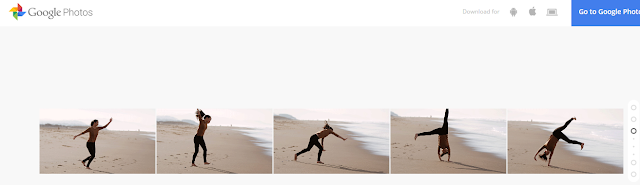 |
| Photos uploaded in sequence to Google Photos |
 |
| Animation created by Google Photos App |
Capture the full scene with Google Photos
Upload two or more photos to get a sweeping, perfectly stitched panorama.
 |
| Photos uploaded to Google Photos App |
When you upload these pictures it will automatically turn into a perfectly stitched panorama as shown below.
 |
| Panorama Created by Google Photos App |
Select photos the smarter way with Google Photos
Manually selecting a bunch of items on a phone can be a pain -- long-pressing one item, then tapping each additional item you want to be included one by one.The new Photos app has a better solution.
While viewing images in the Photos app, long-press on any photo to start the selection process. Then, without lifting your finger, drag upward or downward. Thatll allow you to quickly select a bunch of consecutive photos without having to do the typical tap-tap-tap dance.
When you want to select multiple pictures — say, for sharing or creating an album — you don’t have to tap on them one by one. You can just select the first one and then slide your finger to add others to the selection.
Navigation
Also, you can pinch and zoom to switch the view of your photo library from years to months to days.Google Photos has made this very convenient.
Free up space on your phone
One of Photos key features is the ability to automatically and continuously back up photos from your phone to the cloud for safe-keeping and universal access. Once a photo is backed up, then, theres really no reason to also keep storing it locally and thus take up precious space on your phone or tablet.
The new Photos app makes it easy as pie to free up space on your device by removing redundant local copies of images. Theres just one drawback: You have to choose to back up images at their full original resolution in order for the feature to be available. If you choose to use the free and unlimited "High quality" backup option, Photos wont offer to delete local versions of images -- since the local versions arent identical to those stored on Googles servers.
 |
| Getting Started with Googles New Photos App |
If youre uploading at full resolution, look in the Assistant section of the new Photos app. When the local storage on your device gets low, youll see a card there showing exactly how much space you can free up by deleting local copies. Youll also get a single-tap option to do the deed and remove all the local copies.
Quality
It’s true: The free tier of Google Photos uploads photos in “High Quality,” meaning that the images are compressed from their original resolution, provided said original resolution exceeds 16 megapixels. Rest assured that for most people, that’s just fine. iPhone photos and photos from small-ish point and shoots won’t suffer from a major loss of quality. Those shooting on DSLRs and higher quality cameras should note that the images won’t be stored in full resolution for free. However, you can choose to save the images in their original resolution to your Google Drive—it’ll just count against your Drive storage.
The big picture? Google Photos may not be the perfect photo backup, storage, and sharing solution for everyone, but because of its ease of use, robust feature set, and surprisingly helpful Assistant tool, it’s going to be a great pick and a new standby for many—particularly those of us who have a hard time remembering to back up. In many ways, Google Photos feels like everything we wanted iCloud to be. There are few things more precious on our phones than photos, and finally there’s a convenient place to keep them.
Sharing
Google Photos makes the work of sharing your photos relatively quick and painless as well. Google Docs users will find the process familiar: Simply click on the “Share” icon and choose to upload to Google+, Facebook, or Twitter, or opt for a shareable link.
 |
| Getting Started with Googles New Photos App |
And as someone who loathes the process of uploading and tagging and describing and titling photos on Facebook (it’s exhausting), it takes me exactly two seconds to name the album. Google knows the faces of my mom and my dad and my dog and best friends, but it doesn’t pressure me to tag them. If Google Photos finds a great picture of me and mom, I’ll decide to share it on my own—which is very easy. But I know that the rest of my photos are just for me and that I won’t get a notification in two years that a Facebook acquaintance has pawed through my old photos and “liked” a few out of the blue. (Also, never ever do that.)
On the Google Photos Web app, click the share button at the top when you have a group of photo selected and click Get sharable link. On the iOS app, select your photos, tap the share button and then tap Copy Link to Clipboard. You will then be able to paste the link into an email, and your recipient will not need any special app or login to view your photos.
 |
| Getting Started with Googles New Photos App Note:- To Download the Google Photos App go to https://photos.google.com/ and to read more about it go to https://www.google.com/photos/about/. |
******************************
Incoming Search Traffic
Getting Started with Googles New Photos App
Google Photos App
Google Photos
Battle of photo storage cloud
Photos Google
Photos Google
iCloud vs Google Photos
iCloud vs. Google Photos Vs. Flikr
Features and Jawdropping deal with Free Google Photos
Free unlimited storage with Google Photos
Go to link Download

Monday, December 26, 2016
How to Stop Getting too Many Friends Requests FB Method
How to Stop Getting too Many Friends Requests FB Method

Getting Too Many Request on Facebook is a common problem specially for Girls. So, Today We are going to show you how to get ride of to many anonymous friends requests on Facebook... Its as easy as like creating a Facebook Account... So Lets Start...
Video:
Method:
1- login to your Facebook account2- go to settings > privacy (on left side bar)
3- go to "Who can see my stuff?" section select "edit" set the option to "Friends" and "Limit The Audience for Old Posts on Your Timeline" & turn it on
4- go to "Who can contact me?" section select "edit" set the option to "Friends of Friends"
5- go to "Who can look me up?" section select "edit" set the both top options to "Friends" and at the end of page "Do you want search engines outside of Facebook to link to your profile?" uncheck this option
Need Help?
Comment blow or leave a message from blow right box like this

Go to link Download
Friday, December 9, 2016
Hackers Getting Closer to US Grid
Hackers Getting Closer to US Grid
Much has been said about the danger of hackers attacking the U.S. power grid. However, Electric Light & Power writes that hackers "are already here and getting closer to their objectives all the time." Experts say all thats left is money and motivation for an attack.
Meanwhile, the U.S. Department of Energy has reported more than 1,100 cyberattacks from 2010 to 2014, with 14% as successful, and the cybersecurity rating firm BitSight says the power industry only ranks "fair to middling" on cybersecurity. Could a major attack really come in the next three years? What can be done to stop it?
Security expert says successful hack against power grid likely

Hackers are not coming to attack U.S. energy infrastructure. They are already here and getting closer to their objectives all the time.
Using the parallel of wartime, these hackers are virtual enemy patrols which have probed into the front lines, looking for weaknesses and attack points that present the best possible chance of success. They may want credit card information or even notoriety.
Sometimes their motivation is terror, chaos and infrastructural damage, such as trying to bring down part of the power grid within a city or even blacking out giant swathes of the U.S.
“The knowledge is out there, the intent is out there, and the capacity is out there,” said Jonathan Pollet, founder of Houston-based cyber firm Red Tiger Security. “Now we’re just waiting for someone motivated enough, by money or political events, to take advantage.”
This hasn’t happened yet, but the potential is getting closer as bad actors compile knowledge of the grid’s cyber weaknesses and gather illicit financial support for their efforts.
A recent USA Today report indicated that the U.S. Department of Energy was under constant siege in recent years, with 1,131 attempted cyberattacks from 2010-2014. The hackers were successful about 14 percent of the time, or in 159 of the attempts, according to the article.
“I think it’s very likely” an attack on a utility company could be successful someday soon, maybe within three years, Pollet added.
Another report, this one released Tuesday by cybersecurity ratings BitSight, indicates that the energy industry only ranks fair to middling when it comes to cybersecurity efforts. The energy-utility sector was ranked fourth among sectors, slightly above health care and behind finance, government and retail. Education was categorized, far and away, as the most vulnerable to cyber attack by BitSight.
BitSight researchers noted a dip in the energy-utility sector, finding it most vulnerable to malevolent bugs such as Poodle and Freak. The report indicated a growing concern about the cybersecurity posture of these companies even as more control systems are being brought online.
Cybersecurity is kind of like the offensive line in football. The casual fan only notices them when something goes wrong. It’s a thankless task but one which has to be done better than it has been, according to report.
“This is going on inside companies every day,” said Stephen Boyer, co-founder and chief technology officer of BitSight. “There is a battle going on between attackers and defenders. It’s very, very hard to be perfect.”
Hacker attacks against Target, Sony and Ashley Madison certainly gained much attention, embarrassed many and have alarmed consumers, but Boyer said the “scary parts” of cybersecurity for utilities “are the things we don’t know about.”
Hackers glean inside knowledge, trick users into giving up passwords and protocols and leave footprints that take precious time to track down. Cybersecurity experts in the U.S. are well aware of the threats coming from China, Russia and Iran, among many other places, but the attacks could originate from anywhere, even on American soil.
“Attribution is very hard,” Boyer said. “The power goes off and no one knows who it is.”
One saving grace, surprisingly, is that the U.S. power grid is not one seamless piece, but rather numerous systems. For that reason, many experts do not think that cyber terrorists could pull off a continental-wide blackout. But they could be a threat to turn off power within a city or region.
Del Rodillas, solution lead for SCADA and industrial control systems at Palo Alto Networks, said he couldn’t rank the energy-utility sector’s preparedness compared to other industries. What he worries most about is a perceived disconnect between two distinct, yet connected parts of the power companies.
“What I can say is within the energy-utility organization, there is a stark contrast in the level of security between the IT (information technology) environment and operational technology (OT) environment,” Rodillas said in an emailed response to questions. “Keep in mind, though, that the staff securing IT environments in energy and utility companies are typically separate from the staff in OT responsible for security and not always working in unison. The IT environment in the energy-utility may be cutting edge, but the OT environment is typically lagging.”
For instance, through various and relatively easy means the world-class hacker can find the name of a SCADA engineer working for a utility. They try to get that engineer’s email address and, once they’ve gone that far, they send the engineer an email that entices the prey to click on something that might be of personal or professional interest.
Once clicked, a rootkit is released into the desktop that both masks the software’s existence and intent and also allows the hacker remote access to the computer, Pollet pointed out. For the past two years, his company has identified kits moving through the corporate networks, looking for open platform communications (OPC) servers and gaining more database information about SCADA systems.
“I know they have access to the system, and they’re able to read information off the system,” Pollet said. “We have not seen an adversary remotely command a SCADA system—that’s the last piece they are missing. I think they are close.”
What to do, what to do? BitSight’s Boyer said he was actually encouraged about the USA Today report on the hacks into the U.S. Department of Energy. Once every four days there is a physical or virtual attack on the U.S. power infrastructure, so putting utility defenders on higher alert is a good idea.
“The awareness is probably at an all-time high,” Boyer said. “They are very much aware and asking these sort of questions.”
The federal government is getting on board. A new cybersecurity framework, directed by the White House and supported by industry, was announced last year by the National Institute of Standards and Technology. The NERC CIP and ICS-specific standards like NIST SP800-82 certainly have helped increase awareness, Palo Alto Network’s Rodillas noted.
“It helps with raising the bar for successful cyber attacks,” Rodillas said. “However there is still a ways to go to have these personnel understand how targeted attacks work.
“Forget about deploying tools for detecting and stopping (attacks),” he added. “Many OT personnel don’t even know these tools exist. Getting one’s organization education is an important first step.”
Red Tiger Security is advising its clients to isolate their control systems from corporate networks. The industry also needs to do a more work securing the growing smart meter infrastructure, given the bi-directional nature of that communication.
Harden the perimeter, Pollet added. Sounds like war. And it sounds imminent.
“I think it’s very likely,” he said. “I think it’s above 60 to 70 percent likely that it could happen in the next five years.”
Go to link Download
Thursday, December 8, 2016
Getting started with new Mac OS X 10 11 El Capitan
Getting started with new Mac OS X 10 11 El Capitan
OS X El Capitan—El Cap for short—is Apples latest version of the modern Mac operating system.
Earlier this month, At its Worldwide Developers Conference ( WWDC ) last week, Apple introduced OS X 10.11 El Capitan, the newest version of its Mac-based operating system.Piggybacking off of the operating system before it - OS X Yosemite - El Capitan claims to be faster and come with some nifty new features for desktop Mac users.
But one question remains: Why in the world did Apple decide to call it El Capitan?
The history of OS X naming goes all the way back to 2001. The first official version of OS X was dubbed "Cheetah." Then, until 2012, each following operating system was named after another fast and agile cat. The last feline-named version of Apples Mac operating system was Mountain Lion.
Then in 2013, Apple made a change. OS X 10.9, instead of representing yet another cat-like species, was instead dubbed Mavericks.Mavericks is a favorite surfing spot in Northern California.
Following Mavericks was OS X Yosemite, which was named after Yosemite National Park.
And now we have El Capitan, which (despite sounding a bit like a Mexican restaurant) is actually a vertical rock formation located within Yosemite National Park in Mariposa County, California, U.S.
Apple didnt provide a formal reason for why it chose El Capitan, but the rock formation is considered an important California landmark. Hikers know it well, and its even considered one of the best places in the world for rock climbing and base jumping.
Like Mavericks, its a destination for agile and daredevil-ing sport enthusiasts. EL Capitan is a spanish word which means The Captain.
Support list for OS X 10.11
iMac (Mid-2007 or later)
MacBook (13-inch Aluminum, Late 2008), (13-inch, Early
2009 or later)
MacBook Pro (13-inch, Mid-2009 or later), (15-inch, Mid/
Late 2007 or later), (17-inch, Late 2007 or later)
MacBook Air (Late 2008 or later)
Mac Mini (Early 2009 or later)
Mac Pro (Early 2008 or later)
Xserve (Early 2009)
In this preview Im only going to cover the biggest new features, but expect a full review when Mac OS X El Capitan is released this fall. It is, once again, a free upgrade for existing Mac users.
Apple will be making a beta version of the new software available to download on your Mac in July, or you can wait for the full version to arrive in the autumn. Heres how you will be able to get the new version of OS X on your Mac, either as a dual boot partition on your Mac, as a separate install on a external hard drive, or in virtualisation software.
How to get the OS X El Capitan beta
Initially it will only be developers who are members of Apples developer community that will be able to download the software. But Apple is also repeating the successful public beta programme that it ran last year, so consumers will also be able to get their hands on the beta versions of the software in July.
The OS X El Capitan beta has been available to developers since 8 June, if you are signed up to the Apple Developer Program you will be able it download it now. You can now join the OS X and iOS developer programs for a single fee of $99 (£64) a year, rather than joining the two programs for $99 each per year. Developing for the WatchOS is also included in that fee. To join the Apple Developer Program enrol here.
Once you have signed up for the public beta Apple will contact you via email when the software is ready to download.
When you receive the email from Apple there will be a download link and a redeem code. You will be able to download the Mac OS X 10.11 Installation from the App Store.
Follow these instructions to install the beta:
However, we dont recommend that you install El Capitan on your main Mac - or if you must, then you should install it on a secondary partition of the Mac or on an external hard drive. Either way, we’d recommend a full back up before you install it.
How to install the OS X El Capitan beta on an external hard drive
To install El Capitan on a external hard drive follow the following guide:

1. Split View

2. Mission Control
You’ve never been so good at space management.
A three finger swipe upwards on your trackpad, a tap of the Mission Control key (F3) from your keyboard, or a click of the Mission Control icon with your mouse will still take you right to the main view, just as before. But once youre in Mission Control, you have a new way of interacting with your windows.
Theres also a new draggable Mission Control shortcut coming to El Cap: Just pull any window to the top of the screen, then drag a little more to reveal the Spaces Bar. From there, you can drop the window where you want it, either full screen, onto an existing full screen app to create a Split View, or onto a new or existing desktop Space.
Lost your cursor on your crowded desktop? Just shake your finger back and forth on the trackpad or give your mouse a shake, and the cursor gets bigger so it’s easy to spot.

3. Spotlight as search engine
Even more versatile. And helpful.
Spotlight gets even smarter in El Capitan, delivering results for weather, sports, stocks, web video, and transit information. And now you can ask Spotlight to find a file using natural language — so when you’re looking for something, just type it the way you’d say it.For example, typing in “photos from last year” will display photos from the previous year. It also works with search terms like, “find emails from Anthony.”
Spotlight is also more flexible: You can resize its window to see more results and move it anywhere on your desktop.
Search results from more sources.
Spotlight now searches even more places to give you more useful results. Check up on the latest stock prices, weather conditions and forecasts for your current location or cities around the world, and sports scores, schedules, standings, and athlete information. You can even search for web videos.
Ask in your own words.
Searching for files has never been easier now that Spotlight understands natural language.You can also use more complex searches, like “presentation I worked on yesterday that contains budget,” and you’ll get just what you’re looking for. You can search with your own words in Mail and Finder, too.

4. Safari gets pinned and Mute the Noisy Tab like in chrome
With OS X El Capitan, the best browser for your Mac brings new tools for better surfing. Now Safari lets you keep favorite websites open and accessible with Pinned Sites.When a website is pinned, it stays up to date in the background, so what youre seeing when you click over to it is always current. Sites like Gmail, Facebook, and Twitter are particularly good uses of this feature, quietly refreshing in the background and always displaying the most recent info.Pinned Sites can be created by clicking on the title bar of an open website and dragging it to the left.While useful, this feature is nothing new, because you already have this functionality in third party browsers like Firefox.
<
Read more »
Earlier this month, At its Worldwide Developers Conference ( WWDC ) last week, Apple introduced OS X 10.11 El Capitan, the newest version of its Mac-based operating system.Piggybacking off of the operating system before it - OS X Yosemite - El Capitan claims to be faster and come with some nifty new features for desktop Mac users.
But one question remains: Why in the world did Apple decide to call it El Capitan?
The history of OS X naming goes all the way back to 2001. The first official version of OS X was dubbed "Cheetah." Then, until 2012, each following operating system was named after another fast and agile cat. The last feline-named version of Apples Mac operating system was Mountain Lion.
Then in 2013, Apple made a change. OS X 10.9, instead of representing yet another cat-like species, was instead dubbed Mavericks.Mavericks is a favorite surfing spot in Northern California.
Following Mavericks was OS X Yosemite, which was named after Yosemite National Park.
And now we have El Capitan, which (despite sounding a bit like a Mexican restaurant) is actually a vertical rock formation located within Yosemite National Park in Mariposa County, California, U.S.
Apple didnt provide a formal reason for why it chose El Capitan, but the rock formation is considered an important California landmark. Hikers know it well, and its even considered one of the best places in the world for rock climbing and base jumping.
Like Mavericks, its a destination for agile and daredevil-ing sport enthusiasts. EL Capitan is a spanish word which means The Captain.
 |
| OS X 10.11 El Capitan |
OS X 10.11 EL CAPITAN
The first item that Apple showcased was it’s new operating system, called OS X El Capitan. In what would set the tone for the rest of the conference’s developments, El Capitan is less of a revolutionary leap from Yosemite, and more of a refining upgrade. The new operating system will have a few updates that will improve performance.These updates include the ability to pin Safari web pages, so they will automatically load on the opening landing page when you open the browser.
The tabs in Safari will now also let you know which tab is playing audio, much like Google Chrome. El Capitan also improves window management, allowing you to split your screen between apps, and save different desktop layouts in the top navigation bar. Another addition is Metal for Mac. Metal was an iOS exclusive developer tool allowing developers access to OS’ GPU to maximize the graphic capabilities to their games or apps. By moving to Mac as well, Metal will let game and app developers access to the power of El Capitan’s graphics performance when it’s released this fall.
Support list for OS X 10.11
iMac (Mid-2007 or later)
MacBook (13-inch Aluminum, Late 2008), (13-inch, Early
2009 or later)
MacBook Pro (13-inch, Mid-2009 or later), (15-inch, Mid/
Late 2007 or later), (17-inch, Late 2007 or later)
MacBook Air (Late 2008 or later)
Mac Mini (Early 2009 or later)
Mac Pro (Early 2008 or later)
Xserve (Early 2009)
In this preview Im only going to cover the biggest new features, but expect a full review when Mac OS X El Capitan is released this fall. It is, once again, a free upgrade for existing Mac users.
Apple will be making a beta version of the new software available to download on your Mac in July, or you can wait for the full version to arrive in the autumn. Heres how you will be able to get the new version of OS X on your Mac, either as a dual boot partition on your Mac, as a separate install on a external hard drive, or in virtualisation software.
How to get the OS X El Capitan beta
Initially it will only be developers who are members of Apples developer community that will be able to download the software. But Apple is also repeating the successful public beta programme that it ran last year, so consumers will also be able to get their hands on the beta versions of the software in July.
The OS X El Capitan beta has been available to developers since 8 June, if you are signed up to the Apple Developer Program you will be able it download it now. You can now join the OS X and iOS developer programs for a single fee of $99 (£64) a year, rather than joining the two programs for $99 each per year. Developing for the WatchOS is also included in that fee. To join the Apple Developer Program enrol here.
Once you have signed up for the public beta Apple will contact you via email when the software is ready to download.
When you receive the email from Apple there will be a download link and a redeem code. You will be able to download the Mac OS X 10.11 Installation from the App Store.
Follow these instructions to install the beta:
- Open the Install OS X 10.11 Developer Preview file in the Applications folder.
- Click Continue.
- Click Agree and Agree.
- Click Install.
- Enter your Admin password.
However, we dont recommend that you install El Capitan on your main Mac - or if you must, then you should install it on a secondary partition of the Mac or on an external hard drive. Either way, we’d recommend a full back up before you install it.
How to install the OS X El Capitan beta on an external hard drive
To install El Capitan on a external hard drive follow the following guide:
- Connect the external hard drive.
- Open the Install OS X 10.10 Developer Preview file in the Applications folder.
- Click Continue.
- Click Agree and Agree.
- Click Show All Disks.
- Highlight the external hard drive.
- Click Install.
- Enter your Admin password
To run El Capitan, open System Preferences > Startup Disk. Select the drive you wish to start up the Mac and click Restart. You can also hold down Option during startup to pick the drive you wish to use to start up the Mac.
The biggest new features of El Capitan
1. Split View
Who says you can’t focus on two things at once?
OS X Lion brought full screen apps to the Mac; OS X El Capitan will bring a split screen mode for viewing multiple apps at once. Called Split View, you enter the new mode by clicking and holding down on the green full screen button in the apps toolbar. That lets you take whatever app youre working on and dock it to the left or right side of the display.
You can also swap sides for any Split-View app by clicking and dragging on the top bar of an app. Just in case you were curious, menu bars will only be shown for an active app (the one you’re working in) for Split-View. Along with that, Handoff will only function for that active app.
With Split View, you get the best of both. It automatically fills your screen with the two apps you choose. So you can make dinner plans with a friend in Messages while finding the restaurant in Maps. Or work on a document in Pages while doing your research in Safari. All without the distraction of your other open apps, and without having to manually resize and drag windows around. And your desktop is always just a swipe away, so it’s easy to get back to everything else you were doing. The two apps will now be in full-screen mode and you can use the standard three fingered swipe on a trackpad to switch to other desktop spaces. You also can drag the divider in the middle to show more of one window or the other.
 |
| OS X 10.11 El Capitan Split View |
2. Mission Control
You’ve never been so good at space management.
With El Capitan, Mission Control gets a facelift that Apple says streamlines the experience with a better layout, and will give you easier access to desktop Spaces and full screen apps. In earlier versions, open windows would overlap by application, but now they are displayed separately to make individual windows easier to find. There is also a better interface around Spaces at the top of the screen, so you can click and drag windows onto a separate desktop and manage your full-screen apps.
With a single swipe, all the windows on your desktop arrange themselves in a single layer, with nothing stacked or hidden. Mission Control places your windows in the same relative location, so you can spot the one you’re looking for more quickly. And when you have lots of windows competing for real estate, it’s now even simpler to make more room for them. Just drag any window to the top of your screen, and drop it into a new desktop space. It’s never been this easy to spread out your work.
Mission Control also ties into El Capitan’s new Split-View feature. If you take a second app and drop it over the space first created for a full screen app, Mission Control will create a Split-View of the two apps. These apps will run with full functionality on each side of the screen and the two sides can be resized using the middle bar.
 |
| OS X 10.11 El Capitan mission control |
 |
| OS X 10.11 El Capitan mission control |
Calling Mission Control
A three finger swipe upwards on your trackpad, a tap of the Mission Control key (F3) from your keyboard, or a click of the Mission Control icon with your mouse will still take you right to the main view, just as before. But once youre in Mission Control, you have a new way of interacting with your windows.
Instant Desktop
Theres also a new draggable Mission Control shortcut coming to El Cap: Just pull any window to the top of the screen, then drag a little more to reveal the Spaces Bar. From there, you can drop the window where you want it, either full screen, onto an existing full screen app to create a Split View, or onto a new or existing desktop Space.
Find my Cursor
Lost your cursor on your crowded desktop? Just shake your finger back and forth on the trackpad or give your mouse a shake, and the cursor gets bigger so it’s easy to spot.
3. Spotlight as search engine
Even more versatile. And helpful.
Spotlight gets even smarter in El Capitan, delivering results for weather, sports, stocks, web video, and transit information. And now you can ask Spotlight to find a file using natural language — so when you’re looking for something, just type it the way you’d say it.For example, typing in “photos from last year” will display photos from the previous year. It also works with search terms like, “find emails from Anthony.”
Spotlight is also more flexible: You can resize its window to see more results and move it anywhere on your desktop.
Search results from more sources.
Spotlight now searches even more places to give you more useful results. Check up on the latest stock prices, weather conditions and forecasts for your current location or cities around the world, and sports scores, schedules, standings, and athlete information. You can even search for web videos.
 |
| OS X 10.11 El Capitan Spotlight |
 |
| OS X 10.11 El Capitan Spotlight |
 |
| OS X 10.11 El Capitan Spotlight |
Ask in your own words.
Searching for files has never been easier now that Spotlight understands natural language.You can also use more complex searches, like “presentation I worked on yesterday that contains budget,” and you’ll get just what you’re looking for. You can search with your own words in Mail and Finder, too.
 |
| OS X 10.11 El Capitan Spotlight |
4. Safari gets pinned and Mute the Noisy Tab like in chrome
With OS X El Capitan, the best browser for your Mac brings new tools for better surfing. Now Safari lets you keep favorite websites open and accessible with Pinned Sites.When a website is pinned, it stays up to date in the background, so what youre seeing when you click over to it is always current. Sites like Gmail, Facebook, and Twitter are particularly good uses of this feature, quietly refreshing in the background and always displaying the most recent info.Pinned Sites can be created by clicking on the title bar of an open website and dragging it to the left.While useful, this feature is nothing new, because you already have this functionality in third party browsers like Firefox.
 |
| Safari in OS X 10.11 El Capitan |
Go to link Download
Subscribe to:
Posts (Atom)