Showing posts with label pictures. Show all posts
Showing posts with label pictures. Show all posts
Saturday, April 1, 2017
How to Delete Paint Recent Pictures from List in Windows 7
How to Delete Paint Recent Pictures from List in Windows 7
BEST GREENHOUSES FOR GROOVING VEGETABLES
? ? 1(360)241-1624 ?

? ? 360organic.us ?
DURABLE! AFFORDABLE! ALUMINUM + UV POLYCARBONATE
This tutorial will show you how to delete all or specific Recent pictures from the file button -> go to new/ Open/ and Save drop down menus in Paint (mspaint) for your user account in Windows 7 & Windows 8.
This can be handy if a recent file in the "Recent pictures" list is no longer available but still listed, or if you just wanted to clear the recent file history in your user accounts Paint from any prying eyes.
EXAMPLE: "Recent Pictures" in Paint ( mspaint.exe )
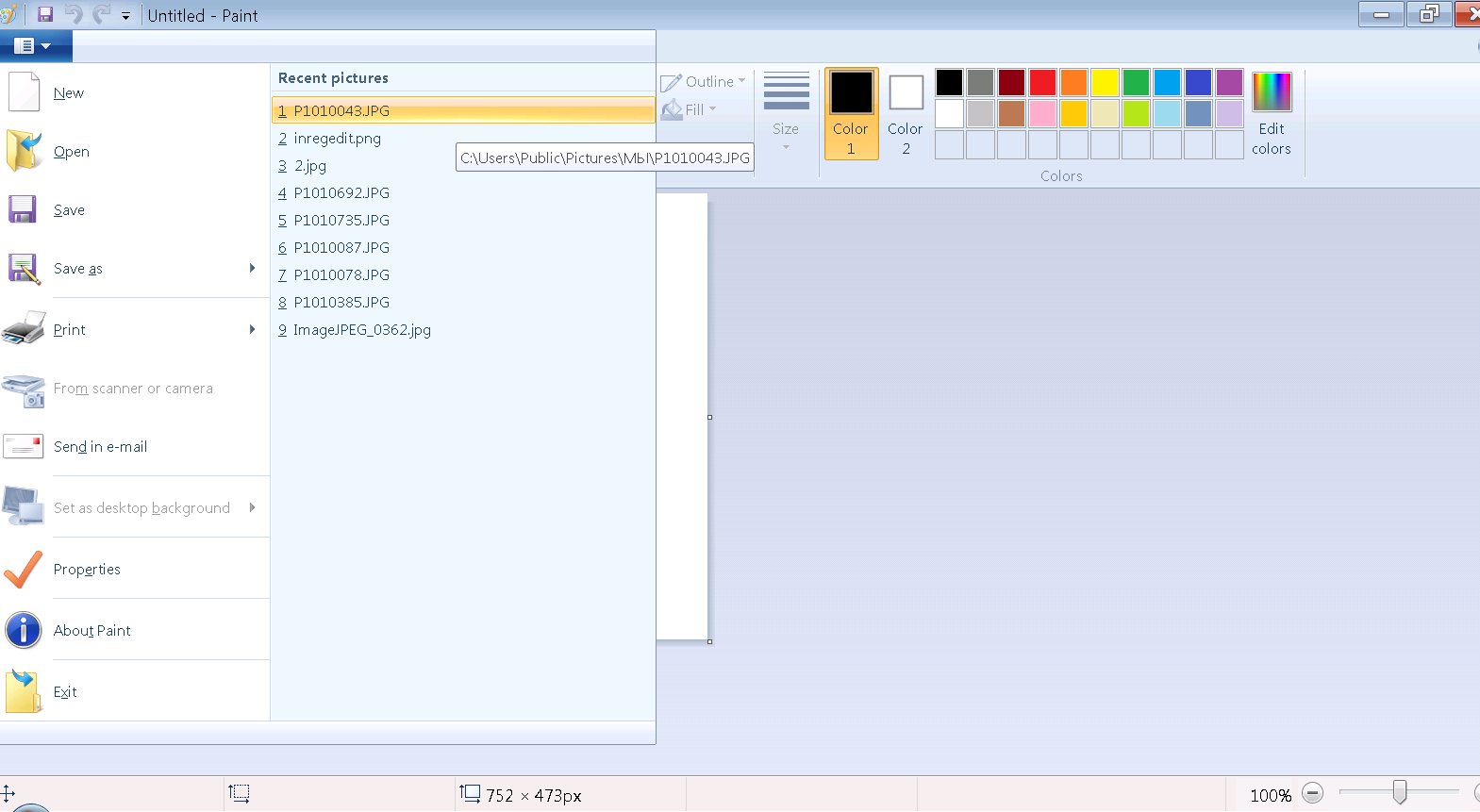
OPTION ONE:
To Delete Specific "Recent pictures" in Paint
1. Press the Windows + R keys to open the Run dialog, type regedit, and press Enter.
2. If prompted by UAC, then click/tap on Yes.
NOTE: Standard users will not be prompted for this.
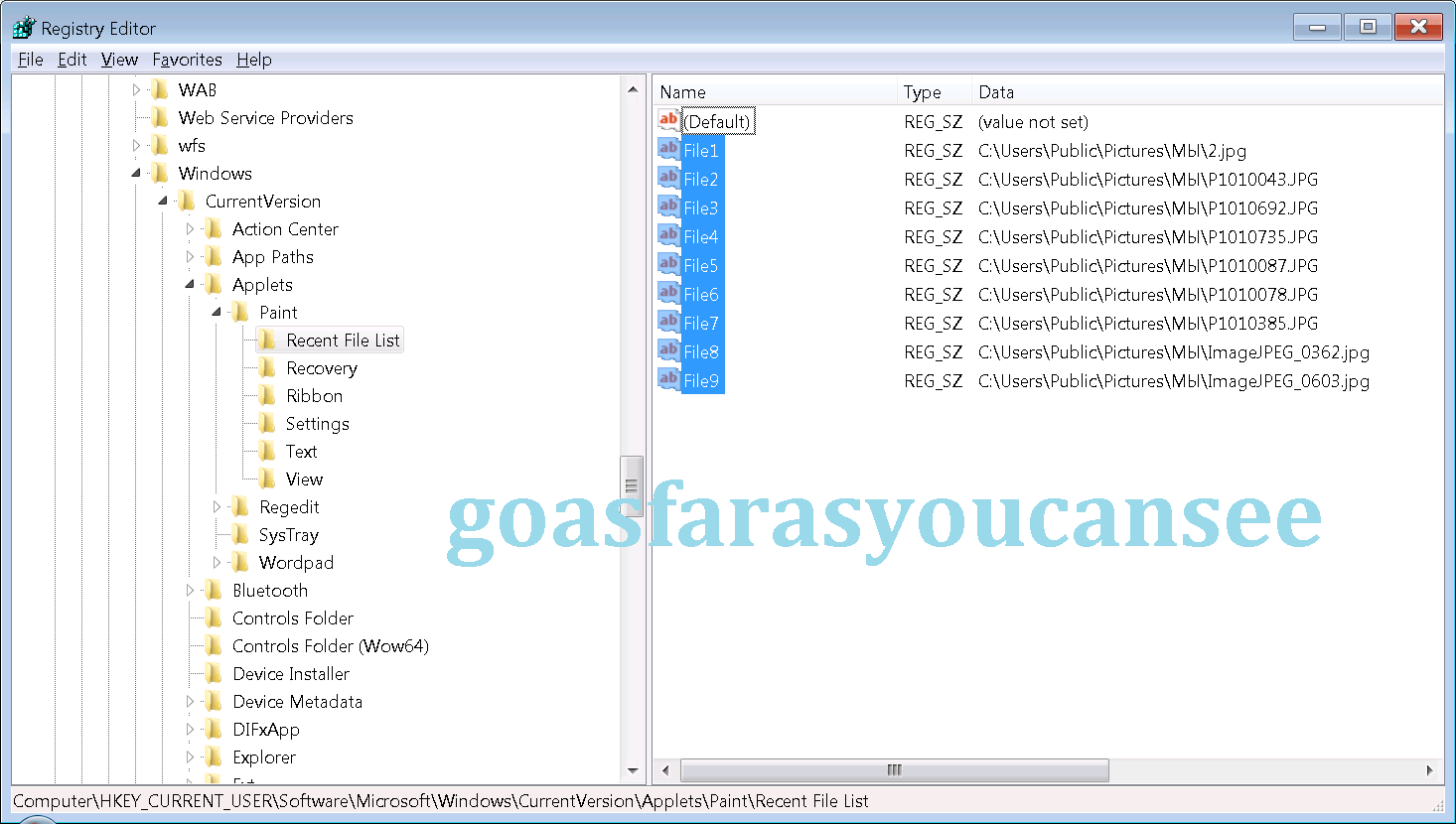
HKEY_CURRENT_USERSoftwareMicrosoftWindowsCurrentVersionAppletsPaintRecent File List
4. In the right pane of Recent File List, look for a listed File# string value that has the recent picture path that you wanted to delete. When found, right click on the File, and click/tap on Delete.
5. Click/tap on Yes to approve deleting it.
6. Repeat steps 4 and 5 if you would like to delete any other "Recent pictures" from the list in Paint.
7. When finished, close regedit.
8. If Paint is open, then close and reopen it to apply.
OPTION TWO:
To Reset and Clear All "Recent pictures" in Paint with a REG File
1. Click/tap on the Download link below to download the file below.
Reset_and_Clear_Paint_Recent_Pictures_List.reg
download
2. Save the .reg file to your Desktop.
3. Double click/tap on the downloaded .reg file to merge it.
4. If prompted, click/tap on Run, Yes (UAC), Yes, and OK to approve the merge.
5. If Paint is open, then close and reopen it to apply.
6. When done, you can delete the downloaded .reg file if you like.
Durable Greenhouses made from Polycarbonate UV Protected material and Aluminum

ALSO PLEASE VISIT THIS VIDEOS AND SEE IF YOU FIND SOMETHING NEED:
Windows Registry Tools can be downloaded here:
How to kip your PC Private by deleting DATA Permanently
http://askpctech.blogspot.com/2016/03/kip-your-pc-privat.html
This tutorial is made up on request several users, is well is fallowing video:
1)How to Delete Paint Recent Pictures from List in Windows 7
2)Win 7– Fix for “Safely Remove Hardware and Eject Media” not working How To
3)Windows 10 How to Fix Black Screen After Booting
4)How To Remove Windows 10 Upgrade Notification On Windows 7 And Windows 8
5)How to Delete Face book Page Permanently - 2015
6)How to Uninstall Windows 10 and Downgrade to Windows 7 or 8.1
7)detected: not-a-virus:remoteadmin.win32
8)How to change pictures into icons for folders
9)Speed up your PC Disable System Restore on SSD
10)Speed up your PC Disable Scheduled De-fragmentation SSD
11)2015 Black screen of DEATH Windows 7 & 8 - with cursor at start-up SOLVED
12)Upon start up only wallpaper shows FIX
13)Here is video on Windows 7 & 8 - Black screen with cursor at start-up FIX
You can also open Task Manager by pressing Ctrl+Shift+Esc.
14) I bought a windows 7 PC but it Look alike old PC FIX:
15) Windows 7 & 8 - Black screen with cursor at start-up FIX:
16) How To Fix Minecraft OpenGL Error Windows 7 xp vista 720p :
17) removing bars using regscanner regedit & file shredder 720p:
18) How to Recover windows Explorer from error 2014 720p
19) HOW TO Save on battery online
20) Windows 7 & 8 - Black screen with cursor at start-up FIX
Upon start up only wallpaper shows no icons
CTL+ALT+DEL then click file and new task. then type explorer.exe and press ok
Best Greenhouse system 2015
Go to link Download

Monday, March 27, 2017
How to recover deleted files pictures from Xiaomi SD Card
How to recover deleted files pictures from Xiaomi SD Card
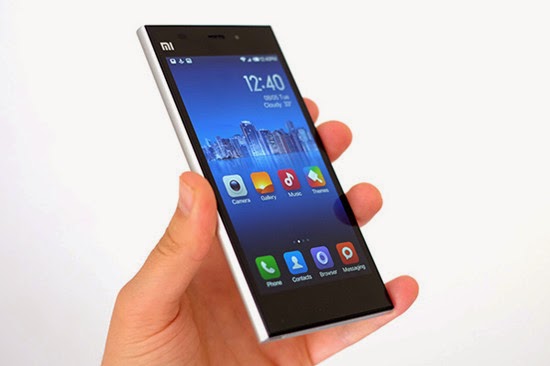
Xiaomi phone is currently the most hot smartphone in China, and it is also becoming more and more popular with its entry of overseas market. As a Xiaomi user, you may accidently delete files from your Xiaomi. However, don’t worry, you can still get them back with a professional Xiaomi file and picture Recovery.
"How to recover deleted files from Xiaomi? Hi guys, I accidentally deleted my contacts on my SD Card folder of Mi2S. Unfortunately i didn’t make a back up on Google server. Any help i can expect? Thanks in advance.You can also suggest me if you know a simple method of recovering any files in Android after accidental deletion!"
Here, you can turn to H-Data Recovery Master for Android which can fast and best recover deleted files such as videos, photos, audio, contacts, messages,Whatsapp chat history and documents from Xiaomi (MI-One/Mi2/Mi3, Redmi and Redmi Note).
Step-by-step guide below works for Windows 10/8.1/8/7/Vista/XP.
Get all your lost photo files from xiaomi

Step1: Stop updating your phone when your files lost formatted
If you kept on shooting videos or transfer movies/big data files to your phone, the deleted files might be overwritten by new data and beyond repair. So, avoid writing data to the memory until the deleted photo recovery is done.
Step2: Connet Xiaomi Android phone to Computer
For HTC one M9 and M8, take out the memory card from the phone, since the card type is micro SD, to connect the card with computer, a SD card adapter or USB card reader is needed.
For older models which doesnt support SD card, on the phone, set the connection mode to USB Mass Storage mode, to do that, go to Settings -> Connect to PC -> Default Connection Type -> Disk Drive
Step3: Run H-Data HTC Data recovery and Select the "USB disk/Card recovery" (Windows 8.1/8/7/Vista/XP...)

Step4: Scan deleted files or lost data on Xiaomi Android Smartphone
Press "Next" to start scanning for recoverable photos, videos, and music files.
Step5: Preview and recover files from Xiaomi
After the program finish scanning all files, you can preview the files you wanted. Then mark the files you need. Click the “Recover” button to recover deleted data on htc phone.

View more posts:
Simple Steps to Recover Deleted Lost Formatted Data on HTC One M9
Recover lost/formatted photos pictures from HTC Nexus 9 32GB Tablet
Recover lost deleted formatted pictures from HTC Droid Incredible
Not difficult to recover deleted data from Android cell phone
6 Steps to Prevent Data Overwritten and to Recovery Deleted Android File
Go to link Download
Saturday, December 31, 2016
How to get back pictures videos music from Huawei mobile phone
How to get back pictures videos music from Huawei mobile phone
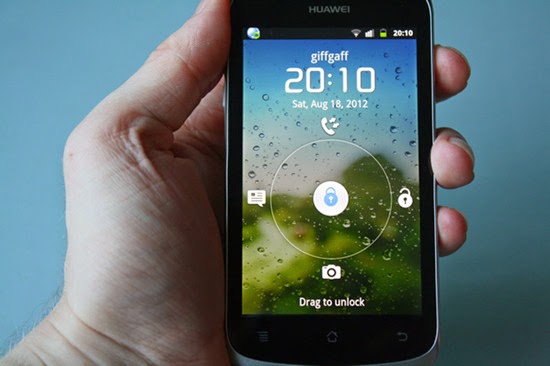
"Today I restored my Huawei mobile phone as I forgot the password. But I found that all the pictures, videos, music and other files are gone. How can I get them back? Can I get back on my phone because it contains some of my important data?"
Data loss is one of the common issues which most of people face these days. Some user feel it a very helpless situation when they lose their important files on their Huawei Android phones, like Huawei Ascend. How to restore your lost files from Huawei android phones? If delete something from your HUAWEI Android phone you can get it back by the use of Huawei Android Phone Data Recovery. This can recover deleted text messages, phone book numbers or contacts from the SIM card memory. You can also recovery data from your memory card through the same.
H-Data Android Recovery Software is one of the best Huawei Phone Data recovery tool in the world. You can use this Huawei file recovery to recover photos, SMS, contacts, videos, call logs, and other files from Huawei phones.The best thing about this software is that it doesn’t works on every mobile type and almost supports all windows version. It even offers user friendly interface that doesn’t need the technical guy to operate it.
By using it, you can recover your deleted text messages, photos, videos and other data from Huawei android devices with only a few clicks. download Huawei Android recovery software.
Steps to Recover Deleted Photos, SMS, Contacts, Videos from Huawei
Step 1: Connet your Android Phone to Computer
Connect android phone to computer. Then in Computer, check whether the smart phone shows as a drive letter (e.g. drive E: ).
Step2: Run H-Data android phone recovery program on windows OS (Windows 8.1/8/7/Vista/XP...)
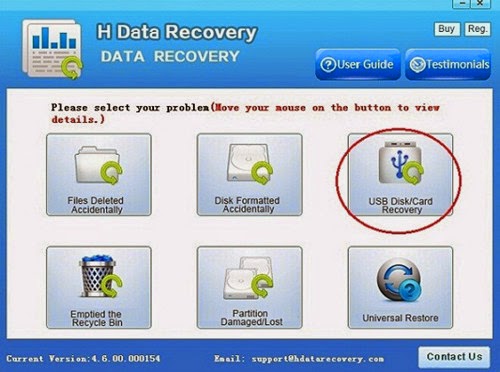
Step3: Scan deleted files or lost data on formatted crashed not recognized external hard drive
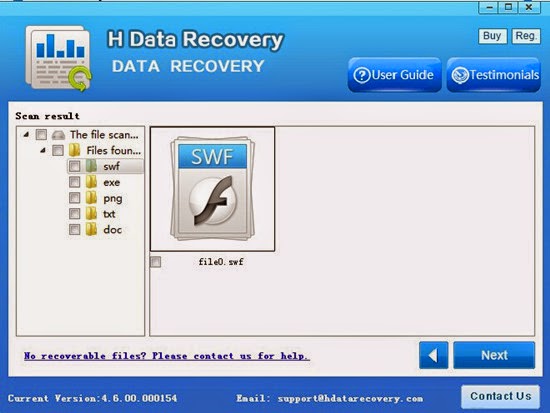
After you select the "USB disk/Card recovery", press "Next" to start scanning for recoverable photos, videos, and music files.
Step4: Select and recover lost hard disk data
After the program finish scanning all files, you can preview the files you wanted. Then mark the files you need. Click the “Recover” button to recover deleted data on htc one.
Besides Huawei phone, H-Data Android Data Recovery support varies kind of Android smart phone such as LG, Motorola, Samsung, HTC, etc.
View more post
Recover lost or deleted files from Android and Samsung Galaxy Phone
Galaxy S6 microSDXC Card Photo Recovery - Recover deleted picture files on Android
Is it easy to Recover Deleted / Formatted Android Deleted Photos
The way to recover deleted files from a freshly formatted sd card
Recovery accidentally lost 3 weeks of pictures from digital camera SD card
Go to link Download
Subscribe to:
Posts (Atom)