Showing posts with label image. Show all posts
Showing posts with label image. Show all posts
Sunday, April 9, 2017
How to create fade effect image slideshow using CSS
How to create fade effect image slideshow using CSS
You can give fade effect animation for image slideshow using CSS. @keyframes at rule and animation keyword in CSS can be used to make image slideshow with fade effect. With @keyframes at rule, you can define the properties that will be animated in an animation rule and animation keyword to set all of the animation properties.
Here I have used different types of animation properties like animation-name, animation-duration, animation-timing-function and animation-iteration-count. Where animation-name specifies name of the animation, animation-duration specifies animation duration in second(s) or milisecond(ms), animation-timing-function specifies how the animation will play like ease, ease-in, ease-in-out, ease-out and linear and animation-iteration-count:number of times animation should play.
Simple fade effect image slideshow
Here is a sample CSS code for creating simple fade effect image slideshow written for safari browser.
<style type="text/css">
@-webkit-keyframes fade{
from {opacity:.5;}
50% {opacity:1;}
to {opacity:.5;}
}
#anim1 {-webkit-animation-name:fade;-webkit-animation-duration:5s;
-webkit-animation-iteration-timing-function:linear;
position:relative;-webkit-animation-iteration-count:infinite;}
</style>
Here is a full HTML code along with required JavaScript code for creating simple fade effect image slideshow.
<head>
<title>CSS Animations</title>
<style type="text/css">
@-webkit-keyframes fade{
from {opacity:.5;}
50% {opacity:1;}
to {opacity:.5;}
}
@-moz-keyframes fade{
from {opacity:.5;}
50% {opacity:1;}
to {opacity:.5;}
}
@-o-keyframes fade{
from {opacity:.5;}
50% {opacity:1;}
to {opacity:.5;}
}
@-ms-keyframes fade{
from {opacity:.5;}
50% {opacity:1;}
to {opacity:.5;}
}
#anim1 {-webkit-animation-name:fade;-webkit-animation-duration:5s;
-webkit-animation-iteration-timing-function:linear;position:relative;
-webkit-animation-iteration-count:infinite;-moz-animation-name:fade;
-moz-animation-duration:5s;-moz-animation-iteration-timing-function:linear;
-moz-animation-iteration-count:infinite;-o-animation-name:fade;
-o-animation-duration:5s;-o-animation-iteration-timing-function:linear;
-o-animation-iteration-count:infinite;-ms-animation-name:fade;
-ms-animation-duration:5s;-ms-animation-iteration-timing-function:linear;
-ms-animation-iteration-count:infinite;}
</style>
<script language="JavaScript">
var i = 0;
var path = new Array();

// LIST OF IMAGES
path[0] = "image1.jpg";
path[1] = "image2.jpg";
path[2] = "image3.jpg";

function swapImage1()
{
 document.slide.src = path[i];
 if(i < path.length - 1) i++; else i = 0;
 setTimeout("swapImage1()",5000);
}
window.onload=swapImage1;
</script>
</head>
<body>
<div id="anim1"><img height="400" name="slide" src="image_1.gif" width="600" />
</div>
</body>
</html>
In the above code prefixes -webkit-, -moz-, -o-, -ms- are used for browsers safari, firefox, opera and internet explorer respectively.
Here is a preview of image slideshow for the code above.
Fade effect image slideshow with caption
You can add caption for this slideshow by adding following JavaScript codes within <script> tag.
// LIST OF CAPT?ONS

caption[0] = "Caption for the first image";

caption[1] = "Caption for the second image";

caption[2] = "Caption for the third image";

function swapImage(){

var el = document.getElementById("mydiv");

el.innerHTML=caption[i];

var img= document.getElementById("anim1");

img.src= image[i];

if(i <k ) { i++;}

else { i = 0; }
For details on adding caption on image slideshow visit the post: How To Create Simple Image Slideshow Using JavaScript ?
Fade effect image slideshow with caption and link
You can add caption for this slideshow by adding following JavaScript codes within <script> tag.
var link= new Array();

link[0] = "http://www.siteforinfotech.com/";
link[1] = "http://www.siteforinfotech.com/p/tutorial.html";
link[2] = "http://www.siteforinfotech.com/p/mcqs.html";


function swapImage(){

var el = document.getElementById("mydiv");

el.innerHTML=caption[i];

var img= document.getElementById("anim1");

img.src= image[i];

var a = document.getElementById("link");
a.href= link[i];

if(i <k ) { i++;}

else { i = 0; }
For details on adding caption and link on image slideshow visit the post: How to Create JavaScript Image Slideshow with Links
Related Posts:
- How To Create Simple Image Slideshow Using JavaScript ?
- How to Create Simple JavaScript Fade Effect Animation?
- Image Slideshow with Navigation Buttons Using JavaScript
- How to Create JavaScript Image Slideshow with LInks
- Simple JavaScript Fade Effect Animation Using Jquery
Go to link Download

Thursday, March 2, 2017
How To Burn an ISO Image File to a DVD
How To Burn an ISO Image File to a DVD
What do you do with an ISO file once youve downloaded it? An ISO file is an image of a disc, like a DVD, so to use it you first need to burn it to a disc.
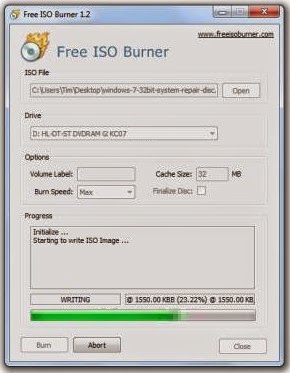
Properly burning an ISO image file to a DVD is a bit different than just burning the ISO file as you would any other file. Youll need to choose the "burn image" or "write image" option in your burning software and then choose the file.
If your DVD burning software does not have this option or you want something more simple, try following the steps below to burn
Have an ISO image you need to burn but you dont have a DVD burner drive or any empty discs? See my How to Burn an ISO File to USB for a complete tutorial on getting your ISO onto a USB drive instead.
Burning an ISO image file to a DVD usually takes less than 15 minutes. This procedure works to burn ISO images to CDs or BDs as well.
Download Free ISO Burner, a completely free program that only burns ISO files, making it really easy to use
Free ISO Burner is completely free and fully functional. HOWEVER, their download page (hosted by SoftSea.com) is a little tricky. make sure that you not downloading something else.
Double-click on the FreeISOBurner file that you just downloaded. The Free ISO Burner program will start. ISO Burner is a standalone program, meaning it doesnt install, it just runs. This is yet another reason why I prefer this ISO burner over others with huge installations. Insert a blank disc in your drive. As long as your optical drive supports it, this disc can be a blank DVD, CD, or BD since Free ISO Burner supports them all. Use the smallest sized disc CD dont use a DVD or BD. Click the Open button next to the empty space within the ISO File section, near the top of the program window.When the Open window appears, locate and select the ISO file you wish to burn to the empty disc.Once youve selected the ISO file, click the Open button at the bottom of the window to confirm your selection. Now that youre back to the Free ISO Burner main screen, check that the option under Drive is in fact the optical drive you put the empty disc in while on Step 3 above.Skip the customizations in the Options area unless you know what youre doing.Click the Burn button to start the ISO file burn.
Depending on how large the ISO file is, and how fast your disc burner is, the ISO burning process could take anywhere from several seconds, to several minutes, Now you can use the ISO-file-turned-disc for whatever you needed it for.
How To Burn an ISO Image File to a DVD
What is an ISO FIle?
How To Burn an ISO File to a USB Drive
<><><><><><><><><><><><><><><><><><><><><><><><><><><><><><>
MORE EXCELLENT TIPS AND TRICKS FOR END USERS:
How to enter the BIOS or CMOS setup
What are the F1 through F12 keys?
Upon start up only wallpaper shows, no icons, no task bar, no start menu, nothing [FIX]
How to Permanently fix a computer with no start menu or desktop icons (Black screen virus)
HOW To OPEN Task Manager
Manually Speed up your Windows 7, XP
How to boost INTERNET speed by 20%
Random black screen while playing games
Start your computer from a Windows 7 installation disc or USB flash drive.
Best ways to speed up Windows 7
How to use system recovery options in Windows?
How To Fix A Windows 7 Reboot Loop
An empty All Programs Folders in Windows 7 and how to fixed it!
How To Fix A Windows 7 Reboot Loop
The BIOS does not detect or recognize the ATA / SATA hard drive
My laptop wont shut down ! Windowws 8, 7, Vista, XP
You in the safe mode and it shows all the programs now what?
SPEED UP YOUR SSD IN WINDOWS 7
Speed up your PC Disable System Restore on SSD
Speed up your PC Disable Scheduled De-fragmentation SSD
Check your hard disk for errors ( Windows XP / 7 / 8 / )
How do I remove a computer virus?
What is the difference between BIOS and CMOS?
<><><><><><><><><><><><><><><><><><><><><><><><><><><><><><>
Fill Free to Donate if you found this tutorial useful. Thank you!
Go to link Download
Saturday, January 28, 2017
Get my deleted digital photos image files back from Narrative Clip 2
Get my deleted digital photos image files back from Narrative Clip 2

Digital cameras can be part of our life. Now people used to use digital cameras to record precious moments and amazing scenic. Thats why new cameras announced at CES showcase will attract broad attention. In the forthcoming CES2015, we can expect the best cameras, such as Nikon D5500, Panasonic Lumix TZ70, Canon PowerShot N2 and Narrative Clip 2 camera, the most wearable camera in the world. However, it seems digital pictures are easier to lose than paper film pictures.With the delete button , an operation mishap may delete one or all of the stored pictures in Narrative Clip camera card instantly. If you dont have a backup, you may permanently loss photos unless you have a digital photo recovery program.
If you want to have a Narrative Clip 2 or other new digital cameras, you may want to now:
Is it possible to get deleted digital photos file from camera card?

In most cases, there are some easy ways to restore accidentally erased photos. A digital camera stores the photo files as separate files on a flash memory card (also known as "digital film"). Memory cards are familiar by us as SD, CF, xD Picture Card, SmartMedia, Memory Stick, the MMC Card and more. Each card type has different brands like SanDisk, Kingston and more. Though different digital cards have different sizes, capacities and appearances, , they are just the same when acting as storage to save pictures, which kinds of your old floppy disk or hard drive does. When you delete one or more pictures file from your camera, your camera locates the picture files on the memory card, then "deletes" them and marks the leftover space as usable. In most cases, cameras, like Narrative Clip 2 doesnt delete the picture file body but leaves them as is, which makes it possible for us to retrieve them after accidentally deletion. Images and other types of files can be recovered or undeleted if the data hasnt been completely overwritten. However, the file will not be 100% recovered and perhaps some data has previously been overwritten or that specific area of the card/drive has bad sectors and is corrupt.There could be a chance that a recovered photo images might be not view-able after recovering.
Prepare to get your personal photo recovery solution? Lets get on with it.
Digital Camera Photo Recovery Reviews
1. H-Data Digital Photo Recovery ($34.95)
This is a professional photo files recovering program which can rescue deleted pictures even file system is damaged or memory card cant be accessible. The program can repair damaged photo files, such as BMP, JPEG, GIF, TIFF, Mamiya (MOS, MEF), Paint Shop Pro Image File (PSP), Picture File (PCT) and other 250+ file types. Which can help you regain deleted photos from Narrative Clip 2 or other cameras, formatted USB drive, corrupted hard drive with easy.
Now its free donwload from Softonic

2. Stellar Phoenix JPEG Repair 2 ($39)
Stellar Phoenix JPEG repair
Stellar Phoenix JPEG Repair claims to be able to repair corrupt or damaged JPEG/JPG files, even if the files are completely unreadable. It also offers to repair and save embedded thumbnails. This program is perhaps the most heavily advertised around the internet and you’ll see more about this online than most other photo repair programs. you can easily donwload from website.
3. Picture Doctor 2 ($99)
Picture Doctor
Users of PhotoShop might be interested in Picture Doctor because it lists PSD files and layers as being repairable in addition to JPEG files. Recovered files are saved as BMP files after the repair. What’s disappointing about Picture Doctor’s demo is the watermark covers most of the image so it’s hard to see if the fix has worked or not.
Narrative Clip 2 digital camera review
The Narrative Clip 2 comes with 8 GB of storage, but can also automatically upload photos and videos when connected to Wi-Fi to free space quickly.The new Clip 2 features a new 8-megapixel camera system with a range of 86°, along with a built-in Wi-Fi, GPS, and Bluetooth radios that allow for a user to access recent moments on the Narrative app for iOS. The camera also contains a new automatic photo capture feature that works with the Narrative Service to automatically sort photos into collections of moments for easy organization and access.
Go to link Download
Saturday, December 31, 2016
How to recover data in Mac if the disk image is corrupt
How to recover data in Mac if the disk image is corrupt
How to recover data in Mac if the disk image is corrupt
The disk image is a file containing the complete contents and structure of the storage device contains. Create a disk image is the most convenient way to keep your valuable data stored on the hard disk backup.
There are different formats of files on the hard disk image of Mac OS (eg Mac OS X) and.DMG is the most popular among them is used to create. A.DMG (short for disk image file) allows you to secure password protection and file compression. Therefore, both the distribution of files and security.
If you the.DMG file, it is mounted as a hard disk in the Finder. You can easily create.DMG file with the tools included in Mac OS, such as Disk Utility in Mac OS X 10.5, 10.4 and 10.3. You can also the.DMG file with the command line tool hdiutil.
When creating a disk image is the best option to prevent data loss, but sometimes when you copy the disk to install the data access, you may receive the following error message:
"The disk image you are opening may be damaged and could damage the system. Are you sure that you open this disk image?"
Mac OS X recognizes the image of the damaged drive to mount an image as damaged can lead to data loss. In these situations, you can not read data off the.DMG file and then you should go for Mac Data Recovery for the problem.
Mac Data Recovery is the process of scanning the hard drive for missing data, lost or inaccessible data. It offers potential help in most cases of data loss and save your important data and personal.
You can use Mac Data Recovery in a simple, safe, fast and automated using the most powerful Mac recovery software like Stellar Phoenix Macintosh data recovery using. This Mac recovery software is capable in most situations of Mac logical data loss problems. Phoenix Mac Data Recovery supports recovery from HFS, HFS +, HFSX, HFS Wrapper and FAT file system volumes. This Mac recovery software is compatible with Mac OS X 10.5, 10.4 and 10.3.9.
How to recover data in Mac if the disk image is corrupt
There are different formats of files on the hard disk image of Mac OS (eg Mac OS X) and.DMG is the most popular among them is used to create. A.DMG (short for disk image file) allows you to secure password protection and file compression. Therefore, both the distribution of files and security.
If you the.DMG file, it is mounted as a hard disk in the Finder. You can easily create.DMG file with the tools included in Mac OS, such as Disk Utility in Mac OS X 10.5, 10.4 and 10.3. You can also the.DMG file with the command line tool hdiutil.
When creating a disk image is the best option to prevent data loss, but sometimes when you copy the disk to install the data access, you may receive the following error message:
"The disk image you are opening may be damaged and could damage the system. Are you sure that you open this disk image?"
Mac OS X recognizes the image of the damaged drive to mount an image as damaged can lead to data loss. In these situations, you can not read data off the.DMG file and then you should go for Mac Data Recovery for the problem.
Mac Data Recovery is the process of scanning the hard drive for missing data, lost or inaccessible data. It offers potential help in most cases of data loss and save your important data and personal.
You can use Mac Data Recovery in a simple, safe, fast and automated using the most powerful Mac recovery software like Stellar Phoenix Macintosh data recovery using. This Mac recovery software is capable in most situations of Mac logical data loss problems. Phoenix Mac Data Recovery supports recovery from HFS, HFS +, HFSX, HFS Wrapper and FAT file system volumes. This Mac recovery software is compatible with Mac OS X 10.5, 10.4 and 10.3.9.
How to recover data in Mac if the disk image is corrupt
Go to link Download
Saturday, December 24, 2016
How to Burn an ISO Image to a cd or dvd
How to Burn an ISO Image to a cd or dvd
How to Burn an ISO Image to a Disc
There may be a time when you have an ISO image that you need to burn to a CD or DVD for use in a computer or other device. Today we show you how to do it using ImgBurn, ISO Recorder, and Windows Disc Image Burner in Windows 7.
How to Burn an ISO Image to a Disc,how to burn a dvd,dvd burn,how to burn cd,how to burn iso to dvd,burn iso to dvd,You might need to burn an ISO of an operating system, software app, CD, DVD…etc. It doesn’t matter what the ISO image is, burning an image is a fairly straight-forward process and here we’ll take a look at three free options to accomplish it.
Using ImgBurn
How to Burn an ISO Image to a Disc,how to burn a dvd,dvd burn,how to burn cd,how to burn iso to dvd,burn iso to dvd,ImgBurn is an awesome free utility that will create ISO images, allow out burn almost anything, and a lot more. Although there are a lot advanced features available, burning an ISO to disc is easy. Download and install ImgBurn (link below) taking the defaults in the install wizard.
How to Burn an ISO Image to a Disc,how to burn a dvd,dvd burn,how to burn cd,how to burn iso to dvd,burn iso to dvd,
The easiest way to use ImgBurn is to burn an image to disc is pop in a blank disc to the CD/DVD drive, right-click on the ISO file, and select Burn using ImgBurn.

ImgBurn opens up with the source and destination fields already filled in. You can leave the default settings, then click the Write button.

You’ll notice that the ImgBurn Log screen opens, this is by default and is meant to show error messages you may receive during the writing process.

A successful burn! That is all there is to it…click Ok and close out of ImgBurn.

Use ISO Recorder
How to Burn an ISO Image to a Disc,how to burn a dvd,dvd burn,how to burn cd,how to burn iso to dvd,burn iso to dvd,ISO Recorder (link below) is another great utility for burning ISO images to disc. They have a version for XP, Vista, and Windows 7 (32 & 64-bit Versions). Pop your blank disc into your CD/DVD drive and right-click on the ISO image file and select Copy image to CD from the Context Menu.

In the next screen the image file path is in the Source Image file field. Under Recorder select the drive with your blank disc, select a recording speed and click Next.

You’ll see a progress screen while the data is written to the disc and finalizing…

That’s it! Your disc will pop out and you can click Finish to close out of ISO Recorder.

Use Windows 7
How to Burn an ISO Image to a Disc,how to burn a dvd,dvd burn,how to burn cd,how to burn iso to dvd,burn iso to dvd,If You’re using Windows 7, use the built in Windows Disc Image Burner feature to burn ISO images to disc.

The process is very straight-forward, and for a full walkthrough on this, check out our article on how to burn an ISO image in Windows 7.
![sshot-2010-03-31-[00-14-20]](https://lh3.googleusercontent.com/blogger_img_proxy/AEn0k_ttDJdw29YGL1OOdWeySxU-TnTvKN14J-aBpLRUenJzjdSzoL1h56myPPV_cHB4XUSLk0jvDfyDJKtEsdFK4RCiiIOM67XmxUaeFnnpktXXPz--ayh4pfv9YtpikLfAQimWVMi-AQ9ycz4Yvhbq=s0-d "sshot-2010-03-31-[00-14-20]")
Conclusion
How to Burn an ISO Image to a Disc,how to burn a dvd,dvd burn,how to burn cd,how to burn iso to dvd,burn iso to dvd,You don’t need an expensive commercial application to burn an ISO image to disc. Using any one of these free utilities will get the job done quite nicely.
How to Burn an ISO Image to a Disc,how to burn a dvd,dvd burn,how to burn cd,how to burn iso to dvd,burn iso to dvd,
Download ImgBurn from Ninite
Download ISO Recorder
Go to link Download
Saturday, December 3, 2016
How to Create Show Hide Effect in Image SlideShow Using JQuery
How to Create Show Hide Effect in Image SlideShow Using JQuery
The fadeOut() effect presented on the post "How to create Fade Effect in Image Slideshow using JQuery" which I have already posted, makes elements invisible but retains space for them in the document layout.
The hide() method, by contrast, removes the elements from the layouts as if the CSS display property was set to none. When invoked with no arguments, hide() and show() simply hide or show the selected elements immediately. With a duration argument, however, they animate the hiding or showing process. hide() shrinks an elements width and height to 0 at the same time that it reduces the elements opacity to 0. show() reverses the process.
toggle() changes the visibility state of the elements, it is invoked on, if they are hidden, it calls show(), and it they are visible, it calls hide(). As with show() and hide(), you must pass a toggle() to get an animated effect. Passing true to toggle() is the same as calling show() with no arguments. Note also that if you pass two or more function arguments to toggle() it registers event handlers.
Here is an example that invokes methods for show/hide effect animation. The first image has show() effect animation, second image has hide() effect animation and the third animation has toggle() effect animation.
Here are some examples to show show(), hide() and toggle() effects using jQuery.


$("#img1").show(2000);
$("#img2").hide(3000);
$("#img3").toggle(1000);
Here are some examples to show show(), hide() and toggle() effects using jQuery.
Example of show() Effect
<script>
 $(document).ready(function(){
 $(#btn1).click(function () {
 $("#img1").show(2000);
 });
 });
 </script>

<input type=button id="btn1" value="Start Show"/>
<img id="img1" src="img1.jpg">
Example of hide() Effect
<script>
 $(document).ready(function(){
 $(#btn2).click(function () {
 $("#img2").hide(3000);
 });
 });
 </script>

<input type=button id="btn2" value="Start Hide"/>
<img id="img2" src="img2.jpg">
Example of toggle() Effect
<script>
 $(document).ready(function(){
 $(#btn3).click(function () {
 $("#img3").toggle(1000);
 });
 });
 </script>


<input type=button id="btn3" value="Start Toggle"/>
<img id="img3" src="img3.jpg">
Full jQuery code for Show/Hide effect image animation
<script

src="https://ajax.googleapis.com/ajax/libs/jquery/1.11.2/jquery.min.js"></script>
</script>

<style>
.show_hide
{
 box-shadow:1px 1px 5px 2px #6DC83C;
 position:relative;
 width:448px;
 height: 336px;
 border-radius:19px;
}

.show_hide img
{
 border-radius:19px;
 position:absolute;
 left:0;
 top:0;
}

</style>

<script>
$(function(){
 $(.show_hide img:gt(0)).hide();
 setInterval(function(){$(.show_hide :first-child).hide(3000).next(img).show(3000).end

().appendTo(.show_hide);}, 6000);
});
</script>

<div class="show_hide">
<img src="img1.JPG" />
 <img src="img2.JPG" />
 <img src="img3.JPG" />
</div>
Preview of Show/Hide effect image animation

Related Posts:
How to Scroll Top or Bottom of Document Using JavaScript
How to Create Table of Contents Using JavaScript
How to Select Document Elements Using JavaScript?
How to Show Pop Up Window Using JavaScript
How to go Back Browsing History Using JavaScript
How to Click Button Using JavaScript?
How to Write JavaScript Function as URL in Hyperlink?
How to use Round, Random, Min and Max in JavaScript
How to Concatenate, Join and Sort Array in JavaScript?
How to Loop Through JavaScript Array?
How to Loop using JavaScript?
How to Show Pop Up Boxes Using JavaScript?
How to Write Conditional Statements in JavaScript?
How to Write JavaScript With HTML?
How to create Changeable Date and Time Using JavaScript?
How to Validate a HTML Form Using JavaScript?
How to create a simple form using HTML?
How to Create JavaScript Image Sideshow with Links
How to Display Date Format in JavaScript?
How to Validate a HTML Form Using JavaScript?
What are the Different Ways to Redirect Page in JavaScript?
How to create Timer Using JavaScript?
Go to link Download
Thursday, December 1, 2016
How Does Drive Image Software Work
How Does Drive Image Software Work
How Does Drive Image Software Work
You have probably heard how incredibly valuable software disk image can be to the organization. In the event of a catastrophic loss of data from a virus, hardware failure or system crash, this software can help bring your business up and running. Even if you know this is a kind of insurance for critical data, you still want more about how it works before you know, actually invest in the know.
How do image software go? In the event of a serious loss of data from any number of catastrophic events, this type of software offers the option of the disk image file on a byte basis to recover. The program literally takes an image copy of your hard disk. The backup files on a number of different types of media such as floppy disks, hard disks, Jazz Iomega Zip, CD-R (W) / DVD drives and others are stored. Once the files are on some sort of removable media, to files on another computer if you allow direct access, if the system is confused. There are times when the machine itself is unusable for a period of time, and sometimes the machine just is not irreparable, it is able to access files on another system approach is crucial. You can also restore files directly from the hard drive on the fly so that they can be used immediately.
Now that the image drive software works to really understand, you can see how valuable it is to capitalize on the organization. E is of crucial importance for any business, large or small, access to files at once, and this program ensures that happen for you. Put some time to view program options available today, and in order to implement in your organization quickly, with the possibility of data loss.
How Does Drive Image Software Work
How do image software go? In the event of a serious loss of data from any number of catastrophic events, this type of software offers the option of the disk image file on a byte basis to recover. The program literally takes an image copy of your hard disk. The backup files on a number of different types of media such as floppy disks, hard disks, Jazz Iomega Zip, CD-R (W) / DVD drives and others are stored. Once the files are on some sort of removable media, to files on another computer if you allow direct access, if the system is confused. There are times when the machine itself is unusable for a period of time, and sometimes the machine just is not irreparable, it is able to access files on another system approach is crucial. You can also restore files directly from the hard drive on the fly so that they can be used immediately.
Now that the image drive software works to really understand, you can see how valuable it is to capitalize on the organization. E is of crucial importance for any business, large or small, access to files at once, and this program ensures that happen for you. Put some time to view program options available today, and in order to implement in your organization quickly, with the possibility of data loss.
How Does Drive Image Software Work
Go to link Download
Monday, November 14, 2016
How to write an image file to a disc using ImgBurn
How to write an image file to a disc using ImgBurn
BEST GREENHOUSES FOR GROOVING VEGETABLES
? ? 1(360)241-1624 ?
? ? 1(360)241-1624 ?
DURABLE! AFFORDABLE! ALUMINUM + UV POLYCARBONATE
ImgBurn is a lightweight CD / DVD / HD DVD / Blu-ray burning application that everyone should have in their toolkit!
Read - Read a disc to an image file
Build - Create an image file from files on your computer or network - or you can write the files directly to a disc
Write - Write an image file to a disc
Verify - Check a disc is 100% readable. Optionally, you can also have ImgBurn compare it against a given image file to ensure the actual data is correct
ImgBurn supports a wide range of image file formats - including BIN, CCD, CDI, CUE, DI, DVD, GI, IMG, ISO, MDS, NRG and PDI.
It can burn Audio CDs from any file type supported via DirectShow / ACM - including AAC, APE, FLAC, M4A, MP3, MP4, MPC, OGG, PCM, WAV, WMA and WV.
You can use it to build DVD Video discs (from a VIDEO_TS folder), HD DVD Video discs (from a HVDVD_TS folder) and Blu-ray Video discs (from a BDAV / BDMV folder) with ease.
It supports Unicode folder/file names, so you shouldnt run in to any problems if youre using an international character set.
ImgBurn supports all the Microsoft Windows OSs - Windows 95, Windows 98, Windows Me, Windows NT4, Windows 2000, Windows XP, Windows 2003, Windows Vista, Windows 2008, Windows 7 and Windows 8 (including all the 64-bit versions). If you use Wine, it should also run on Linux and other x86-based Unixes.
Its a very flexible application with several advanced features that are often lacking in other tools, especially when it comes to burning DVD Video discs. It supports all the latest drives without the need for updates (including booktype / bitsetting / advanced settings on many of the major ones - i.e. BenQ, LiteOn, LG, NEC, Optiarc, Pioneer, Plextor, Samsung, Sony).
SO TO DO IT? SIMPLE!!!
1. Load ImgBurn

2. Switch to Write mode, via the Write image file to disc button on the Ez-Mode Picker screen.
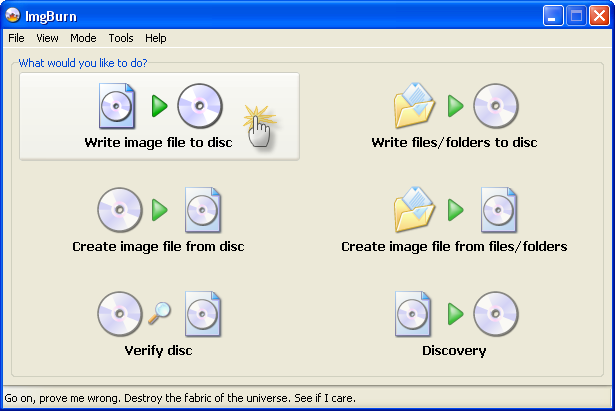
or click the Mode menu at the top and then the Write option.
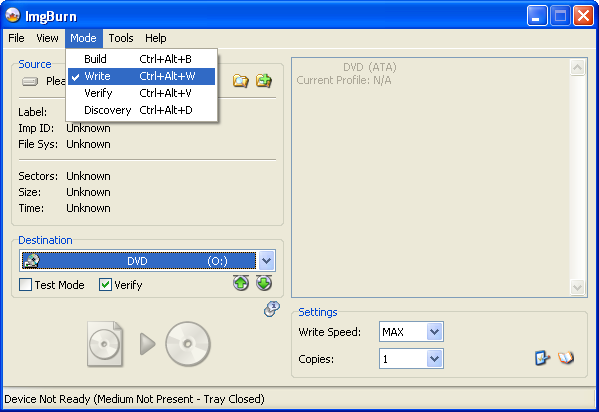
3. Insert blank CD/DVD/BD format is on image size!
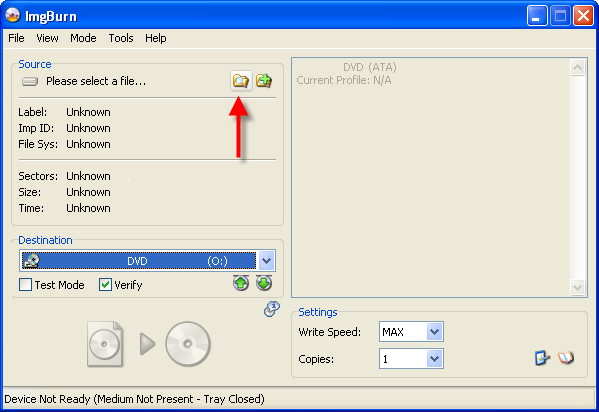
4. Select a file to write by clicking on the Browse for file button.
If you created the image with ImgBurn, you should be looking for a *.CUE / *.MDS file initially. If you cant locate one of those with the name youre expecting, go for whatever is left! (probably a *.ISO file)
5. Click the big Write button.
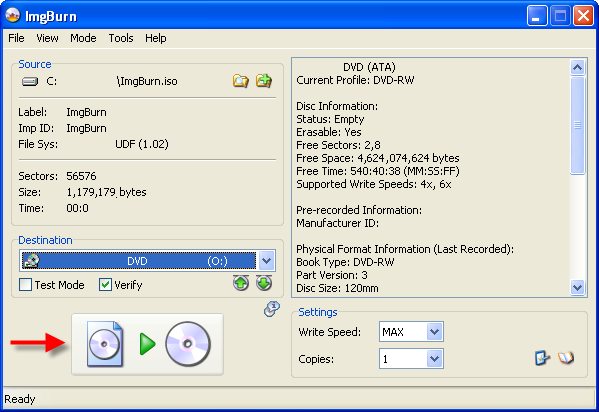
6. Finished!
Durable Greenhouses made from Polycarbonate UV Protected material and Aluminum

ALSO PLEASE VISIT THIS VIDEOS AND SEE IF YOU FIND SOMETHING NEED:
Windows Registry Tools can be downloaded here:
How to kip your PC Private by deleting DATA Permanently
http://askpctech.blogspot.com/2016/03/kip-your-pc-privat.html
This tutorial is made up on request several users, is well is fallowing video:
1)How to Delete Paint Recent Pictures from List in Windows 7
2)Win 7– Fix for “Safely Remove Hardware and Eject Media” not working How To
3)Windows 10 How to Fix Black Screen After Booting
4)How To Remove Windows 10 Upgrade Notification On Windows 7 And Windows 8
5)How to Delete Face book Page Permanently - 2015
6)How to Uninstall Windows 10 and Downgrade to Windows 7 or 8.1
7)detected: not-a-virus:remoteadmin.win32
8)How to change pictures into icons for folders
9)Speed up your PC Disable System Restore on SSD
10)Speed up your PC Disable Scheduled De-fragmentation SSD
11)2015 Black screen of DEATH Windows 7 & 8 - with cursor at start-up SOLVED
12)Upon start up only wallpaper shows FIX
13)Here is video on Windows 7 & 8 - Black screen with cursor at start-up FIX
You can also open Task Manager by pressing Ctrl+Shift+Esc.
14) I bought a windows 7 PC but it Look alike old PC FIX:
15) Windows 7 & 8 - Black screen with cursor at start-up FIX:
16) How To Fix Minecraft OpenGL Error Windows 7 xp vista 720p :
17) removing bars using regscanner regedit & file shredder 720p:
18) How to Recover windows Explorer from error 2014 720p
19) HOW TO Save on battery online
20) Windows 7 & 8 - Black screen with cursor at start-up FIX
Upon start up only wallpaper shows no icons
CTL+ALT+DEL then click file and new task. then type explorer.exe and press ok
Best Greenhouse system 2015
Go to link Download
Tuesday, November 8, 2016
How To Burn an ISO Image In Windows 7 to a Disc
How To Burn an ISO Image In Windows 7 to a Disc
To Burn an ISO Image In Windows 7
Finally Microsoft includes the ability to burn ISO images to Disk in Windows 7. How to Burn an ISO Image to a Disc, how to burn a dvd, dvd burn, how to burn cd, how to burn iso to dvd, burn iso to dvd,
I have used this feature a few times and it works incredibly well and is easy to use.

For this example I am burning the Office 2007 ISO image to DVD. Right click on the image and choose Burn disc image.

This will open up the Windows Disc Image Burner dialog box where you choose the CD or DVD drive and I also check Verify disc after burning the click Burn.

While the disc is being created there is a progress bar indicating how long until it is finished.

That’s it! A successful burn. They could not have made this feature any easier. Although I hope for the final release they allow the option to control the burning speed.
How to Burn an ISO Image to a Disc, how to burn a dvd, dvd burn, how to burn cd, how to burn iso to dvd, burn iso to dvd, 
Here is a quick how-to video that shows how easy it is to burn an ISO image to disk. The quality is not the best but you get the idea.
How to Burn an ISO Image to a Disc, how to burn a dvd, dvd burn, how to burn cd, how to burn iso to dvd, burn iso to dvd,
For everyone who does not have Windows 7 as your primary operating system, you can still get easy ISO burning in XP and Vista by using ISO Recorder.

How to Burn an ISO Image to a Disc, how to burn a dvd, dvd burn, how to burn cd, how to burn iso to dvd, burn iso to dvd,
Go to link Download
Subscribe to:
Posts (Atom)